

Documentation Index

Fetch the complete documentation index at: https://docs.omni.co/llms.txt

Use this file to discover all available pages before exploring further.

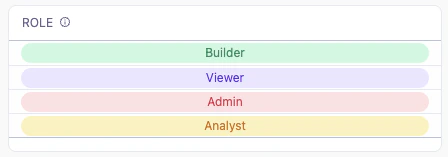
This example uses a Markdown column to display a category value as a color-coded pill in a table. The field’s value is used as a CSS class name, and the CSS defines a background color, text color, and rounded shape for each possible value. A table column showing each user's role as a color-coded pill: a green Builder pill, a purple Viewer pill, a red Admin pill, and a yellow Analyst pill

Setup

In the table visualization, select the column you want to format and set Display as to Markdown. Then add the Markdown template and CSS below. The template sets the field’s value as the class of a <div> so that the matching CSS rule controls its appearance. Add one CSS class for each possible value in your data—in this example, Builder, Viewer, Analyst, and Admin. The class names must match the values exactly, so this pattern works best for fields with a small, fixed set of values that don’t contain spaces or special characters. This example references the role field from the saas__users_detailed view using Mustache syntax. Replace these references with your own field.

Example code

Markdown template:
<div class={{saas__users_detailed.role.value}}>{{saas__users_detailed.role.value}}</div>
CSS styles:
.Viewer {
  background-color: #ede9fe;
  color: #6d28d9;
  border-radius: 20px;
  text-align: center;
}
.Builder {
  background-color: #d1fae5;
  color: #059669;
  border-radius: 20px;
  text-align: center;
}
.Analyst {
  background-color: #fef3c7;
  color: #d97706;
  border-radius: 20px;
  text-align: center;
}
.Admin {
  background-color: #ffe4e6;
  color: #e11d48;
  border-radius: 20px;
  text-align: center;
}