

{{results}}. A tag is made up of one or more keys, which are used to find the requested data. In the previous example, results is the key in {{results}}.
Locating keys
Several Omni tags require specific keys, such as aview_name or a field_name. Refer to the following sections for help finding this information in Omni.
view_name and field_name
Theview_name and field_name keys are used in Query field and Query result tags.
To locate the name of a view or field in a query:
- Enter draft mode in a workbook.
- In the tab of the query, open the Results panel.
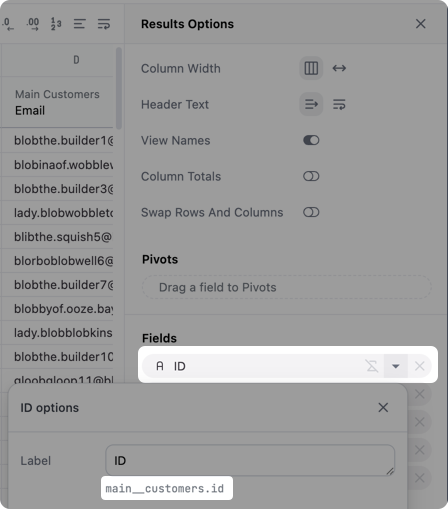
- In the Fields section, locate a field and click the (caret) icon.
main__customers.id. main__customers is the view_name, and id is the field_name.
Click to enlarge
control_id and filter_id
Thecontrol_id and filter_id keys are used in Control and Filter tags for dashboards.
To locate the ID of a dashboard control or filter:
- Enter draft mode in a dashboard.
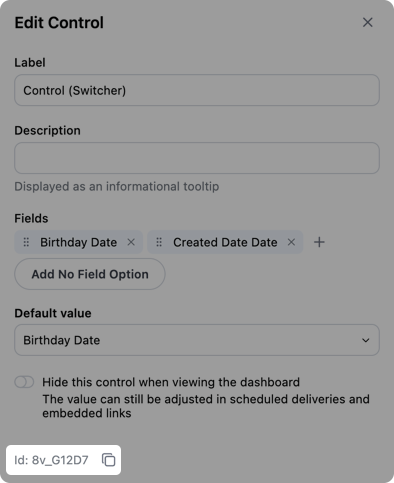
- Locate the control or filter at the top of the dashboard and click the (pencil) icon to open the Edit panel.
- Locate the ID field at the bottom of the panel. In the example image, the ID is
8v_G12D7.
Query metadata
Query metadata tags are only supported in dashboard Markdown tiles. Use the Variables menu ( icon) in the Markdown editor to quickly insert fully-formed variables.
Syntax
required
Accesses query metadata
required
The ID of the query. This will be an integer, such as
4.required
The data you want to retrieve, such as the name of the query. Refer to the following sections for information on what is currently supported.
Query name
Returns the name of the query.Syntax
Example
Query subtitle
Returns the subtitle of the query.Syntax
Example
Query description
Returns the description of the query.Syntax
Example
Query topic name
Returns the name of the topic used in the query.Syntax
Example
Query created date
Returns the date the query was created.Syntax
Example
Query updated date
Returns the date the query was last updated.Syntax
Example
Query fields
Query field tags are only supported in visualizations, meaning they can’t be used in Markdown dashboard tiles.
Syntax
required
Accesses query field data
required
The name of the view that contains the field
required
The name of the field
required
The data you want to retrieve, such as the display name of the field. Refer to the following sections for information on what is currently supported.
View name
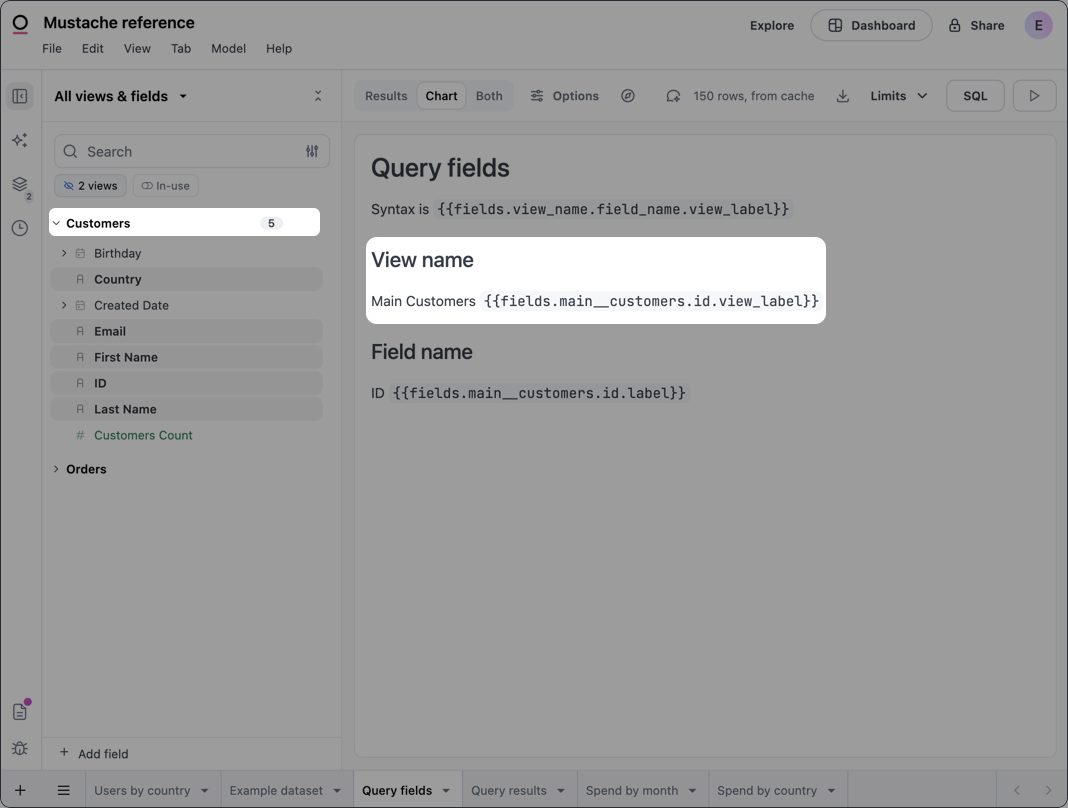
Returns the display name of the view that contains the specified field.Syntax
Example
Input
Field name
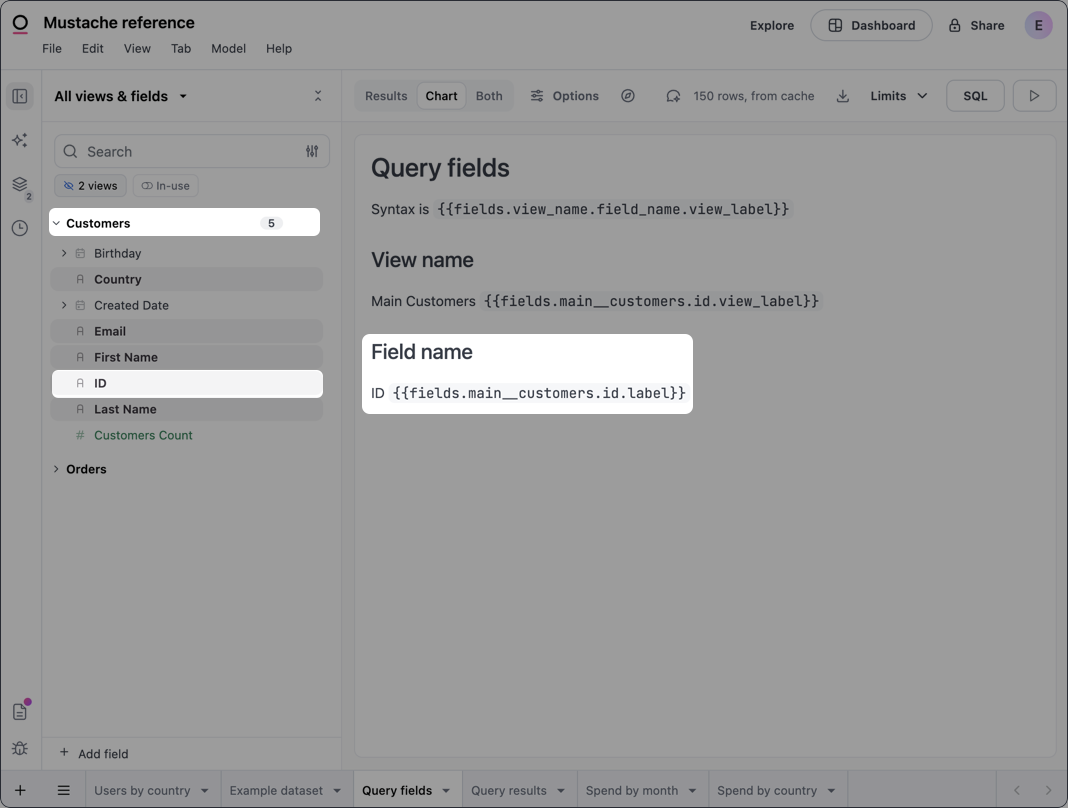
Returns the display name of the field.Syntax
Example
Input
Field description
Returns the description of the field as defined in the model.Syntax
Example
Query results
Query result tags are only supported in visualizations, meaning they can’t be used in Markdown dashboard tiles.
Syntax
required
Accesses query result data
required
The type of data point you want to retrieve, such as the value of a field in the first row of query results (
_first). Refer to the following sections for information on what’s currently supported.required
The name of the view that contains the field
required
The name of the field. Refer to the Locating keys section for help finding this and the
view_name.required
Determines the level of interactivity and formatting of the returned value:
value- Interactive; user can click to copy, drill, etc.value_static- Formatting applied, no interactivityraw- No formatting or interactivity
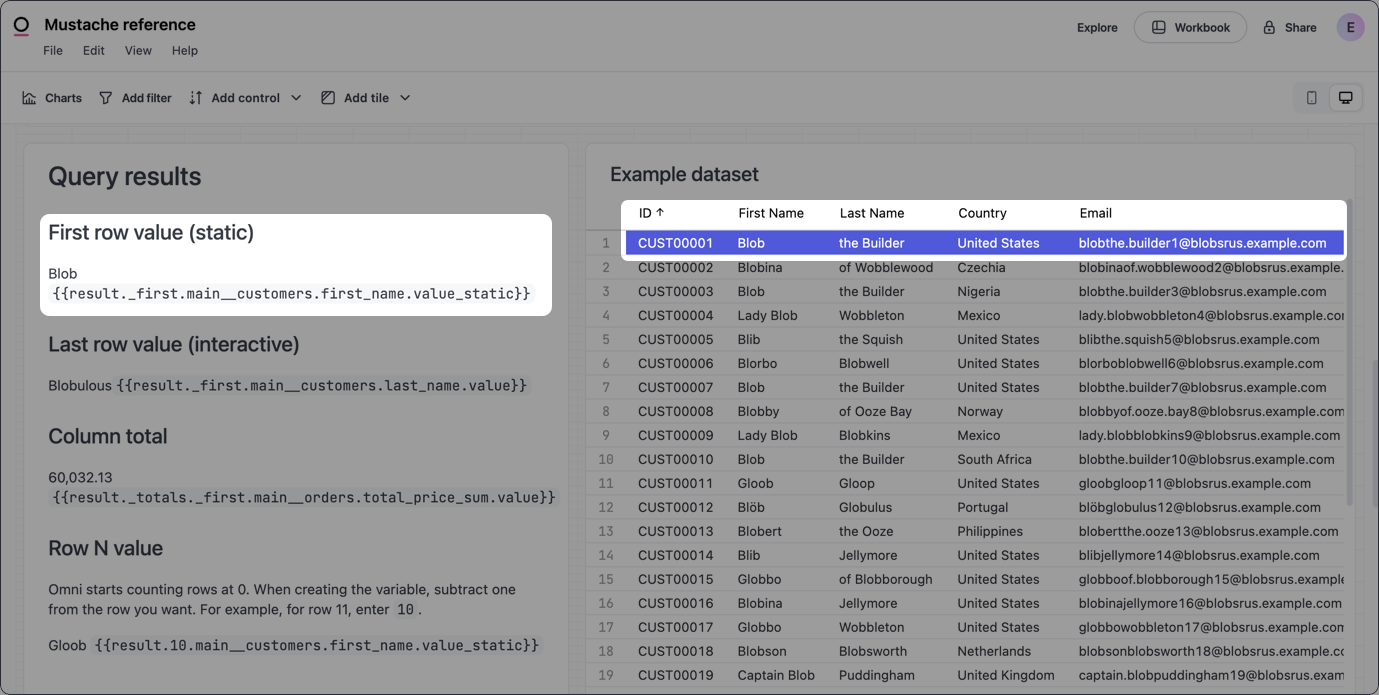
First row value
Returns the first value in the result set for the specified field.Syntax
value_static, which returns a formatted value with no interactivity:
Example
Input
Last row value
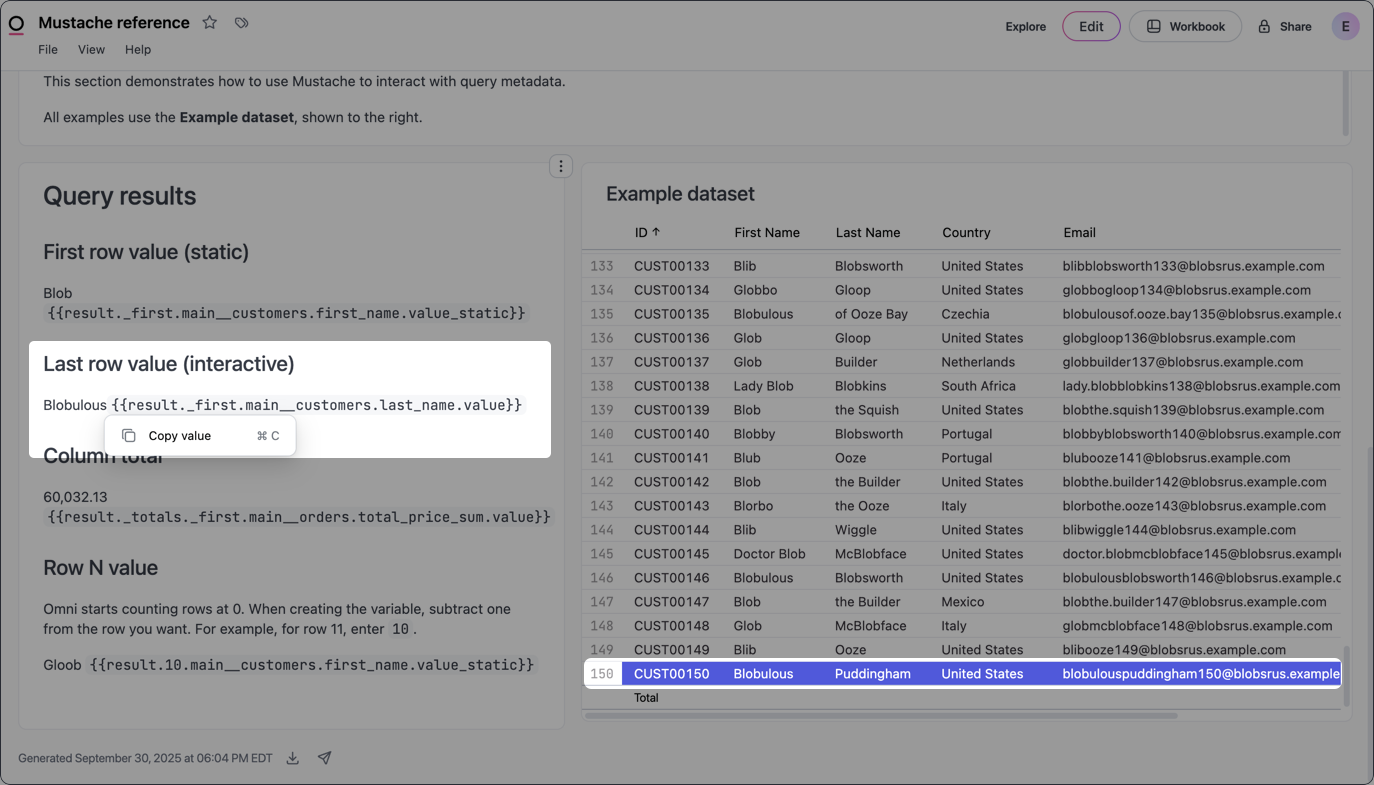
Returns the last value in the result set for the specified field.Syntax
value, which allows dashboard users to click and interact with the value. Note the dropdown menu over the value in the example image.
Example
Input
Specific row value
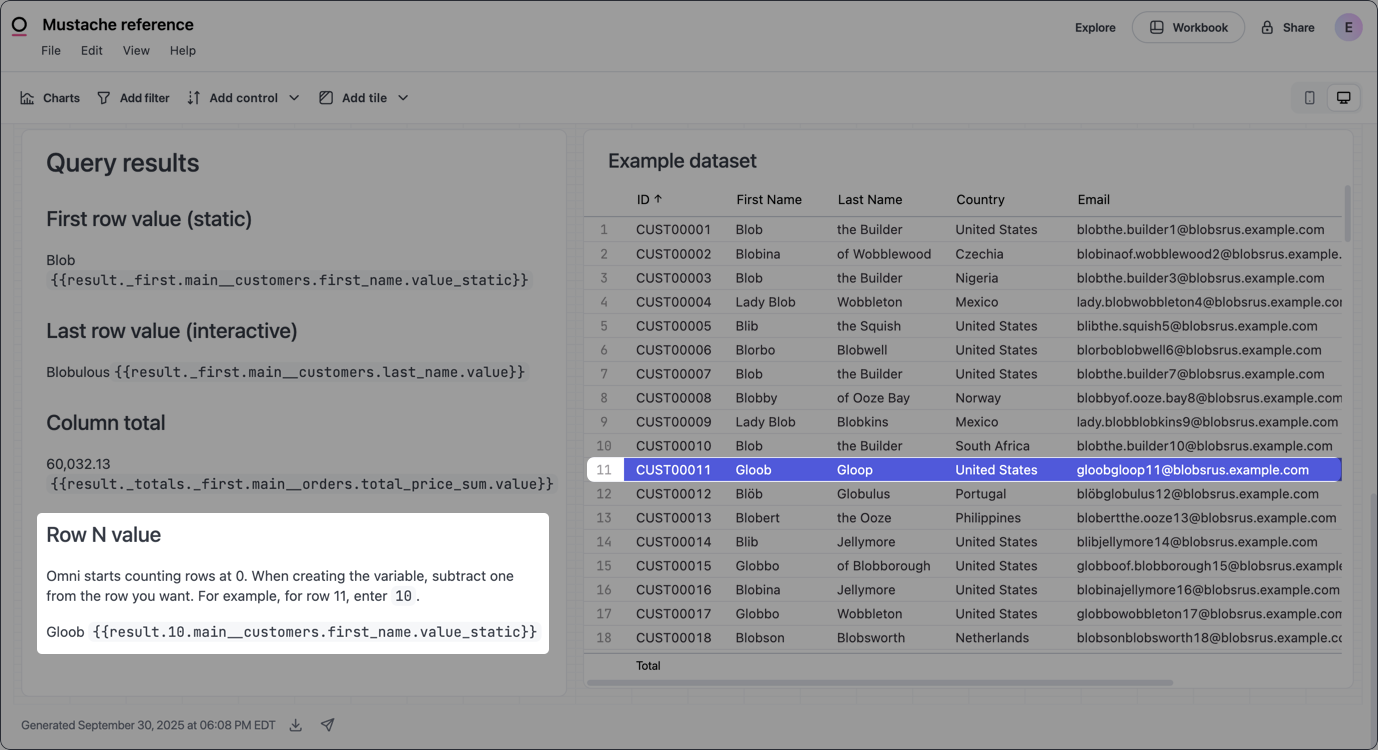
Returns a field value from the specified row (row_number) in the result set.
In Omni, row numbering begins at 0. When you define the variable, subtract one from the number of the actual row you want to reference.
Syntax
11, use 10 as the row_number:
Example
Input
Column total
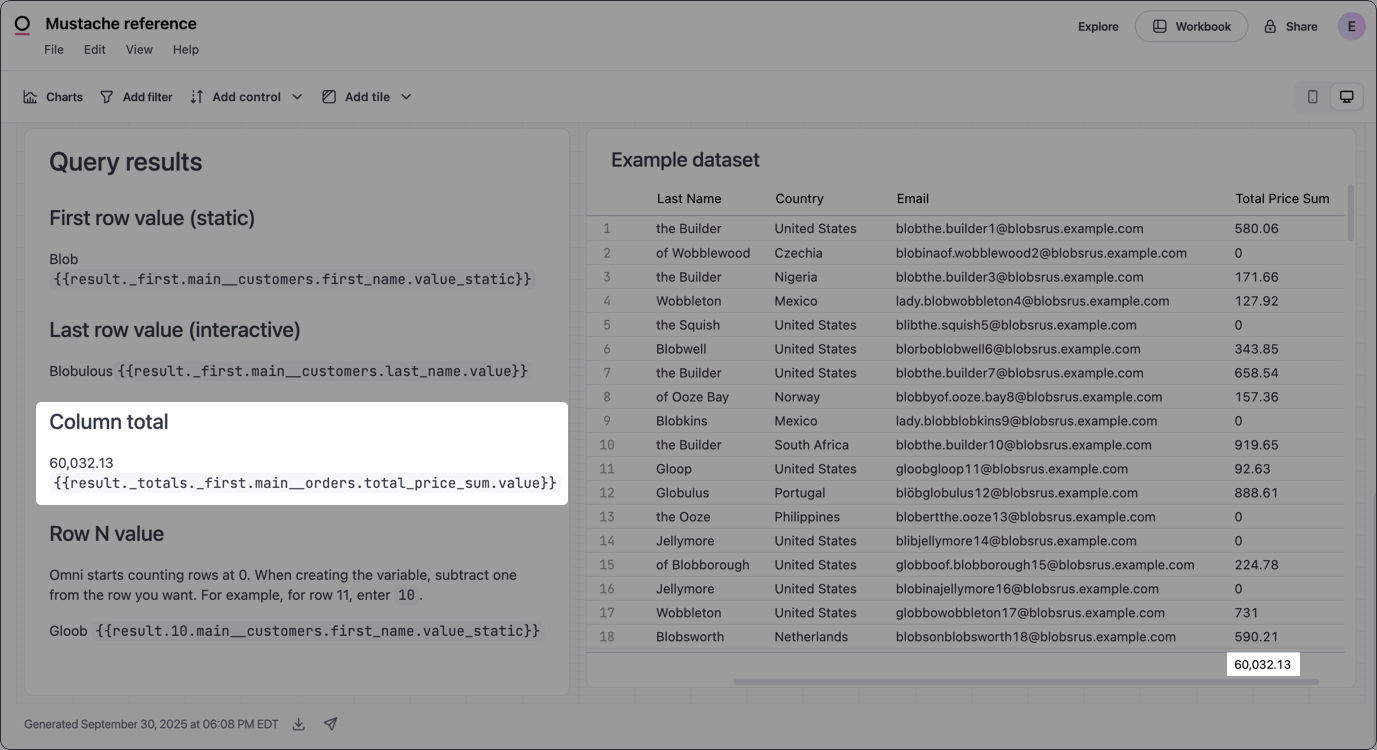
Returns the total of a specified column in the result set. Requires Column totals to be enabled in the query’s Results options panel.Syntax
Example
Input
Row total
Returns the total of a specified row (row_number) in a pivoted result set. Requires a query with at least one pivot and for Row totals to be enabled in the query’s Results options panel.
In Omni, row numbering begins at 0. When you define the variable, subtract one from the number of the actual row you want to reference.
Syntax
6, use 5 as the row_number:
Example
Grand total
Returns the grand total of a specified column in a pivoted result set. Requires a query with at least one pivot and for Column totals to be enabled in the query’s Results options panel.Syntax
Example
Pivot iteration
Iterates over pivot columns in a pivoted result set without hardcoding pivot values. This allows templates to work dynamically when filters change which pivot values exist. Only applies to queries with at least one pivot. Two iteration modes are available:- Column-major (
result._pivots) - Iterate all pivot columns, with each entry containing all row data for that column - Row-major (
row._pivots) - Iterate pivot entries within each row (used inside a{{#result}}loop)
Syntax (column-major)
Syntax (row-major)
The pivot value as a single string, for example
Idaho or Female - UK for multi-level pivotsThe pivot value(s) as an array. For single-level pivots, this is a one-element array. For multi-level pivots, this contains each level separately, for example
["Female", "UK"]The row data for this pivot column. Each row’s cells for this column are merged with that row’s non-pivoted fields. Pivot dimension values are exposed as regular field entries (e.g.,
users.state.value)_first, _second, _last, and _rows accessors used elsewhere in Mustache templates.
The keys are prefixed with underscores (
_value, _values) to prevent collisions with actual field names from your data model.users.state and grouped by users.age. For each pivot column, the template:
- Renders the pivot value (
{{_value}}) as a heading, for exampleIdaho - Loops through that column’s rows (
{{#rows}}) and renders each row as anage: countpair
Example: create a section for each pivot column
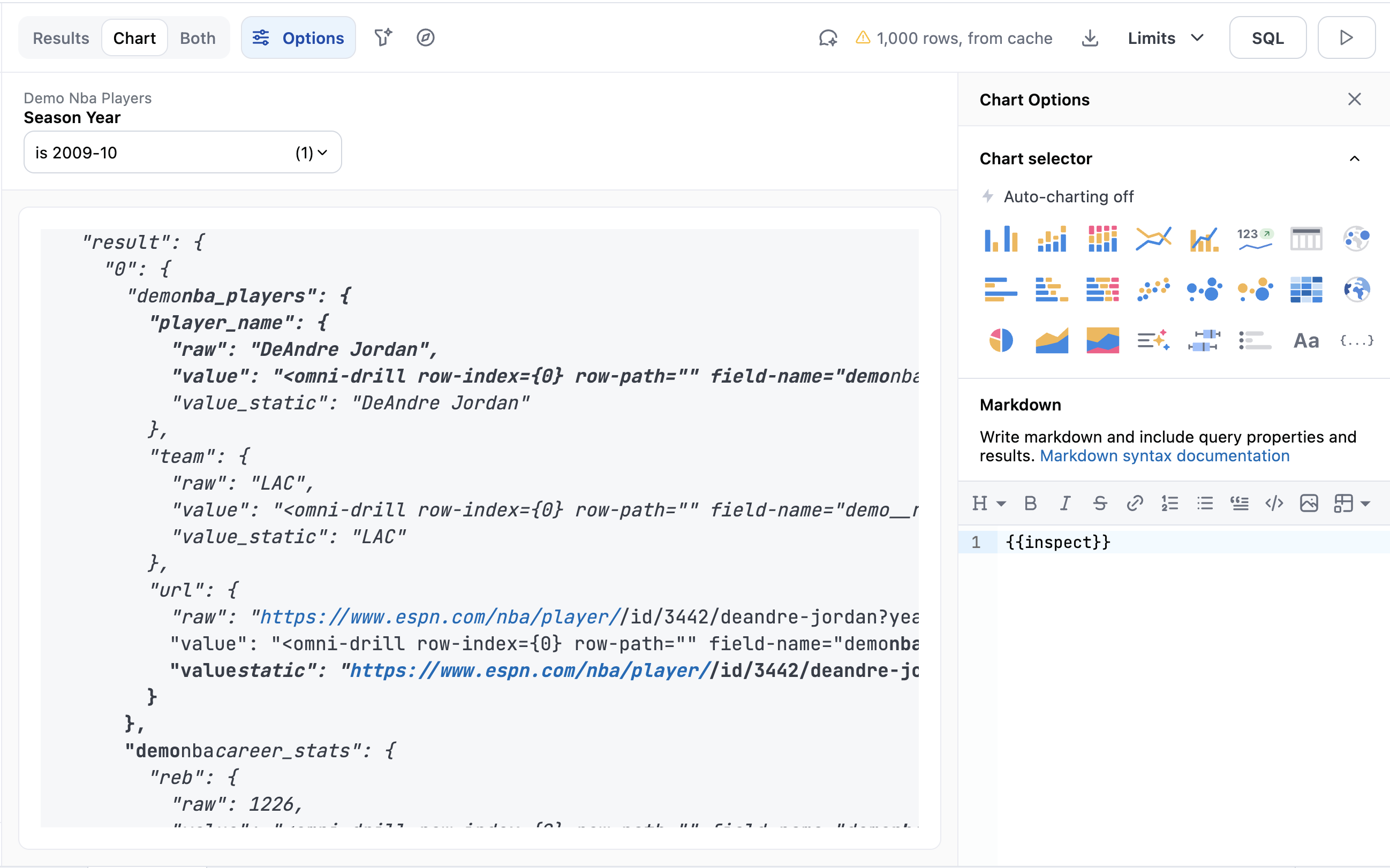
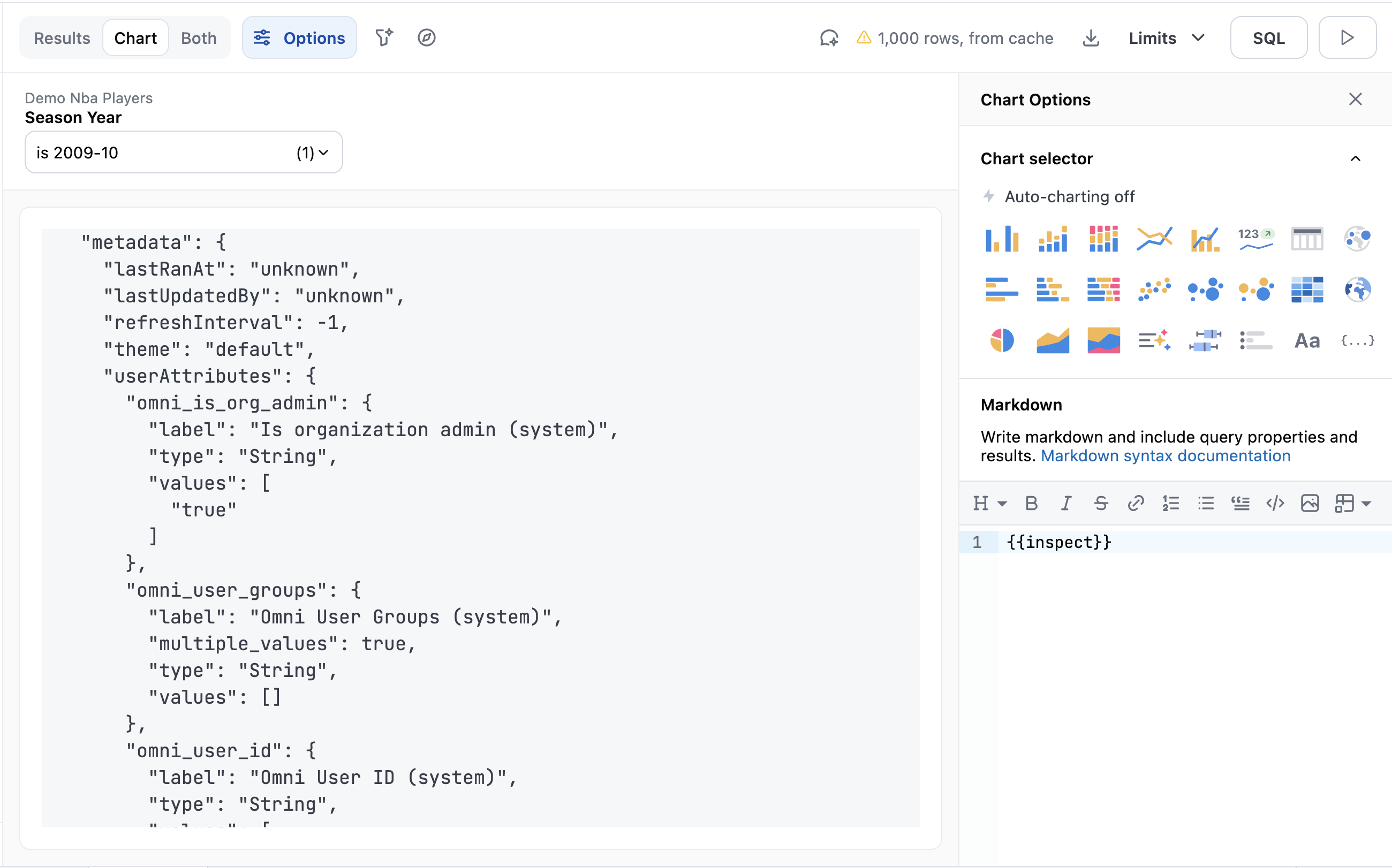
Query and user attribute inspection
Query & user attribute inspection is only supported in Markdown visualizations.
Syntax
Filters
Returns metadata about dashboard and workbook filters. The syntax differs depending on where the filter is located and where the Markdown is being applied:- Dashboard filters in Markdown text tiles use the filter’s ID:
{{filters.filter_id.element}} - Dashboard filters in Markdown visualizations use the view and field name:
{{filters.view_name.field_name.element}} - Workbook filters for both Markdown visualizations and text tiles use the view and field name:
{{filters.view_name.field_name.element}}
- Dashboard filters in Markdown text tiles
- Dashboard filters in Markdown visualizations
- Workbook filters
required
Accesses filter data
The ID of a dashboard filter. Refer to the Locating keys section for help finding this value.
The name of the view that contains the field used in a workbook filter
The name of the field used in a workbook filter. Refer to the Locating keys section for help finding this and the
view_name.required
The data you want to retrieve, such as
label. Refer to the following section for information on what’s currently supported.Label
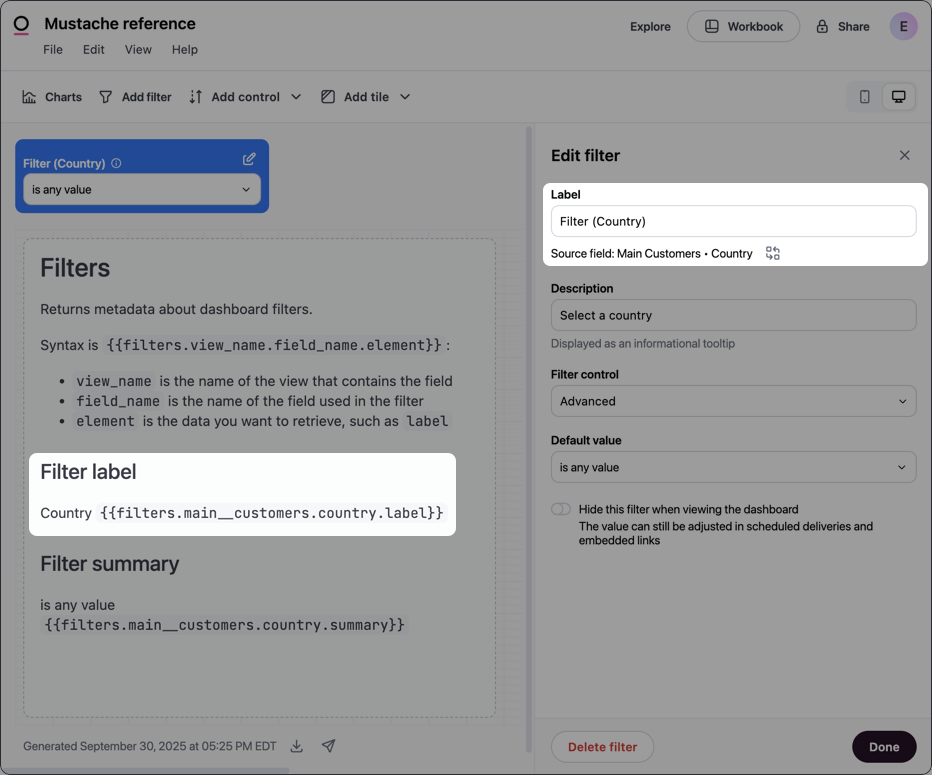
Returns the label of the filter. In a dashboard, open the Edit panel for the filter and locate the Label field.- Dashboard
- Workbook
Example (workbook)
Input
Summary
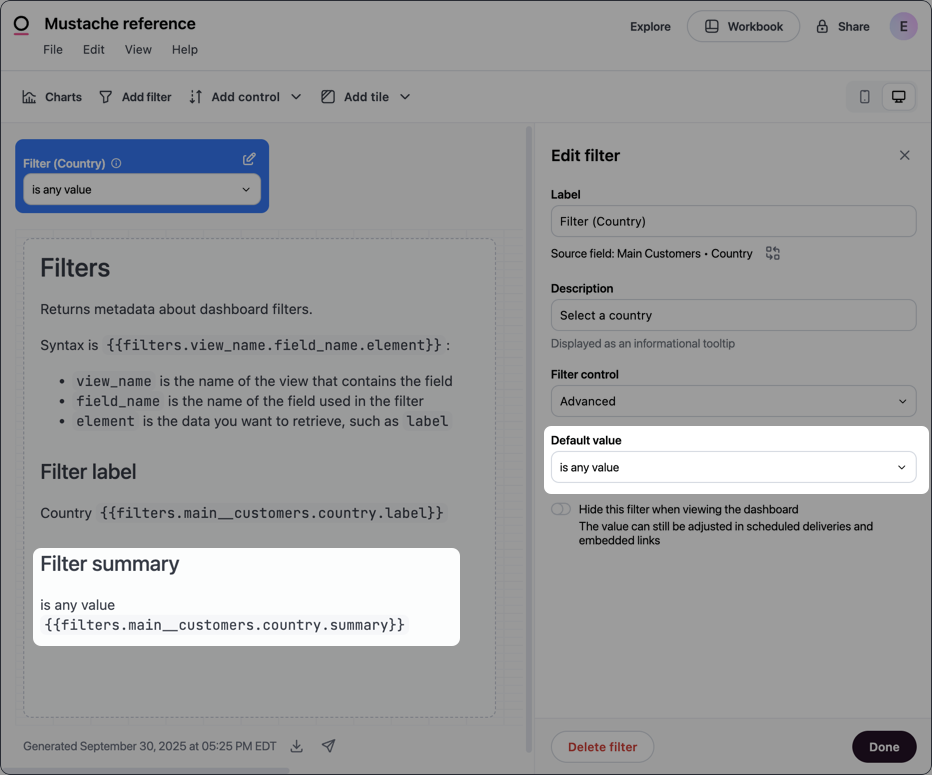
Returns the default value (summary) of the filter. In a dashboard, open the Edit panel for the filter and locate the Default value field.- Dashboard
- Workbook
Example (workbook)
Input
Value
Returns the current value of the filter.- Dashboard
- Workbook
Example (workbook)
URL-encoded value
Returns the current value of the filter, URL-encoded. Use this when you need to include filter values in URL query parameters within Markdown links.- Dashboard
- Workbook
Example (dashboard)
JSON
Returns the URL-encoded JSON of the filter.- Dashboard
- Workbook
Example (dashboard)
Controls
Returns metadata about dashboard controls.Syntax
required
Accesses control data
required
The ID of the control, located in the Edit control panel. Refer to the Locating keys section if you need help finding this panel.
required
The data you want to retrieve, such as
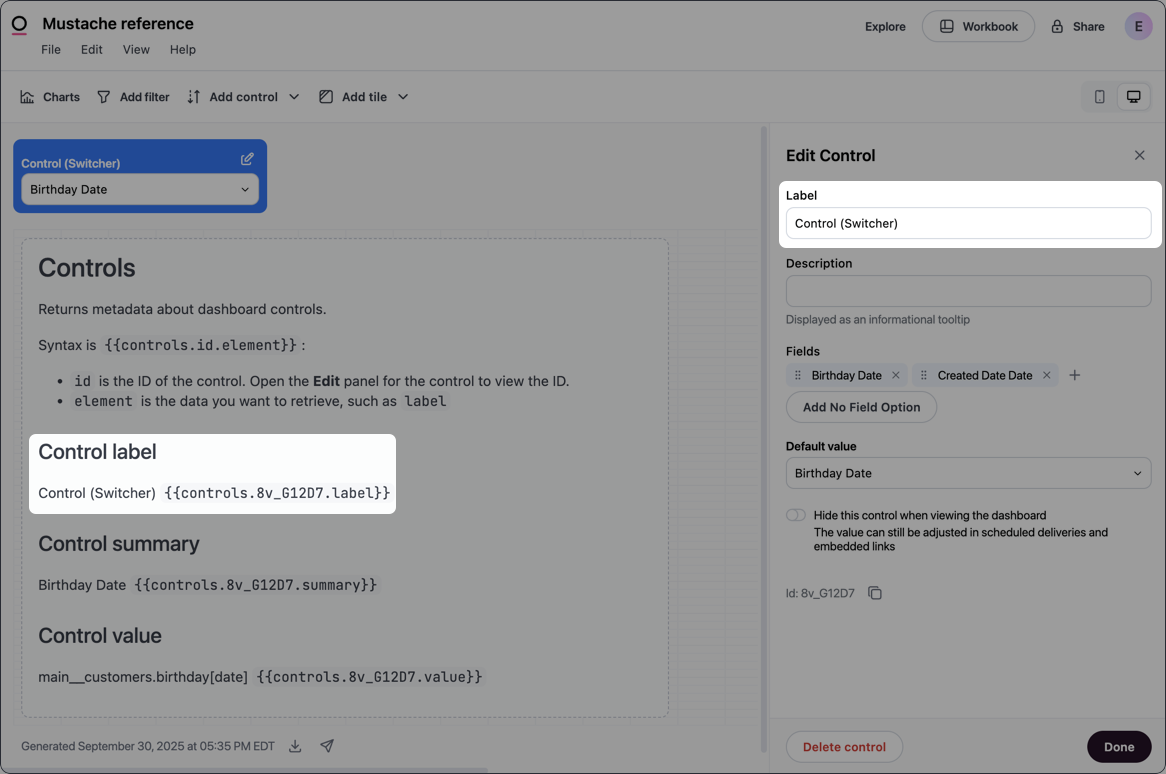
label. Refer to the following section for information on what’s currently supported.Label
Returns the label of the control. In a dashboard, open the Edit panel for the control and locate the Label field.Syntax
Example
Input
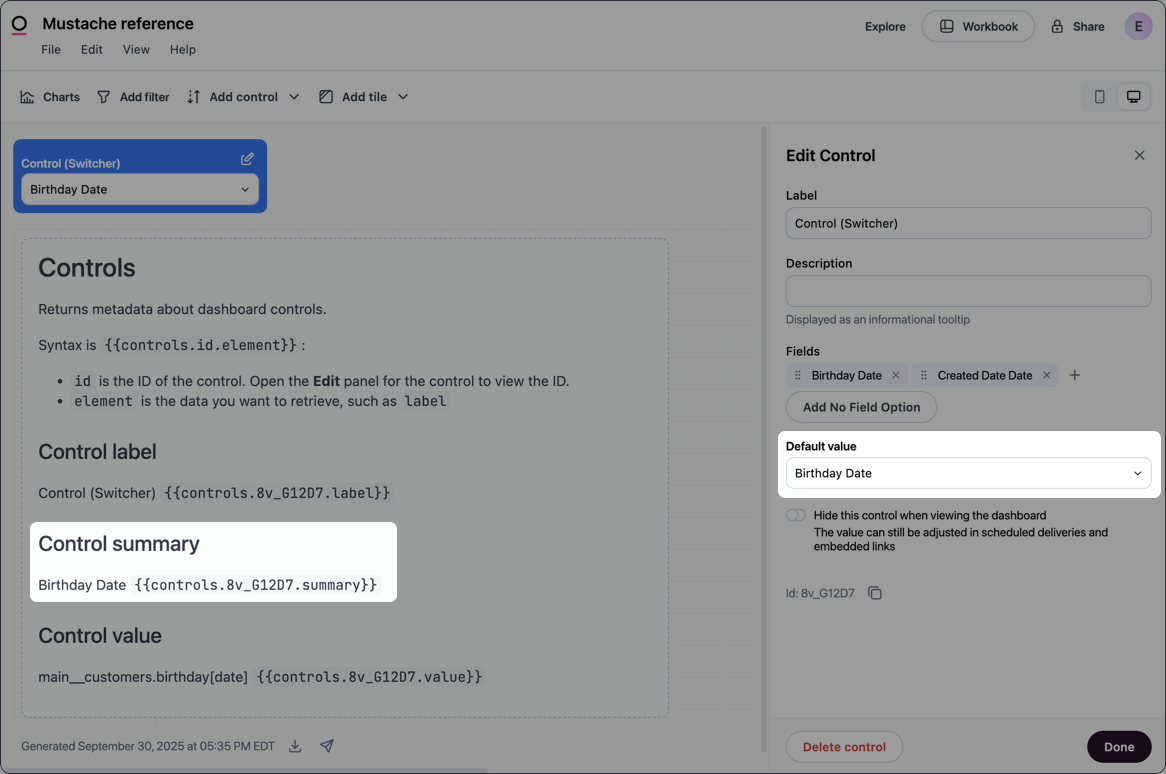
Summary
Returns the default value (summary) of the control. In a dashboard, open the Edit panel for the control and locate the Default value field.Syntax
Example
Input
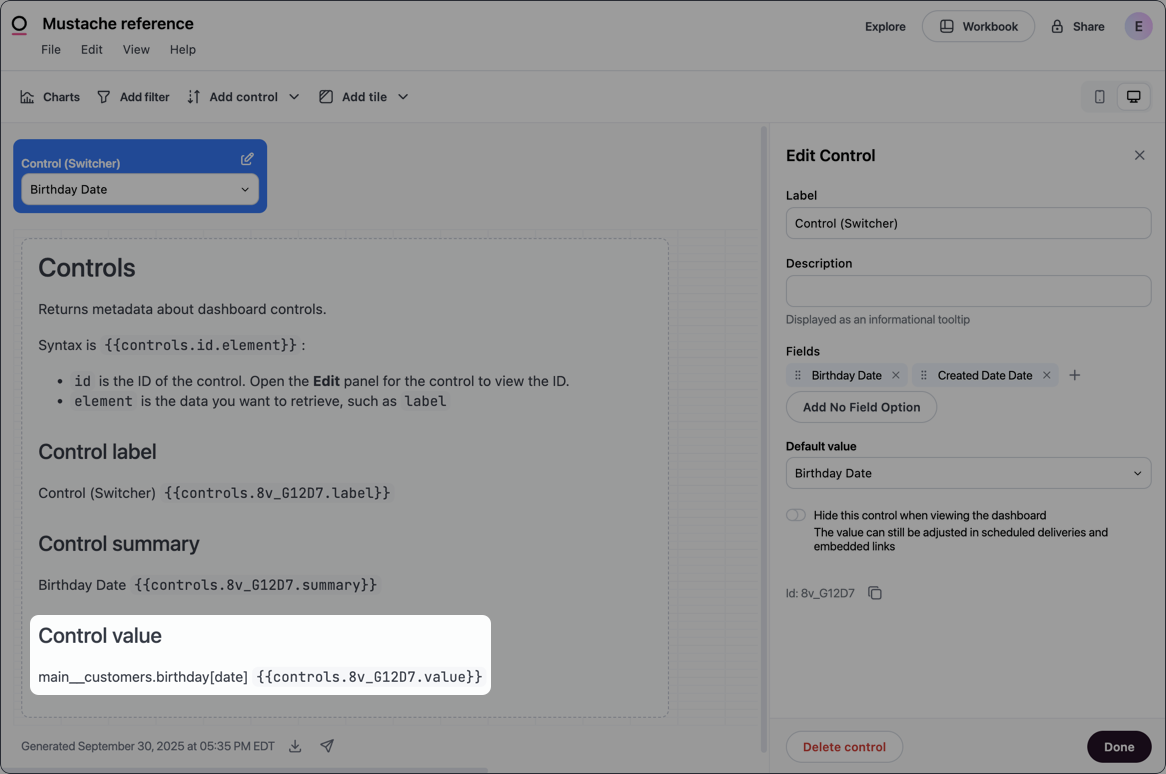
Value
Returns the full database name (view_name.field_name) of the field currently selected in the control.
Syntax
Example
Input
URL-encoded value
Returns the value of the control, URL-encoded. Use this when you need to include control values in URL query parameters within Markdown links.Syntax
Example
JSON
Returns the URL-encoded JSON of the control.Syntax
Example
Example output
Dashboard metadata
Returns metadata about the dashboard itself. Available in Markdown dashboard tiles.Syntax
required
Accesses Omni metadata
required
The data you want to retrieve. Refer to the following sections for information on what’s currently supported.
Created at
Returns the timestamp when the dashboard was created.Syntax
Created by
Returns the name of the user who created the dashboard.Syntax
Last updated at
Returns the timestamp when the dashboard was last modified.Syntax
User attribute metadata
Returns information about the user attributes associated with the user currently viewing the dashboard.required
Accesses Omni metadata
required
Accesses Omni user attribute data
required
The reference of the attribute you want to retrieve data for, for example
omni_user_email. The following sections demonstrate some of the Omni system attributes you can use in tags. Refer to the Reference column in Settings > User attributes to locate an attribute’s reference.required
The data you want to retrieve. Can be either of the following:
label- The display name of the attribute, for exampleOmni user emailvalues- The attribute value set for the user
User email
Returns the email address (omni_user_email value) of the user currently viewing the dashboard.
Syntax
User name
Returns the user name (omni_user_name value) of the user currently viewing the dashboard.
Syntax
User ID
Returns the user ID (omni_user_id value) of the user currently viewing the dashboard.
Syntax
Is org admin?
Returnstrue if the user currently viewing the dashboard is an Organization Admin (omni_is_org_admin value). Otherwise, returns false.
Syntax
Custom user attribute
Returns the value of a custom user attribute of the user currently viewing the dashboard, wherecustom_attribute_reference is the reference of the custom attribute.
Syntax
Example
User groups
Returns a list of user groups (omni_user_groups value) that the user currently viewing the dashboard is a member of.
If the user is a member of more than one group, the output will be a comma-delimited list like Group 1, Group 2.
Syntax