

Linking to existing charts
Any HTML element with anid on the page can be referenced as an anchor point to jump to. Every chart tile on the dashboard has a unique ID that is based on the title of the tile. For example, if the title of your tile is Top Performing Brands the corresponding ID is top-performing-brands and you can reference that anchor point with a markdown link like this:
Creating your own anchors
If you are making more complex HTML-based markdown tiles, you can also include IDs in your element tags. It’s a bit more complex to reference these IDs in other markdown tiles. Because we sanitize the HTML and markdown for security, we replace all user-generated IDs with auser-content- prepended to the provided ID. For example, if you write this HTML:
Linking to another dashboard with filters and controls retained
A Markdown link can also jump to a different dashboard while carrying over the current dashboard’s filter or control selections, instead of opening the destination with nothing applied.Filters
Reference the filter’s JSON value with Mustache, and pass it as the destination dashboard’s own filter ID, prefixed withf--:
Link to another dashboard, keeping a dashboard filter
8v_G12D7 is the ID of the filter on the current dashboard, and rW8-IWVU is the ID of the filter on the destination dashboard. These are usually different values, since filter IDs are scoped to the dashboard they’re created on. See Locating keys for how to find a filter or control ID.
Use the
.json element, not .value_url_encoded, for filter passthrough. .json carries the filter’s full condition (its operator and values), which the destination filter applies to whatever field it’s already configured for - so unlike controls, the source and destination don’t need to reference the same field. .value_url_encoded only passes the bare value, which isn’t enough for the destination to apply the filter correctly.Controls
Controls use thec-- prefix instead of f--. Reference the control’s value or value_url_encoded element:
Link to another dashboard, keeping a control
Example code
The following example references the video at the top of the page.Anchor/header tiles
Each of the 3 colorful headers in the above example serve as anchor destinations to navigate to. For this example, each hading has been created using a separate markdown visualization in the workbook, each titled to match the text inside the heading.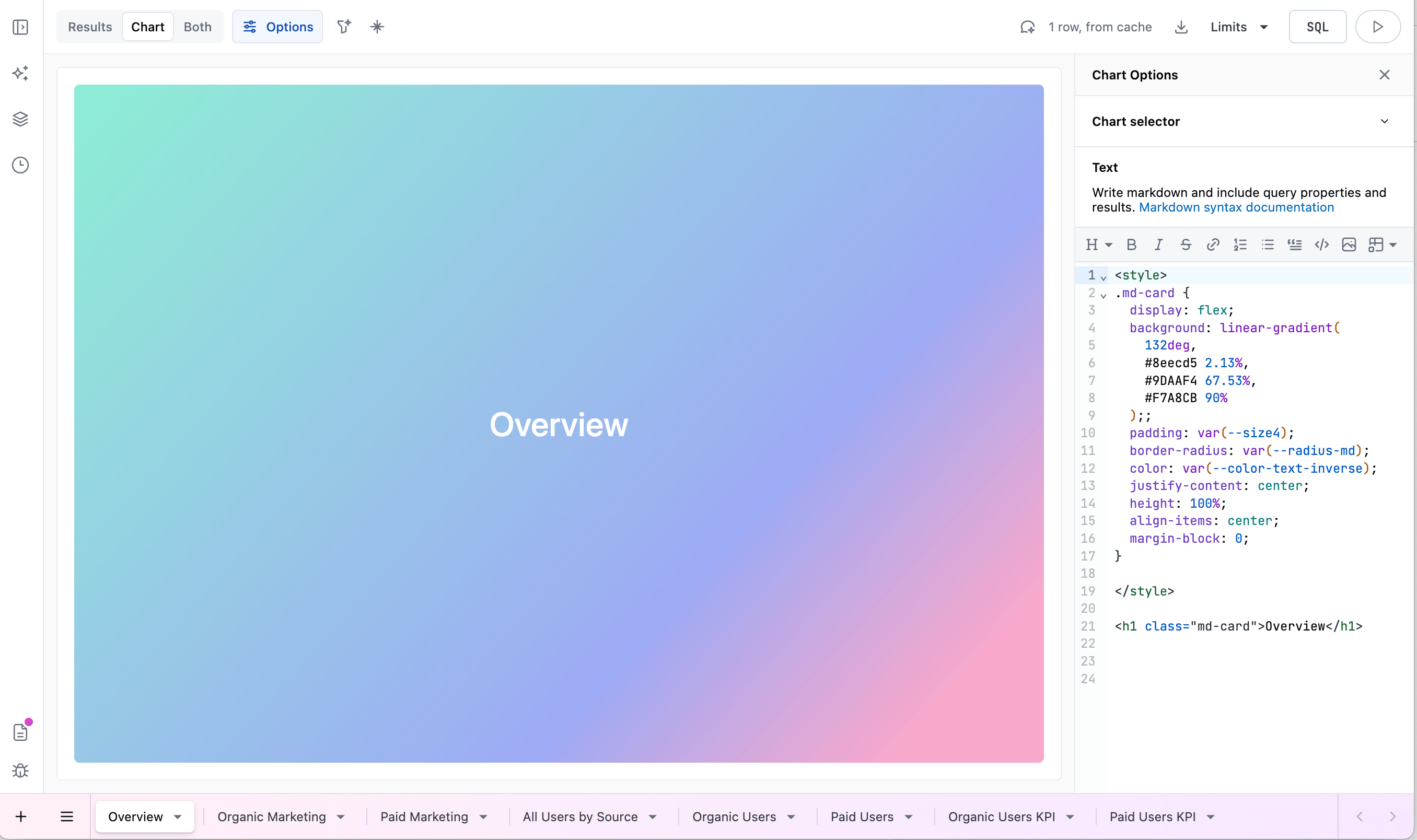
Example code for the 'Overview' heading