

Full year calendar
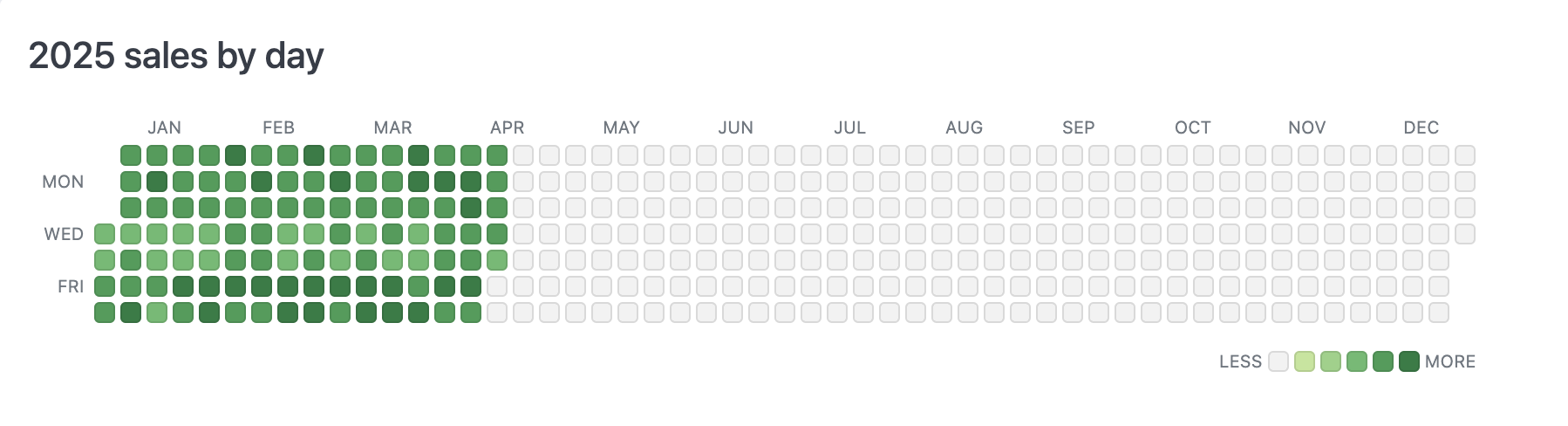
Setup
This query used for this example has the following structure:- Date field - make sure to enable “fill in missing dates” to capture any days that are missing data and to extend to the full year
- Value field - a numeric field that we’ll use to color the day by
- Color calculation - a simple % of the largest value to map colors (
=B1 / MAX(B:B)) - Color bucket calculation - name of the color “bucket” the date fits into so we can have fewer colors to work with (
=IFS(C1 = 0, "empty", C1 < 0.2, "lt20", C1 < 0.4, "lt40", C1 < 0.6, "lt60", C1 < 0.8, "lt80", TRUE, "lt100"))

Example code
The example below is customized to work for 2025. For different years, you’ll need to adjust the number of empty<li> tags to get the data starting on the right day of the week.
<style>
article.calendar-grid {
  /* sizing */
  --cell-width: 12px;
  --cell-height: 12px;
  --cell-gap: 3px;
  --weekday-width: calc(3 * var(--cell-width));
  --calendar-label-size: 10px;

  /* colors */
  --empty-color: rgba(0,0,0,0.05);
  --lt20: #c1e598;
  --lt40: #94d284;
  --lt60: #62bb6e;
  --lt80: #399d55;
  --lt100: #1a7d41;

  width: min-content;
}
article.calendar-grid h3 {
  margin-top: 0;
}
article.calendar-grid ul {
  list-style: none;
  margin: 0;
  padding: 0 8px;
}
article.calendar-grid ul li {
  list-style: none;
  margin: 0;
  padding: 0;
  color: var(--color-text1);
}
article.calendar-grid ul.labels {
  display: grid;
  grid-template-columns: var(--weekday-width) repeat(12, 1fr);
  gap: var(--cell-gap);

  & li {
    display: flex;
    align-items: center;
    text-align: center;
    justify-content: center;
    font-size: var(--calendar-label-size);
    text-transform: uppercase;
  }
}
article.calendar-grid ul.calendar {
 display: grid;
  display: grid;
  grid-template-rows: repeat(7, 1fr);
  grid-auto-flow: column;
  grid-auto-columns: min-content;
  gap: var(--cell-gap);
  width: 100%;

  & li {
    border: 1px solid rgba(0,0,0,0.1);
    border-radius: 3px;
    width: var(--cell-width);
    height: var(--cell-height);
    display: flex;
    align-items: center;
    justify-content: center;
    position: relative;
  }
  & li.heading {
    border: none;
    width: var(--day-width);
    font-size: var(--calendar-label-size);
    text-transform: uppercase;
    text-align: right;
    justify-content: flex-end;
    padding-right: 3px;
  }
  & li.last-year {
    visibility: hidden;
  }
  & li.empty {
    background: var(--empty-color);
  }
  & li.lt20 {
    background: var(--lt20);
  }
  & li.lt40 {
    background: var(--lt40);
  }
  & li.lt60 {
    background: var(--lt60);
  }
  & li.lt80 {
    background: var(--lt80);
  }
  & li.lt100 {
    background: var(--lt100);
  }
  & li .tooltip-content {
    visibility: hidden;
    position: absolute;
    z-index: 1;
    bottom: 125%;
    left: 50%;
    transform: translateX(-50%);
    width: 80px;
    background-color: #333;
    color: white;
    text-align: center;
    border-radius: 5px;
    padding: 4px 6px;
    font-size: 10px;
    font-weight: normal;
    opacity: 0;
    transition: opacity 0.15s;
    box-shadow: 0 2px 8px rgba(0,0,0,0.2);
    line-height: 1.4;
    word-wrap: break-word;
    white-space: normal;
  }
  & li .tooltip-content::after {
    content: "";
    position: absolute;
    top: 100%;
    left: 50%;
    margin-left: -5px;
    border-width: 5px;
    border-style: solid;
    border-color: #333 transparent transparent transparent;
  }
  & li:hover .tooltip-content {
    visibility: visible;
    opacity: 1;
  }
}
article.calendar-grid ul.legend {
  font-size: var(--calendar-label-size);
  text-transform: uppercase;
  display: flex;
  flex-direction: row;
  align-items: center;
  justify-content: flex-end;
  gap: var(--cell-gap);
  padding-top: 12px;

  & li.legend-item {
    border: 1px solid rgba(0,0,0,0.1);
    border-radius: 3px;
    width: var(--cell-width);
    height: var(--cell-height);
  }
  & li.empty {
    background: var(--empty-color);
  }
  & li.lt20 {
    background: var(--lt20);
  }
  & li.lt40 {
    background: var(--lt40);
  }
  & li.lt60 {
    background: var(--lt60);
  }
  & li.lt80 {
    background: var(--lt80);
  }
  & li.lt100 {
    background: var(--lt100);
  }

}
</style>

<article class="calendar-grid">
<h3>2025 sales by day</h3>
<ul class="labels">
  <li></li>
  <li>Jan</li>
  <li>Feb</li>
  <li>Mar</li>
  <li>Apr</li>
  <li>May</li>
  <li>Jun</li>
  <li>Jul</li>
  <li>Aug</li>
  <li>Sep</li>
  <li>Oct</li>
  <li>Nov</li>
  <li>Dec</li>
</ul>
<ul class="calendar">
  <li class="heading"></li>
  <li class="heading">mon</li>
  <li class="heading"></li>
  <li class="heading">wed</li>
  <li class="heading"></li>
  <li class="heading">fri</li>
  <li class="heading"></li>
  <!-- the following 3 LIs get our start weekday to Wednesday -->
  <li class="last-year"></li>
  <li class="last-year"></li>
  <li class="last-year"></li>
  {{#result}}
  <li class="{{calc_2.value_static}}">
    <div class="tooltip-content">
      {{order_items.created_at[date].value_static}}<br />
      {{order_items.total_sale_price.value}}
    </div>
  </li>
  {{/result}}
</ul>
<ul class="legend">
  <li>Less</li>
  <li class="legend-item empty"></li>
  <li class="legend-item lt20"></li>
  <li class="legend-item lt40"></li>
  <li class="legend-item lt60"></li>
  <li class="legend-item lt80"></li>
  <li class="legend-item lt100"></li>
  <li>More</li>
</ul>
</article>
Full year calendar, vertical
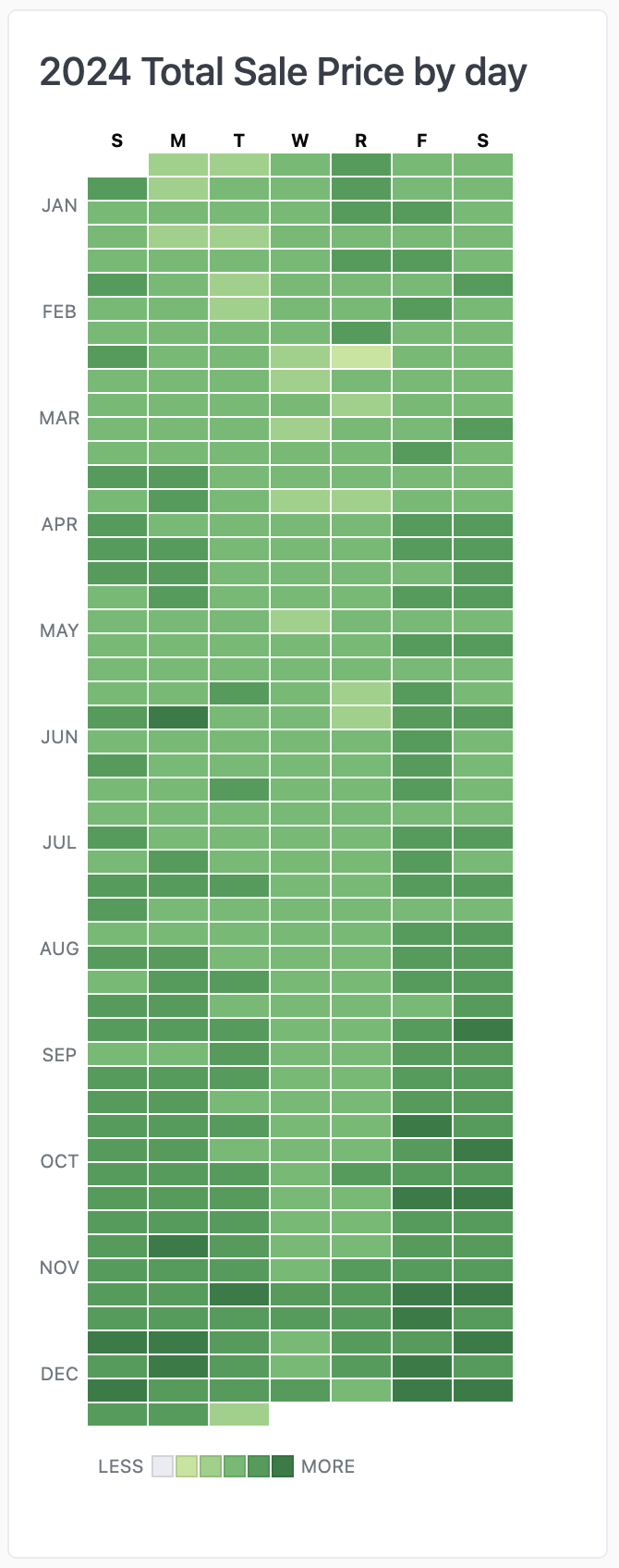
Setup
The setup for the vertical full year calendar is identical to the example above:- Date field - make sure to enable “fill in missing dates” to capture any days that are missing data and to extend to the full year
- Value field - a numeric field that we’ll use to color the day by
- Color calculation - a simple % of the largest value to map colors (
=B1 / MAX(B:B)) - Color bucket calculation - name of the color “bucket” the date fits into so we can have fewer colors to work with (
=IFS(C1 = 0, "empty", C1 < 0.2, "lt20", C1 < 0.4, "lt40", C1 < 0.6, "lt60", C1 < 0.8, "lt80", TRUE, "lt100"))
Example code
<style>
article.calendar-grid {
  /* sizing */
  --cell-width: 32px;
  --cell-height: 12px;
  --cell-gap: 1px;
  --month-height: calc(3 * var(--cell-height));
  --calendar-label-size: 10px;

  /* colors */
  --empty-color: var(--color-border1);
  --lt20: #c1e598;
  --lt40: #94d284;
  --lt60: #62bb6e;
  --lt80: #399d55;
  --lt100: #1a7d41;

}
article.calendar-grid h3 {
  margin-top: 0;
}
article.calendar-grid .calendar-wrapper {
  display: flex;
  flex-direction: row;
  gap: 4px;
}
article.calendar-grid ul {
  list-style: none;
  margin: 0;
  padding: 0;
}
article.calendar-grid ul li {
  list-style: none;
  margin: 0;
  padding: 0;
  color: var(--color-text1);
}
article.calendar-grid ul.labels {
  display: grid;
  grid-template-rows: var(--cell-height) repeat(12, 1fr);
  gap: var(--cell-gap) var(--cell-gap);

  & li {
    display: flex;
    align-items: center;
    text-align: center;
    justify-content: center;
    font-size: var(--calendar-label-size);
    text-transform: uppercase;
  }
}
article.calendar-grid ul.calendar {
  display: grid;
  grid-template-columns: repeat(7, var(--cell-width));
  grid-auto-flow: row;
  grid-auto-columns: min-content;
  gap: var(--cell-gap);
  width: 100%;

  & li {
    border-radius: 0;
    width: var(--cell-width);
    height: var(--cell-height);
    display: flex;
    align-items: center;
    justify-content: center;
    position: relative;
    font-size: var(--calendar-label-size);
    font-weight: bold;
    color: var(--color-text4);
  }
  & li.heading {
    width: var(--cell-width);
    font-size: var(--calendar-label-size);
    text-transform: uppercase;
    text-align: center;
    justify-content: center;
  }
  & li.last-year {
    visibility: hidden;
  }
  & li.empty {
    background: var(--empty-color);
  }
  & li.lt20 {
    background: var(--lt20);
  }
  & li.lt40 {
    background: var(--lt40);
  }
  & li.lt60 {
    background: var(--lt60);
  }
  & li.lt80 {
    background: var(--lt80);
  }
  & li.lt100 {
    background: var(--lt100);
  }
  & li .tooltip-content {
    visibility: hidden;
    position: absolute;
    z-index: 1;
    bottom: 125%;
    left: 50%;
    transform: translateX(-50%);
    width: 80px;
    background-color: #333;
    color: white;
    text-align: center;
    border-radius: 5px;
    padding: 4px 6px;
    font-size: 10px;
    font-weight: normal;
    opacity: 0;
    transition: opacity 0.15s;
    box-shadow: 0 2px 8px rgba(0,0,0,0.2);
    line-height: 1.4;
    word-wrap: break-word;
    white-space: normal;
  }
  & li .tooltip-content::after {
    content: "";
    position: absolute;
    top: 100%;
    left: 50%;
    margin-left: -5px;
    border-width: 5px;
    border-style: solid;
    border-color: #333 transparent transparent transparent;
  }
  & li:hover .tooltip-content {
    visibility: visible;
    opacity: 1;
  }
}
article.calendar-grid ul.legend {
  font-size: var(--calendar-label-size);
  text-transform: uppercase;
  display: flex;
  flex-direction: row;
  align-items: center;
  justify-content: flex-start;
  gap: var(--cell-gap);
  padding-top: 12px;

  & li.legend-item {
    border: 1px solid rgba(0,0,0,0.1);
    width: min(var(--cell-width), var(--cell-height));
    height: min(var(--cell-width), var(--cell-height));
  }
  & li.empty {
    background: var(--empty-color);
  }
  & li.lt20 {
    background: var(--lt20);
  }
  & li.lt40 {
    background: var(--lt40);
  }
  & li.lt60 {
    background: var(--lt60);
  }
  & li.lt80 {
    background: var(--lt80);
  }
  & li.lt100 {
    background: var(--lt100);
  }
  & li:first-of-type {
    padding-left: var(--cell-width);
    padding-right: 3px;
  }
  & li:last-of-type {
    padding-left: 3px;
  }

}
</style>

<article class="calendar-grid">
<h3>2024 {{fields.order_items.total_sale_price.label}} {{#filters.users.state.value}}for {{filters.users.state.value}}{{/filters.users.state.value}} by day</h3>
<div class="calendar-wrapper">
<ul class="labels">
  <li></li>
  <li>Jan</li>
  <li>Feb</li>
  <li>Mar</li>
  <li>Apr</li>
  <li>May</li>
  <li>Jun</li>
  <li>Jul</li>
  <li>Aug</li>
  <li>Sep</li>
  <li>Oct</li>
  <li>Nov</li>
  <li>Dec</li>
</ul>
<ul class="calendar">
  <li class="heading">S</li>
  <li class="heading">M</li>
  <li class="heading">T</li>
  <li class="heading">W</li>
  <li class="heading">R</li>
  <li class="heading">F</li>
  <li class="heading">S</li>
  <li class="Sunday last-year"></li><!-- placeholder to ensure 2024 starts on correct day of week -->
  {{#result}}
  <li class="month-day-{{order_items.created_at[day_of_month].raw}} {{calc_2.value_static}}">
    <div class="tooltip-content">
      {{order_items.created_at[date].value_static}}<br />
      {{order_items.total_sale_price.value}}
    </div>
  </li>
  {{/result}}
</ul>
</div>
<ul class="legend">
  <li class="legend-label">Less</li>
  <li class="legend-item empty"></li>
  <li class="legend-item lt20"></li>
  <li class="legend-item lt40"></li>
  <li class="legend-item lt60"></li>
  <li class="legend-item lt80"></li>
  <li class="legend-item lt100"></li>
  <li class="legend-label">More</li>
</ul>
</article>
Single month heatmap
Fills a single month like a typical wall calendar, correctly laying out the days of the week no matter the month. Also adds a little• marker on today, if it is in view.
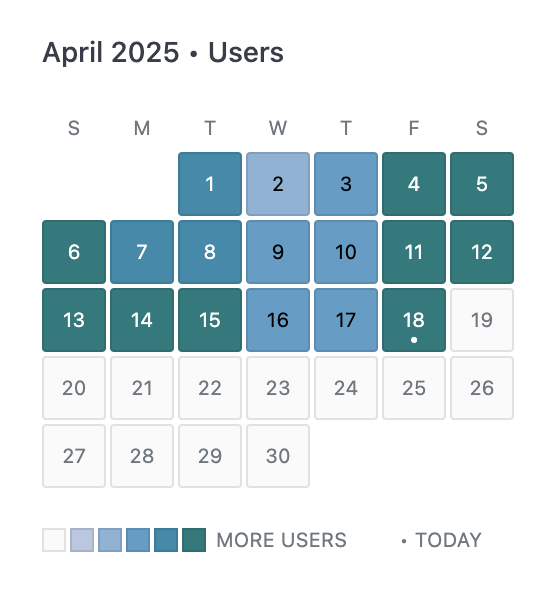
Setup
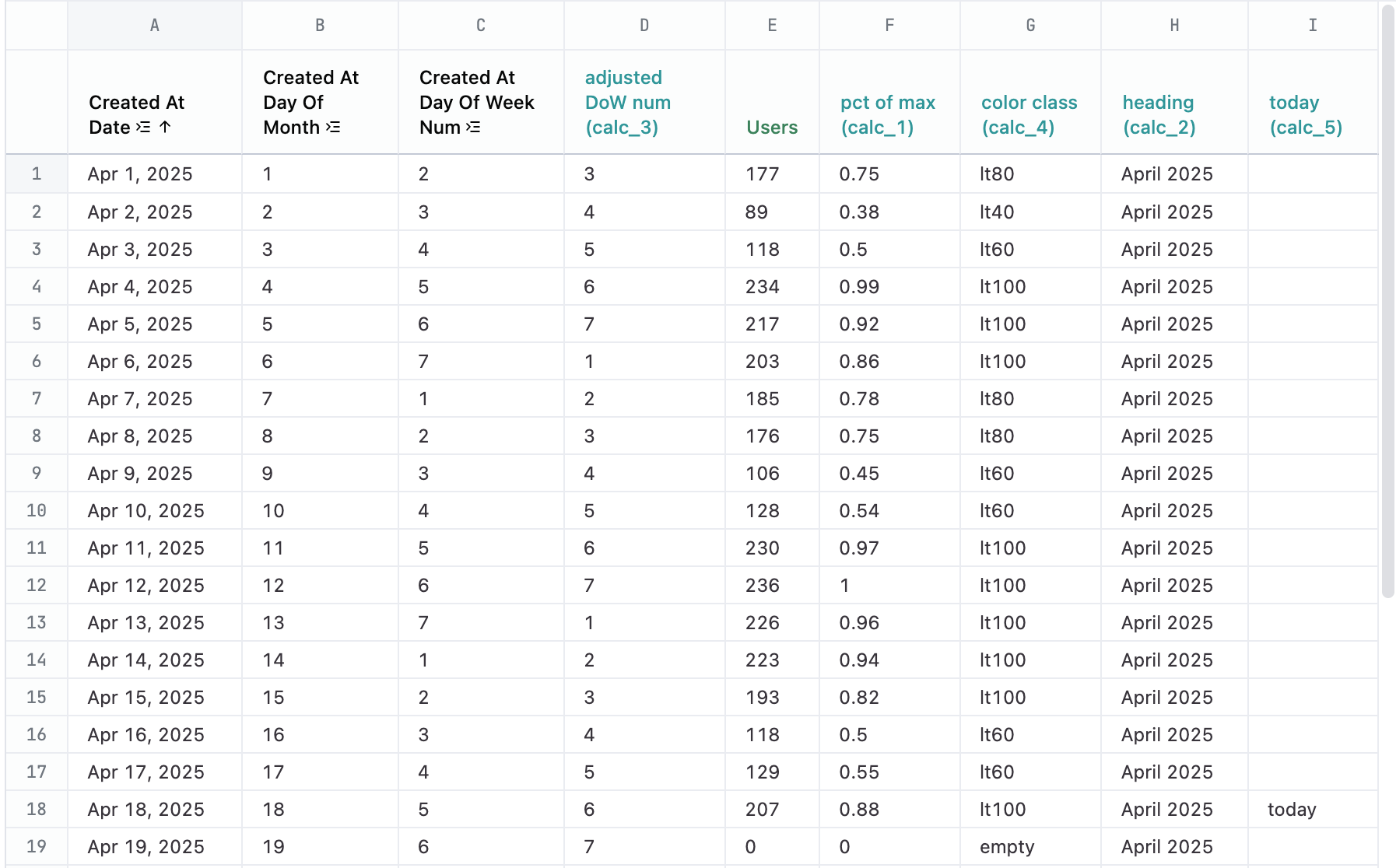
This example uses a lot of calculations make the drawing of any month possible. When referencing calculations in mustache, you need to use the ID of the field, which will automatically be assigned to the calculation when you create it. For example, the first calc you create will have the ID ofcalc_1, the second calc_2, etc. In the example query, the calc ID has been provided as part of the label so you can more easily connect the references to the calculation in the markdown code. When you create your own calculations, they may have different IDs.
Note: Make sure to have “fill in missing rows” turned on for Date, Day of month and the Day of week columns in order to correctly display the full month.
| Col | Name | Calculation formula | Purpose |
|---|---|---|---|
| A | Date | query data | |
| B | Day of month | query data | Number in the calendar cell |
| C | Day of week num | query data | Need to know which day of week to start on |
| D | adjusted DoW num (calc_3) | =MOD(C1, 7) + 1 | Our data starts counting week on Mondays. This adjusts the start day of the week to Sunday. |
| E | Users | query data | metric used to base color off of |
| F | pct of max (calc_1) | =E1 / MAX(E:E) | create range for easy bucketing |
| G | color class (calc_4) | =IFS(F1 = 0, “empty”, F1 < 0.2, “lt20”, F1 < 0.4, “lt40”, F1 < 0.6, “lt60”, F1 < 0.8, “lt80”, TRUE, “lt100”) | define bucket ranges to simplify coloring |
| H | heading (calc_2) | =TEXT(A1, “mmmm yyyy”) | nice formatting of the month for the heading |
| I | today (calc_5) | =IF(A1 = TODAY(), “today”, "") | which cell to put a little “today” indicator |
Example code
<style>
article.calendar-grid {
  /* sizing */
  --cell-width: 32px;
  --cell-height: 32px;
  --cell-gap: 2px;
  --calendar-label-size: 10px;

  /* colors */
  --empty-color: var(--color-background-alt);
  --lt20: #b8c7e0;
  --lt40: #88b3d6;
  --lt60: #549fc8;
  --lt80: #258bab;
  --lt100: #077b7e;

  width: fit-content;
  margin: 0 auto;
}
article.calendar-grid h3 {
  margin: 0;
  font-size: var(--font-sm);
}
article.calendar-grid ul {
  list-style: none;
  margin: 0;
  padding: 0;
}
article.calendar-grid ul li {
  list-style: none;
  margin: 0;
  padding: 0;
}
article.calendar-grid ul.calendar {
  display: grid;
  grid-template-columns: repeat(7, var(--cell-width));
  grid-auto-flow: row;
  grid-auto-columns: min-content;
  gap: var(--cell-gap);
  width: 100%;

  & li {
    border-radius: 2px;
    border: 1px solid rgba(0,0,0,0.1);
    width: var(--cell-width);
    height: var(--cell-height);
    display: flex;
    align-items: center;
    justify-content: center;
    position: relative;
    color: black;
  }
  & li.heading {
    width: var(--cell-width);
    font-size: var(--calendar-label-size);
    text-transform: uppercase;
    text-align: center;
    align-items: flex-end;
    color: var(--color-text1);
    border-width: 0;
  }
  li:nth-of-type(8) {
    /* adjusted DoW number: This is what gets us starting on the right day of the week */
    grid-column-start: {{result.0.calc_3.raw}};
  }
  & li span.date {
    font-size: var(--calendar-label-size);
    font-weight: normal;
    display: flex;
    width: 100%;
    height: 100%;
    line-height: var(--cell-height);
    justify-content: center;
    text-align: center;
    align-items: center;
  }
  & li.empty {
    background: var(--empty-color);
  }
  & li.today {
    xborder-color: rgba(0,0,0,0.5);
  }
  & li.today::before {
    content: "•";
    position: absolute;
    bottom: -4px;
  }
  & li.today ~ li.empty {
    color: var(--color-text1);
  }
  & li.lt20 {
    background: var(--lt20);
  }
  & li.lt40 {
    background: var(--lt40);
  }
  & li.lt60 {
    background: var(--lt60);
  }
  & li.lt80 {
    background: var(--lt80);
    color: white;
  }
  & li.lt100 {
    background: var(--lt100);
    color: white;
  }
  & li .tooltip-content {
    visibility: hidden;
    position: absolute;
    z-index: 1;
    bottom: 100%;
    left: 50%;
    transform: translateX(-50%);
    width: 50px;
    background-color: #333;
    color: white;
    text-align: center;
    border-radius: 5px;
    padding: 4px 6px;
    font-size: 10px;
    font-weight: normal;
    opacity: 0;
    transition: opacity 0.15s;
    box-shadow: 0 2px 8px rgba(0,0,0,0.2);
    line-height: 1.4;
    word-wrap: break-word;
    white-space: normal;
    text-transform: lowercase;
  }
  & li .tooltip-content::after {
    content: "";
    position: absolute;
    top: 100%;
    left: 50%;
    margin-left: -5px;
    border-width: 5px;
    border-style: solid;
    border-color: #333 transparent transparent transparent;
  }
  & li:hover .tooltip-content {
    visibility: visible;
    opacity: 1;
  }
}
article.calendar-grid ul.legend {
  font-size: var(--calendar-label-size);
  text-transform: uppercase;
  display: flex;
  flex-direction: row;
  align-items: center;
  justify-content: flex-start;
  gap: var(--cell-gap);
  padding-top: 16px;

  & li.legend-item {
    border: 1px solid rgba(0,0,0,0.1);
    width: 12px;
    height: 12px;
  }
  & li.empty {
    background: var(--empty-color);
  }
  & li.lt20 {
    background: var(--lt20);
  }
  & li.lt40 {
    background: var(--lt40);
  }
  & li.lt60 {
    background: var(--lt60);
  }
  & li.lt80 {
    background: var(--lt80);
  }
  & li.lt100 {
    background: var(--lt100);
  }
  & li.legend-more {
    padding-left: 3px;
    color: var(--color-text1);
  }
  & li.legend-today {
    padding-left: 24px;
    color: var(--color-text1);
  }

}
</style>

<article class="calendar-grid">
<h3>{{result._first.calc_2.value}} • {{fields.users.count.label}}</h3>
<div class="calendar-wrapper">
<ul class="calendar">
  <li class="heading">S</li>
  <li class="heading">M</li>
  <li class="heading">T</li>
  <li class="heading">W</li>
  <li class="heading">T</li>
  <li class="heading">F</li>
  <li class="heading">S</li>
  {{#result}}
  <li class="{{calc_5.raw}} {{calc_4.value_static}}">
    <span class="date">{{users.created_at[day_of_month].value}}</span>
    <div class="tooltip-content">
      {{users.count.value}}<br />{{fields.users.count.label}}
    </div>
  </li>
  {{/result}}
</ul>
</div>
<ul class="legend">
  <li class="legend-item empty"></li>
  <li class="legend-item lt20"></li>
  <li class="legend-item lt40"></li>
  <li class="legend-item lt60"></li>
  <li class="legend-item lt80"></li>
  <li class="legend-item lt100"></li>
  <li class="legend-more">More {{fields.users.count.label}}</li>
  <li class="legend-today">• today</li>
</ul>
</article>