

The sidebar item may display differently or not at all if your organization uses a custom sidebar.
Requirements
Editor, Manager, or Owner permissions are required to archive and restore archived documents. If you own personal content that has been shared organization-wide from My Documents, you retain archive and restore rights on that content even after sharing it with the organization.Archiving documents
When you archive a document, the document’s workbook and dashboard will also be archived.1
In a published document (workbook or dashboard), click File > Move to trash.
2
When prompted, click Move to trash to confirm.
Restoring documents
You can restore an archived document in two ways: from the Trash page, or from a direct link to the archived document.Restoring documents from the trash
To restore a document from the Trash, click the restore arrow (highlighted in the following image) next to the content you want to restore: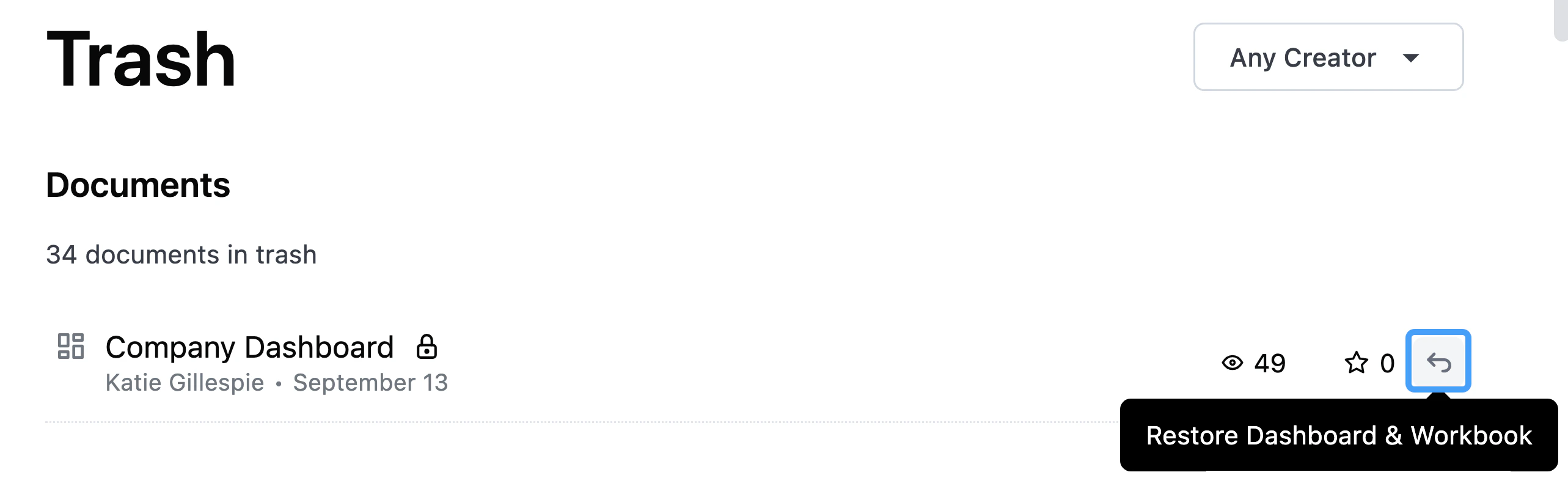
Missing something? Content archived longer ago than your organization’s Trash visibility window setting will be hidden from the Trash and will not appear in trash counts.
Restoring documents from a direct link
If you follow a direct link to an archived document and you have sufficient content permissions, you’ll see a page similar to the following: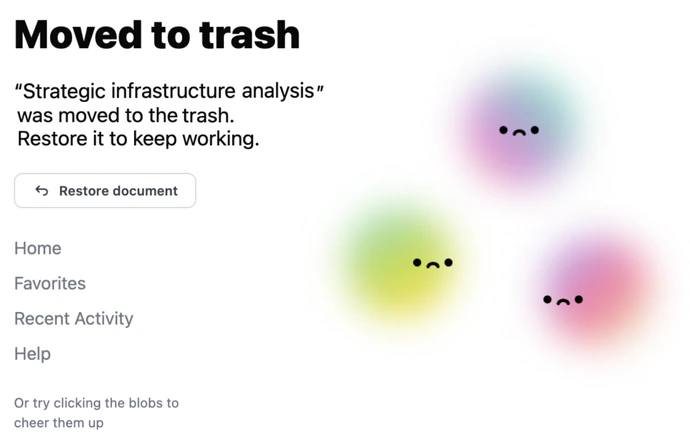
Archived document page with Restore content button
- Insufficient permissions - You don’t have the required permissions to restore the document
- Model in trash - The underlying model has been archived. If you have permission to restore the document, you’ll see the model name and ID so you can locate it in the trash.
Users without view access and embed users will see a generic error page when following a direct link to archived content.