

- Folders, which provide a simple, hierarchical structure for organizing content and controlling access
- Labels, which can enhance findability without the need for duplicating content across folders
Folders
Using folders for content organization allows you to maintain structure and determine how users access content. For example, folders could allow you to organize content and access for:- Teams, such as Operations or Finance
- Employee level, such as Manager or Executive
- Projects
- Clients
Creating folders
- Omni UI
- API
To create a folder in the Omni UI, click Add folder in the My documents folder or your organization’s Shared hub. Note: Your organization’s Content organization setting determines if users can create content in the root of the shared space.
. Shared (root)
Folder 1
Folder 2
Folder 3
Folder 4
Folder 5
Folder 6
Folder 7 (nesting limit)
Moving folders
- Omni UI
- API
1
To move a folder:
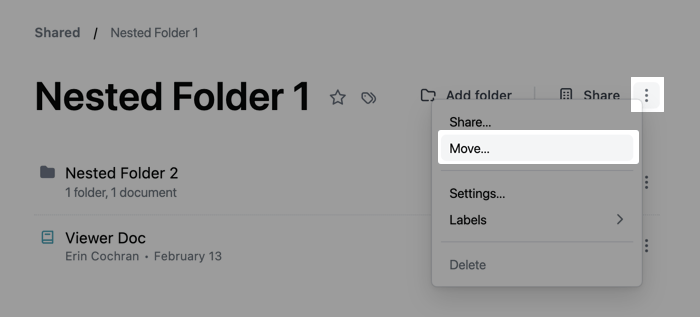
- Open the folder and click the icon next to the Share icon, or
- On a page like the shared Hub or My Documents, click the icon next to the folder:
2
Click Move.
3
Select the folder to move to. You can browse folders, or search for the destination folder by name. Search results show each folder’s full path.
4
Click Save.
Accessing and sharing folders
When you share a folder, permissions cascade to all documents and subfolders inside it. This means that the access role you assign to a folder applies to everything the folder contains. Content access roles on folders work differently than on individual documents. For a detailed comparison of folder and document permissions, and information about inheriting access roles, refer to the Sharing content guide.Scoping folder navigation with breadcrumb roots
You can configure a folder as a breadcrumb root to scope navigation to that folder and its contents. When a folder is set as a breadcrumb root, breadcrumbs for the folder and everything inside it start at that folder. Ancestor folders and the crumbs for the top-level spaces (Shared and My Documents by default) are hidden. If your organization has renamed these spaces, the hidden crumbs use the custom names instead — see Group titles and visibility. This setting affects:- Folder page breadcrumbs and the file picker
- Dashboard and document title breadcrumbs and hover cards
- Content list location strings
contentPath folder.
To set a folder as a breadcrumb root:
- Omni UI
- API
1
Open the folder and click the icon next to the Share icon.
2
Click Folder settings.
3
In the Advanced options section, check the Breadcrumb root checkbox.
4
Click Save.
Deleting folders
Folders can only be deleted if they’re empty. Who can delete a folder depends on their content access role:- Editors can delete empty folders they created
- Managers can delete any empty folder they have access to
- Omni UI
- API
To delete a folder in the Omni UI, click the folder’s icon and then Delete.
Labels
While folders are helpful for maintaining structure and access, a document can only be in one folder at a time. For example, a dashboard is relevant to multiple teams, each of which has their own folder. Where should the document be located? With labels, you could place the dashboard in a shared folder and add relevant labels, ensuring the right people can find the content. Labels allow you to organize your content in a way that doesn’t require duplication or sacrifice findability. Using labels, you can:- Organize content by subject area, such as Marketing or Support
- Indicate the current working state of a document, such as In progress
-
Use label settings to:
- Curate Home page content for your organization
- Mark important content as Verified
Applying labels
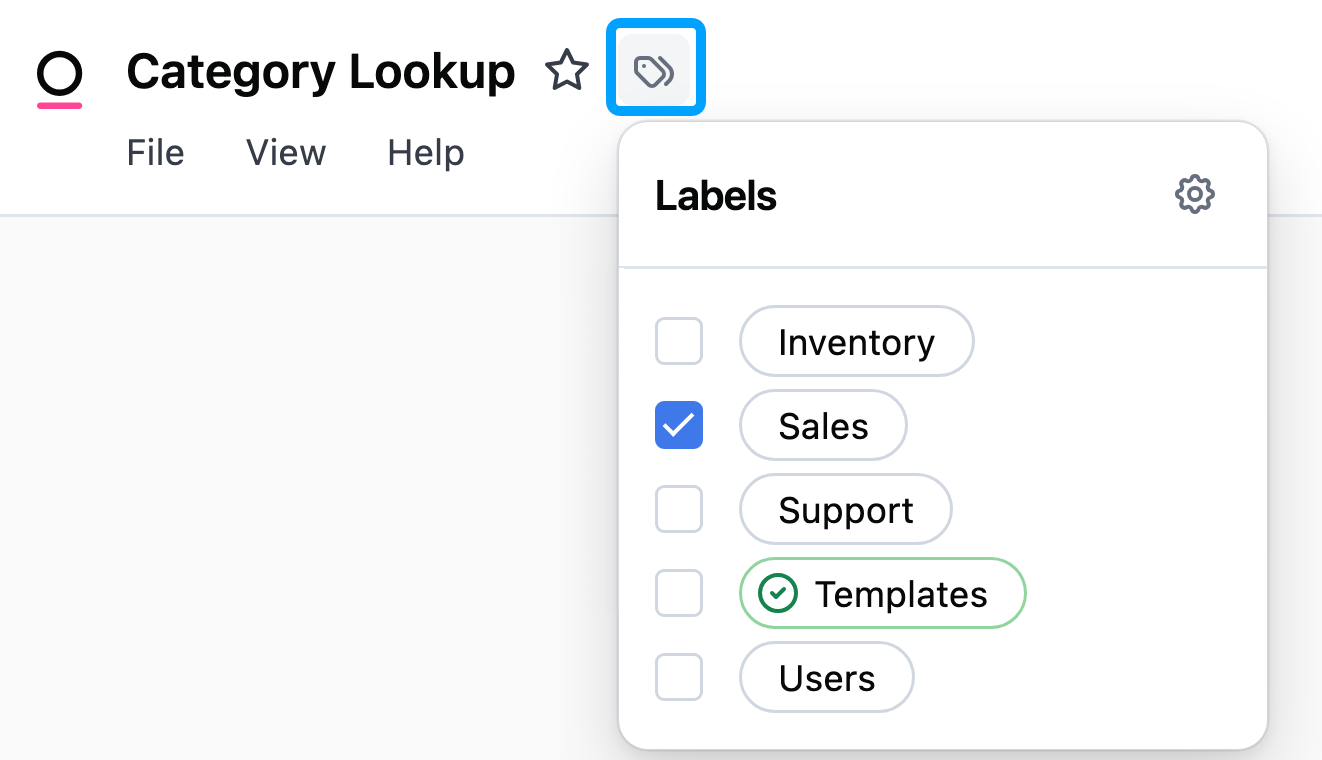
You must be in the published version of a document to apply labels.
Viewing label information
When you hover over a label, a tooltip displays additional information about the label, including:- The label’s description (if one has been added)
- Who applied the label and when it was applied
- Document and folder detail pages
- Content listings (Home page, My Documents, folders)
- Search results
- The curation popover
In embedded Omni instances, the tooltip shows the label description and timestamp, but not the name of the user who applied the label.
Managing labels
Labels are managed in the Label settings page, which can be accessed by:- Navigating to Settings > Labels, or
- Clicking the Labels icon in a document or folder, then the gear icon
- Add a label by clicking the Add Label button.
- Edit a label by clicking on it or selecting Edit from the options menu ( icon). This opens the label editor where you can:
- Rename the label
- Choose a color using the color picker, which includes preset color swatches, a custom color picker, and an eyedropper tool
- Add a description to provide additional context about the label’s purpose or usage
- Set label options using the Verified and Homepage checkboxes (requires appropriate permissions)
- Delete a label by clicking the options menu ( icon) next to the label and selecting Delete. Note: Labels can’t be deleted if they’re currently in use.
Label options
Organization Admin permissions are required to apply the options outlined in this section to labels.
Homepage
Enabling the Homepage option allows you to select content to display on your users’ Home page, in the For you section. This can be useful for:- Providing helpful starting points for new users in your organization
- Ensuring content relevant to all users is easily accessible
Verified
Enabling the Verified option allows you to mark important content, such as dashboards that are monitored for correctness. This can be helpful for conveying to your users which content is actively maintained or has been vetted. To apply these options to a label:1
Open the Label settings page by navigating to Settings > Labels or by clicking the Labels icon in a document and then the icon.
2
Click the label you want to edit, or select Edit from the label’s options menu ( icon).
3
In the edit dialog, check the Homepage and/or Verified checkboxes as needed.
4
Click Save to apply your changes.
