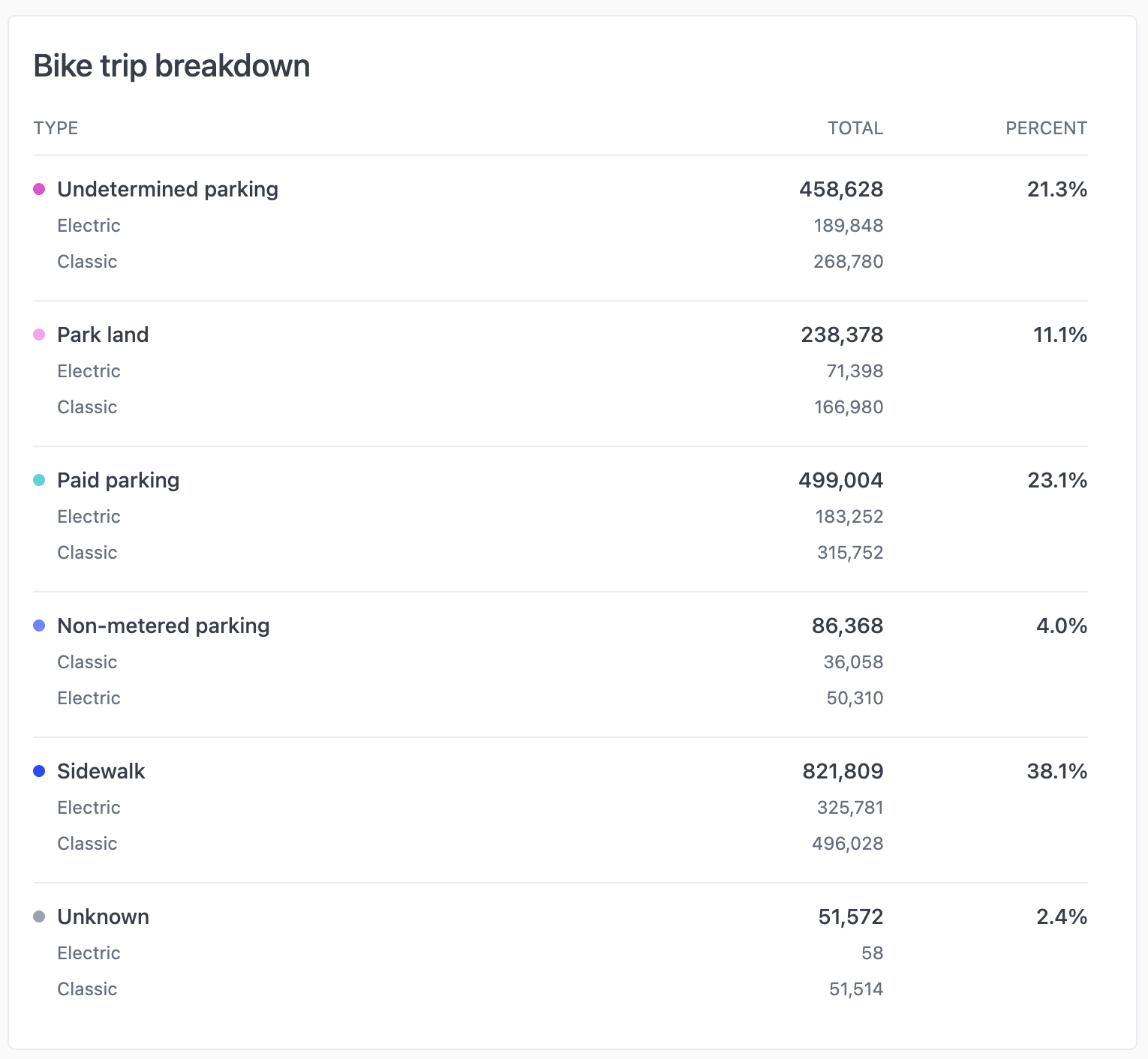
Setup
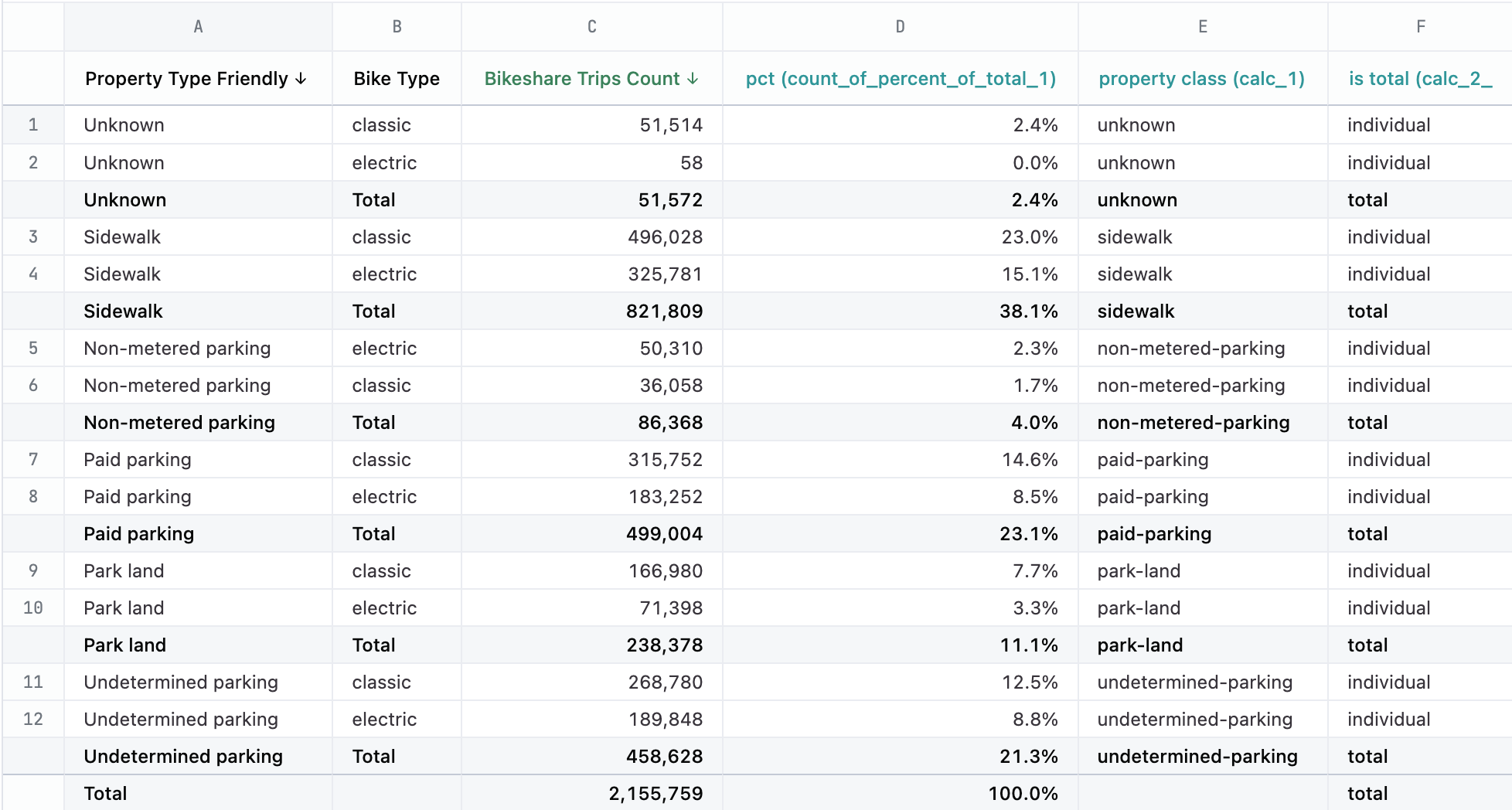
Your query must have 2 dimensions (the primary category and the sub category) and a measure to total. The rest of the columns are calculations to get the percentages and provide some styling information to the markdown. Sort the results by the primary category and enable subtotals from the primary category’s triple-dot menu. Use secondary sorts to control how the sub-categories are ordered. You can do a secondary sort by shift-clicking on the column header. The following table describes the fields in the result set and their purpose. Note: The labels of each calculation includes the calculation’s ID in parentheses. This hopefully helps connect the mustache references in the markdown to the correct column of data. Depending on the order in which you create your calculations, these IDs may be different.