

Refer to the Filters documentation for information about defining curated filters directly in your model YAML.
Omni allows parameterization of SQL using the Mustache template engine, which can be used in the definition of both views and fields. This is perhaps best understood through examples. Templated filters can inject dynamic text into a SQL query, often a dimension or fact table. Our syntax requires an opening and closing reference around the dynamic input, using {{# }} to open, and {{/ }} to close to dynamic sections. Inside the braces, you use the name of the object, usually of the form view.field_name.filter (the word “filter”). This will correspond to a filter_only field in the view (see examples below). Inside the pair of braces, you will include the lookup value.

Setting default values

Default values can be set using {{^ }}default_value_clause{{/ }} immediately after the existing templated filter syntax. For example, the following would use a default filter of name like 'foo':
{{# users.filter_field.filter }}name{{/ users.filter_field.filter }}{{^ users.filter_field.filter }}name like '%foo%'{{/ users.filter_field.filter }}

Examples

Any YAML parameter that expects a string must be wrapped in double quotes if the leading character has special meaning in YAML. For example, sql: {{ view.field_name.filter }} would need to be sql: "{{ view.field_name.filter }}" to avoid validation errors.

Parameterized WHERE clause in views based on a SQL query

This simple example allows a query-view to be parameterized. This example uses a filter-only field (see more on this in the dedicated section below), but can also reference a field in the view itself.
# Reference this view as user_fact_example
sql: |
  SELECT
    user_id,
    COUNT(*) AS total_items
  FROM order_items
  WHERE
    {{# schema__user_fact_example.order_date.filter }} order_items.created_at {{/ schema__user_fact_example.order_date.filter}}
    AND {{# schema__user_fact_example.status.filter }} order_items.status {{/ schema__user_fact_example.status.filter}}
  GROUP BY 1

dimensions:
  user_id:
    sql: '"USER_ID"'
  total_items:
    sql: '"TOTAL_ITEMS"'

measures:
  count:
    aggregate_type: count

filters:
  order_date:
    type: timestamp
  status:
    type: string
    suggest_from_field: order_items.status
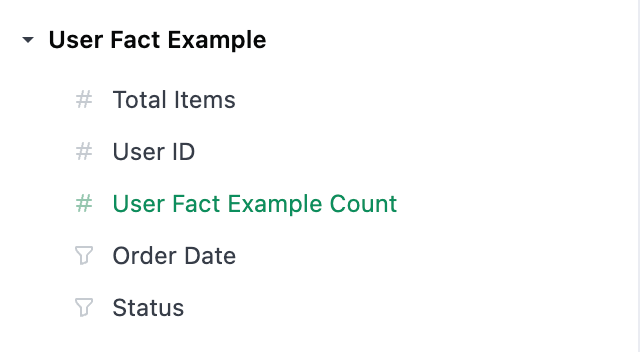
The filters will appear as filter-only fields in the field picker, in their own section under the measures section. These can then be used as normal filters, and the specified expression is inserted in place.
Time frame switcher

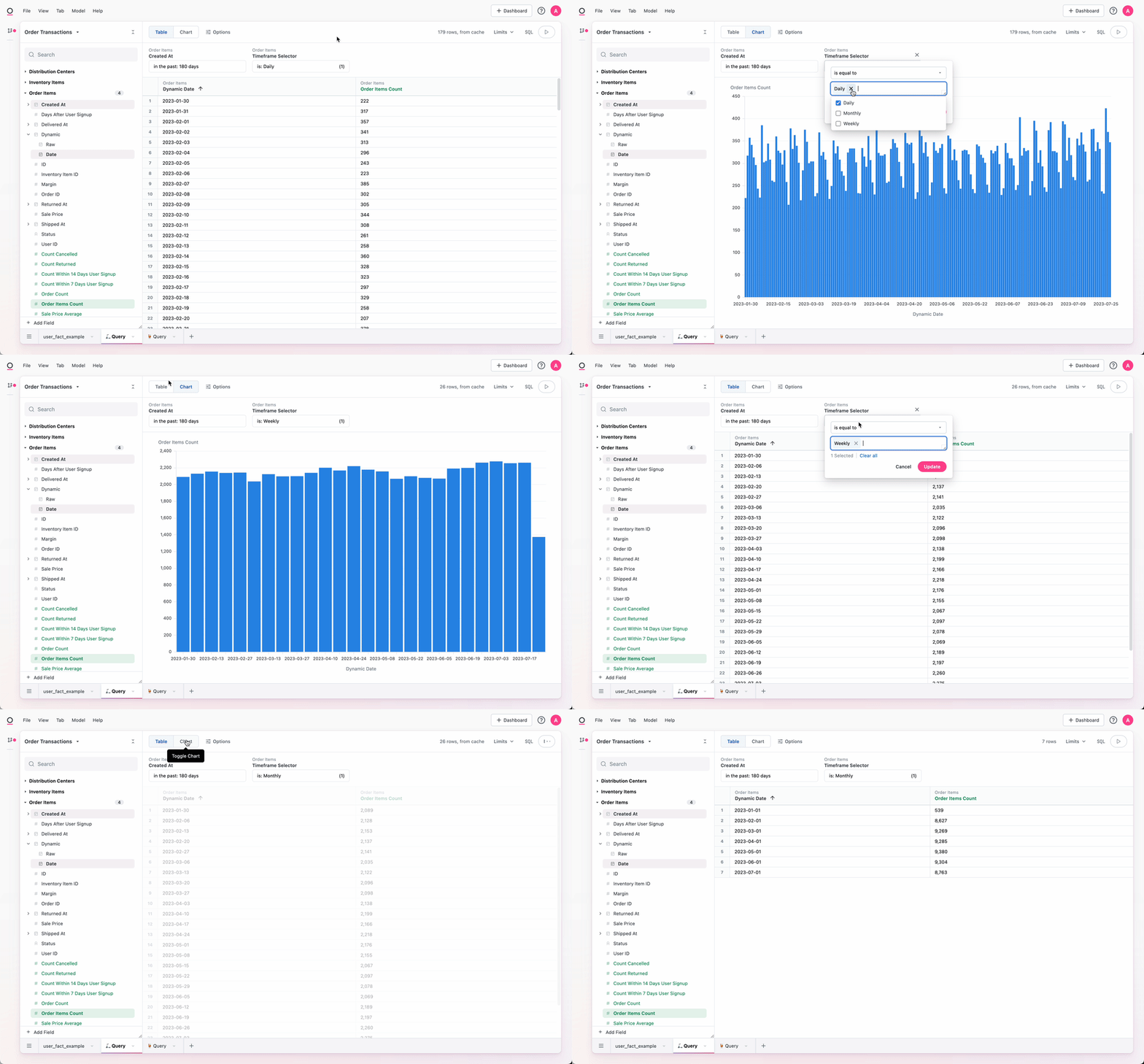
In many cases, the UI-based time frame switcher control may be a better path.
A field of dynamic granularity can be constructed such that a single filter on a dashboard swaps the granularity for multiple time series in one. By editing the .view file, it is necessary to add a dynamic dimension and a filter. In the example below, replace all references to created_date with the appropriate date field and order_items with the fully qualified view reference.
# In the .view file
dimensions:
  created_date_dynamic:
    sql: |
      CASE
        WHEN {{# schema__order_items.timeframe_selector.filter }} 'Daily' {{/ schema__order_items.timeframe_selector.filter }} THEN ${created_at[date]}
        WHEN {{# schema__order_items.timeframe_selector.filter }} 'Weekly' {{/ schema__order_items.timeframe_selector.filter }} THEN ${created_at[week]}
        WHEN {{# schema__order_items.timeframe_selector.filter }} 'Monthly' {{/ schema__order_items.timeframe_selector.filter }} THEN ${created_at[month]}
      END
    label: Dynamic
    timeframes: [Date]

filters:
  timeframe_selector:
    type: string
    suggestion_list:
      - value: Daily
      - value: Weekly
      - value: Monthly
This timeframe_selector filter can then be used either in workbooks or on dashboards across multiple tiles to update them all at once.
Conversion rates

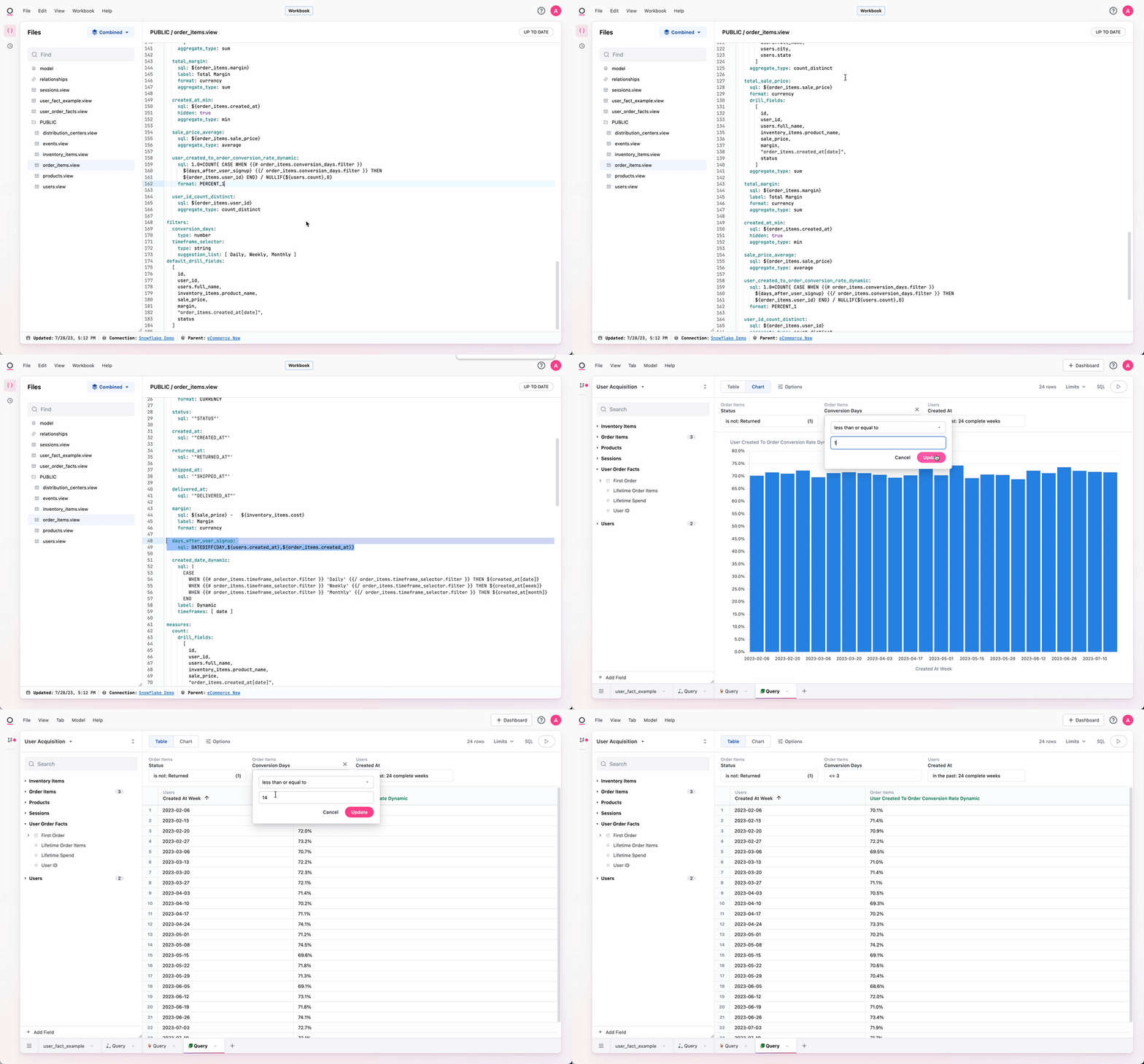
A common analytical pattern is to compare conversion rates with 1, 3, 7, 30, or however many days. For the more static form, one might do something like this:
# Reference this view as order_items
dimensions:
  days_after_user_signup:
    # assumes a join has been made to a users view
    sql: DATEDIFF(DAY,${users.created_at},${order_items.created_at})

measures:
  count_users_with_order_within_7_days:
    aggregate_type: count_distinct
    sql: ${user_id}
    filters:
      days_after_user_signup:
        less_than: 8
  user_created_to_order_conversion_rate_7d:
    sql: 1.0 * ${count_users_with_order_within_7_days} / NULLIF(${users.count},0)
This is very useful, but requires that measures be created for 1, 3, 7, 30, etc. -day conversion rates. We can add a dynamic option:
measures:
  user_created_to_order_conversion_rate_dynamic:
    sql: |
      1.0 * COUNT(
        CASE
          WHEN {{# order_items.conversion_days.filter }} ${days_after_user_signup} {{/ order_items.conversion_days.filter }}
          THEN ${order_items.user_id}
        END)
      / NULLIF(${users.count},0)
    format: PERCENT_1

filters:
  conversion_days:
    type: number

Dynamically filter active subscriptions using date range (SCD2)

If you have data that shows that defines the dates for the beginning of a subscription and the end of a subscription, this example allows end users the ability to filter for active subscriptions during a dynamic time frame. This utilizes Omni’s out of the box time frame selector, so some dates selections will not work well such as “On Day of Month”, but any value that is a range of dates or a specific date will return the active subscriptions during that time.
# table that has subscription start and end data
schema: ...
table_name: your_table_name

dimensions:
  valid_from: {}
  valid_to: {}
  # add a dimension that is set to Active or Not Active depending on date from dynamic filter
  is_active:
    sql: |
      CASE
        WHEN ${valid_from} <= {{filters.your_table_name.subscription_active_date.range_end}} AND ${valid_to} >= {{filters.your_table_name.subscription_active_date.range_start}}
        THEN 'Active'
        ELSE 'Not Active'
      END

# filter only field for setting dynamic time frame
filters:
  subscription_active_date:
    type: timestamp

Dynamically switching database table in a query

In some cases, users may need to be able to quickly switch between multiple tables when performing an analysis. For example, tables with similar data structures but differing data, such as different time grains. Note: The approach described below should be placed in a new view. You can add a view in the model IDE by clicking File > New View.
For some databases, such as Snowflake, you will need to wrap the {{filters.your_table_name.filter_field.value}} in IDENTIFER() to cast from a string to a SQL query-able value.
# code for the query view in IDE
# sql code to dynamically select a table as defined by filter_field filter
sql: |-
  SELECT *
  FROM {{filters.your_table_name.filter_field.value}}

dimensions: ...

# filter only field creating a suggestion list of tables to select
# set to default to the first table in the list
# set to only allow for one table to be selected
filters:
  filter_field:
    type: string
    suggestion_list:
      - value: existing_table_1
      - value: existing_table_2
    default_filter:
      is: existing_table_1
    filter_single_select_only: true

Dynamically filter total count

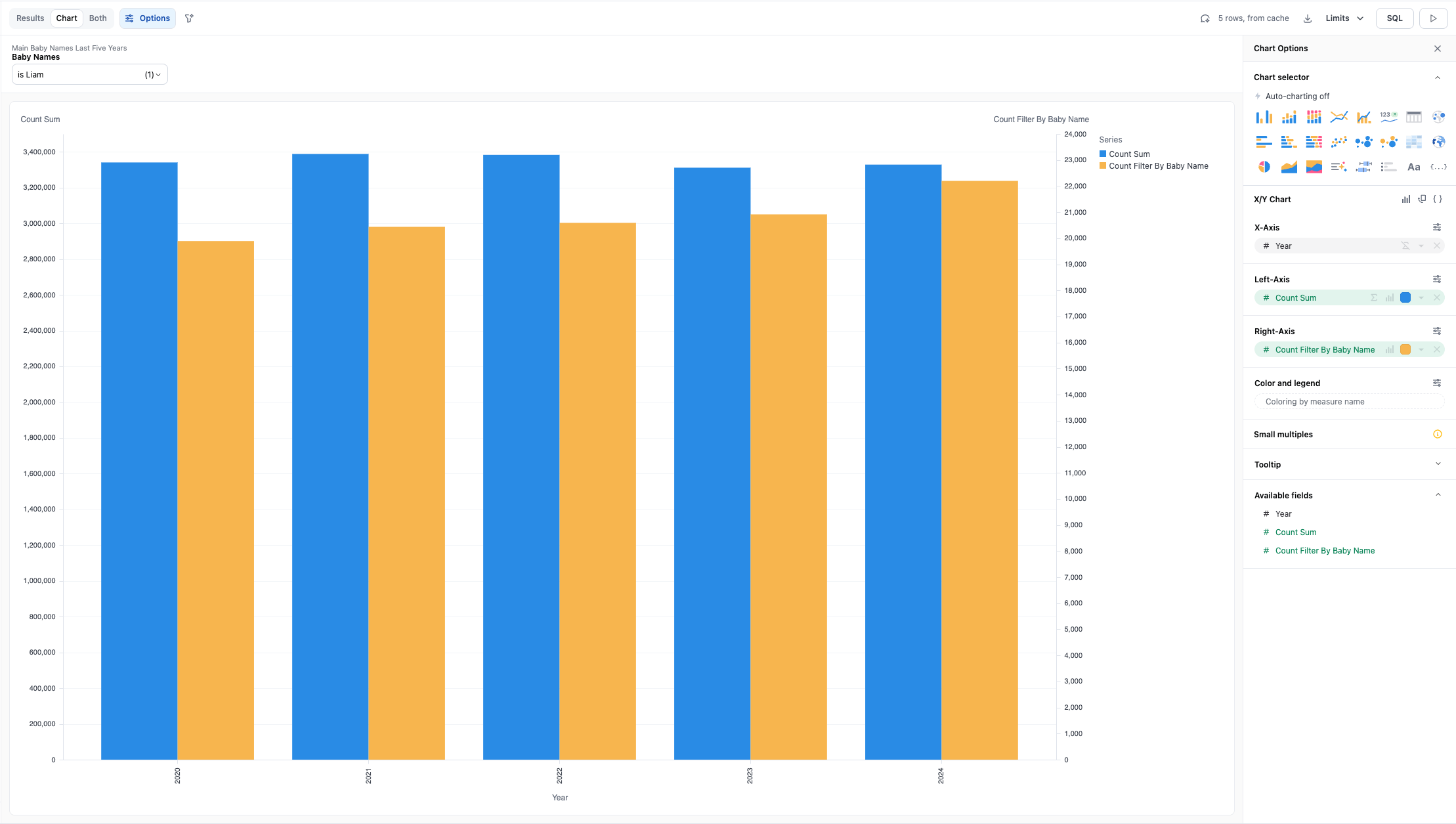
Dynamically filter a count down to just the count for a specific value. This allows for creating visualizations where you compare the overall count to the count filtered by the dynamic value on a single visualization.
# code for view in IDE
schema: main
table_name: baby_names_last_five_years

dimensions:
  # baby name in view
  baby_name:
    sql: baby_name
    label: Baby Name

  # count of baby name
  count:
    sql: count
    label: Count

measures:
  # measure that takes count then filters by filter only field
  # reads name select from filter only field (baby_name_filter) then filters the baby_name and then returns the count when true else 0
  count_filter_by_baby_name:
    sql: |
      CASE 
        WHEN {{# main__baby_names_last_five_years.baby_name_filter.filter }} main__baby_names_last_five_years.baby_name {{/ main__baby_names_last_five_years.baby_name_filter.filter }} THEN ${main__baby_names_last_five_years.count}
        ELSE 0
      END
    aggregate_type: sum

filters:
  # filter only field to be used for filtering added meaure (count_filter_by_baby_name) to be the total count for just the selected baby name
  baby_name_filter:
    type: string
    suggest_from_field: main__baby_names_last_five_years.baby_name

Dynamic period-over-period with custom date range

Having the ability to create custom date ranges in period over period allows for flexibility to select any date range within each period to comapre values against. In the below example, there is a a view file of demo real estate data where two filter-only fields have been added to create the custom date range selectors that will then be used to filter aginst the added measures that sum the sales_amount if the date matches the date selected in the custom filter_only field.
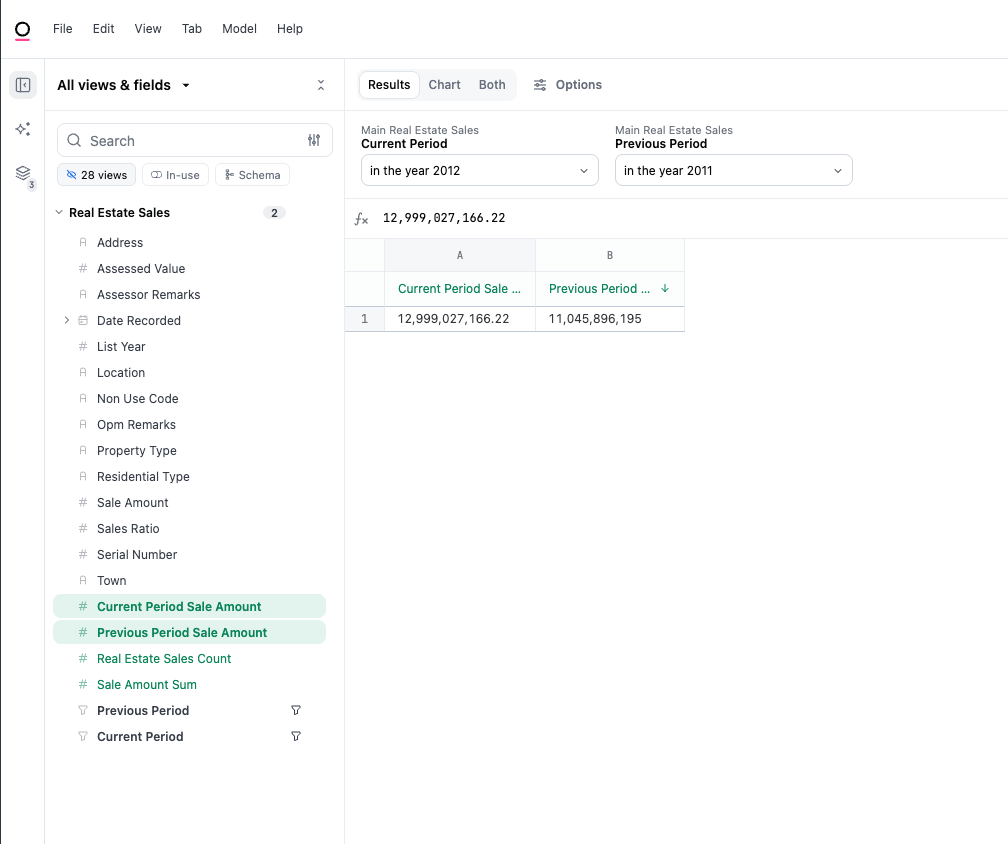
# Reference this view as main__real_estate_sales
schema: main
table_name: real_estate_sales

# dimensions that already existed on the table trimmed to just dimensions used in templated filter
dimensions:
  ...
  date_recorded:
    sql: '"Date Recorded"'
  sale_amount:
    sql: '"Sale Amount"'
  ...

measures:
  count:
    aggregate_type: count
  # added measures that are filtered by added filter only fields
  # filtered on date_recorded and only return the sale amount if date_recorded matches the custom filter only field date
  previous_period_sale_amount:
    sql: |
      SUM(CASE
        WHEN {{# main__real_estate_sales.previous_period.filter }} ${main__real_estate_sales.date_recorded} {{/ main__real_estate_sales.previous_period.filter }} THEN ${main__real_estate_sales.sale_amount}
        ELSE 0
      END)
  current_period_sale_amount:
    sql: |
      SUM(CASE
        WHEN {{# main__real_estate_sales.current_period.filter }} ${main__real_estate_sales.date_recorded} {{/ main__real_estate_sales.current_period.filter }} THEN ${main__real_estate_sales.sale_amount}
        ELSE 0
      END)

# filter only fields used for creating custom period over period
filters:
  previous_period:
    type: timestamp
    suggest_from_field: main__real_estate_sales.date_recorded
  current_period:
    type: timestamp
    suggest_from_field: main__real_estate_sales.date_recorded

Filter-only fields

filters:
  order_date:
    type: timestamp
  status:
    type: string
    suggest_from_field: order_items.status
filters:
  rolling_window:
    type: string
    suggestion_list:
      - value: "6"
        label: 7 days
      - value: "13"
        label: 14 days
    default_filter:
      is: "6"
    filter_single_select_only: true
filters:
  timeframe_selector:
    type: string
    suggest_from_field: date_spine.date_string
    suggest_from_topic: opp_line_items
For specific filter syntax, like measure filters see here.

aliases

filter_name:
  aliases: [old_filter_name]
Similar to table level aliases, occasionally a field name may change in your database, which can cause content to break. To fix this, we can add aliases: to the field in question pointing references from the old field name to the updated field name, restoring content and eliminating content related errors. This behaves similar to table level aliases, as shown

default_filter

status_templated_filter:
  type: string
  default_filter:
    is: "Completed"
  suggestion_list:
    - value: Compeleted
    - value: Returned

# note the [] will default to any value here
templated_filter_default_anything:
  type: string
  default_filter:
    is: []

rolling_window:
  type: string
  suggestion_list:
    - value: "6"
      label: 7 days
    - value: "13"
      label: 14 days
  default_filter:
    is: "6"
  filter_single_select_only: true
  • default_filter will automatically populate the filter value in the templated object
  • This is often paired with filter_single_select_only and suggestion_list when a single-selection is required
  • For setting the filter arguments, use the filter syntax

description

status_templated_filter:
  type: string
  default_filter:
    is: "Completed"
  suggestion_list:
    - value: Compeleted
    - value: Returned
  description: This is for filtering stuff in the status fact table
  • Metadata about the field, made available in the workbook/dashboard table UI upon hovering over a field with a description, or on right click from the field picker
  • Omni expects unquoted text (quotes will be removed / ignored)

display_order

status_templated_filter:
  type: string
  default_filter:
    is: "Completed"
  suggestion_list:
    - value: Compeleted
    - value: Returned
  description: This is for filtering stuff in the status fact table
  display_order: 1

other_status_templated_filter:
  type: string
  default_filter:
    is: "Completed"
  suggestion_list: [Compeleted, Returned]
  description: This is for filtering stuff in the other status fact table
  display_order: 2
  • Omni expects a whole number
  • This will override the sort order for the field picker, inside the field’s grouping (i.e. inside a given view)
    • display_order will supersede alphabetical sorting
  • For example, if the two fields above in users are given display_order: they will float to the top of the field list in users, and the remaining fields would be sorted alphabetically
  • To rearrange views, display_order can be used at the view level
  • For fields inside groups using group_label, the group will be ranked with the min of all the fields in the group (i.e. if there are 3 fields with display_order of 4, 5 and {empty}, the group will have a display_order of 4)

filter_single_select_only

filters:
  rolling_window:
    type: string
    suggestion_list:
      - value: "6"
        label: 7 days
      - value: "13"
        label: 14 days
    default_filter:
      is: "6"
    filter_single_select_only: true
  • This argument will require the filter field to use a choose-one dropdown rather than the default flexible filter modal
  • Recommended with templated filters that require one-and-only-one object

group_label

rolling_window:
  group_label: Time Filters
  type: string
  filter_single_select_only: true
  • This will nest a group of fields in the field picker for curated organization
  • Omni expects unquoted text (quotes will be removed / ignored)
  • Note measures and dimensions will still be in separate sections in the field picker under each view
  • Fields can be nested under timeframes using the group label - the text rather than the field should be used (i.e. Created At not created_at)

hidden

rolling_window:
  hidden: true
  • Remove the field from the UI. Still referenceable in the model, but hidden in the workbook UI.
  • Expects ‘true’ or ‘false’

ignored

Likely should not be used with filters, can just delete or comment out if it’s not desired in the model

label

status:
  type: string
  label: Status Filterer
  suggestion_list:
    - value: "Completed"
    - value: "Returned"
  • Label will override the field name for all UI appearances of the field
  • Omni expects unquoted text (quotes will be removed / ignored)

required_access_grants

You can also conditionally allow access by using pipes (|) and ampersands (&) to create OR and AND conditions.
required_access_grants: [grant_one]

# Grant access if conditions are met for either access grant
required_access_grants: [grant_one|grant_two]

# Grant access if conditions are met for:
# (grant_one OR grant_two)
# AND
# grant_three
required_access_grants: [grant_one|grant_two&grant_three]

suggestion_list

filters:
  rolling_window:
    type: string
    suggestion_list:
      - value: "6"
        label: 7 days
      - value: "13"
        label: 14 days
  status:
    type: string
    suggestion_list:
      - value: "Completed"
      - value: "Returned"
  • Suggestion list will explicitly set the suggestions on

suggest_from_field

filters:
  timeframe_selector:
    type: string
    suggest_from_field: date_spine.date_string
    suggest_from_topic: opp_line_items
filters:
  status_picker:
    type: string
    suggest_from_field: order_items.status
  • This argument can be used to populate a filter with another field’s values
  • Commonly used with the filter is injected in sql with a corresponding modeled field

suggest_from_topic

filters:
  timeframe_selector:
    type: string
    suggest_from_field: date_spine.date_string
    suggest_from_topic: opp_line_items
  • This needs to be paired with suggest_from_field and can tune the specific topic (ie access-filters and default filters) for a given suggestion

type

filters:
  order_date:
    type: timestamp
  status:
    type: string
  • Currently, filter-only fields can only be defined in the IDE. They require a name, and a type. The accepted types for a filter-only field are:
    • array
    • boolean
    • interval
    • json
    • column (returns unquoted text, can be used to substitute in column names in query views)
    • number most common
    • string most common
    • timestamp most common

view_label

filters:
  order_date:
    type: timestamp
    view_label: Filters
  status:
    type: string
    view_label: Filters
  • This will nest a given field under a different view than it’s default parent view, for example, grouping user_facts fields under the users view for better organization and discovery
  • Note that filters will always be below dimensions and measures
  • Sometimes can be valuable to pull all filters into a separate psuedo-view, would do that with the view argument as seen here

Parameters

Parameters can be used in Omni in tandem with filter-only Fields. The value of a filter-only field can be referenced using the structure {{filters.table_name.field_name.value}}, and can be used in definitions for other fields. When that filter-only field is applied to a workbook or dashboard, it can be used to change the value of the parameter field, and thus interact with the query accordingly. Consider using the filter_single_select_only argument when using a string filter-only field to parameterize some selector.

Dynamic date range example

schema: PUBLIC
sql: |-
  SELECT status, sum(sale_price) as sum_sale_price
  FROM public.order_items
  WHERE 1=1
    AND created_at >= {{filters.filter_only_parameter_example.dates.range_start}}
    AND created_at < {{filters.filter_only_parameter_example.dates.range_end}}
  GROUP BY 1

dimensions:
  status:
    sql: '"STATUS"'
  sum_sale_price:
    sql: '"SUM_SALE_PRICE"'

measures:
  count:
    aggregate_type: count

filters:
  dates:
    type: timestamp
Users can reference the start or end range of a date filter using the structure {{filters.table_name.field_name.range_start}} and {{filters.table_name.field_name.range_end}}.

Dynamic date range comparison example

dimensions:
  domain: {}
  name: {}
  comparison_period: {}
  revenue: {}
  date:
    timeframes: []
    convert_tz: false
  is_period_one:
    sql: ${date} = TIMESTAMPADD(DAY, -{{filters.service_node_comparision.period_one.value}}, DATE(NOW()))
  is_period_two:
    sql: ${date} = TIMESTAMPADD(DAY, -{{filters.service_node_comparision.period_two.value}}, DATE(NOW()))

measures:
  count:
    aggregate_type: count
  revenue_sum:
    sql: ${service_node_comparision.service_nodes}
    aggregate_type: sum
  revenue_sum_period_one:
    sql: ${service_node_comparision.service_nodes}
    label: Service Nodes Sum Period One
    aggregate_type: sum
    filters:
      is_period_one:
        is: true
  revenue_sum_period_two:
    sql: ${service_node_comparision.service_nodes}
    label: Service Nodes Sum Period Two
    aggregate_type: sum
    filters:
      is_period_two:
        is: true

filters:
  period_one:
    type: string
    suggestion_list:
      - value: "1"
        label: Yesterday
      - value: "182"
        label: 6 Months Ago
    default_filter:
      is: "1"
    filter_single_select_only: true
  period_two:
    type: string
    suggestion_list:
      - value: "1"
        label: Yesterday
      - value: "182"
        label: 6 Months Ago
    default_filter:
      is: "182"
    filter_single_select_only: true
This example creates a pair of filtered measures using templated filters to select specific dates.

Dynamic field examples

# Note controls are much better for this use case, but may be valuable when you need to riff or put in a query view
dimensions:
  dynamic_dimension:
    sql: {{ filters.view.field_picker.value }}

filters:
  field_picker:
    type: column
    suggestion_list:
      - value: table.field1
        label: Field 1
      - value: table.field2
        label: Field 2
    default_filter:
      is: table.field1
    filter_single_select_only: true
This example pipes columns table.field1 or table.field2 into the dynamic_dimension. For this dynamic dimension, the filter only field requires the use of type: column. Note this injects the SQL dialect’s column naming convention and will only pass SQL validation if the correct database column reference is defined for the value subparameter (e.g. in Snowflake the scoped column names would need to be capitalized). Consider including the suggest_from_field subparameter in the filter only field to generate a list of values from the database’s metadata table.
dimensions:
  state_most_famous_person_dynamic_model:
    sql: |-
      -- DO NOT PARSE
      SNOWFLAKE.CORTEX.COMPLETE( {{ filters.states.dynamic_model.value }}, CONCAT('who is the most famous person from ', ${states.state}) )::varchar

filters:
  dynamic_model:
    type: string
    suggestion_list:
      - value: snowflake-arctic
        label: Snowflake's Default Model (Cheapest)
      - value: claude-3-5-sonnet
        label: Claude's latest
      - value: reka-core
      - value: mistral-large2
      - value: llama3.2-1b
        label: Small Llama model
      - value: mistral-7b
        label: Small Mistral model
      - value: gemma-7b
        label: Small model, best for code completion
    default_filter:
      is: snowflake-arctic
    filter_single_select_only: true
Here we’ve built a Snowflake Cortex dynamic column that can call a model based on the dynamic_model specified. The filter is set as single-select, with descriptions on each model to help the end user. This value is piped into the Cortex call to select the given model for analysis using filters.states.dynamic_model.value.

Dynamic date part example

schema: other
sql: |
  SELECT
    CASE
      WHEN {{ filters.colin_test.timeframe_selector.value }} = 'Daily' THEN date_trunc(created_at, day)
      WHEN {{ filters.colin_test.timeframe_selector.value }} = 'Weekly' THEN date_trunc(created_at, week)
      WHEN {{ filters.colin_test.timeframe_selector.value }} = 'Quarterly' THEN date_trunc(created_at, quarter)
      WHEN {{ filters.colin_test.timeframe_selector.value }} = 'Yearly' THEN date_trunc(created_at, year)
      ELSE date_trunc(created_at, year)
    END as event_date
    , count(*) as dim_count
  FROM users
  GROUP BY 1

dimensions:
  dim_count: {}
  event_date:
    format: "%Y-%m-%d"
    timeframes: []
    primary_key: true

filters:
  timeframe_selector:
    type: string
    suggestion_list:
      - value: Daily
      - value: Weekly
      - value: Monthly
      - value: Quarterly
      - value: Yearly
    default_filter:
      is: Monthly
    filter_single_select_only: true
This pattern creates a fact table to be requeried or aggregated using a template filter to set the date part (here BQ SQL). Note we cannot current inject unquoted strings into the SQL block, but we can instead handle with a CASE statement.

Self-referential building

We have a few handy parameters that can be leveraged in your models to build joins, dimensions, and measures based on what is present in the query. The format for calling these parameters is and they will evaluate to TRUE or FALSE:
  • {{ view_name.field_name.in_query }} OR {{ view_name.in_query }}
  • {{ view_name.field_name.is_selected }}
  • {{ view_name.field_name.is_filtered }}

in_query

This will look for the presence of a specific field OR view in the SELECT or WHERE clause of a query.

is_selected

This will look for the presence of a specific field in the SELECT clause of a query.

is_filtered

This will look for the presence of a specific field in the WHERE clause of a query. Example of conditional join using in_query
base_view: inventory_items

joins:
  product_fact: {}

relationships:
  - join_from_view: inventory_items
    join_to_view: product_fact
    join_type: always_left
    on_sql: |-
      CASE
        -- check if inventory_items.product_id is in query
        WHEN {{ inventory_items.product_id.in_query }}
          -- check if there's a match in the fact table
          AND ${inventory_items.product_id} = ${product_fact.product_id}
          THEN 1
        ELSE 0 -- if inventory_items.product_id not present, do not join
      END = 1
    relationship_type: one_to_one
Example of creating measure using is_selected
max_age:
  sql: ${users.age}
  aggregate_type: max
  description: dummy aggregate for sale_price_per_year_of_life

sale_price_per_year_of_life:
  sql: |-
    CASE
      WHEN {{ users.age.is_selected }}
      THEN ${order_items.sale_price_sum}/${users.max_age}
      ELSE null
    END
You can read more about this pattern in our community article.