

Choosing your embed configuration
Requirements
Before working through the scenarios below, make sure you have:- An Omni instance with external embed configured and your embed secret
- Organization Admin access to manage embed sessions and access connection settings
- A test dashboard, workbook, and connection you can generate example URLs against
Identifying the pattern you need
Five embed patterns cover most deployment scenarios: a single dashboard, that same dashboard with AI, the standalone AI chat, and Create Mode with or without tenant isolation. Each one is a different combination of Omni embed parameters. To determine which pattern matches your desired end user experience, consider the following questions and then refer to the following table to jump to the right section:- Should embed users land on a specific dashboard? Or should they land in an AI chat?
- Should embed users have access to an AI chat interface at all?
- Should embed users have the ability to build and share their own dashboards?
- Do embed users need to be automatically isolated from others, such as when embedding for multiple customer groups?
Single-content embeds
If you only want users to view a piece of content but not navigate or build, usemode=SINGLE_CONTENT to place one piece of content into the iframe with no app navigation or headers. The following patterns all use this mode, but you can customize the content and connection permissions that embed users have.
Dashboard, no AI
Use this pattern when you want to embed a single read-only dashboard without a chat surface.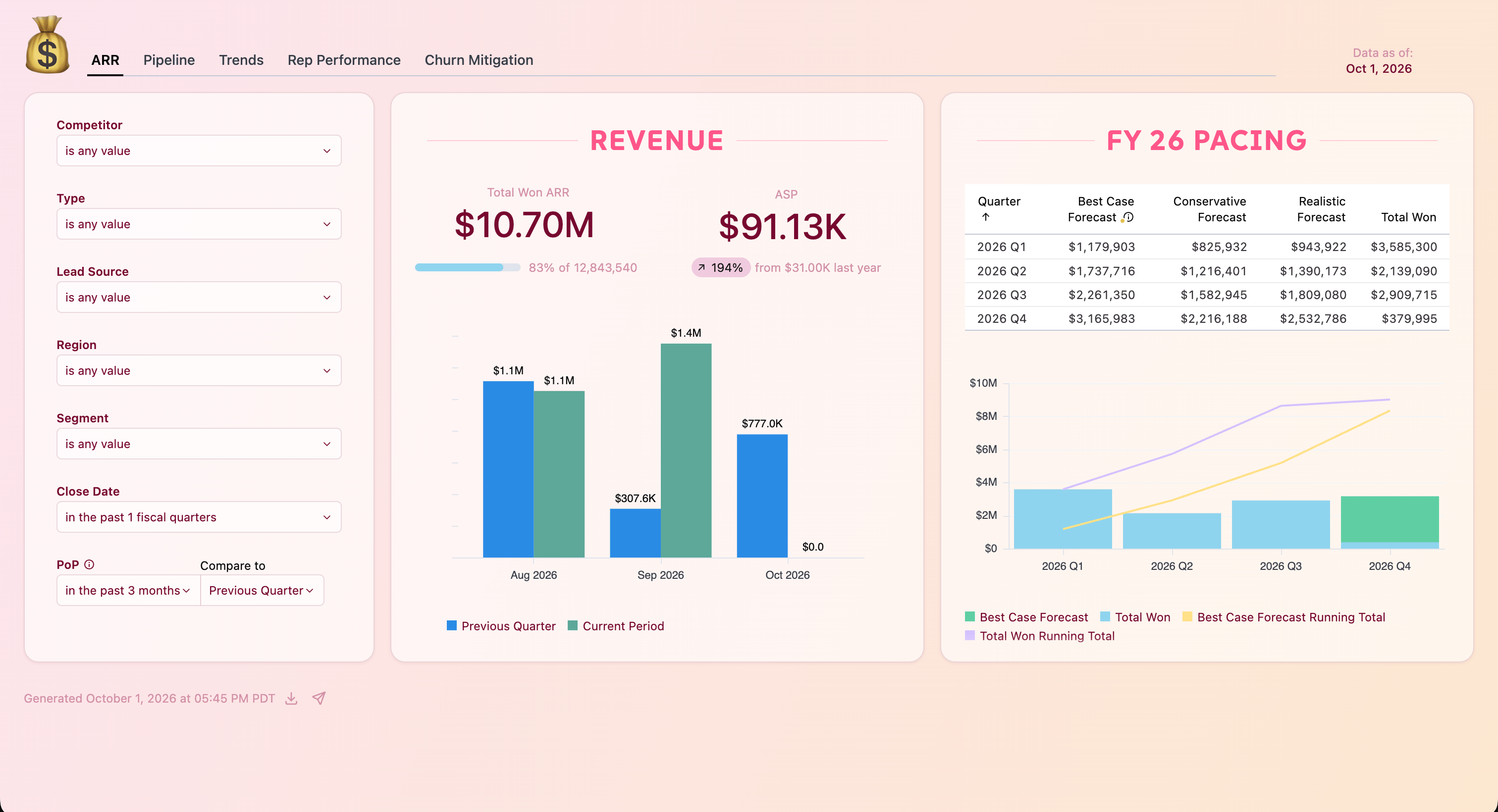
Embedded dashboard with no AI and no navigation.
Dashboard, with AI
Like embedding a dashboard without chat, this pattern uses the samecontentPath, but with a connection role that allows querying. This role grants users the minimum permissions required to use the Omni Agent on a dashboard.
To use this pattern, you’ll need:
- A published dashboard
- To enable the settings required to use the Omni Agent. See the Omni Agent documentation for more information.
- To enable Read data result in AI Hub > General
- To enable the AI on dashboard ability, either turned on by default for all content or per document (File > Settings > Chat with Content).
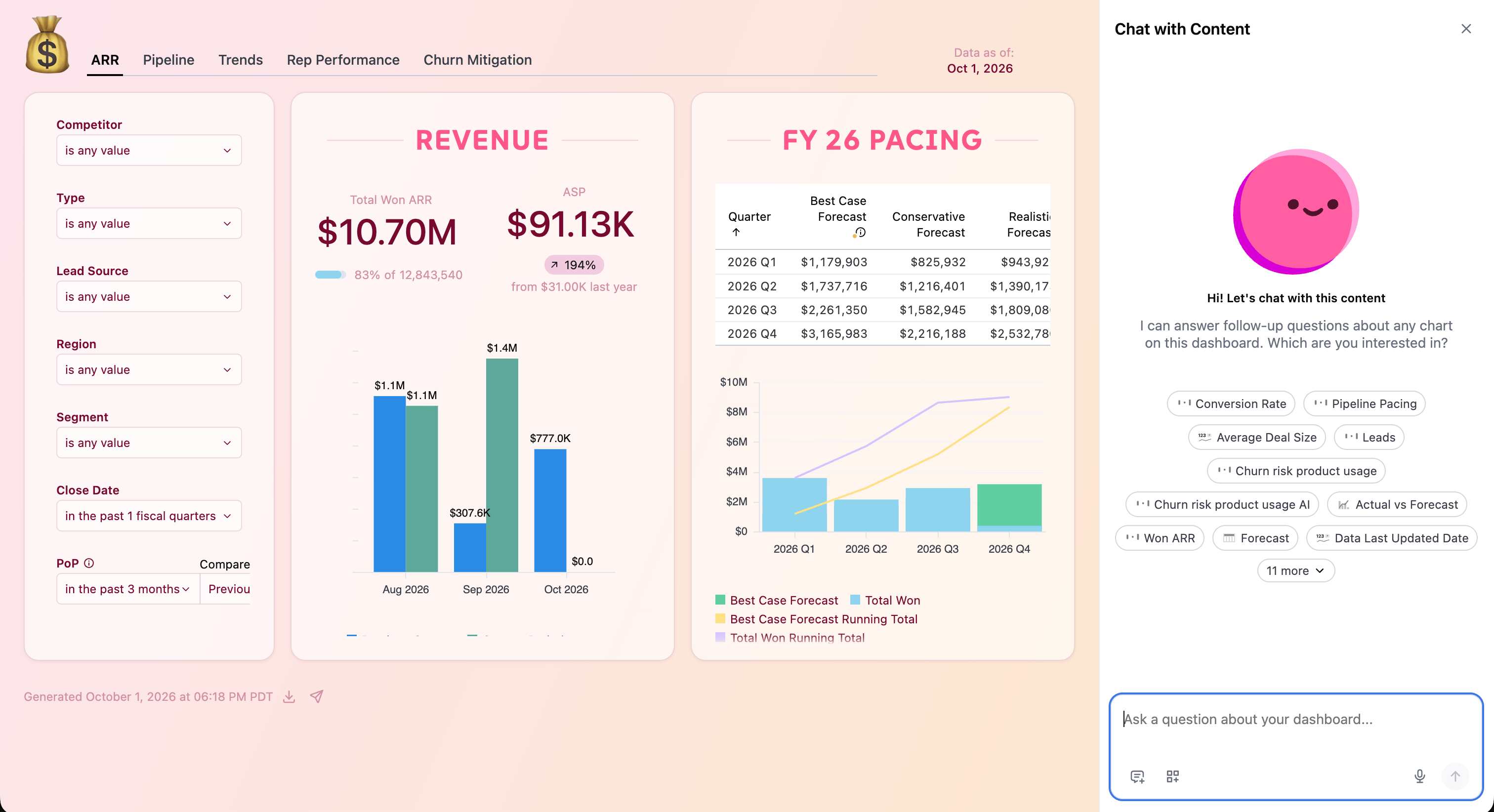
Embedded dashboard with the inline AI chat panel.
Chat only
Use this pattern when you want to embed a chat-first experience. This pattern pointscontentPath directly at /chat, with Restricted Querier permissions that allow the user to run queries through the Omni Agent.
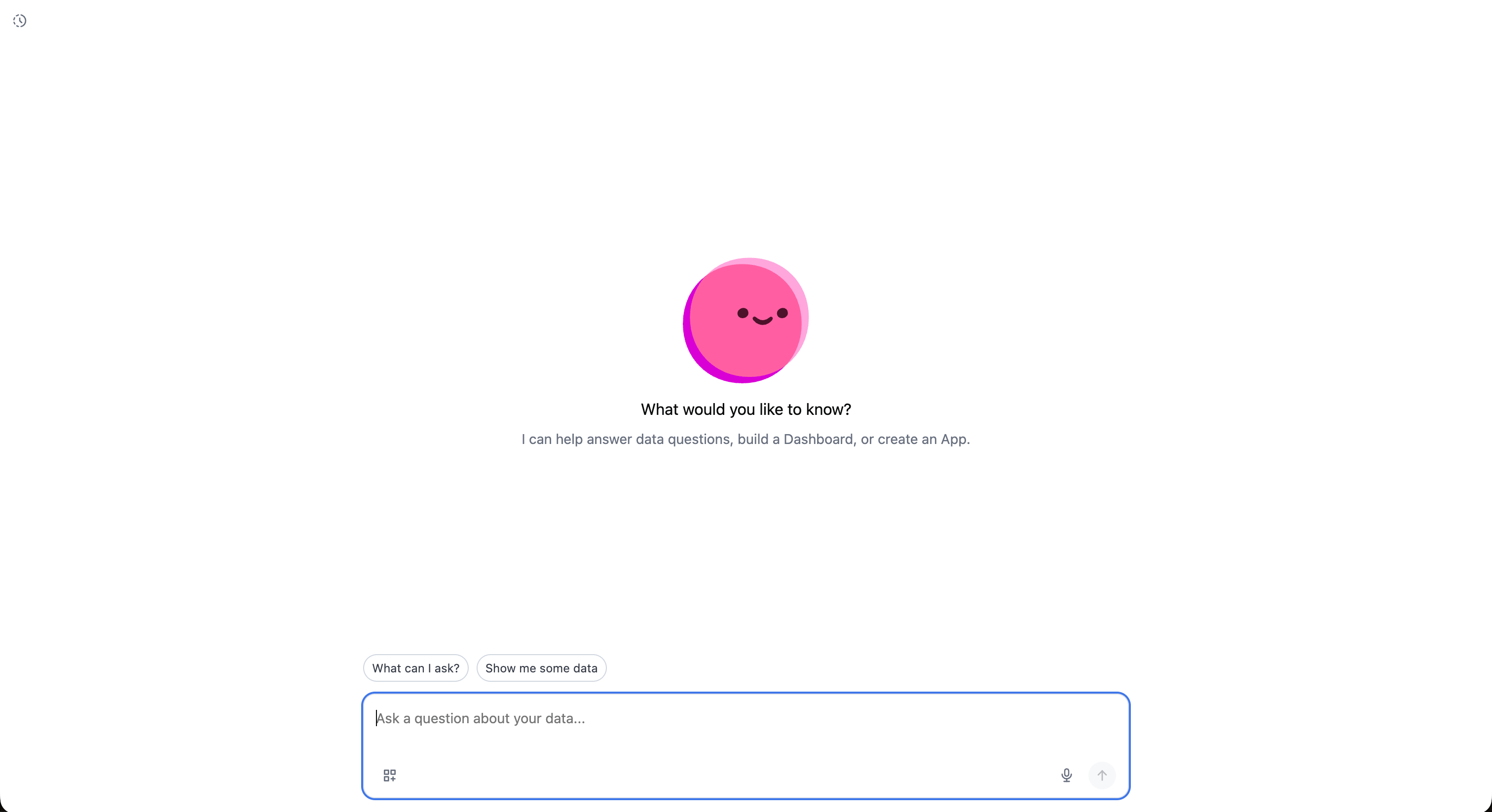
Standalone embedded chat interface.
Create Mode embeds
If you want to allow users to navigate and build content, usemode=APPLICATION to give them the full Omni app — navigation, the Hub, My Documents, the ability to build and save content — instead of a single piece of content.
The patterns in this section differ in whether Omni handles tenant isolation for you, where tenants are typically your customers. For example, if you plan to provide several customer groups access to Omni, you may want to ensure that they don’t know about one another, and that their content remains fully isolated.
Without entities
Use this pattern when you want to embed a single tenant, an internal tool, or any case where you’re handling isolation yourself through existing groups rather than relying on Omni’s per-customer folders. Pass inmode=APPLICATION and any group membership relevant to the user. Choose a content path based on where you want users to land after login:
/mylands users in their My Documents folder/rootlands users in the shared Hub/chatlands users in the Omni Agent, where Create Mode lets them have the agent build and save content back to their personal documents folder
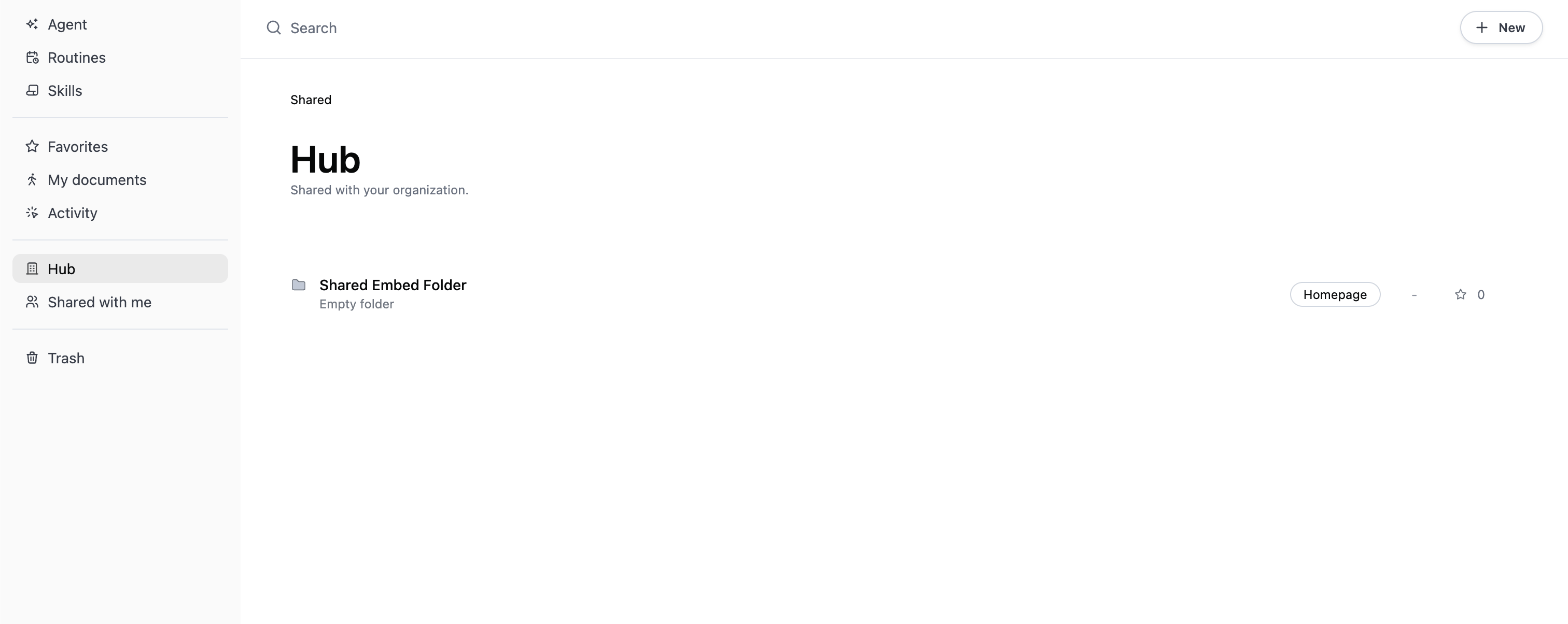
Embedded app in Create Mode with full navigation, landing on the Hub.
With entities
Use this pattern when you want to create a multi-tenant, self-service experience, where Omni automatically creates an isolated shared folder and group for each customer. Along withmode=APPLICATION, pass the entity parameter to associate the user with an entity. The first time Omni sees a new entity value, it creates the shared folder and group. The shared folder is visible only to that entity’s members and Organization Admins. You can then land the user directly in their entity’s shared folder with contentPath=/entity-folder.
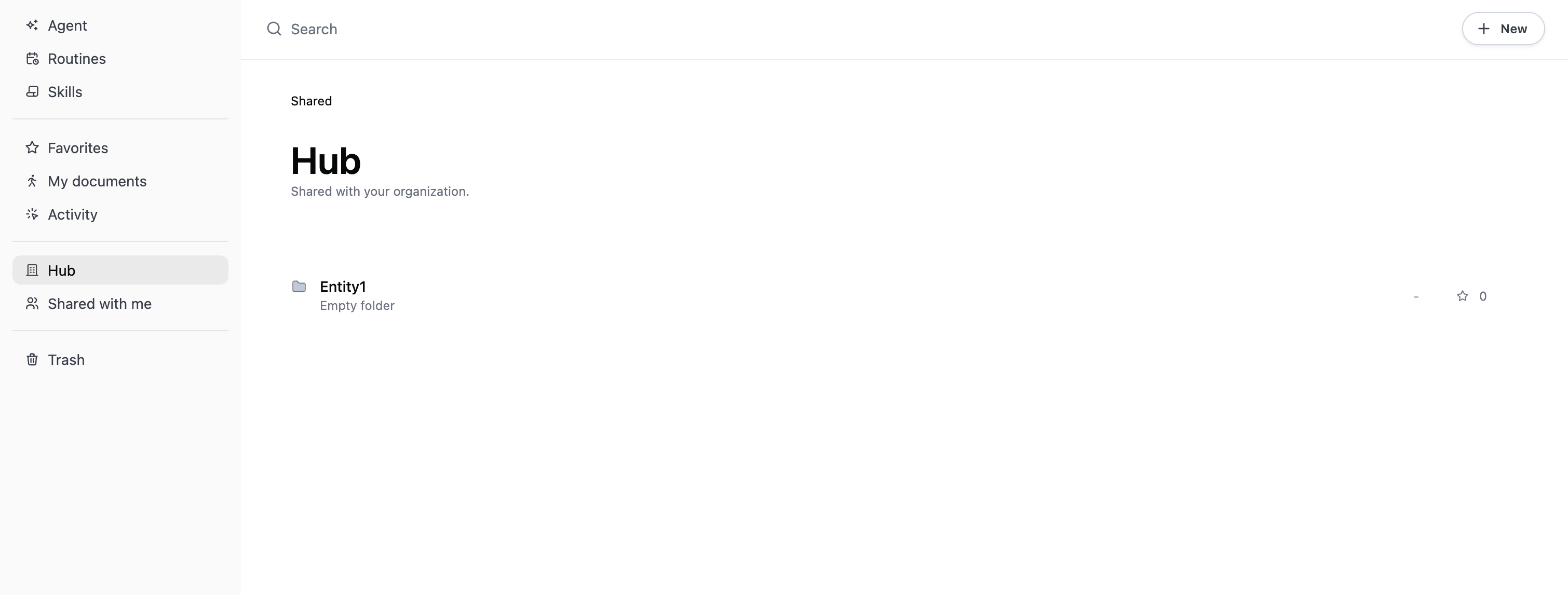
Embedded app in Create Mode with full navigation, landing on the Hub, with an entity folder.
Sharing content with entity groups. Regular folders in Omni behave as usual, even when intermingled with entity-specific folders. This means you can share content with entity groups and still maintain isolation.For example, share a Template folder with Viewer access to allow embed users to view other content and save their own version to their entity folder.
Next steps
- Securing your embed — permission guardrails before any of these go live
- Embed environment architecture — staging and production setup once you’ve picked a pattern
- Create a custom sidebar and theme — style the embedded app to match your product
- Managing AI credits for embed entity groups — relevant once the entity-based Create Mode pattern is live with real tenants