Customizing the sidebar
Instead of Omni’s default list of pages, you can add custom groups and items for specific content or external links, like a support site or internal wiki, then reorder and rename them. Omni’s built-in groups always stay in the sidebar, but you can rename their items, change their icons, or reset them to defaults. See Customizing your organization’s navigation sidebar for more information.Customizing application themes
The Styles section, located in the Settings > Themes > Application tab, allows you to customize a limited number of application-level theme properties. You can add custom logo and wordmark assets to your application theme to replace the default Omni branding. These custom assets are displayed in application mode embeds, where the default Omni branding is normally hidden behind a menu toggle. See Branding assets for more information.Customizing document themes
There are two ways to create and use custom document themes: directly on a dashboard or through the URL.To make your theme dynamic using some external logic, you can adjust the URL theme properties using the
customTheme parameter.Page properties
Tile properties
Controls
Page-level controls like filters, field switchers, and period-over-period.Control popover properties
Styles applied to control popovers and the inputs inside of them.Button properties
Retrieving woff2 file links from Google Fonts
If you have a woff2 file link like this:
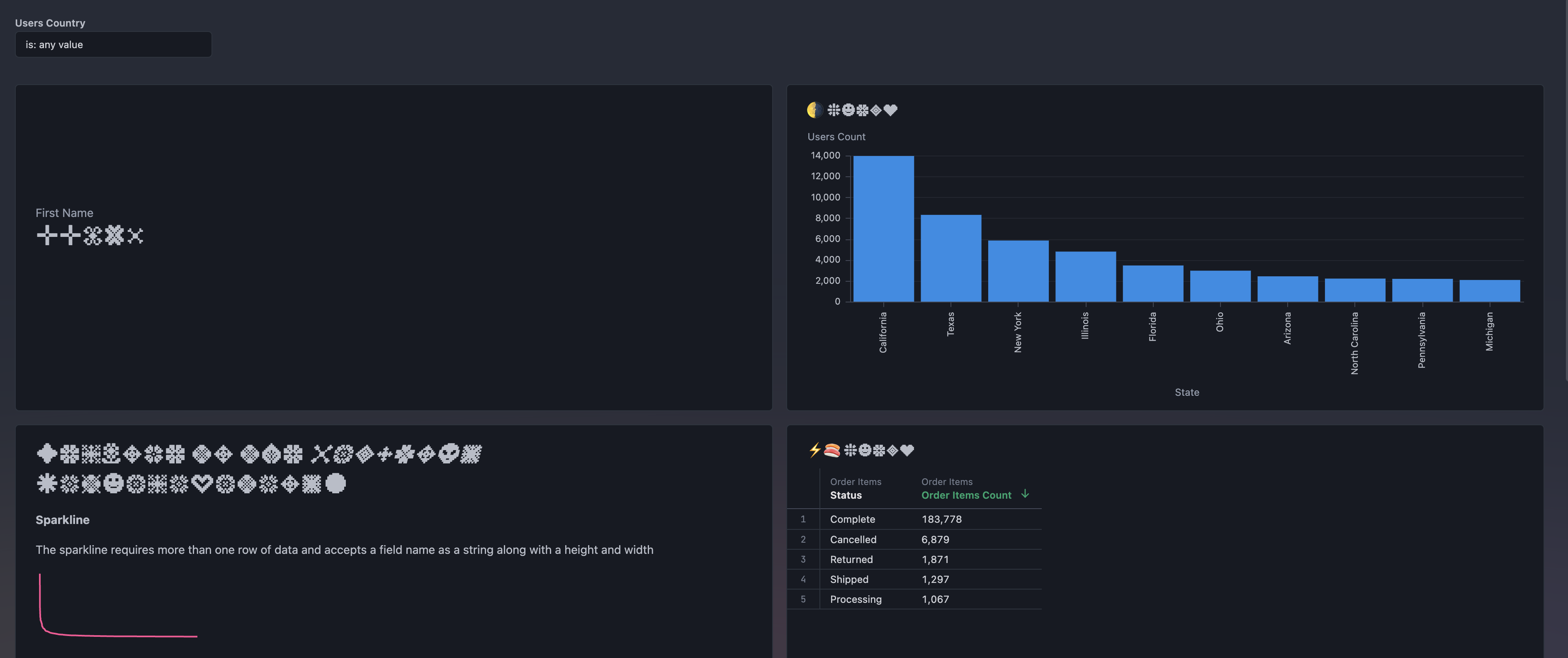
https://fonts.gstatic.com/s/libertinuskeyboard/v2/NaPEcYrQAP5Z2JsyIac0i2DYHaapaf43dru5tEg8zfg.woff2You must wrap it with the css url function when used in Omni, like so:url(https://fonts.gstatic.com/s/libertinuskeyboard/v2/NaPEcYrQAP5Z2JsyIac0i2DYHaapaf43dru5tEg8zfg.woff2)dashboard-tile-title-font-family support links to a remote woff2 file. A typical use case is to link to a woff2 file from a Google Font. To grab the link to a Google Font woff2 file, perform the following steps:
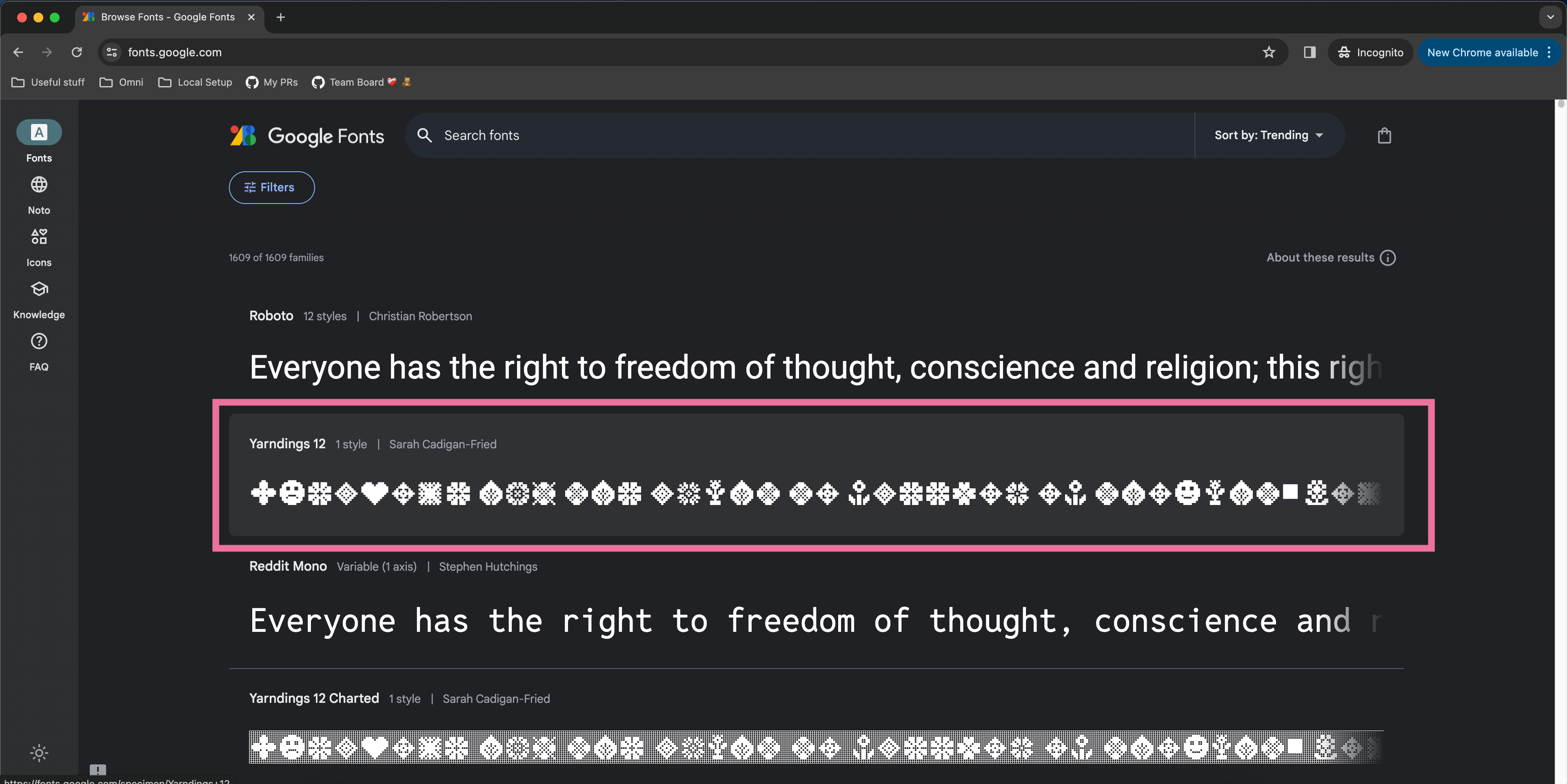
- Navigate to fonts.google.com and click on your font of choice. For this example, we’ll be using the “Yarndings 12” font.
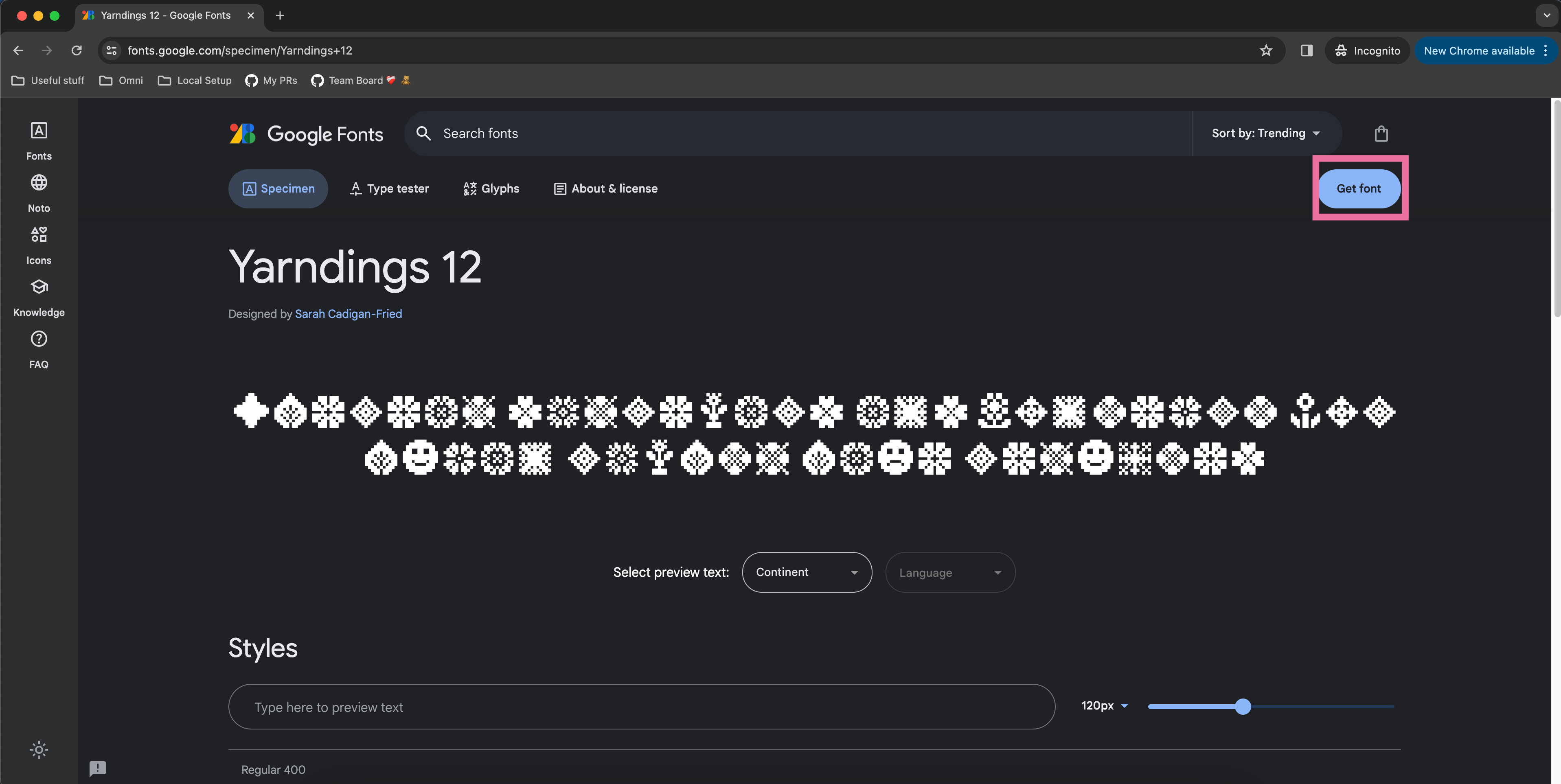
- That click should take you to a font specimen page. On that font specimen page, click the “Get font” button.
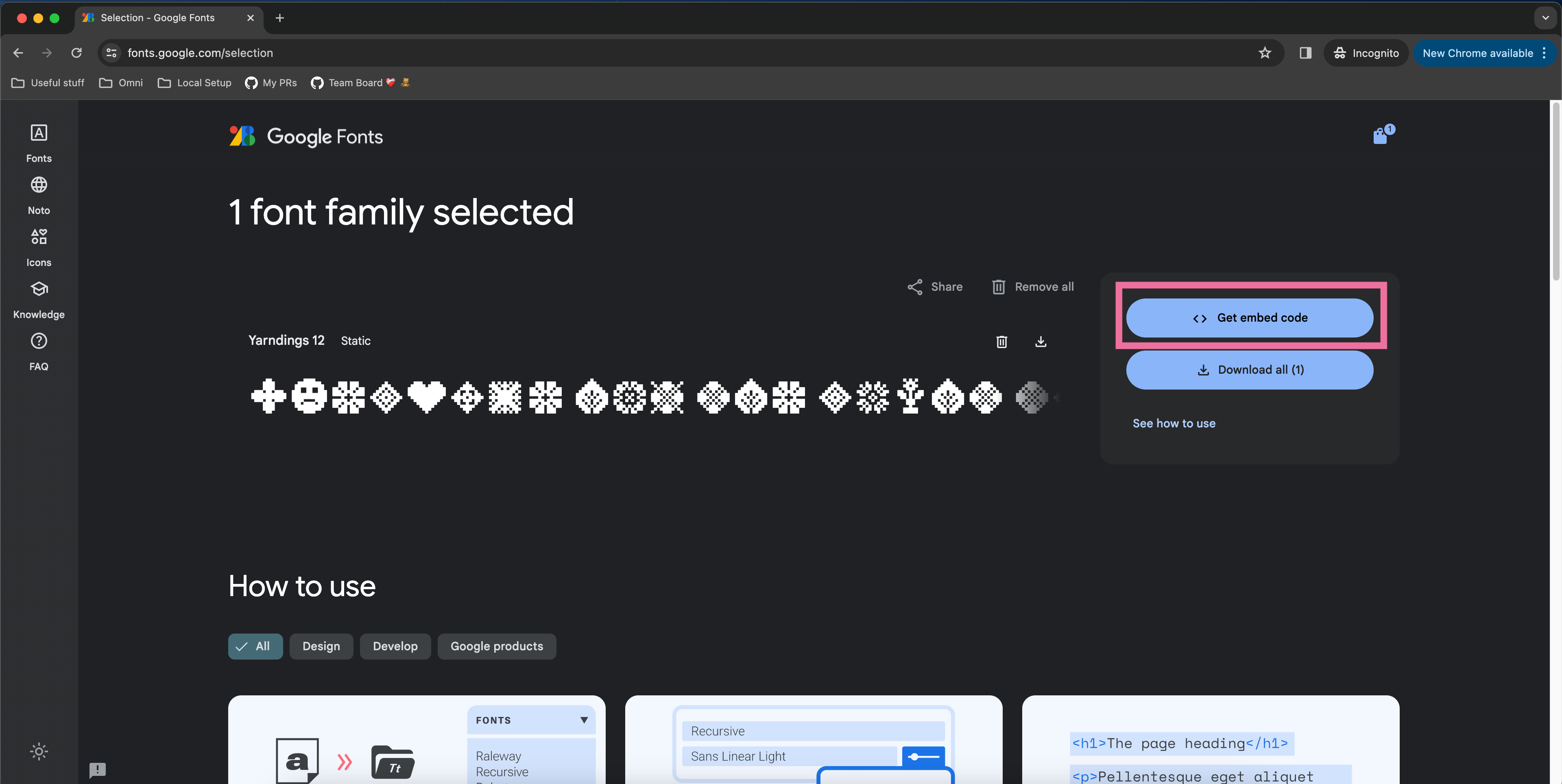
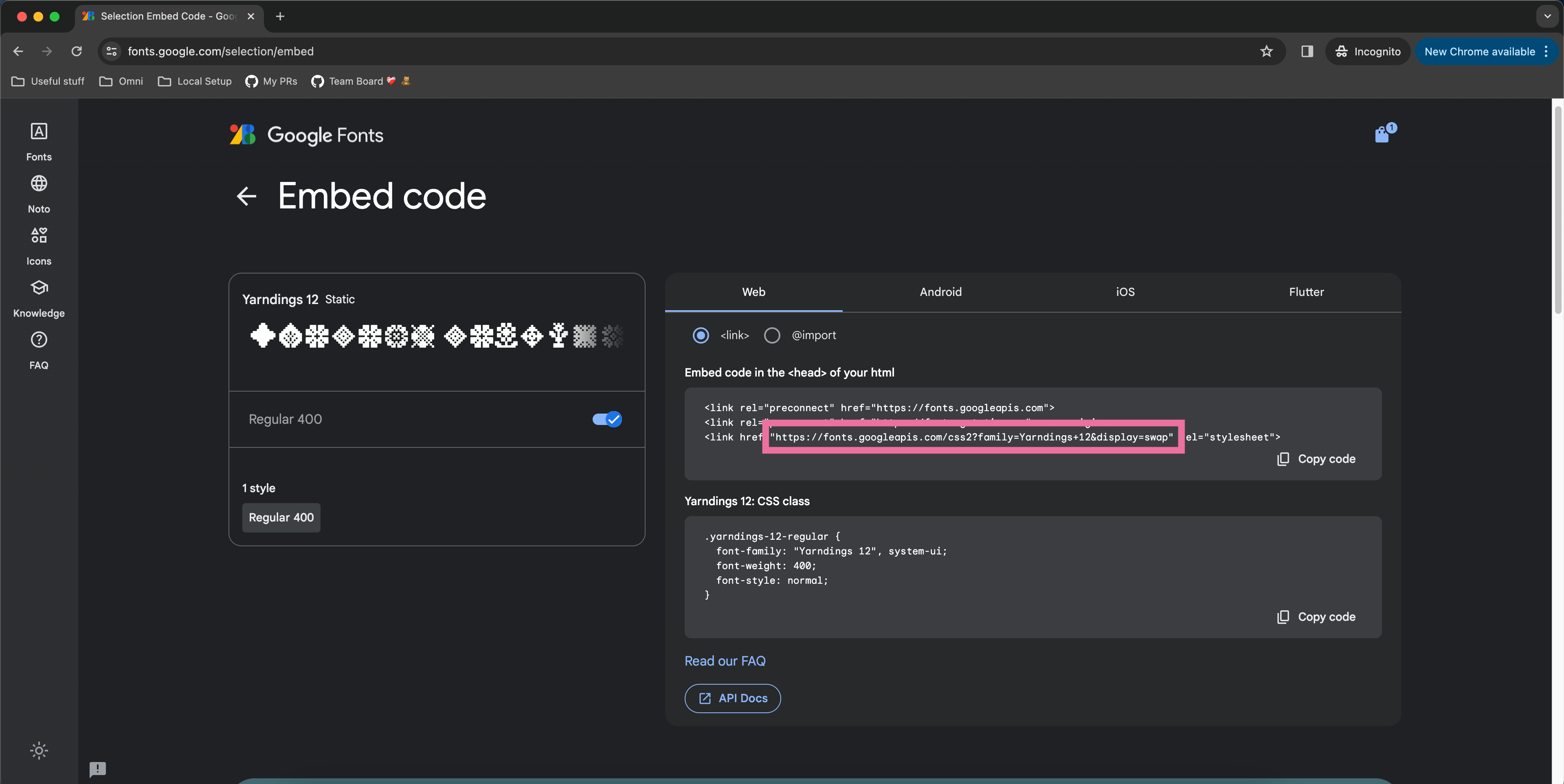
- After pressing “Get font” you’ll be taken to a selection page. On that selection page, click the “Get embed code” button.
- Go to the fonts.googleapis.com link that appears in the third <link> element of the example embed code. Note that some Google Fonts allow you to customize font weight and font style in the left panel so feel free to filter down to the exact font styling you’d like.
- Find the @font-face at-rule labeled “latin” and copy the src property url(…).
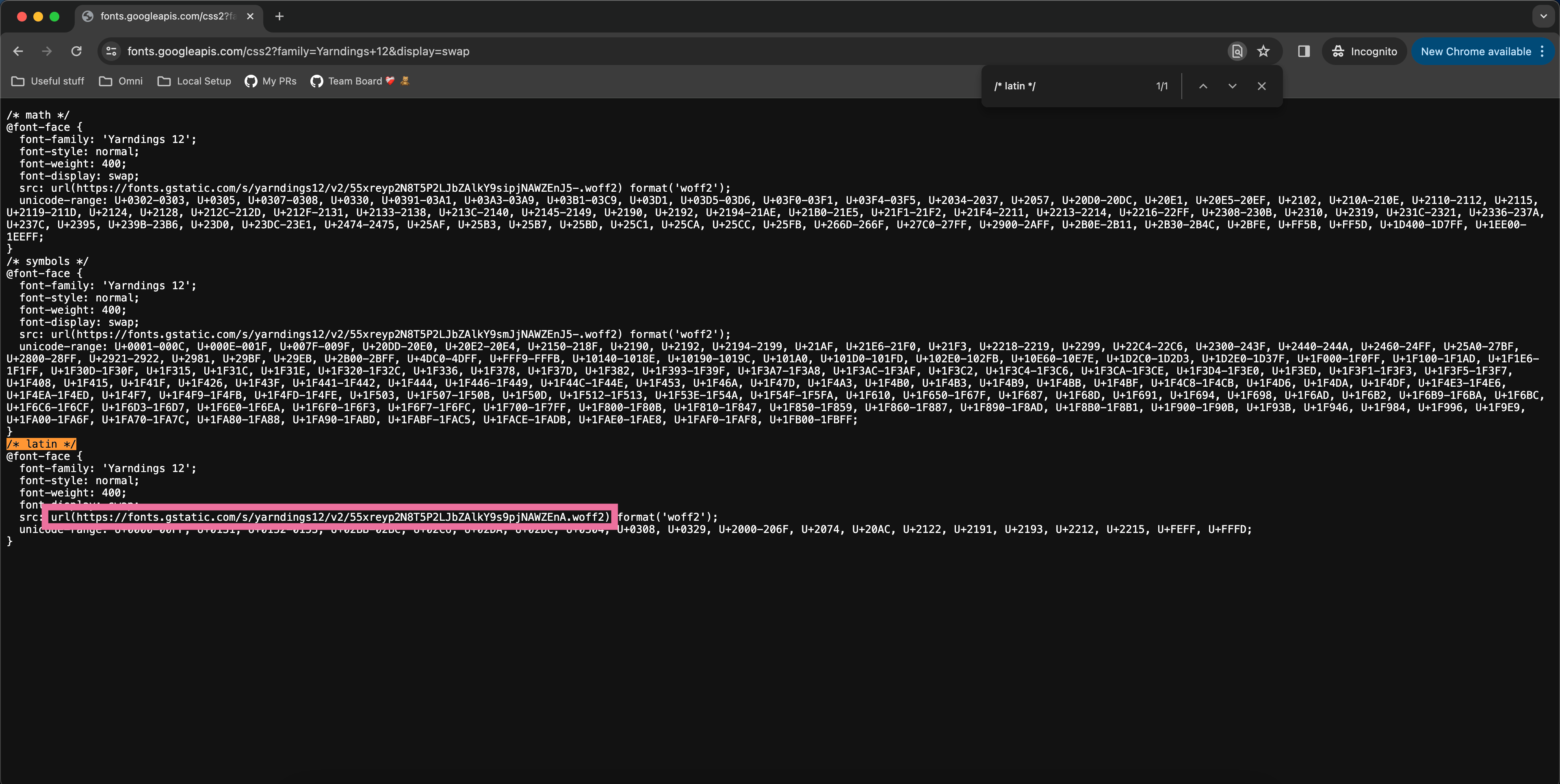
- Pass that
url(...)value into the appropriate customTheme property when generating your Omni SSO embed link.
- And voilà!