

Your team already has internal tools - wikis, admin panels, CRMs, custom apps - where they spend most of their day. Embedding Omni dashboards into those tools puts live data in front of people where they’re already working, so they don’t have to bounce between apps to get answers. This guide covers the general approach to embedding Omni content in any internal application that supports iframes. If you’re working with a specific tool, we also have step-by-step guides for:

Requirements

To follow this guide, you’ll need permissions in Omni that allow you to access the workbook or dashboard you want to embed. Additionally, users who view the Omni iframe in your internal application must have permissions in Omni that allow them to view the dashboard being embedded. Viewers of the content will be prompted to log in using the iframe and if they have sufficient permissions, the content will display.
1

Generate an embed URL

  1. In a published Omni workbook or dashboard, click the Share button to open the share modal. You can also navigate to File > Document settings.
  2. Click Embed.
  3. If desired, use the options in this tab to customize what content is embedded and how it displays for users. For example, you could embed a dashboard and only display it in dark mode. See Customize embedded content for more information. Omni share modal with embed options
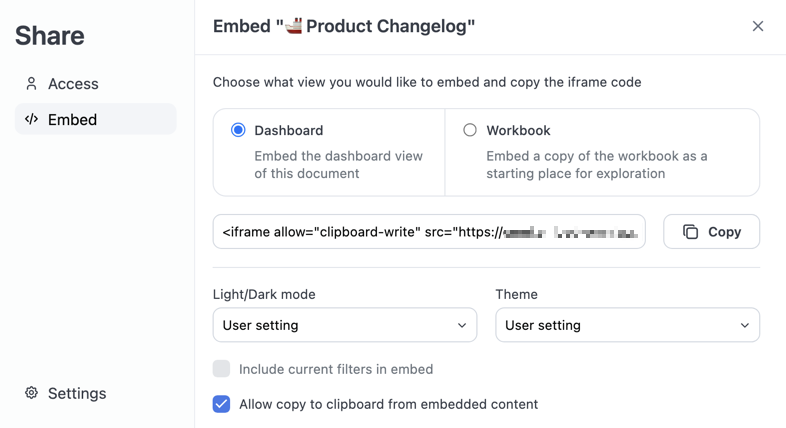
  4. Click the Copy button to copy the iframe URL. The example iframe URL below is for an Omni instance named blobsrus and includes settings for Light/dark mode (prefersDark) and Theme (theme):
    <iframe src="https://blobsrus.omniapp.co/dashboards/a0554a7e?prefersDark=true&theme=dawn"></iframe>
    
2

Embed and test the iframe

Add the iframe to your internal application to embed Omni.Before you share your work with other users, use the iframe to log into Omni. This allows you to check that the workbook or dashboard displays correctly after authentication.
3

Share your work

Share your work with other users in your internal application.Note: Users will have to log into Omni with the iframe before they can view the workbook or dashboard content.