- Model your data with small changes
- Test and iterate quickly on the changes
- Monitor user behavior to identify improvements
Structure your data like you would for humans
Good AI performance starts with solid, user-friendly data modeling. The goal is to make each dataset clear, focused, and include the most important context and logic - just like you would if you were handing it to a user in your company. In Omni, that means building well-scoped topics. A topic should represent a specific slice of your business logic and include just the fields, filters, and joins needed to answer common questions about that area. Here’s what that looks like in practice:- Create subject-specific datasets. Keep each dataset focused and scoped to a clear business purpose.
- Add joins so users (and the AI) know what tables are accessible.
- Apply default filters to remove noise (e.g. exclude deleted records).
- Set appropriate permissions. Omni’s AI always respects the user’s data permissions, so make sure row-, column-, or topic-level controls are in place if needed.
- Hide extraneous fields like unused columns or foreign keys.
-
Use good field labels. This means:
- Instead of
scheduled_task_id_count_distinct, label it“Number of Schedules” - Add field descriptions or pull directly from your warehouse or dbt. These help the AI disambiguate fields.
- Instead of
-
Add
all_valuesfor dimensions and measures that commonly appear in filters. This helps the AI map user-friendly input to the actual values in your data. For example, if someone asks for“users in CA”but the underlying value in the column isCalifornia, providingall_valuesensures the AI knows they’re the same. -
Define a short overview of what the dataset is for - this is the
ai_contextparameter and it helps the AI choose the right dataset for each question.
Test and tune the AI
Once your datasets are modeled well, the next step is to see how the AI performs in practice. Omni recommends collecting 10–20 real questions your users are already asking, and running them through the AI to see how it does. The best place to do this is in the workbook with the Workbook Agent. This allows you to see exactly how the AI is formulating the answer (fields selected, filters applied, SQL), and adjust the answer/re-steer it as needed. If the AI gets things wrong, you can immediately add some context to improve it, then try the question again. Take a look at some examples:Is it getting filter values wrong?
- Example: User asked for total orders in CA. AI applied a filter on State = ‘CA’, but the actual values in the database are full state names (e.g. ‘California’)
-
Solve: Add
all_valuesto the State field so it can match the user input to values in the database.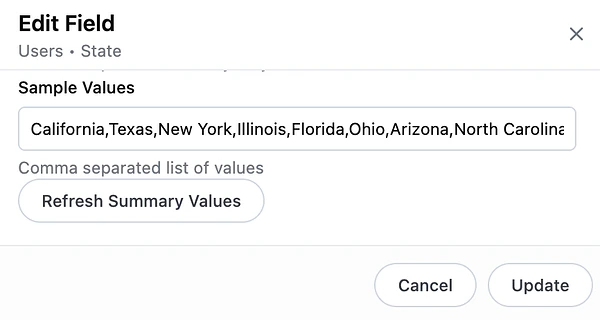
Is it confused between similar fields?
-
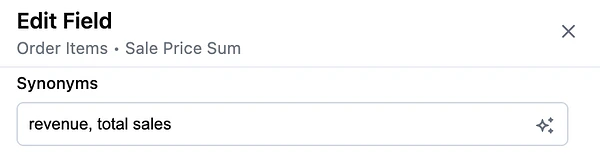
Example: A user asks for “revenue,” and the AI picks the wrong field – maybe it chooses
total_revenueinstead ofnet_revenue. -
Solve: Add field synonyms or a more explicit description to help guide selection. If you have duplicative or outdated fields, consider hiding or removing them to simplify the dataset.
Is it picking the wrong dataset?
- Example: A user asks about product inventory, but the AI chooses a marketing dataset because of overlapping field names.
-
Solve: Add more detail to the
ai_contextparameter on each topic, and include examples of real user questions to help the AI learn when each dataset should be used.product usage topic context
Is there hidden nuance in your business language?
-
Example: A user asks about “closed deals.” In your org, folks really mean deals that are both closed and won. But without that context, the AI is going to just filter on
closed=true. -
Solve: Clarify how common business terms are used in your
ai_context, so the AI can apply your team’s language correctly to the data. Example: if asked about closed deals, most often the user means both closed and won.salesforce opportunity topic context
Tune your LLM and AI settings
Modeling and context improvements get you most of the way to good answers, but for complex questions or high-stakes workloads, you can change the LLM that Omni uses and how the Omni Agent checks its work. For answer quality, the biggest lever is the LLM. An Organization Admin can set the organization’s default LLM to a more capable one in LLM settings. Users can also pick a more capable LLM for one chat, if it’s approved. Changing the default Thinking level to High gives the Omni Agent more reasoning budget per turn. In the model file, enablingvalidate_analysis in ai_settings has the agent self-check its work before users see the result.
For a walkthrough of how to combine these settings, see the Max quality profile in the cost-and-quality tuning guide.
Heads up! Upgrading these settings increases LLM token usage, so they’re best reserved for models where answer quality matters more than cost.
Monitor what people are asking
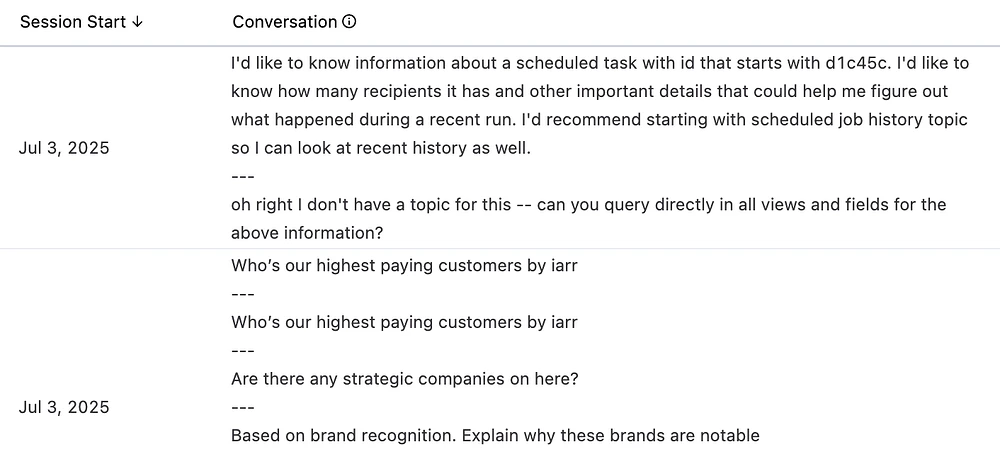
Once you’re up and running, check your prompt logs in the Analytics section regularly. You’ll learn a lot by seeing how people interact with AI and where it struggles. Look for:- Questions the AI couldn’t answer - are there data gaps?
- Repeated follow-ups or corrections - is the topic or fields missing critical context?
- Business terms people are using - are there synonyms or preferences you should capture in your context?