

Requirements
To follow the steps in this guide, you’ll need:- Access to a dataset with an
Order DateandUser ID. - Restricted Querier or above connection permissions to build in the workbook.
Create the LoD field
First, define the aggregation that identifies the first order for each user.
-
In the field browser in a workbook, find the
Order Datefield. -
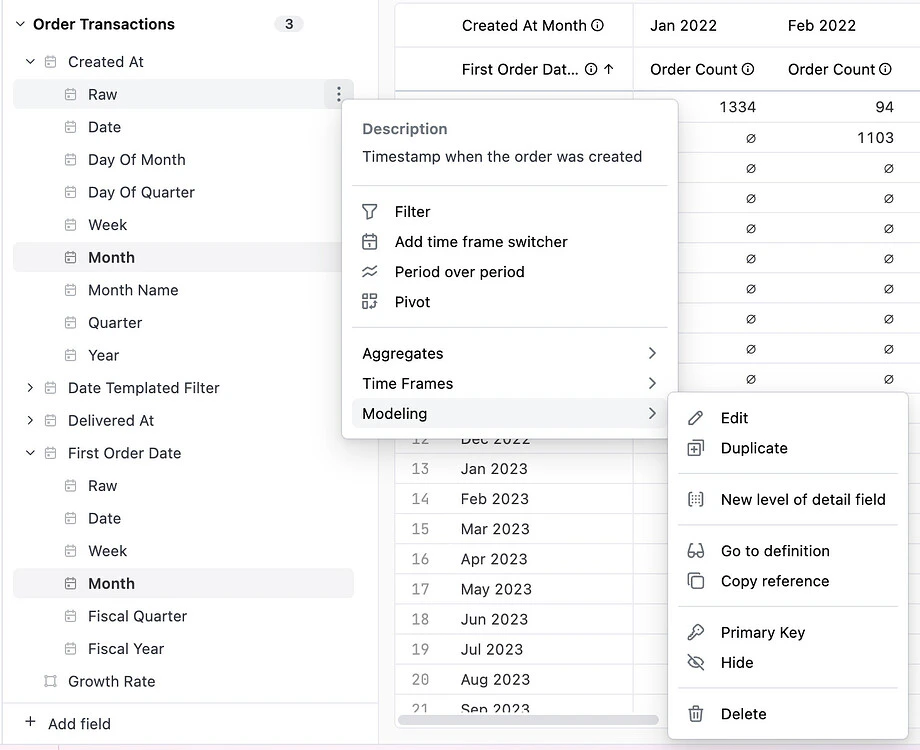
Hover over the field and click the that displays, then Modeling > New Level of Detail field:
Configure the calculation
Set the scope of the calculation to ensure the date is fixed to the user regardless of other filters in your query.
- In the editing pane, select Fixed LoD Grouping.
-
Under Fixed Dimension(s), select
User IDto isolate each individual user’s activity. This sets the aggregation to find the minimum (first)Order Datefor eachUser ID.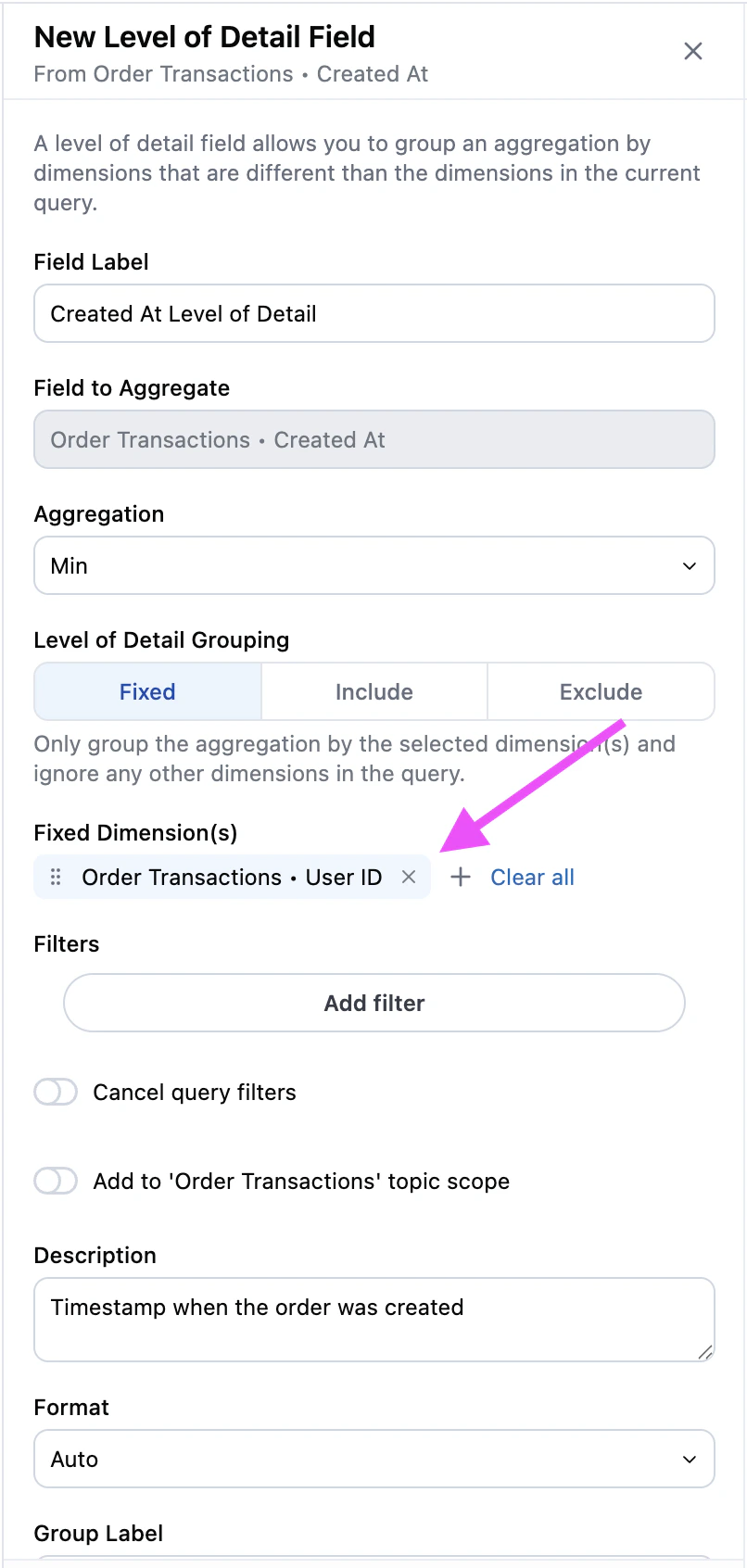
Visualize the cohort
Once the field is defined, you can build your cohort grid to analyze user patterns.
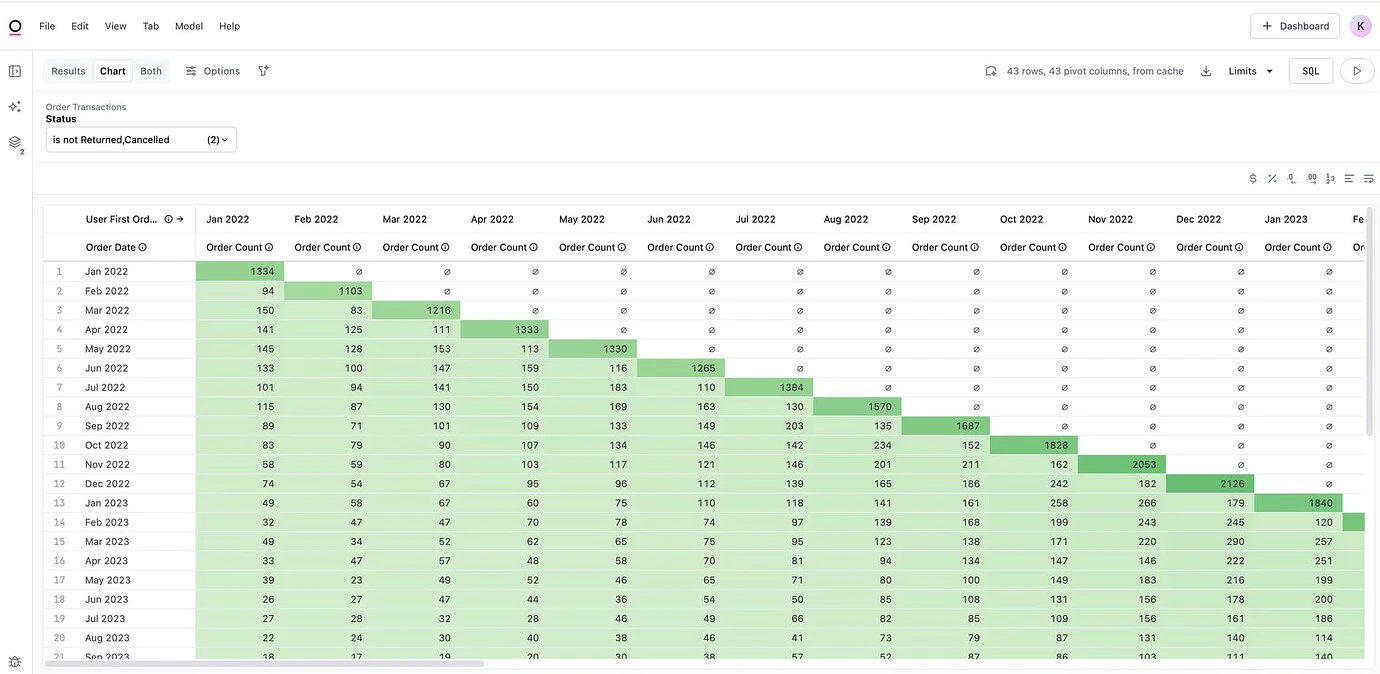
- Using the field browser, select the new LoD field to serve as your cohort date.
-
Select the original
Order DateandOrder Count. -
Pivot the LoD field by clicking the icon next to the Level of Detail field header in the workbook, then select Pivot. This will allow you to see how these cohorts have purchased products over time.
Video walkthrough
Next steps
Now that you have built your cohort using LoD, you can further refine your analysis:- Learn more about table visualizations to further customize your view.
- Explore advanced querying to add filters or custom calculations to your cohort.
- Review Cohort analysis using a thin spine for an alternative approach.