

Requirements
To follow the steps in this guide, you’ll need:- A dbt integration configured on your connection
- A dbt dev environment configured in Omni’s dbt settings
- An Omni model branch created for development
How it works
Omni’s model IDE maintains two independent branch controls to help you manage your development workflow:- Omni git branch: The branch of your Omni model, including field definitions and joins.
- dbt branch selector: Tells Omni which dbt branch’s manifest to read from when syncing metadata and resolving schemas.
Steps
Run your dbt model in dev
Execute the model in your dbt development environment and confirm it completes successfully before proceeding.
Commit your dbt changes
Commit to your dbt branch before continuing, as uncommitted changes are not visible to Omni.
Create or switch to an Omni branch
In the model IDE, navigate to Model > Branch > New branch. You can also switch to an existing branch.
Activate the dbt dev environment
In the Omni model IDE, open the dbt settings panel and Select your dbt development environment (e.g.,
dev).Set the dbt branch
In the same dbt settings panel, enter the name of your dbt branch. This tells Omni to read the manifest from your feature branch rather than 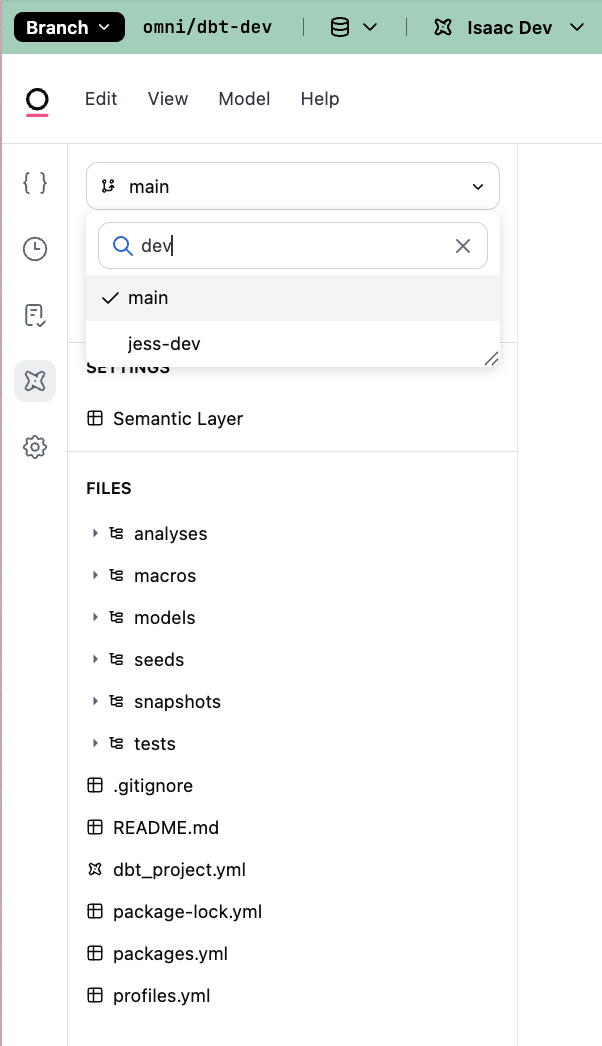
main. This step is required for net-new models to appear.Refresh the schema
In the model IDE, navigate to Model > Refresh Schema. Omni will pull the updated manifest and table structures from your dev environment.
Validate your changes
New tables and updated fields should now be visible in the model IDE. Use the Content Validator to check for downstream impacts on existing dashboards.
Merge when ready
Once validated, merge your dbt pull request to
main. Then, merge your Omni branch to promote model changes to production.New tables vs. field changes: Field changes to existing models may appear after a schema refresh without setting the dbt branch. However, net-new tables and views require the dbt branch to be explicitly set in step 5.
Next steps
Now that you’ve validated your dbt changes, you can continue refining your data model:- Audit downstream content: Use the Content Validator to ensure your changes didn’t break existing documents.
- Merge to production: Once your dbt PR is merged to
main, update your Omni branch settings to point back to the production dbt branch and merge your Omni changes.