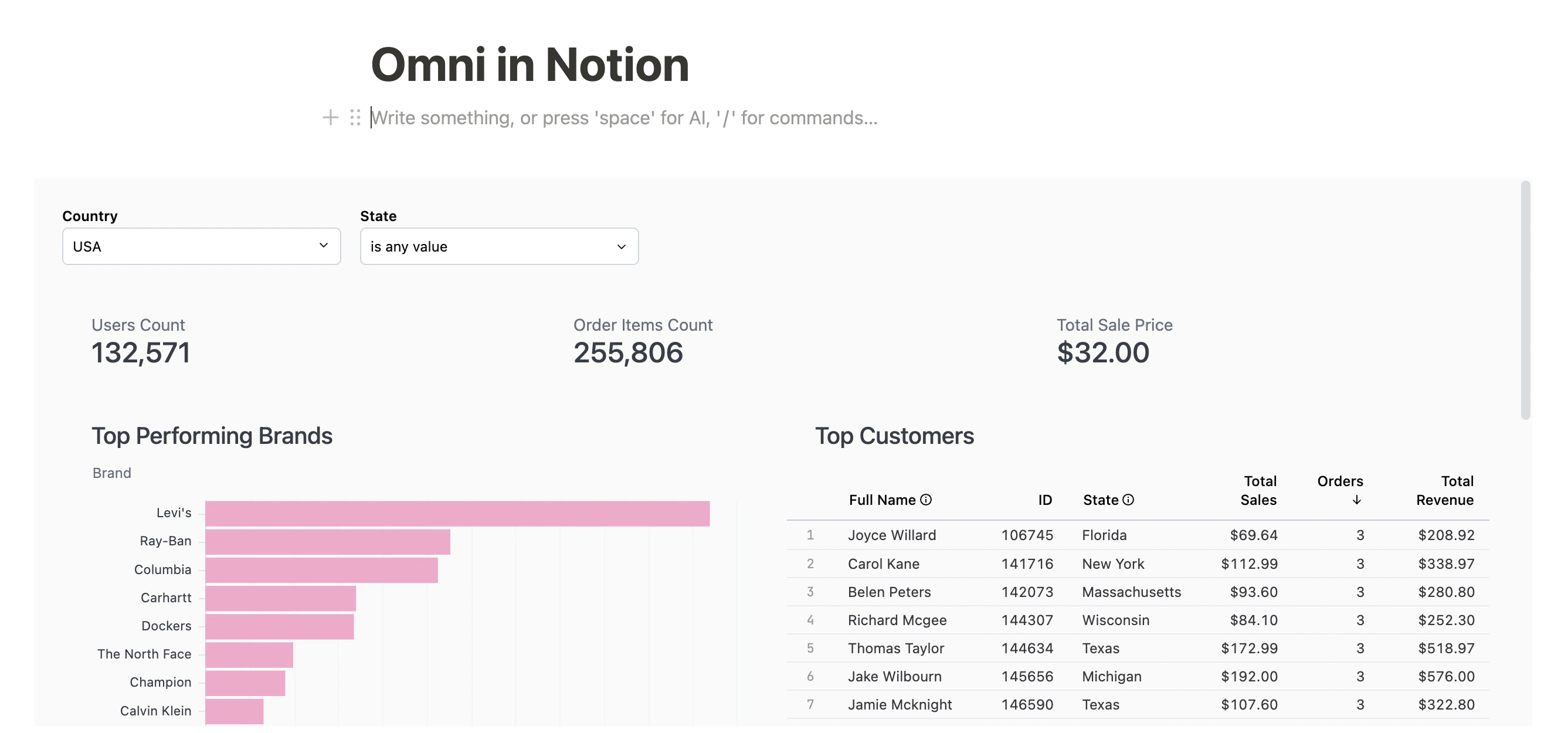
Limitations
While not required, viewing the Omni iframe in Notion works best on the web version of Notion.Requirements
To follow this guide, you’ll need:- Permissions in Omni that allow you to access the dashboard you want to embed
- Permissions in Notion that allow you to create and edit documents
Retrieve the dashboard's embed URL
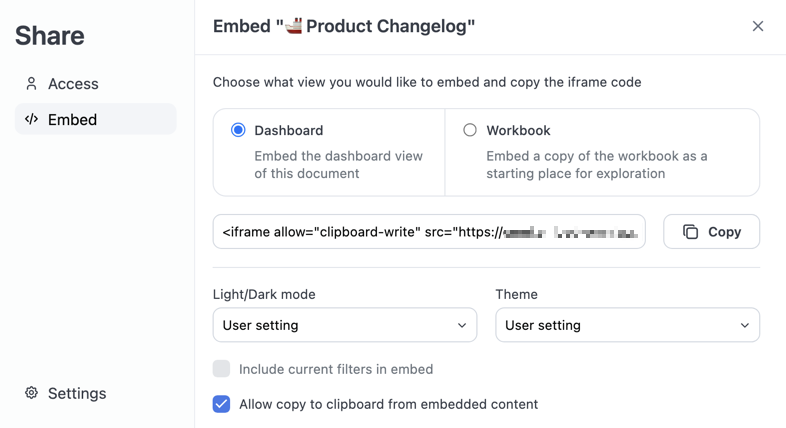
- In a published Omni workbook or dashboard, click the Share button to open the share modal. You can also navigate to File > Document settings.
- Click Embed.
-
If desired, use the options in this tab to customize what content is embedded and how it displays for users. For example, you could embed a dashboard and only display it in dark mode. See Customize embedded content for more information.
-
Click the Copy button to copy the iframe URL. The example iframe URL below is for an Omni instance named
blobsrusand includes settings for Light/dark mode (prefersDark) and Theme (theme):
-
In a text editor, only copy the Omni URL. For example, if you copied a string like the following:
You will only want the URL:
Create an embed component in Notion
- In a Notion document, use the
/embedcommand to create an embed component. - Paste the Omni URL into the field:
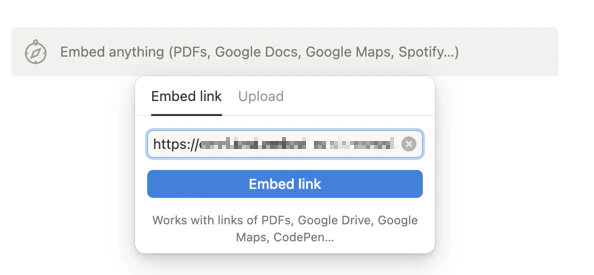
- Click Embed link.