

Point-in-time snapshots with parameters
Requirements
To follow the steps in this guide, you’ll need:- A table with start and end date (or datetime) fields — for example,
check_in_dateandcheck_out_date - Access to the model in your Omni instance
How it works
A query view is a SQL view defined in the model that can accept parameter values at query time. Instead of hardcoding a date in SQL, the selected date is injected directly into theWHERE clause. When the user changes the parameter, the query view regenerates automatically.
The core pattern
The
::DATE cast strips time information from your timestamps. This prevents mismatches when your datetime fields include time components like 2024-02-15 14:30:00Set up the query view
1
Define the query view
- In the workbook, create the query from a new SQL tab. Once the query is created, save as query view. Note: This particular pattern focuses on SQL based query views
-
Define a filter parameter for the snapshot date. The syntax for injecting parameter values follows this pattern:
For example, if the view is named
snapshotsand the parameter issnapshot_date: -
Using the above-mentioned syntax, add the newly created parameter to the query view’s SQL to inject the parameter’s value. When building the
WHEREclause, use<(not<=) for the end date comparison. For example, a reservation that checks out on Feb 17th shouldn’t appear in a Feb 17th snapshot.You can also suggest from a list of timestamps usingsnapshots.query.viewsuggestion_listor optionally set a value as the default filter, for example:Which would then look like this in the workbook: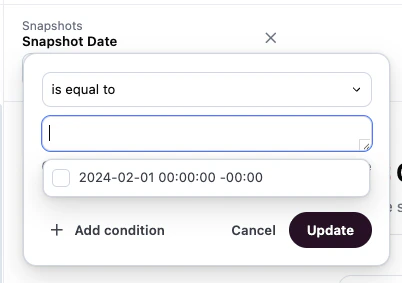
2
Add the view to your topic
In the topic file, add the query view as a join (as shown) or include it as a standalone view so users can access it in workbooks: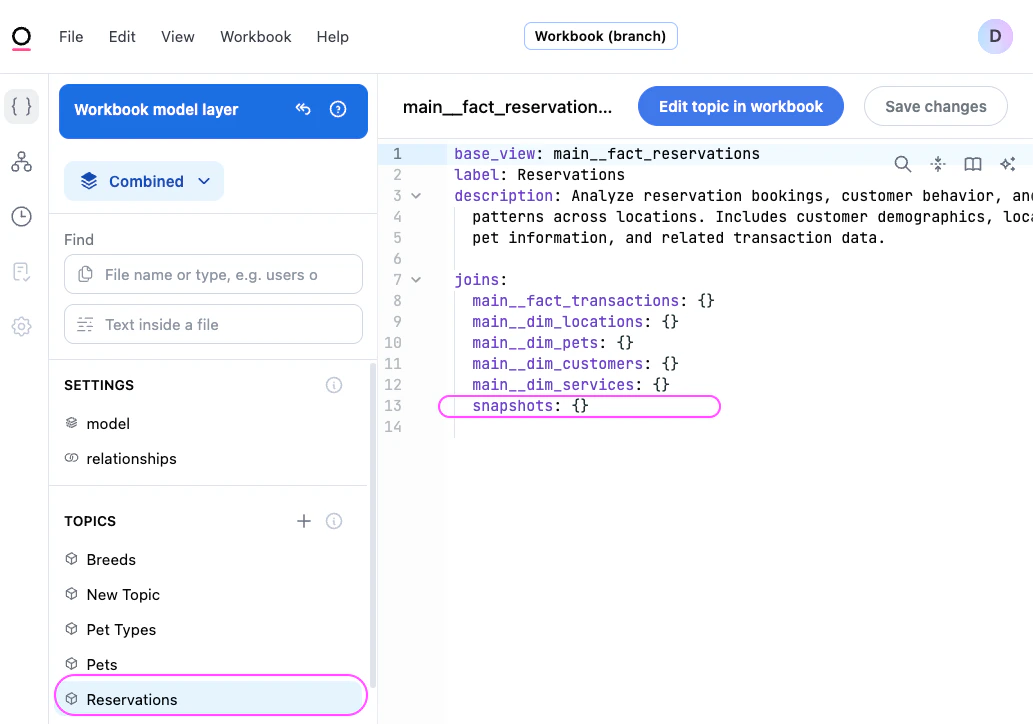
3
Test the snapshot
- Open a workbook and navigate to your topic.
-
Add the
snapshot_dateparameter filter to the query. -
Enter a date into the filter and run the query. You should see only the records that were active on that date:
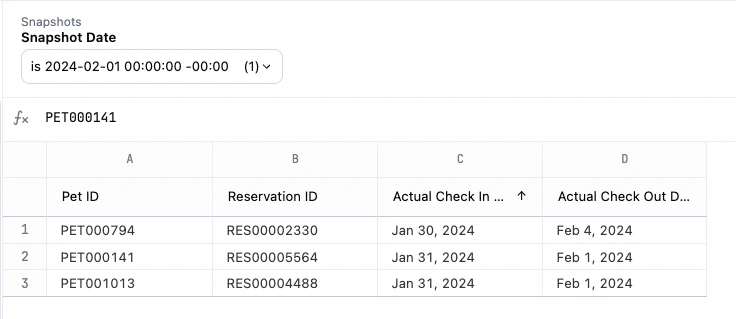
count_distinct on your ID field — without it, records that span multiple days can be counted more than once.Bonus: Populate the date picker with a list of dates
By default, thesnapshot_date parameter accepts free-text input. If you want users to select from a list of valid dates instead, you can use suggest_field to populate the dropdown from a calendar view.
1
Create a calendar view
A calendar view is a query view that generates a list of dates. Most databases support a recursive CTE approach:
The SQL syntax for recursive CTEs varies by database. Click the tab for your database to view the correct SQL.
2
Point parameter at the calendar
Update the snapshot parameter to pull suggestions from the calendar view:Now when users click the 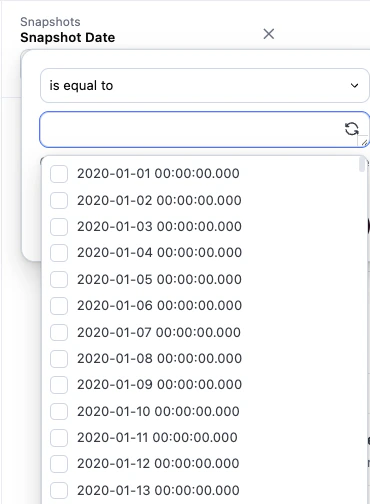
snapshot_date parameter, they’ll see a dropdown populated with dates from your calendar view instead of a blank text field or suggestions from the specific suggestion_list.