

Order Items Count with a value of 10, drilling lets you see more details on those 10 order items.
By default, when you drill, Omni will show the first 10 columns defined in your view. However, you can curate what columns are shown upon drilling in the workbook or the model IDE.
Option 1: Workbook
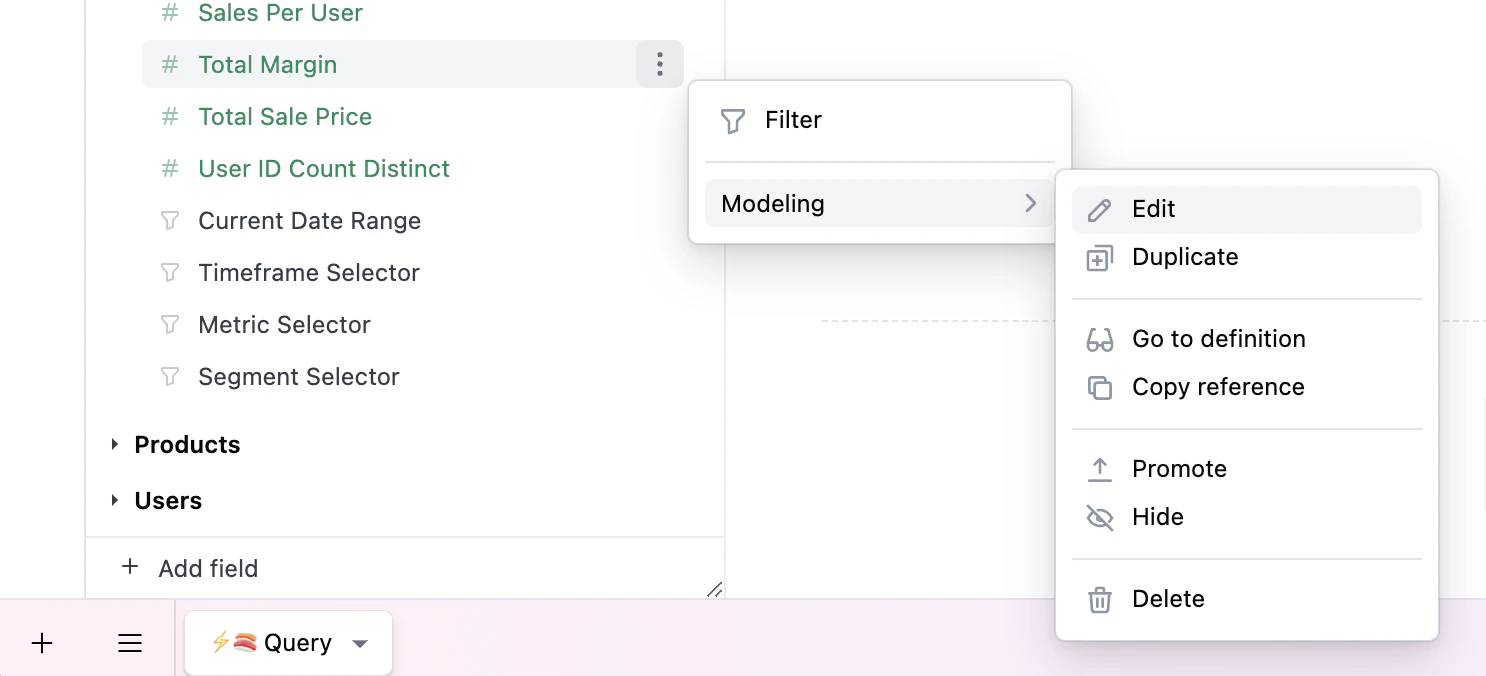
- In a workbook query tab, click and select Modeling > Edit:
- Use the Drill fields section to add, remove, and reorder the drill fields:
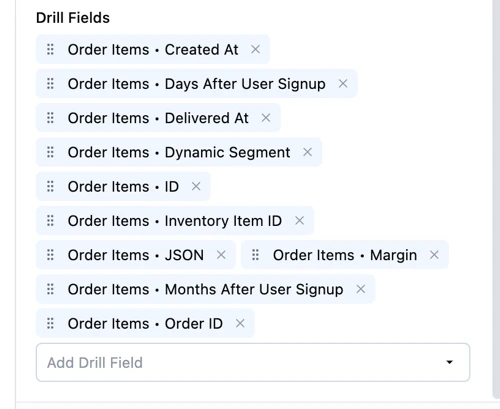
These changes will only exist for this workbook unless you promote them to the shared model.
Option 2: Model IDE
To customize the available drill fields on a measure, use thedrill_fields parameter:
Measure with specific drill fields
default_drill_fields view parameter:
Default drill fields for order_items view