

Requirements
To follow this guide, you’ll need:- An understanding of Omni modeling concepts
- Familiarity with Omni’s model IDE
- Familiarity with basic AI terminology such as tokens, agents, etc.
Common questions
What is AI context?
What is AI context?
Context is information such as:
- Descriptions of topics and fields
- Possible field values
- How a field might be used
Why provide context to AI?
Why provide context to AI?
Using context windows allows AI models to understand and incorporate relevant information. Specifically, providing context to the LLM makes it more effective, enabling it to interpret your request accurately and generate meaningful responses.
What does Omni AI use for context?
What does Omni AI use for context?
Omni uses the following for context, in priority order:
1
Context and tuning pre-built by the Omni Engineering team
2
The ai_context parameters in the model, topics and views, if provided
3
Topic's description, if provided
4
Topic's name and base_view
5
Prioritized field properties
These properties are never removed from the context window, even when space runs out:
name- The field’s fully qualified name (view_name.field_name). For example,order_items.total_sale_priceai_context- Context you write for the AI. When Omni assembles context for a specific topic,ai_contextis never pruned, whether it’s defined on the model, topic, view, or field. The exception is when the AI is choosing a topic; see What limitations does context have?
6
Pruned field properties
If a topic’s metadata exceeds the space Omni allots for it (see What limitations does context have?), Omni prunes the following properties, starting with the lowest priority. Each property is removed from every field before the next is considered:
all_values- The field’s possible values. Pruned first because the AI can retrieve a field’s values on demand when it needs them.sql- The field’s SQL definition, when includedsample_values- Example values for the fielddescriptiongroup_label- The categorization of the fieldlabel- The field’s display name. If not defined, Omni generates one by title-casing the field name and removing underscores. For example,Total Sale Priceaggregate_type- A measure’s aggregation type, such assum,count, etc. This value is evaluated based on the field definition and can’t be directly modified.data_type- The field’s data type, such asnumber,string, etc. To save space, this property is automatically omitted when the type can be inferred, such as for string fields.synonyms- Other terms used to refer to the field. Pruned last because synonyms help the AI match the language in a user’s question to the right field.
ai_context, which Omni never trims), the request fails with an error.Where does context apply?
Where does context apply?
Context applies to:
- Omni Agent and embedded chat instances, including topic selection and model search
- Workbook Agent, including query and SQL generation
- Chat with Content summaries
- AI visualization generation and summary visualizations
- AI filter generation
- Modeling Agent and modeling workflows, such as topic metadata generation and learn-from-conversation
What limitations does context have?
What limitations does context have?
The AI model’s context window is shared by everything in a request, including:
- Omni’s built-in instructions, which ensure queries are generated properly
- Context from your semantic model, such as topic and field metadata,
ai_context, and sample queries - The conversation history and query results
- A topic’s field definitions are capped at roughly 75K characters. When a topic’s metadata exceeds the cap, Omni prunes field properties in the order described in What does Omni AI use for context?.
- When choosing a topic, the AI reads a summary of every topic, capped at roughly 100K characters. If the summary exceeds the cap, Omni trims view metadata (including view-level
ai_context), then sample queries, and trims topic metadata only as a last resort. The AI recovers trimmed details when it selects a specific topic. - Searches outside of a topic return up to 100 fields. When
query_all_views_and_fieldsis enabled, the AI finds fields for views that aren’t in a topic by searching the model. Instead of pruning properties, each search returns at most 100 fields and the AI runs narrower searches to find the rest.
ai_context can use several times that. Instead of targeting a field count, curate with ai_fields to focus each topic on the fields users actually ask about. A smaller, well-described set of fields gives the AI fewer chances to pick the wrong one.Conversation history is managed separately - refer to the conversation_prune_length reference for more information.How is context to the AI processed?
How is context to the AI processed?
Context provided to Omni’s AI is shared with your organization’s LLM provider. Refer to the AI data security guide for more information.
Can I customize context based on LLM or thinking level?
Can I customize context based on LLM or thinking level?
No - the
{{# omni_llm }} and {{# omni_agent }} namespaces have been deprecated. Instead of providing context in this way, use the LLM picker to select an LLM that works best for your current task. Organization Admins must approve LLMs in the organization’s LLM settings to make them available in the chat picker.Context and agent behavior
As the previous section explained, Omni assemblesai_context from multiple levels — model, topic, view, and field — and passes it to the Omni Agent as part of the query generation prompt. The LLM that powers the Omni Agent makes its own decisions about which context to follow, how to weight it, and how to resolve apparent contradictions.
This means:
- Model-level
ai_contextis not guaranteed to override topic-levelai_context. All context is passed together; the LLM decides what to prioritize. - Context is guidance, not strict instruction. The LLM may partially follow, fully follow, or in some cases not follow a given instruction, especially when instructions are complex or contradictory.
- Behavior can be non-deterministic. Running the same query twice may result in different context being applied, particularly when context is large or contains conflicting signals.
Curate AI outputs across the model
You can use the model parameterai_context to pass context shared across topics. This parameter may also be useful for topic selection in the Omni Agent.
Personalize context with user attributes
Theai_context parameter at the model, topic, and view levels supports user attributes through {{omni_attributes.<attribute_name>}} syntax. At query time, Omni substitutes each placeholder with the current user’s attribute value, allowing you to tailor AI behavior per user or group.
Topic ai_context using user attributes
User attribute references are supported in
ai_context at the model, topic, and view levels only. Dimension and measure ai_context does not support this syntax — the value is used as-is. Field references and filter conditions are also not supported and will produce a validation warning.Use constants for reusable AI context
You can define reusable AI instruction blocks asconstants and reference them across multiple ai_context fields using @{constant_name} syntax. This approach helps you maintain shared context (tone, privacy guidance, domain context) in a single location instead of duplicating it across models, topics, views, and sample queries.
Model file with reusable AI context constants
ai_context fields, ensuring consistent instruction blocks across your model while keeping maintenance centralized.
See the constants reference for more details and examples.
Implement chain-of-thought reasoning
If you want the Omni Agent to give a more thorough explanation of what is being generated (topic selection, field selection, etc.), you can include the following context within the model’sai_context.
This can be altered and tweaked if needed, but the reference to GenerateQuery is required for proper behavior.
Output summaries in multiple languages
If you’d like the Omni Agent to summarize outputs in multiple languages, you can include the following context:Curate topics
Topics have anai_context parameter, which is useful for providing behavioral prompts and guidance for handling certain questions specific to the topic.
For example:
ai_context for e-commerce orders topic
Limit fields included in the context window
When querying within a topic, the AI uses only that topic’s fields. When querying outside of a topic, it can use fields from any view in the model. Fields withhidden: true are excluded from the context window.
To control which fields are included, use the ai_fields parameter in a topic. For included fields, you can also provide additional context at the field level.
We recommend periodically checking the Analytics > AI usage dashboard to see what questions your users are asking. This helps you identify opportunities to promote commonly used calculations and aggregations to the shared model, improving the self-serve experience over time.
Reuse logic and limit the context window with topic extensions
Topics that you’re already leveraging in Omni can be extended to further curate them for AI. Using theextends parameter, you can reuse the definition of an existing topic without needing to repeat the code. Consider the following Order Transactions topic, which you want to extend to create a curated version dedicated to AI usage:
Order Transactions topic
extends: [ order_items ] to extend the Order Transactions topic. You can then specify what to include in the AI-specific topic, such as limiting fields, filtering the data for specific use cases, adding more AI context, and so on:
Orders for AI querying topic, extended from Order Transactions
Add example queries as context
Along with providing context about the topic itself, you can use the topic’ssample_queries to provide example questions. This approach is useful if you anticipate specific, recurring questions or you find that the Omni Agent struggles with date filters.
To do this, you’ll want to:
- Create a query in a workbook that contains the correct answer to the question.
- In the workbook, click Model > Save as sample query to topic.
- When prompted, fill in the following:
- Label - A user-friendly name for the query
- Description - An optional description
- Display on topic overview - If checked, the query will display as a sample query when the topic is selected in a new query tab
- Include in AI context - If checked, the query will be included in the AI context for the topic
- Prompt - An optional example prompt that could be used to generate this query
- AI context - Optional, additional context for the AI
- When finished, click Save.
Curate views and fields
Views also have anai_context parameter which can be useful for passing context to AI that is specific to the view.
Keeping fields organized and labeled can not only help you create a top-notch self-service experience, it can also make Omni’s AI more efficient. The following parameters can be used to add metadata to fields for the purposes of AI:
ai_context- Adds context useful for AI responsesall_values- All possible values for the field- Note: when the dbt integration is enabled,
accepted_valuestests will be ingested asall_values
- Note: when the dbt integration is enabled,
sample_values- Example values for the fieldsynonyms- Other terms used to refer to the field
In the workbook
In the workbook
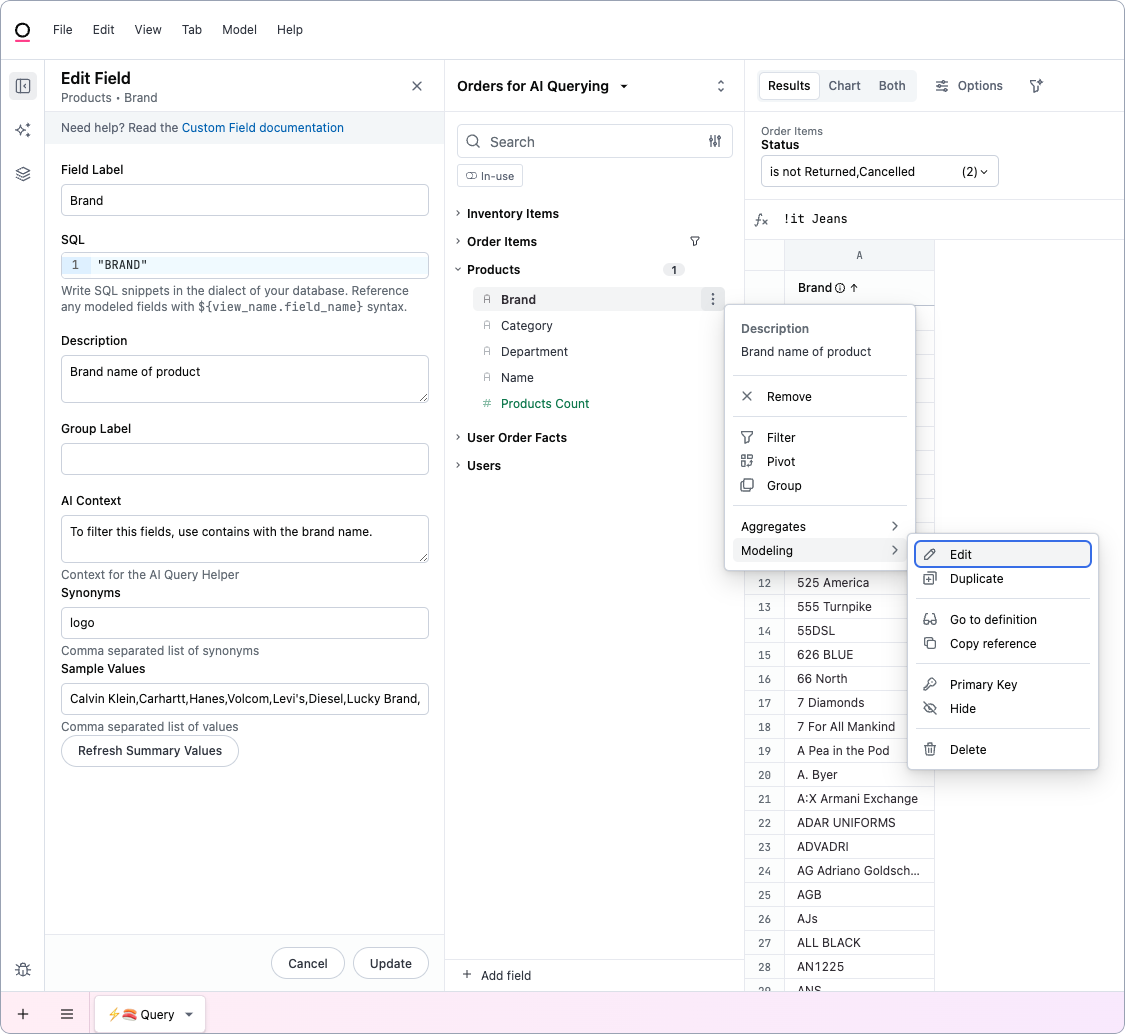
- In the field browser, click the (three dots icon) next to the field.
-
Click Modeling > Edit to open the Edit field side panel.
In the IDE
In the IDE
In the IDE, navigate to the view containing the field to add the parameters. For example:
products.view