

Requirements
To add data input tables, you’ll need:- A configured Omni connection that supports upload tables
- Restricted Querier, Querier, or Connection Admin permissions
- To enable the Upload data ability. This setting must be enabled for the organization and, if a document is shared with others, also in the document’s settings.
Limitations
Currently, data input tables:- Must be added in a workbook
- Are limited to 500,000 rows
- Can’t be used in joins unless the table is pushed to a database. Setting the connection’s Schema for table upload property enables this functionality. Refer to the setup guide for your database for more information.
- Data types for each column can’t be explicitly selected in Omni. column type will be inferred based on the values in the upload. Generally it is best to correct this in the source rather than casting/fixing in the model layer after saving. For dates especially getting the format right in the upload will save you time.
Adding a data input table to a workbook
Data input tables can be added in the workbook of any document. In a workbook, navigate to Edit > New blank table. A new tab with a blank data input table will display.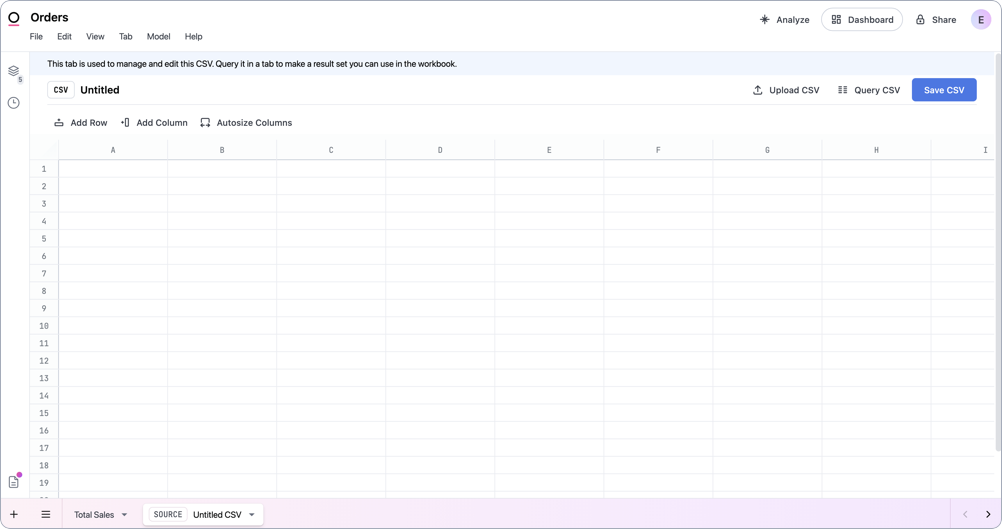
Manually enter data
Manually enter data
1
In the first row, add the names of the columns. The first row must be a header row to allow Omni to generate a schema for the table.
2
Enter data into the cells. To add line breaks, use
Ctrl + Enter.3
To add rows or columns, use the Add Row and Add Column options.
4
When you’re finished editing the table, click Save CSV near the top right corner of the page.
5
Enter a name for the table and click Save.
Upload a CSV or XLSX file
Upload a CSV or XLSX file
To upload a CSV or XLSX:
- The first row must be a header row
- The file can’t exceed 500,000 rows
1
Click the Upload CSV option near the top right corner of the page.
2
Browse for or drag the file you want to upload into the upload dialog.
3
If you have Querier, Modeler, or Connection Admin permissions, you’ll see a Create topic checkbox. Checking this box will create a topic from the uploaded file. If you’re a Restricted Querier, a topic will automatically be created from the file.
4
Click Upload to upload the file.
Querying and joining data input tables
Data input tables can be queried like any other table, including using the field picker, SQL editor, or working with calculations and formulas.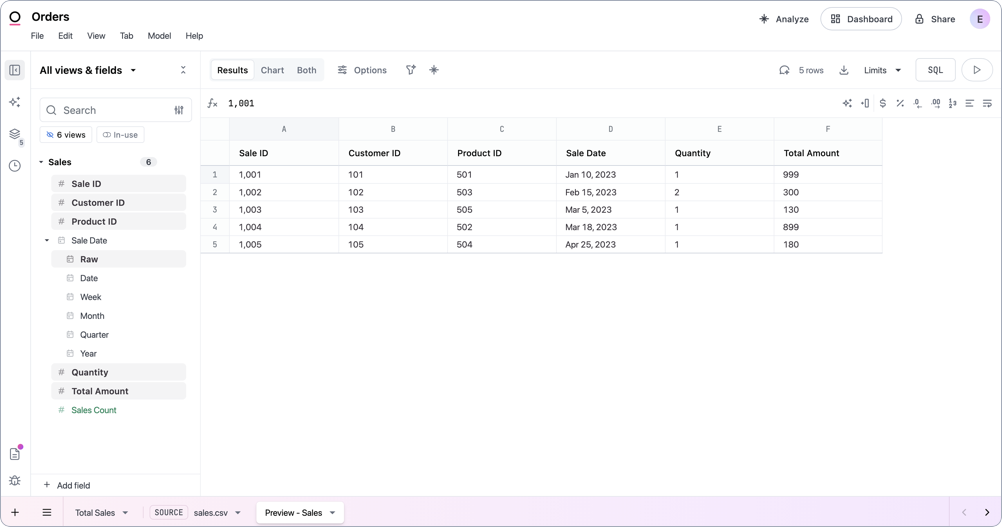
Modeling and promoting data input tables
When a data input table is added to a workbook, a few things will happen in the workbook model. To make the changes available outside of the workbook, they must be promoted to the shared model.-
A view representing the data input table will be created. These views can be identified by the presence of an
uploaded_table_nameparameter:products.view -
A topic based on the view representing the data input table will be created if:
- Create topic was selected while uploading a CSV or XLSX, or
- A Restricted Querier performed the upload
Topics created from CSV uploads automatically receive empty
required_access_grants, meaning they don’t inherit model-level default_topic_required_access_grants and are accessible to all users by default.XLOOKUP can be used to perform joins to other tabs in a workbook. Refer to the Querying & joining data section for more information and examples.
Updating data input table data
When making updates to a data input table, keep the following in mind:- Changes must be promoted to the shared model to be accessible outside the workbook. This is necessary even if the table was previously promoted to the shared model.
- If table uploads (writebacks) are enabled for the connection, Omni will create a new table in the database each time the table is saved. You can manage previous versions of the table in the Upload management page.
- In a workbook, locate the table in a query tab.
-
Click the options menu next to the table’s name, then Edit Table:
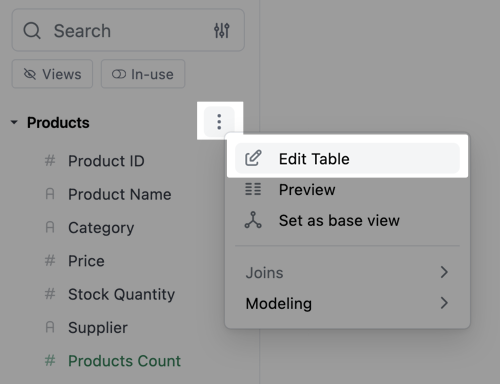
- The data input table will open in a new tab where you can edit the data as needed.
- Click Save changes when finished.
Managing previous table versions
Every time you create or update a data input table, Omni adds an entry in the Upload management page. Each item in the list represents a version of the table. Entries are sorted by the time they were created, beginning with the most recent. Navigate to Settings > Uploads to access this page:
Querying previous table versions
To create a query using a specific version of a table, click the Explore button next to the table version. This will open a new workbook that uses the specified version of the table. Note: If you promote the changes from an older version of the table, it will overwrite the data currently in the shared model.Deleting table versions
The Upload management page can be used to delete previous versions of a data input table. Note: Table versions are listed in the order they were created, meaning that the most recent version of a table will be higher in the list.- Navigate to Settings > Uploads.
- Locate the version you want to remove and click Delete.
- Remove views and topics built on the version from the model
- Update or remove queries using the version