

Content Validator basics
What is the Content Validator?
What is the Content Validator?
The Content Validator is a tool that allows you to visualize how content is impacted when the model or references in the database change. You can use it to identify where topics, views, and fields are being used and make updates before (or when) things break.
Who can use the Content Validator?
Who can use the Content Validator?
Users with Connection Admin, Modeler, or Querier permissions can access the Content Validator.Note: Queriers will only be able to see metadata for the content that they have access to. Otherwise, document and query titles will be displayed as 
[Content not accessible] and [Query not accessible]:Do I have to use a branch with the Content Validator?
Do I have to use a branch with the Content Validator?
No, but it’s strongly recommended. Using a branch allows you to test and review your changes before making any modifications to the live environment. Refer to the Developing content & models with Branch Mode guide for more information about using branches in Omni.
Accessing the Content Validator
Users with Connection Admin, Modeler, or Querier permissions can access the Content Validator by opening a model in the IDE and clicking the icon in the sidebar.Searching for content
Queriers will only be able to see metadata for the content that they have access to. Otherwise, document and query titles will be displayed as
[Content not accessible] and [Query not accessible].- View name
- Field name. Note: This must be a fully qualified field name, meaning the name of the view containing the field must be included. For example,
shipped_items.item_price - Topic name
- Document name
- Query name
Including personal content and queries without issues
By default, search results will only include content in your organization’s Hub that has a broken query. To include:- Content in users’ My documents folders, use the Include personal documents toggle
- Queries without issues, click the ✓ (green checkmark) near the top-right corner of the page
Branches and search result impact
The content included in search results is also impacted by whether you’re performing the search while in a branch.Searching while not in a branch
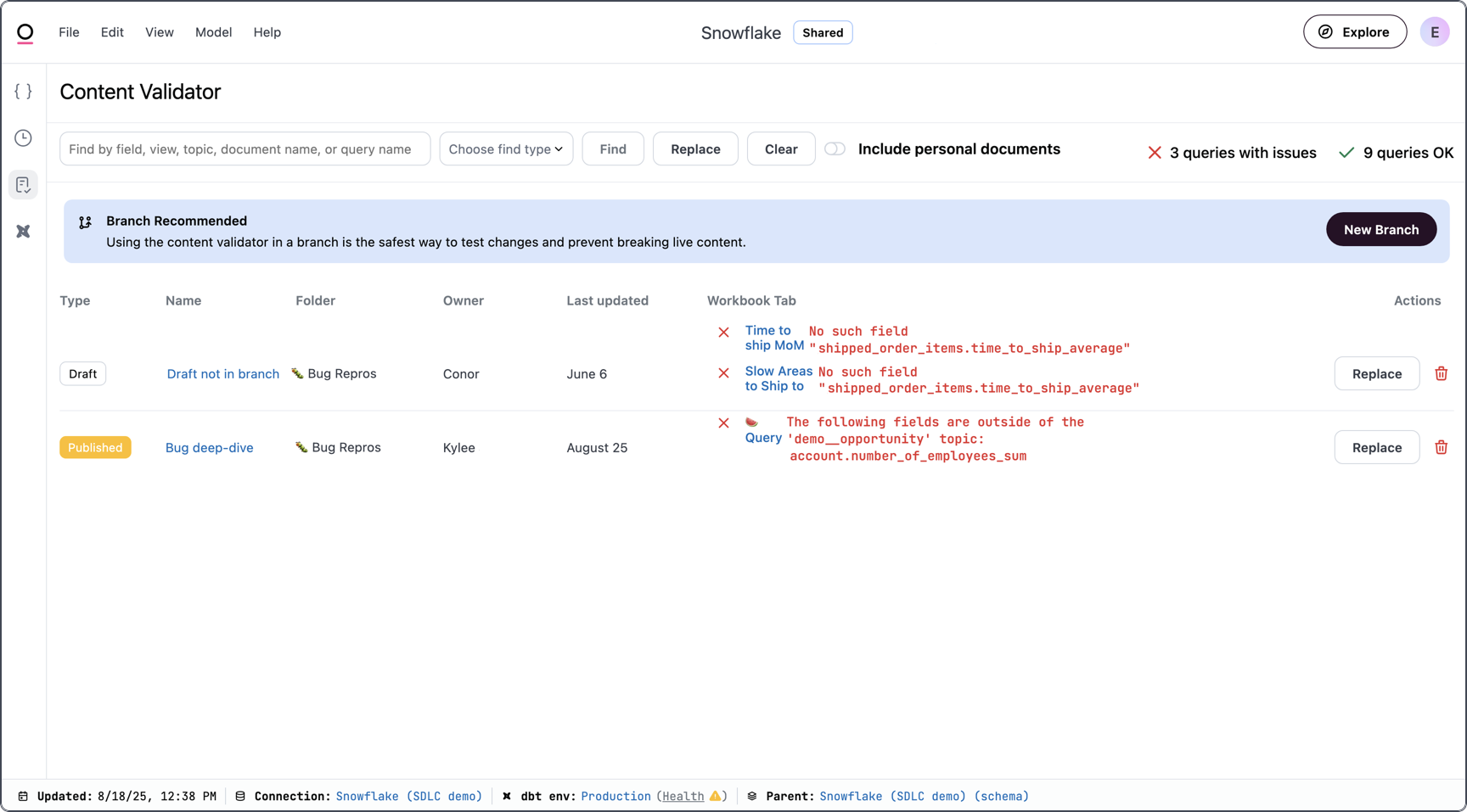
If you’re not in a branch while searching, the results will include:- Published content
- Drafts that are not attached to a branch
Bug deep-dive document and a draft not attached to a branch, Draft not in branch.
Searching in a branch
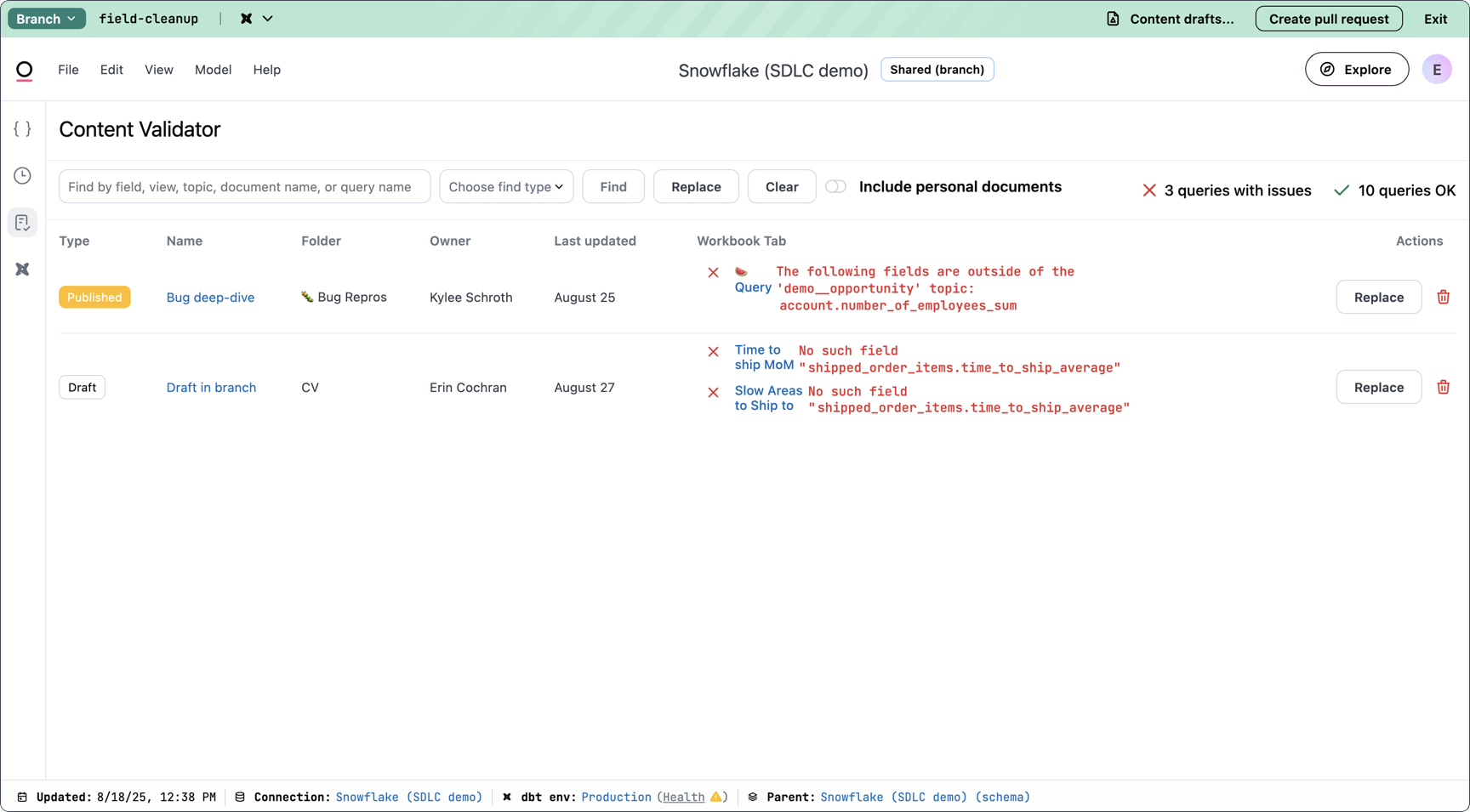
If you’re in a branch while searching, results will include:- Published content
- Drafts attached to the branch
Bug deep-dive document and a draft (Draft in branch) attached to the field-cleanup branch.
See an out of date draft? Refer to the Working with out of date drafts section for more information.
Suppressing validator issues
You can suppress specific validator issues by adding a!suppress(issue_slug) comment to your model YAML files. This is useful when you want to acknowledge a validation warning or error but choose not to fix it immediately.
When the validator identifies an issue, you can suppress it using the IDE’s autofixer, which will automatically add the appropriate comment to your model file. The autofixer knows which issue slug to use and where to place the comment, so you don’t need to manually look up or remember issue identifiers.
Suppression scopes
Suppressions work at different levels depending on where you add the comment:- Property level: Adding a
!suppress(issue_slug)comment to any property suppresses the issue for the entire object - View level: Adding the comment to a view suppresses the issue for all fields within that view
- Model level: Adding the comment to the top-level model suppresses the issue for the entire model
Updating documents
You can make single document changes or bulk updates right from the Content Validator:- In the Content Validator, click the Replace button next to one of the content results.
- In the Replace dialog, select the type of object you want to replace:
-
Enter the name of the object to replace and the name it should be replaced with. If replacing a field, make sure you include the name of the view, like
<view_name>.<field_name>: If you’re in a branch and applying changes to a published document, Omni will create a new draft with the changes and attach it to the branch. The changes will be published when the branch is merged. If performing a global find and replace, Omni will create a draft for each affected document.
 - To apply the changes to all content, toggle the Replace for all content setting.
- Click Replace.
Working with out of date drafts
When a draft is marked out of date, it means that a new version of the document has been published since the draft was created. If the outdated draft is published, it will overwrite the currently published version of the document. We recommend taking the following steps to resolve this issue:- Identify the changes in the outdated draft.
- In the Content Validator, discard the outdated draft by clicking the (red trash can) next to the draft.
- In your branch, complete content replacements as needed. Omni will create a new draft and attach it to the branch.
- In the new draft, redo any changes you identified in step 1.
- When finished with all your changes, merge the branch.
Related
- Migrating tables - Swap to new tables or perform soft-deletes from your model in bulk when your database changes