

Organization Admin permissions are required to manage user groups.
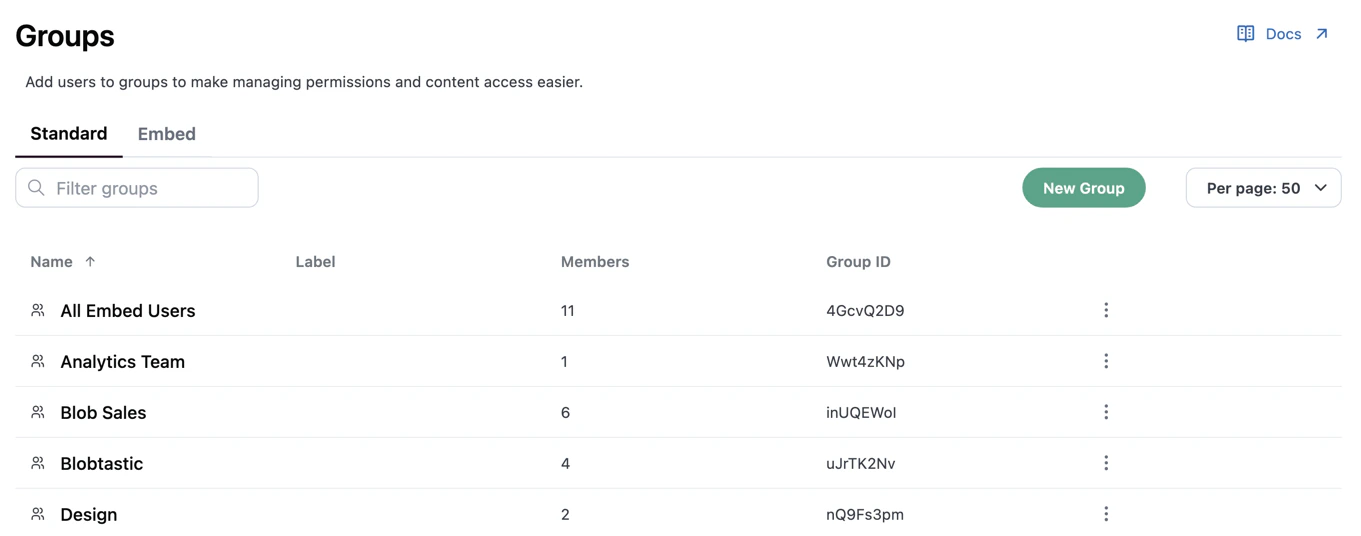
Settings > Groups page in Omni, listing all user groups
Creating user groups
- Omni UI
- API
- Navigate to Settings > Groups.
- Click New Group.
- Enter a Name for the group. You can also add a description.
- Click Save to create the group.
Managing group members
Users can be added to and removed from groups manually, through the API or some SCIM integrations.You can add external users to groups and remove them only in the Omni UI, not through the API or SCIM. API group responses do not include external users.
Adding users to groups
- Omni UI
- API
You can add users to groups from the group’s Members tab or directly from a user’s Groups tab.From a group’s Members tab:
- Navigate to Settings > Groups.
- Click the group you want to work with.
- In the group’s Members tab, click Add Members.
- Search for and select users in the modal, then click Add.
Removing users from groups
When a user is removed from a group, they lose any permissions that were granted through that group. Users can be re-added as group members if needed.- Omni UI
- API
You can remove users from groups from the group’s Members tab or directly from a user’s Groups tab.From a group’s Members tab:
- Navigate to Settings > Groups.
- Click the group you want to work with.
- In the group’s Members tab, locate the user you want to remove.
- Click Remove from group.
Managing a user’s groups from their settings
In addition to managing user memberships from the group’s Members tab, you can view and modify an individual user’s group memberships from their user settings. This is particularly useful when managing a user who is not yet a member of any groups, or when you need to modify multiple group memberships for a single user.Assigning permissions to groups
Access to connections, models, and content can be granted to an entire user group at once.Assigning connection/model access
Model roles control what actions user group members can perform on connections and the individual models associated with those connections.Group roles are combined with any roles a user has directly or through the connection’s base access, and Omni grants the most permissive one. Adding a user to a group can raise their access but can’t lower it. User groups grant connection and model roles only; the Organization Admin role is assigned per user. Refer to Connection permission basics for more information.
- Omni UI
- API
- Navigate to Settings > Connections and open the connection you want to work with.
- Click the Permissions tab and scroll to Connection Roles.
- In the Groups view, locate the group you want to grant permissions to.
- Use the Access dropdown to change the group’s role. If custom roles are defined, they will display as options in the dropdown.
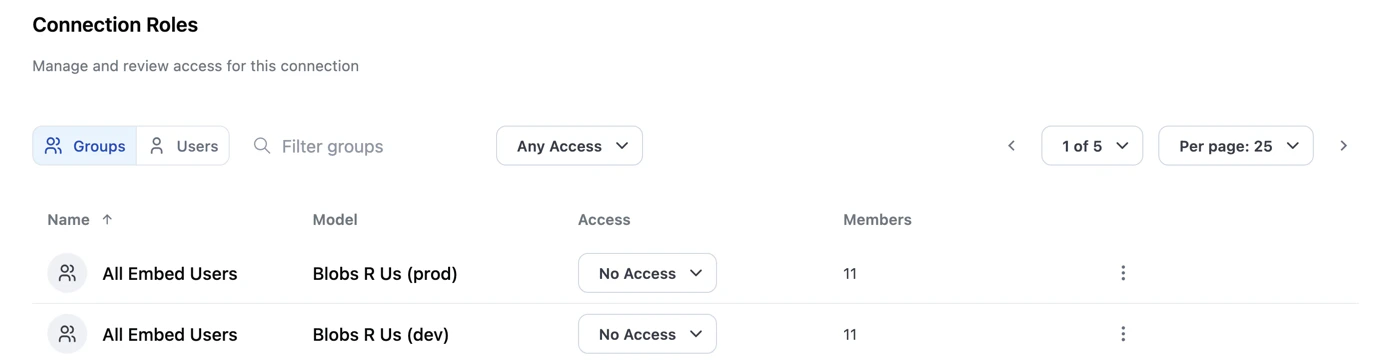
Connection Roles section showing the Groups view with access dropdowns for each group
Assigning content access
To grant access to documents and folders, share the content with the group. See Content sharing for details.Allowing groups to switch user attribute values
The Allowed user attribute values section of a group’s Settings tab lists the user attribute values that group members can switch to in documents and the model IDE, if they have access. See User-selected attribute values to learn more about provisioning values.Deleting user groups
- Omni UI
- API
- Navigate to Settings > Groups.
- Click the icon in the user group’s row.
- When prompted, click Yes, Delete to confirm.
Next steps
- Custom roles - Define custom role variations to assign to groups
- Content sharing - Learn how to share documents and folders with users and groups
- Permissions - Understand how connection roles and permissions work
- User-selected attribute values - Let group members switch their own attribute values