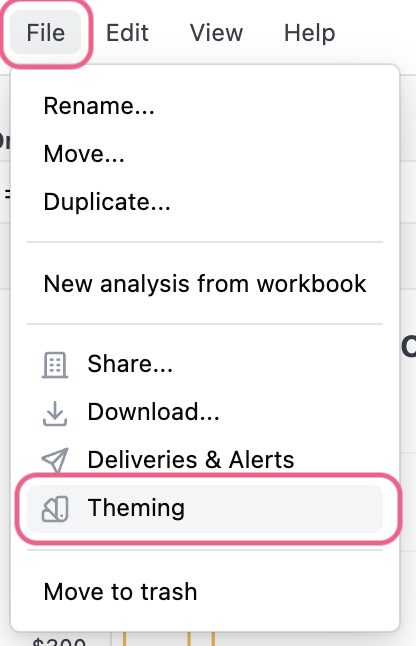
Omni Admins can create dashboard themes to customize the look and feel of dashboards. Once a theme is created, it can be reused on any dashboard. For internal dashboards it is available under File > Theming and for embedded dashboards it is available as a URL parameter.

Creating themes

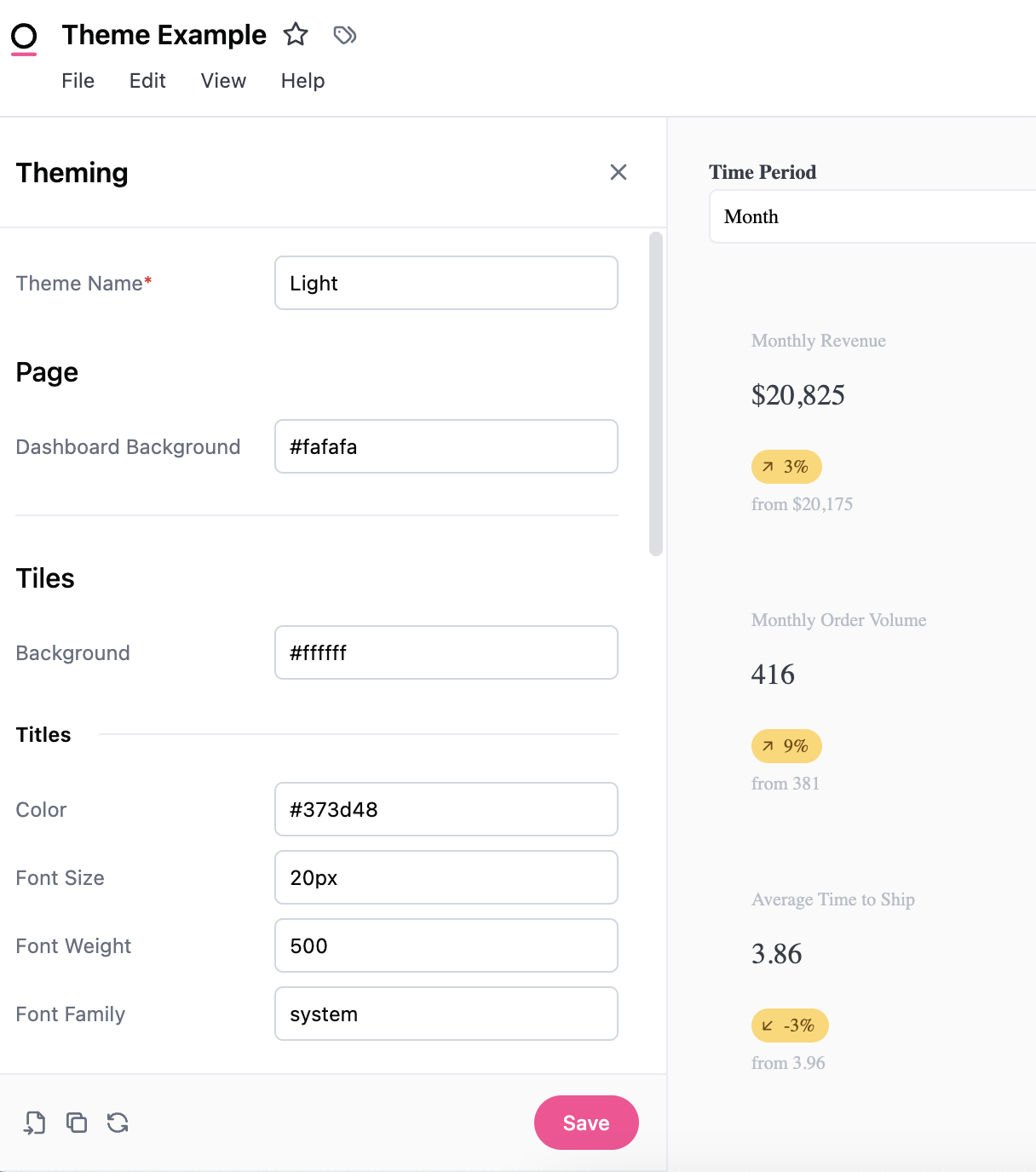
There are four main areas that can be controlled by themes: background, titles, borders, and elements. Changes are automatically applied when a user interacts with the theme builder, but are only saved by pressing the Save button in the bottom right-hand corner of the panel.

Using CSS in theme components

Omni leverages the power of CSS in themes. For example themable items that use CSS <color> value syntax support and valid css color value:
Named colorssalmon
Hex codes#ff4794
Color functionsrgb(255 71 148) or hsl(334.89deg 100% 63.92%)
Background colors can also accept CSS <gradient> values:
Gradientslinear-gradient (#ff4794, #faaa6f)

Importing themes

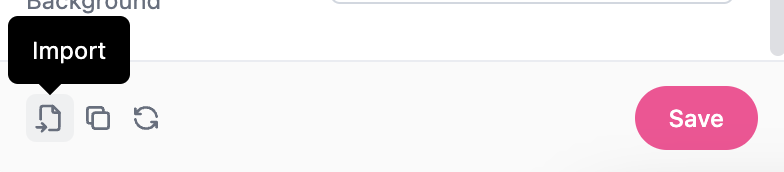
If you’ve already created a theme for your embedded dashboards you can import the theme by pasting the JSON into the Import **modal.

Editing themes

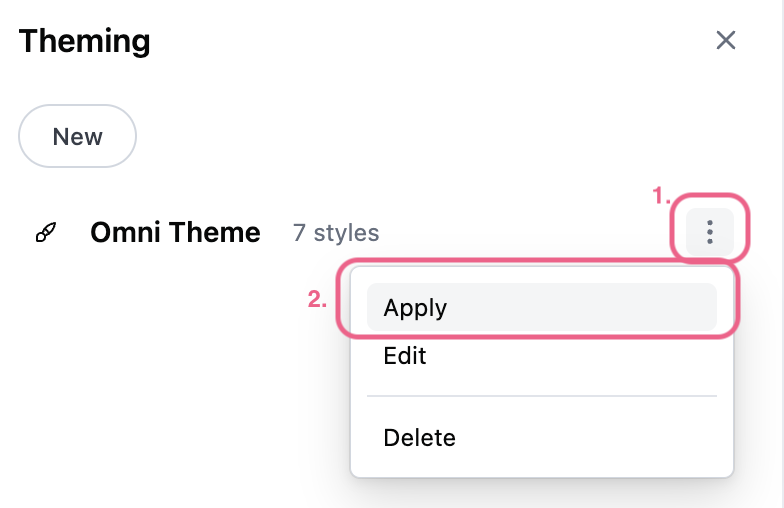
To make changes to the theme, use the (three dots icon) and select Edit. Any changes made to the theme will impact other internal dashboards that are using the theme.

Managing themes

Organization Admins can manage dashboard themes in their organization by navigating to Settings > Themes > Dashboard themes.

Appearance settings

Themes are not designed to work with the Appearance settings for individuals. For instance if an individual user has selected dark mode, for their appearance settings, some themes might look a little off.

Themable components

This table highlights the elements currently available (and some sneak peaks for what is going to be available soon). For a visual example, you can toggle between light and dark mode to see how the different elements are impacted by themes and how that lines up with the CSS.
CategoryElementSub-elementDefault lightDefault DarkAccepts
PageDashboard Background#FAFAFA#262B36CSS background values
Padding16px16pxCSS <length> value [Shorthand or individual side]
PalettesDiscreteAny existing palette
ContinuousAny existing palette
TilesBackground#ffffff#161A22CSS background values
ShadowCSS box-shadow values
Margin8px8pxCSS <length> value
TitlesColor#373D48#CCD0D7CSS <color> value
Font Size20px20pxCSS <length> value
Font Weight500500CSS <number> value
Font FamilysystemsystemURL to remote woff2 file
TextColor#373D48#CCD0D7CSS <color> value
Secondary Color#676F7E#B7BDC8CSS <color> value
Body Font FamilysystemsystemURL to remote woff2 file
Code Font FamilyJetBrains MonoJetBrains MonoURL to remote woff2 file
BordersColor#EAECF1#2d343eCSS <color> value
Radius5px5pxCSS <length> value [Shorthand or individual side]
StyleSolidSolidCSS <line-style> value
Width1px1pxCSS <length> value
ControlsBackground#ffffff#161A22CSS background values
Border color#D1D7E0#424857CSS <color> value
Text color#070808#EBEDEFCSS <color> value
Placeholder color#6F7780#8F96A3CSS <color> value
Label color#070808#EBEDEFCSS <color> value
Radius5px5pxCSS <length> value [Shorthand or individual side]
Focus outline color#3F78E9#3F78E9CSS <color> value
Control popoverBackground#ffffff#22252ACSS background values
Text color#070808#EBEDEFCSS <color> value
Secondary text color#6F7780#8F96A3CSS <color> value
Link color##006CBA#64A4DFCSS <color> value
Border color#D1D7E0#424857CSS <color> value
Radius5px5pxCSS <length> value [Shorthand or individual side]
Divider color#E0E4EB#343B46CSS <color> value
InputsBackground#FFFFFF#161A22CSS background values
Border color#D1D7E0#424857CSS <color> value
Text color#070808#EBEDEFCSS <color> value
Placeholder color#6F7780#8F96A3CSS <color> value
Icon color#676F7E#B7BDC8CSS <color> value
Radius5px5pxCSS <length> value [Shorthand or individual side]
Focus outline color#3F78E9#3F78E9CSS <color> value
Accent color#3F78E9#3F78E9CSS <color> value
Accent invert color#FFFFFF#080808CSS <color> value
TokensBackground#F0F6FF#1A2432CSS background values
Text color#070808#EBEDEFCSS <color> value
ButtonsRadius10rem10remCSS <length> value [Shorthand or individual side]
Primary buttonBackground#FF4794#F787ADCSS <color> value
Text color#FFFFFF#080808CSS <color> value
Transparent buttonText color#373D48#CCD0D7CSS <color> value
Hover backgroundrgba(115,123,140,.08)rgba(115,123,140,.24)CSS <color> value
Menu itemHover backgroundrgba(115,123,140,.08)rgba(115,123,140,.24)CSS <color> value
The table also matches the order of the Theming panel. It will automatically refresh as you make changes, but don’t forget to press Save to apply the settings. Once a theme is saved, it will appear in the Theming panel. Use the (three dots icon) to apply the theme to individual dashboards. There is not a global theme setting for internal dashboards.