Building dashboard layouts with containers and items
Organize charts, text, filters, and controls inside grid or stack containers for precise positioning.
Using a classic dashboard?Upgrade it to use the features in this guide.
Dashboards are built from two components:
Items — The charts, text, filters, and controls you place on the dashboard
Containers — The regions that hold and arrange items
Containers can be nested inside other containers, letting you group related items, control spacing, and build structured layouts that go beyond the flat grid of a classic dashboard.
Modifying dashboard layouts requires Editor, Manager, or Owner permissions on the document.
Advanced dashboard layouts are enabled by default in embedded dashboards. If your organization needs to disable this feature for embeds, contact Omni support.
When you create a new dashboard or upgrade from a classic dashboard, your existing items are placed into an initial container. From there, you can add more containers, configure how each arranges its items, and nest containers inside one another to shape your dashboard.
Each container can have a name to help you identify it while editing. To rename a container, select it and edit the Name field in the properties panel on the right side of the screen.
Containers can be placed inside other containers to build nested layouts. For example, place a stack container (set to row direction) inside a grid container to create a horizontal row of filters within a larger free-form layout.
Resize handles are currently only available for items in column stacks. Row stacks do not support manual resizing yet.
Items within column stack containers can be resized by dragging resize handles, similar to resizing items in grid containers. This allows you to set specific dimensions for individual items while maintaining the automatic flow of the stack layout.
1
Select the item you want to resize. Resize handles will display around the selected item.
2
Drag a resize handle to adjust the item’s dimensions.
3
Release to apply the new size.
Resized items are sized in pixel values with a minimum size of 12px. Changes are previewed live as you drag and committed when you release the mouse.To remove custom sizing, right-click the item and select Reset sizing. This removes all explicit sizing properties (width, height, and min/max constraints) and returns the item to its default automatic size.
You can lock a container to prevent its contents from being rearranged. Containers are unlocked by default until you explicitly lock them.When a container is locked:
Items inside the locked container cannot be dragged, reordered, resized, or have new items dropped into the container
All child containers are also locked, preventing any rearrangement throughout the nested structure
The locked container can still be moved and resized if its parent container is unlocked
In the properties panel on the right, locate the icon.
3
Click the icon to lock the container.
When you select an item inside a locked container, you’ll see a lock indicator in the properties panel along with a message explaining that items in locked containers cannot be rearranged.
Items can be added automatically — new queries from the workbook are placed on the first page, and page navigation appears when you create multiple pages — or manually from the dashboard’s Add menu.From there, you can move items between containers, browse them in the Catalog, and edit their configuration without leaving the layout editor.Dashboards currently support the following item types:
Click Add in the toolbar to insert any item, a layout container, or a new page.Page navigation is automatically added when you create a second dashboard page, but you can also add it manually from the Layout submenu to place additional navigation or customize its position.
As pages are top-level elements, they can only be added from the toolbar Add menu, not from the Add child button in the properties panel.
The catalog is a browsable library of all available items on your dashboard. Click the Catalog button in the toolbar to open it.The catalog displays items in two groups:
Controls & filters - All dashboard filters and controls, sorted alphabetically
Queries - Charts and query visualizations
Use the search field at the top of the catalog to filter items by name. To place an item, click it in the catalog and then select the target container from the menu that appears.The catalog is useful for finding items that haven’t been placed yet or for quickly moving items into a specific container without selecting them on the canvas first.
New queries added to the workbook are automatically placed on the first page. If a query has been deleted, use the catalog to find and re-add it to the dashboard.
There are several ways to place items into a container:
Catalog
Properties panel
Repositioning
Re-adding
Click the Catalog button in the toolbar.
Find the item you want to place. Use search to filter by name.
Click the item.
Select the target container from the placement menu.
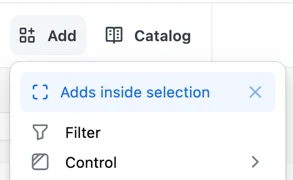
Quickly add an item into an existing container by selecting the container and then using the Add or Catalog menus. You’ll see an Adds inside selection option in the dropdown menu:
Use Add inside selection to move items into existing containers
To instead add the item to the page root, click the icon.
Select the item you want to place on the canvas.
In the properties panel on the right, click Place (for unplaced items) or Move (for items already in a container).
A menu will appear showing all available containers.
Click the target container to move the item into it.
You can drag items to reposition them within a container or move them between containers. This works for all container layout types.
Within a…
Description
Grid container
Drag items to any position and resize by dragging their edges
Stack container
Drag items up or down (in column direction) or left and right (in row direction) to reorder them within the stack
Between containers
Drag items from one container to another, regardless of container layout type. This lets you quickly reorganize your dashboard layout without using the catalog or properties panel
While dragging, Omni provides visual cues to help you place items:
Containers that can accept the item show a colored outline when you hover over them
Stack containers show a drop indicator line at the insertion point where the item will be placed
The container you’re dragging from shows an outline to indicate the active drag operation
To re-add unplaced items to the dashboard, use the Catalog.
When you place filters or controls directly on the page root alongside tile containers, Omni automatically applies a Tile align preset to ensure visual alignment. This preset adds padding to the filter or control that matches the outer spacing of tile containers, so they align cleanly as siblings on the grid.
Duplicate existing containers and items to quickly create copies with the same configuration and styling.You can duplicate a container or item in three ways:
Context menu - Right-click the container or item and select Duplicate
Properties panel - Select the container or item, then click the menu icon in the properties panel header and select Duplicate
Keyboard shortcut - Select the container or item and press ⌘ + D (Mac) or Ctrl + D (Windows)
Where the duplicate appears depends on the parent container type:
Parent container
Placement
Stack
The duplicate is inserted immediately after the original item
Grid
The duplicate is placed directly below the original with the same dimensions, pushing down any items that would collide
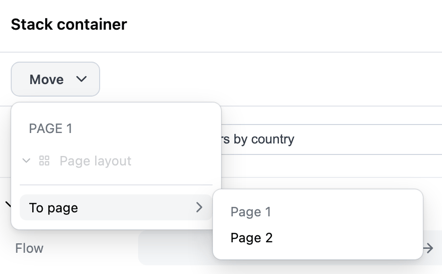
If you’re working on a multi-page dashboard, you can move containers (and all they contain) and individual items to other pages on the dashboard.Click on a container or item to select it, then click the Move button in the properties panel:
Click Move in the properties panel to pick a destination page
Select To page and then click the page you want to move the content to.
When the properties panel is closed, right-click on a dashboard item and select Edit from the context menu to open it.You can also use keyboard shortcuts (⌘ + \ on Mac, Ctrl + \ on Windows) to open the properties panel.
Your undo/redo history is automatically cleared when you make non-layout changes to the dashboard, such as:
Renaming the dashboard or items
Editing filter configurations
Updating query definitions
Changing dashboard settings
After a non-layout change, you won’t be able to undo past that point. This ensures that layout changes and content changes remain independent and prevents conflicts between different types of edits.
Omni automatically adapts dashboard layouts for mobile devices, but you can override this behavior for individual containers to control how they display on smaller screens.Each stack and grid container has an On mobile setting in the properties panel that lets you choose how the container should behave on mobile devices:
Option
Description
Available for
Auto
Use Omni’s automatic mobile layout (default)
All containers
Stack vertically
Force items to stack vertically, even if they’re in a naturally-sized row. Applicable only to horizontal row layouts.
Row stacks only
Wrap items
Keep items in a row layout that wraps to multiple lines. Applicable only to horizontal row layouts.
Row stacks only
Keep layout
Preserve the desktop layout exactly as designed, preventing automatic mobile adjustments. Applies to any containers nested within the parent.
All containers
Hide
Hide the container entirely on mobile devices
All containers
Use mobile preview mode to test how your mobile behavior settings look on smaller screens before sharing your dashboard.