

Using a classic dashboard? Upgrade it to use the features in this guide.
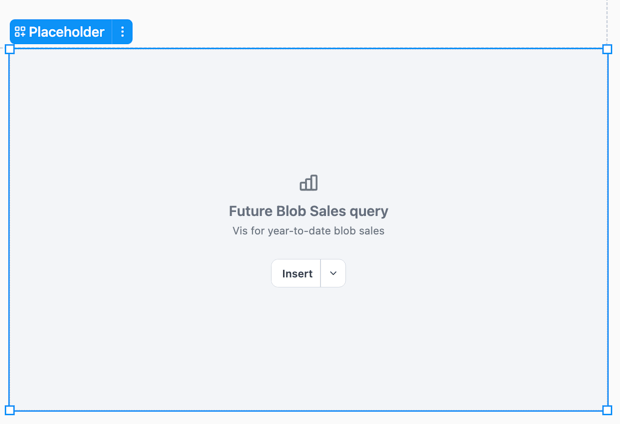
Example of a generic placeholder item with a label and description
Requirements
Modifying dashboard layouts requires Editor, Manager, or Owner permissions on the document.Adding placeholders
In the toolbar, click Add > Layout > Placeholder. New placeholders are inserted as untyped (Generic).Configuring placeholder type
Placeholders can be configured to mock specific content types, which will filter the replacement options in the Insert menu:- Query — Limits replacement to workbook queries and charts
- Filter & control — Limits replacement to filters and controls from your workbook
- Text — Offers an option to insert a new text block
- Use the option in the placeholder
- Click the placeholder and use the Settings > Type option in the properties panel
- Right-click a placeholder and select Type from the context menu
Customizing labels and descriptions
Placeholders display a label and optional description to help communicate their purpose.- Labels - Defaults to
Placeholder <placeholder-type>, where<placeholder-type>isquery,filter / control, ortext. Use the Label field in the properties panel to change the label text. - Description - This optional field allow you to add wireframe instructions or notes. Use the Description field in the properties panel to edit the description.