

Requirements
To follow the steps in this guide, you’ll need:- Querier, Modeler, or Connection Admin permissions to create the topic. Note: Queriers can only create topics in workbooks.
- Connection Admin or Modeler permissions to promote the topic to the shared model
- Optional: Familiarity with Omni branches. While not required, this is recommended if your organization uses branch-based workflows for Omni development.
Before you begin
You can use the workbook-based topic editor, the model IDE, or both to develop your topics. However, keep the following in mind before you begin:- Queriers can only create topics in workbooks, as they don’t have access to the IDE
- Changes made outside a branch in the IDE directly edit the shared model. This means that changes are automatically promoted when a file is saved in the IDE. You can revert changes in the IDE using the model history panel.
Create the topic
First, you’ll start by creating the topic in the workbook or the model IDE.
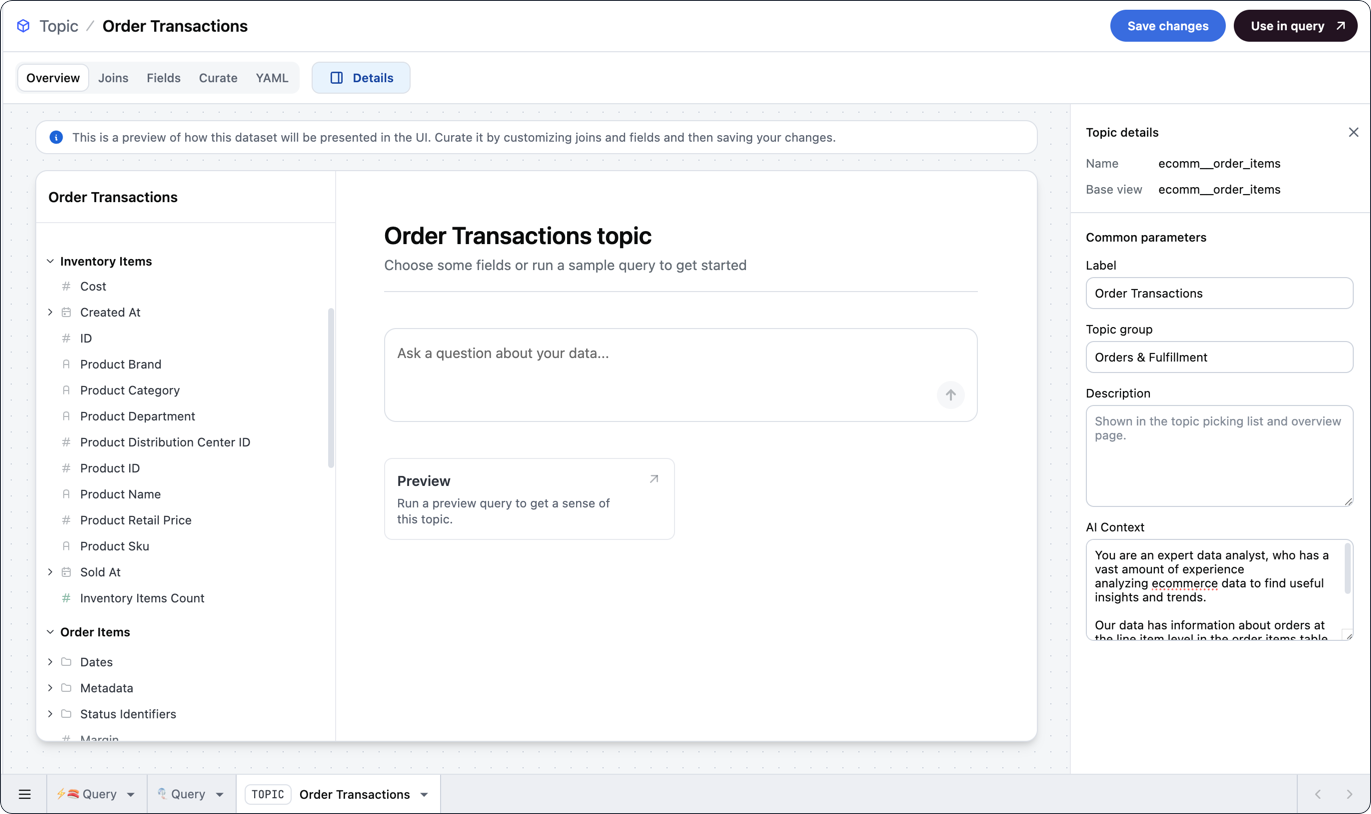
In the workbook
In the workbook
- Open or create a workbook.
- In a query tab, navigate to All views & fields in the field browser.
- Hover over a view and click the (three dots icon), then Modeling > Make topic.
- Save the changes and use Use in query to use the topic in a new query, or
- Further curate your topic by following the remaining optional steps in this guide
In the IDE
In the IDE
-
In the Files panel of the modeling IDE, click the (plus sign) button in the Topics section.
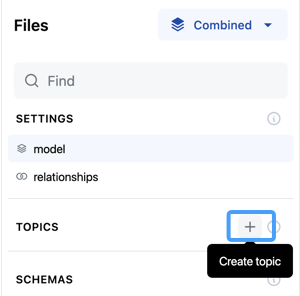
- You’ll be prompted to enter a name for the topic. Currently, Omni will use this name to automatically set the topic’s base view. If the name doesn’t match an existing view, the IDE will display an error.
base_view parameter to define the base view:Topic base view
Design the topic
The steps in this section are optional. You can add metadata, fields, joins, etc. to topics at any time.Want to work with an existing topic in the topic editor? Open the topic in a workbook and click Model > Edit topic, or right-click the topic switcher in the field browser and select Edit topic.
Add metadata and AI context
You’ll start designing the topic by adding optional metadata and AI context.
In the workbook
In the workbook
The Overview tab contains a preview of the topic and allows you to do some quick curation like renaming the topic (label), adding it to a topic group (a folder of related topics) adding a description, or providing AI context.Making changes here will, by default, be added to the workbook model. To propagate these changes to the shared model, ensure you promote them.
In the IDE
In the IDE
After you create the topic file, you can start designing the topic with topic parameters.Define the following parameters, which will also display in the Overview tab of the workbook-based topic editor:
label- A user-friendly display namegroup_label- The group that the topic belongs to, which is useful for improving workbook navigation for your end usersai_context- Additional information for the AI, which can help improve results
Topic description, label, group, and AI context
Add joins
By default, Omni adds all joinable non-fanout tables to newly-created topics — specifically those with
many-to-one or one-to-one relationships to other tables. The list of joinable tables can also be curated, either to remove joins generated by default or to add in tables that would fan out the base table, such as many-to-many or one-to-many joins.Joins added to the model’s relationships file can also be added to topics.In the workbook
In the workbook
The Joins tab will display the joins that are available for the dataset: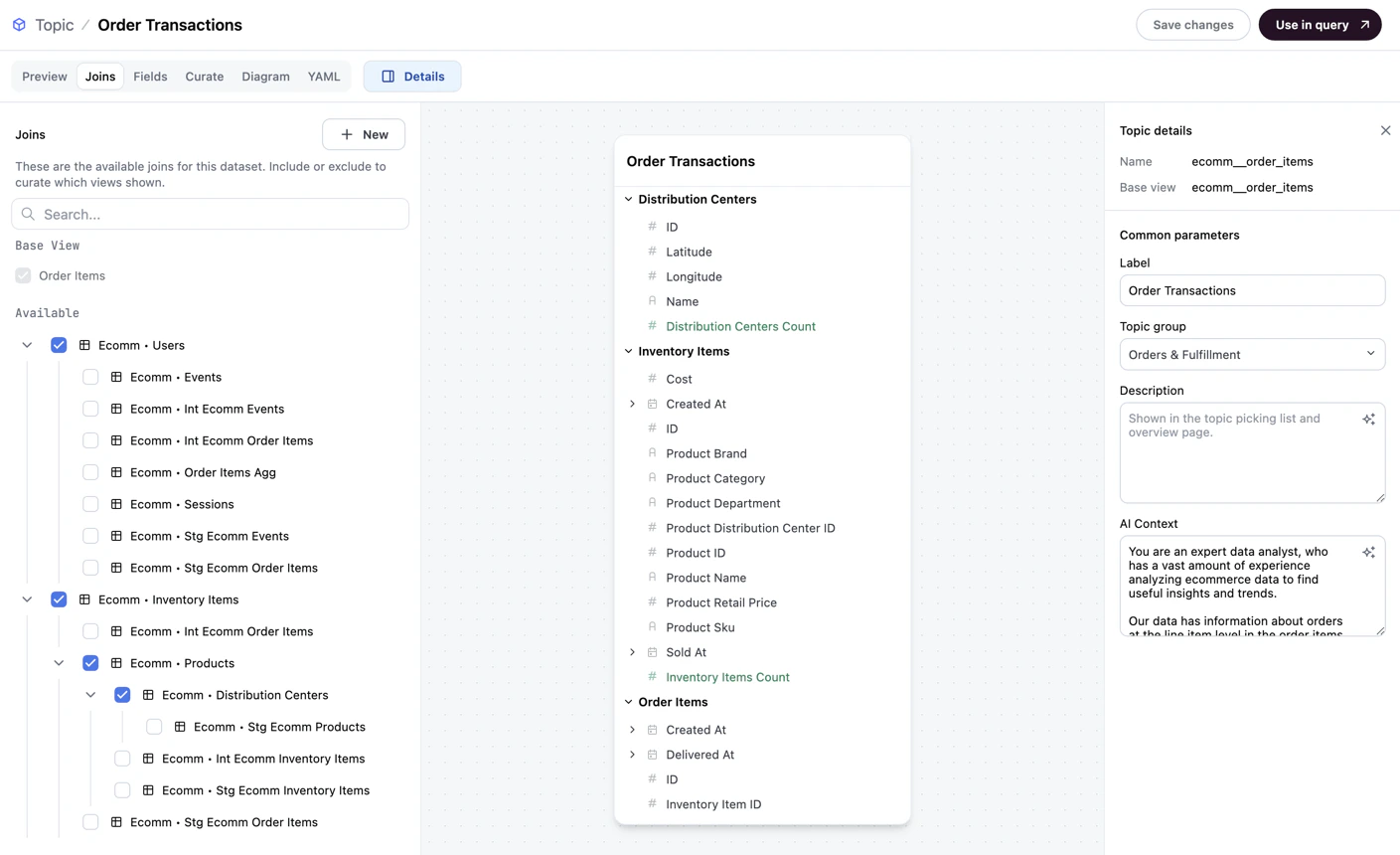
In the IDE
In the IDE
To add joins to a topic in the model IDE, use the Note: The last table in each ‘node’ - specifically, tables that don’t have children nested under them - must have an empty bracket pair:
joins parameter in the topic file:Topic-level join
{}.The joins you define will also display in the Joins tab of the workbook-based topic editor:Add fields
By default, all fields from the topic’s base view and any joined views will be accessible in the topic. In this step, we’ll show you how to curate the fields in the topic.
In the workbook
In the workbook
The Fields tab displays all the fields that are visible in the topic.To exclude a field, deselect the checkbox next to the field: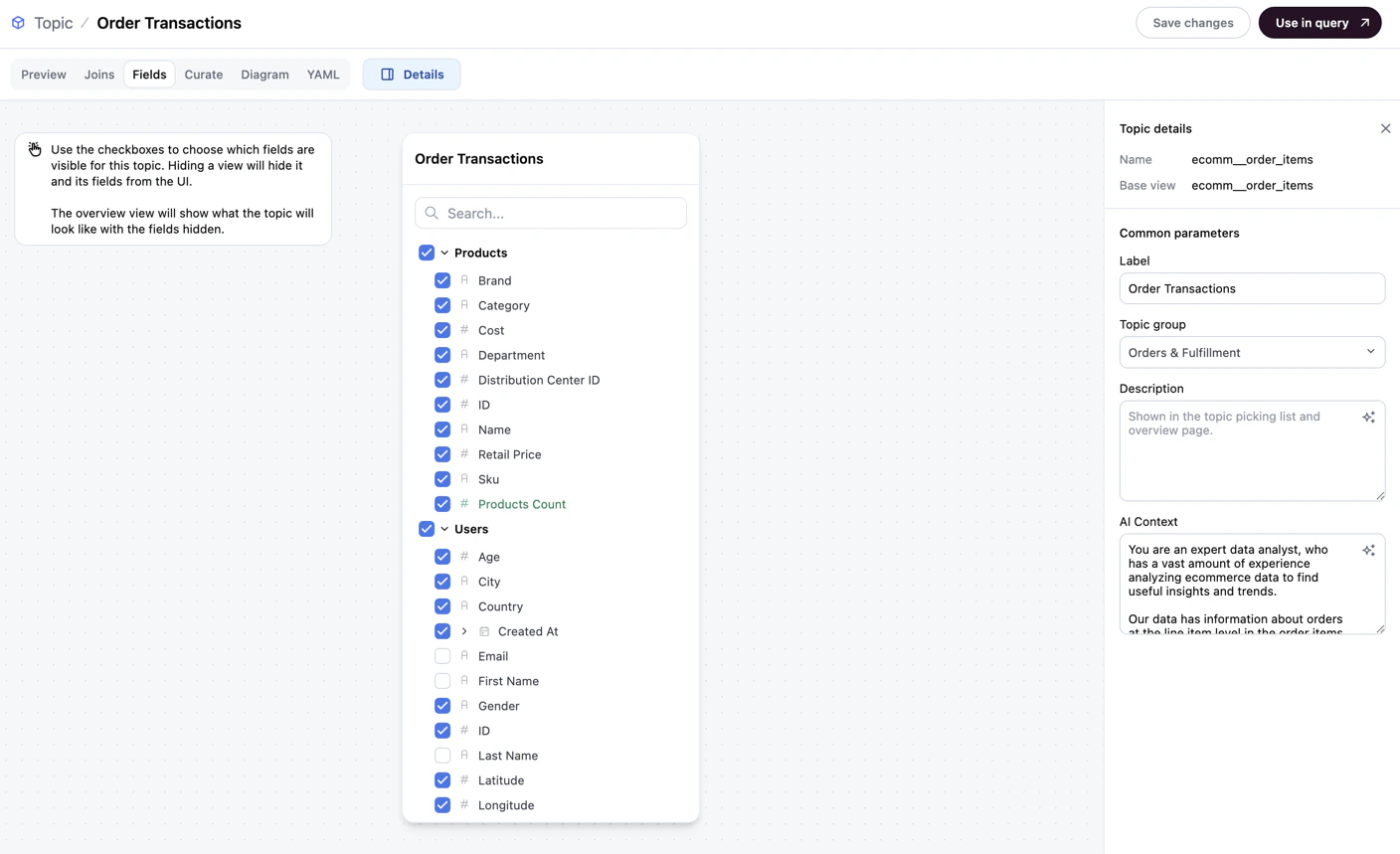
In the IDE
In the IDE
You can include and exclude fields in the model IDE by using the If you viewed this topic’s Fields tab in the workbook topic editor, the excluded fields would be unchecked:
fields parameter in the topic file.For example, the following definition would make all fields accessible except the email, first_name, and last_name fields in the ecomm__users view:Topic field curation
Curate views and fields
Adding context to a topic can be helpful for both your end users and Omni’s AI. In this step, we’ll show you how to further curate your topic by adding information to included views and fields.
In the workbook
In the workbook
The Curate tab allows you to bulk-add information - such as labels, descriptions, and AI context - to views and fields in the topic.While working in a workbook query, you can also access these options for individual fields by right-clicking on a field and selecting Edit.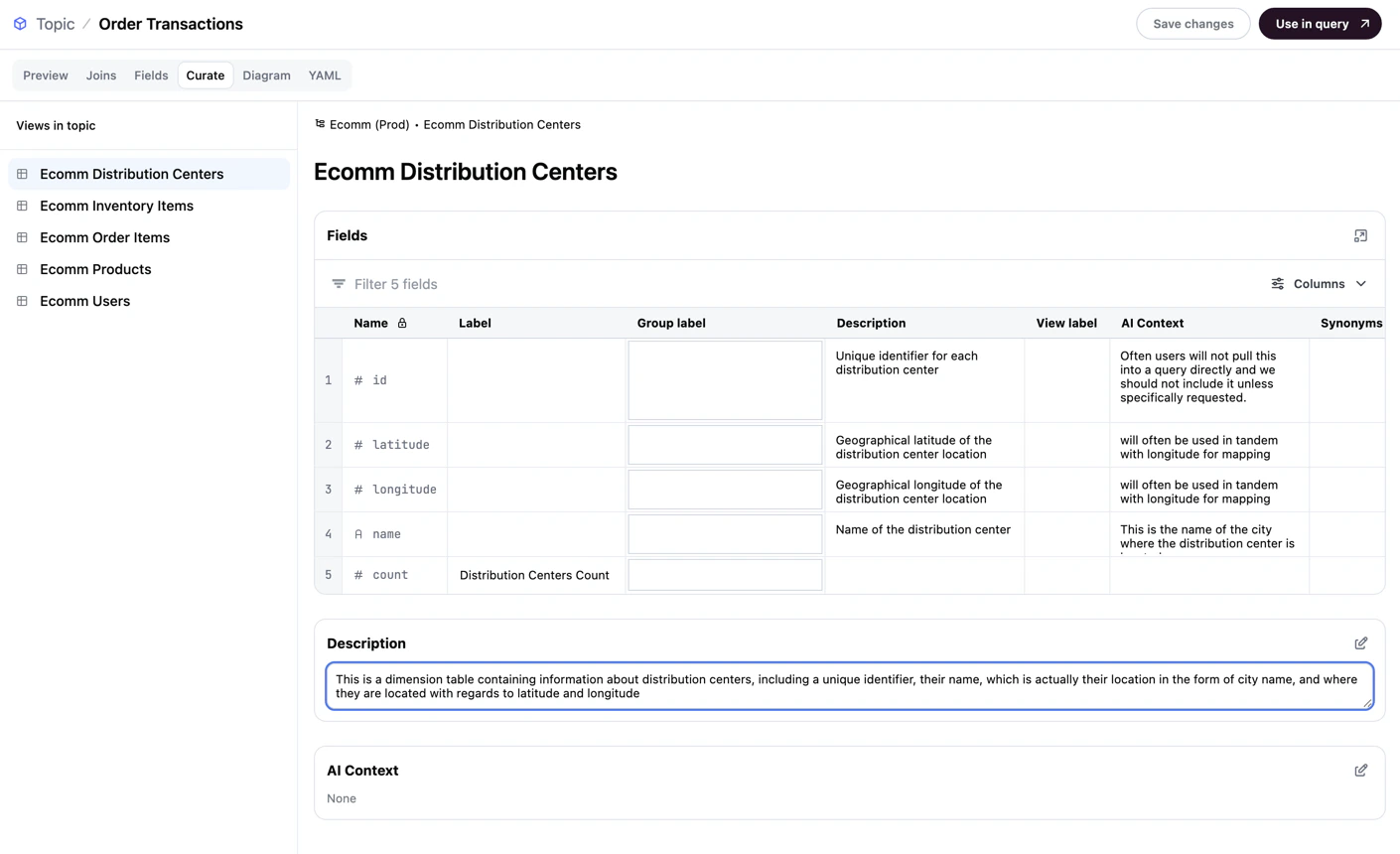
In the IDE
In the IDE
Unlike the workbook-based topic editor, there isn’t a way to bulk-add information to views and fields in the model IDE. Adding curation must currently be accomplished by opening and editing the view file for views included in the topic.To get started, locate and click the view in the Schema browser. You can then add information to the view and its fields.In the following example, we added:If you opened this view in the topic’s Curate tab in the workbook topic editor, it would look like the following image:
- A view-level
description - A
descriptionandai_contextto each of the view’sdimensions
Curating the distribution_centers view
Review and save
Next, you’ll review and save the changes you made to the topic.
At this point, the example Orders Transactions (When you’re finished making changes to the topic, click the Save changes button located near the top-right corner of the IDE.
In the workbook
In the workbook
There are two ways to review topics in the workbook:
- The Diagram tab, which contains a visual representation of the topic’s structure, and
- The YAML tab, which contains the topic’s underlying YAML code
1
Visually review the topic with the Diagram tab
The Diagram tab displays a visual representation of the topic’s structure — including its views, joins, dimensions, and measures — making it easier to confirm the topic looks the way you expect before saving.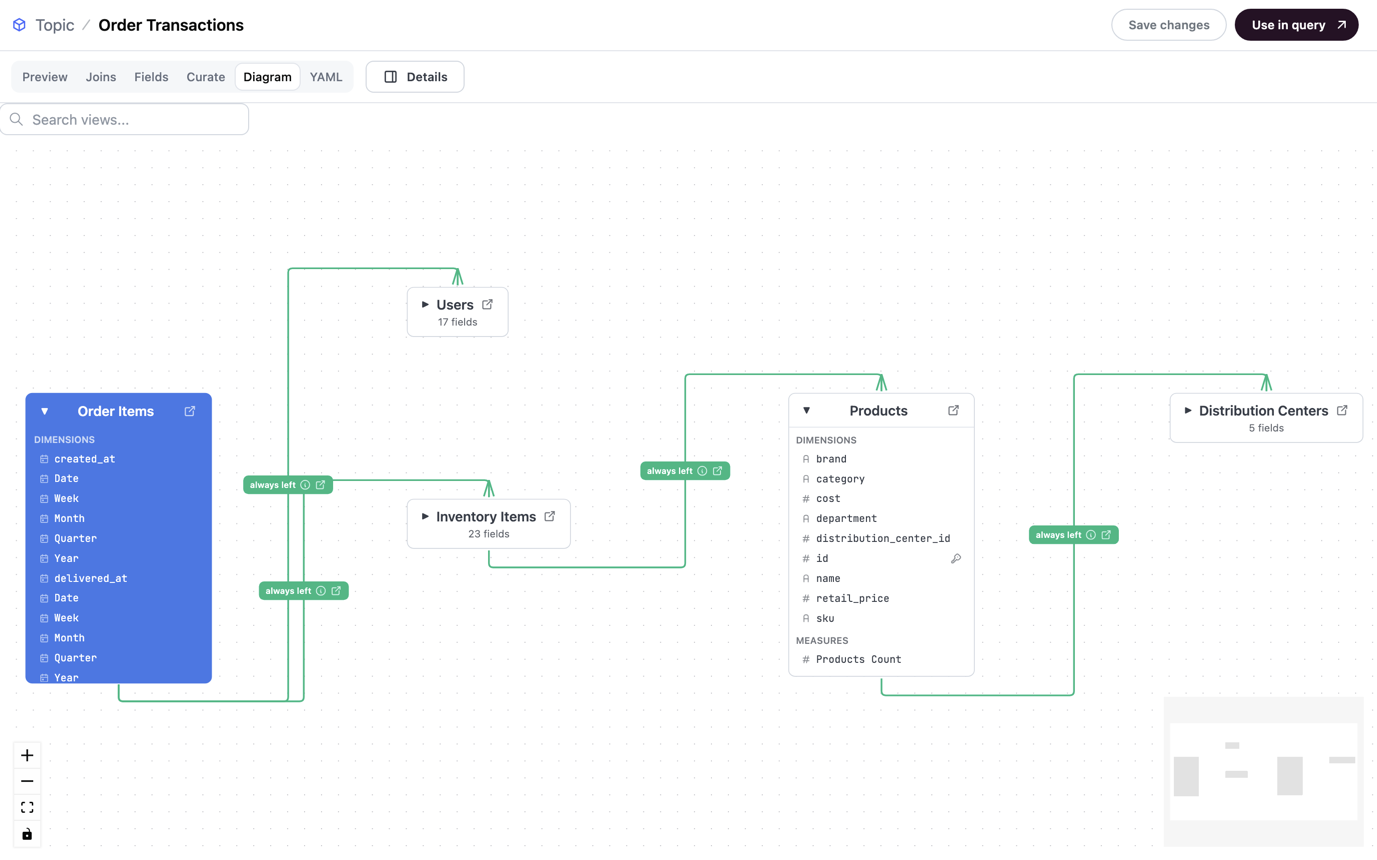
2
Review and save the YAML
The YAML tab automatically generates the YAML definition for the topic based on what you built in the other topic editor tabs. When finished, click Save changes.In this tab, you can also:
- After saving, click Use in query to create a new workbook query based on the topic
-
Click Edit in IDE to directly edit the topic’s YAML configuration
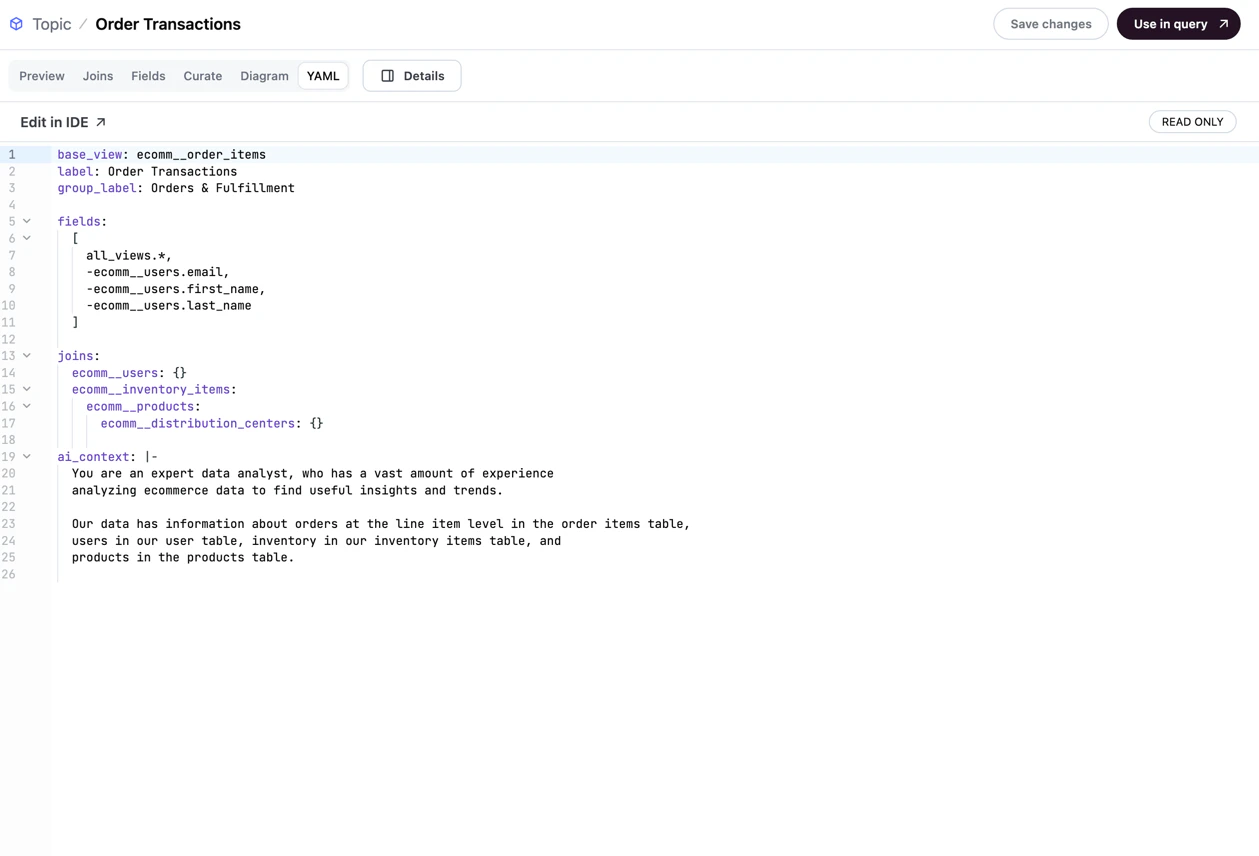
Some parameters can only be added using the model IDE. Refer to the Topic parameter reference for a list of all available topic parameters.
In the IDE
In the IDE
If not using a branch, changes will be automatically promoted to the shared model after every save. Use the model history panel to revert changes, if needed.
ecomm__order_items) topic file looks like this:Example Order Transactions topic
Promote to shared
This step requires Connection Admin or Modeler permissions.
I didn't use a branch
I didn't use a branch
If you didn’t use a branch and you created the topic:
-
In a workbook - While in a published workbook, navigate to Model > View & promote.
-
If you see a
Use branch to promotemessage:- And you’re in a draft, click File > Move to branch. This will move the changes to a branch.
- Otherwise, click Model > Branch > Create branch to create a new branch in the workbook with the changes.
- Otherwise, click Promote to shared.
-
If you see a
- In the IDE - Your changes were promoted to the shared model when you clicked Save changes. You’re all done!
I used a branch
I used a branch
Promotion from a branch to shared depends on whether the model is connected to git and pull requests are required:
- If git isn’t enabled or pull requests aren’t required, click the Merge button in the green branch header at the top of the page. Follow the prompts to merge the branch.
- Otherwise, click the Create pull request button in the green branch header at the top of the page. This will open the connected git repository, where you’ll be prompted to create the pull request. The changes in the branch will be applied to the shared model once the pull request is merged.
Next steps
- Design efficient, approachable topics using our topic best practices
- Explore all available configuration options in the Topic parameter reference
- Use your topic to build queries in a workbook