

Branching in Omni
What's a branch?
What's a branch?
If you’re familiar with version control systems like git - and it’s okay if you’re not! - branches in Omni are similar.In Omni, a branch is an isolated space that allows you to make changes to a model and/or content without affecting the live versions, typically referred to as production. This enables you to experiment, update, and refine your changes before applying any modifications to the live environment.
Why use branches?
Why use branches?
To demonstrate why branches are useful, let’s look at an example that starts with a change to a shared model.When changes are made directly to a shared model, the model’s history might look like this:The changes in this example were immediately applied to the model. If a query had been using the modified field, its logic and results could have changed unexpectedly. These differences might not be noticed right away, potentially leading to incorrect conclusions or broken content.Now consider this example, where changes to the model and impacted documents were made together in a branch:In this example, the branch contained updates to the field logic and impacted documents. You could navigate to documents that use the field, open the branch, and make the changes required to ensure the updated data was correct.When everything worked as expected, you would then merge the branch, applying the changes to the live version of the model and publishing new versions of the documents at the same time.
What's the difference between a branch and a document draft?
What's the difference between a branch and a document draft?
Unlike a document draft which is specific to a single document, branches can include changes to a model and multiple documents. This makes branches especially useful for updating a model and any impacted content at the same time.Branches shouldn’t be thought of as entirely separate from document drafts - they act more as a layer of additional functionality on top of document drafts. When content changes are made in a branch, a draft of each modified document is attached to the branch. Publishing the branch publishes new versions of the documents.Refer to the Editing and publishing guide for a detailed overview, including a comparison between drafts and branches.
Where can branches be used?
Where can branches be used?
Branches can be used in the model IDE and documents.
Who can use branches?
Who can use branches?
Your connection permissions determine the level of access you have to branches:
Note: Create branches also includes the ability to make changes within a branch.
Do branches work with the git and dbt integrations?
Do branches work with the git and dbt integrations?
Yes, but only for changes to models. If a branch includes content changes, those changes will not be pushed to the connected git repository. However, the drafts of the content will be published when the branch is merged.When the git is configured for a connection, Branch Mode is required to make changes to the connection’s models. The dbt integration uses branches to enable switching dbt environments.
Can extension models have their own branches?
Can extension models have their own branches?
Yes. Extension models that use the
extends parameter can be configured to support isolated branches. These branches are scoped to the extension model and remain separate from the parent shared model’s branches.Refer to Using isolated branches with extension models for more information.Creating branches
Connection Admin, Modeler, or Querier permissions are required to create branches.
- In the model IDE, click Model > Branch > New branch. In a workbook, click Model > New branch or Model > Branch > New branch.
-
When prompted, enter a name for the branch.
-
Use the Branch from dropdown to select the starting point for the branch:
- Shared model (latest) - Creates a branch from the latest version of the shared model
- Existing branch - Creates a branch from an existing branch
- Specific version - Creates a branch from a specific version of the underlying model
- Click Create.
-
A green and pink header will display at the top of the page, indicating that you’re in the branch:

If the model’s connection has environments configured, creating a branch will also display an environment switcher. While in a branch, user attribute-based environment assignment is ignored - refer to How environment selection is resolved for how the environment sources interact.
Editing documents
Connection Admin, Modeler, or Querier permissions are required to edit documents in branches.
Moving drafts to branches
Branches can include changes to multiple documents. If the draft you want to move uses the same model as any documents in the branch, you can attach it to a branch. To attach an existing draft to a branch:- Open the draft.
- Click File > Move to branch.
- Select the branch. The draft header at the top of the page will be updated to include the branch.
Viewing document changes
For every change you make in a document, an entry will be added to the Draft changes panel. Click See changes in the branch header or View workbook changes on the left side of the page to open the panel: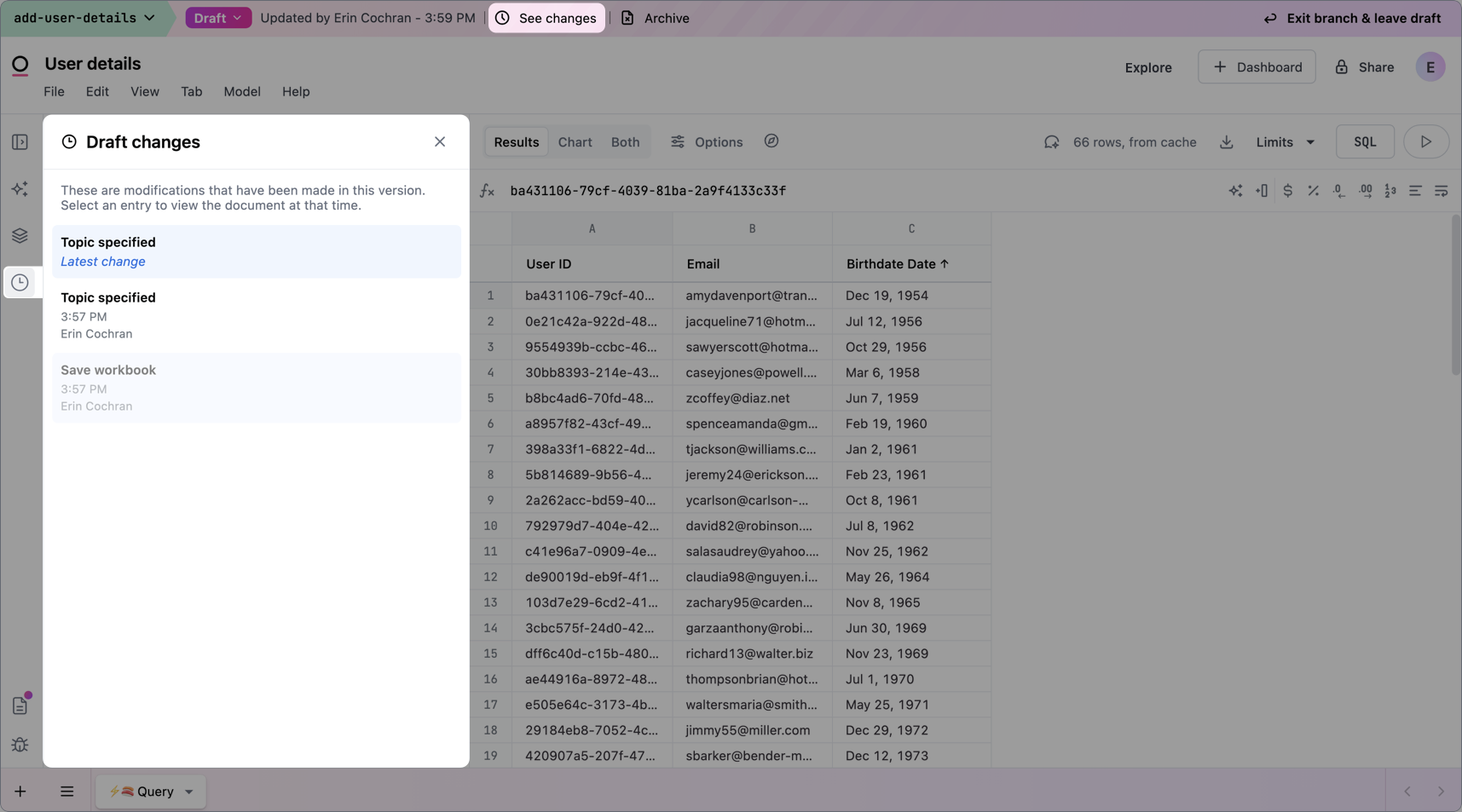
Requiring pull requests to publish document changes
For high-impact or sensitive documents, you may want to ensure that all changes are reviewed before they go live. Enabling Require pull requests to publish enforces a pull request–based workflow, so updates must be proposed, reviewed, and approved before they are published. When this setting is enabled:- Direct edits to the published document are blocked
- Any change requires opening a branch and submitting a pull request
- The document is only updated once the pull request is approved and merged
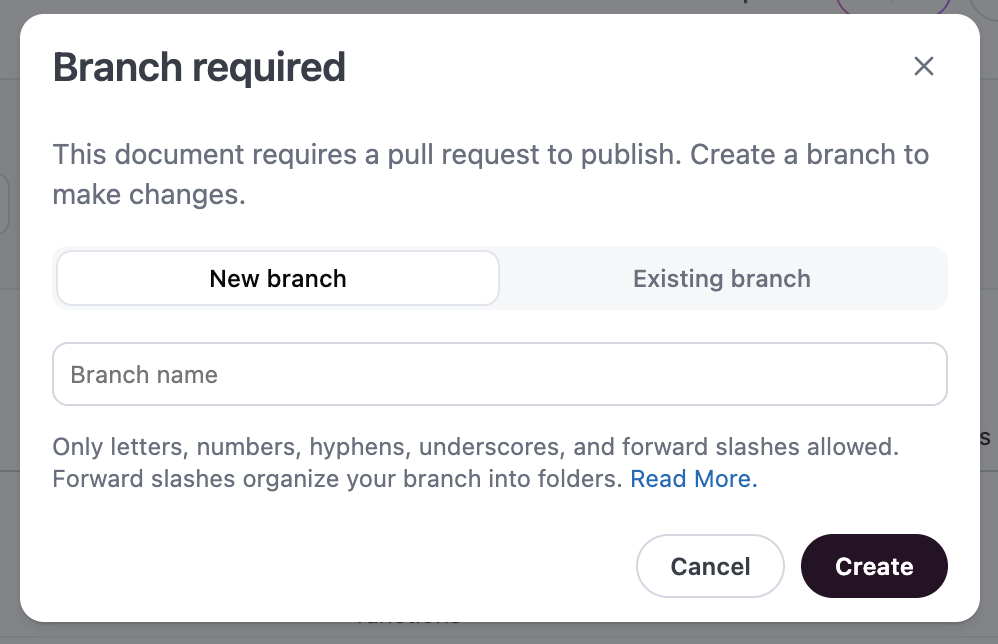
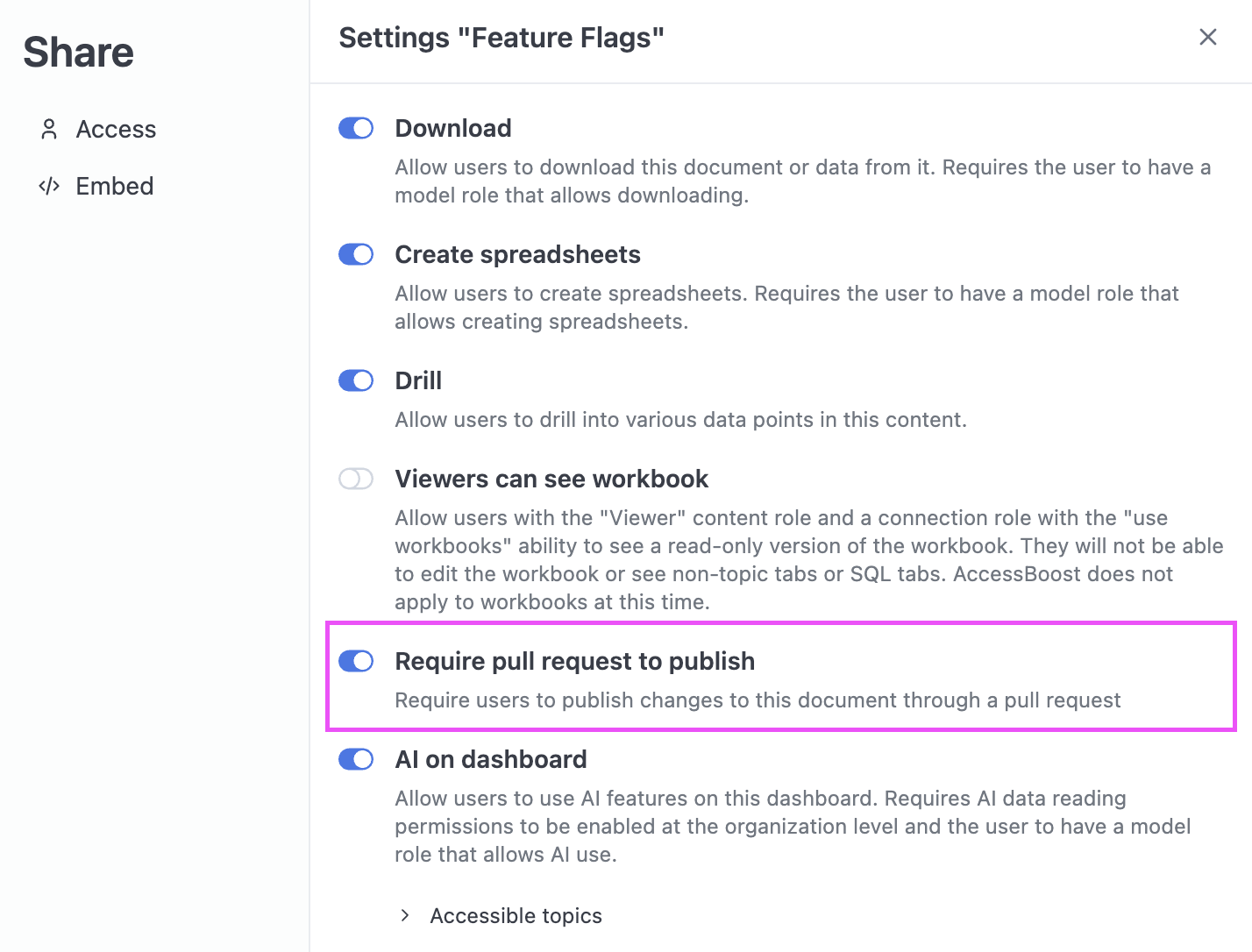
- The git integration must be configured for the model the document is built on
- You must have the Content Manager role on the document to enable or disable this setting
- Users making changes must have the Querier role or higher, as changes require creating a branch
Finding and managing branches
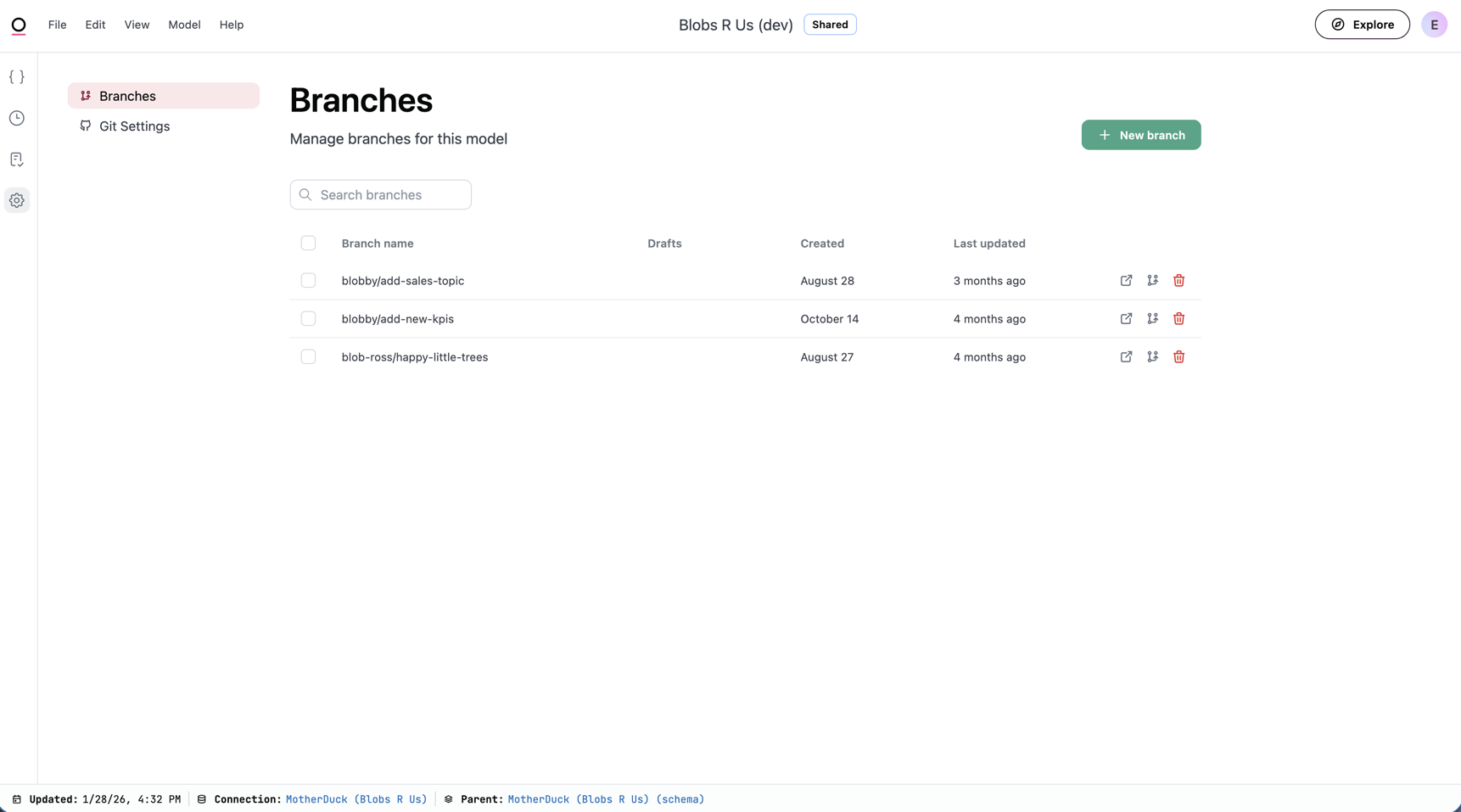
When working with branches in the model IDE, you have two ways to find and select the branch you need:- Click Model > Branch and select your branch from the dropdown menu. To search for a branch, click the Search branches option to open a searchable dialog that makes it easier to find the branch you need. You can filter branches by name, then either switch to the branch or press Enter to select it.
-
The Branch management page, accessed by clicking the icon in the IDE sidebar, or by clicking Model > Branch > Manage branches:
Switching branches via URL
This section is only applicable to workbooks and dashboards. To switch branches in the model IDE, use the Model > Branch menu.
?branch= query parameter to its URL. This approach is useful when you want to:
- Bookmark a direct link to a document on a specific branch
- Share a branch-specific view of a document with a colleague
- Quickly switch between branch states without navigating the UI
<branch-name> with the exact name of the existing branch you want to load. For example, if you want to load a workbook on a branch named feature/new-metrics:
- The branch must already exist. This parameter doesn’t create new branches. Additionally, if the branch name does not match an existing branch, the document will load without a branch.
- You’ll need to URL-encode special characters. For example,
/becomes%2F.
Editing models
Connection Admin, Modeler, or Querier permissions are required to edit models in branches.
Save to branch captures changes made in the shared model IDE while in a branch. If you’ve added fields or calculations to your workbook model using the workbook UI (for example, quick aggregates or custom SQL fields), those changes are stored in the workbook layer and won’t be staged automatically. To include them in the branch, open the workbook model changes drawer and click Add to branch. See Promoting workbook changes in a branch for steps.
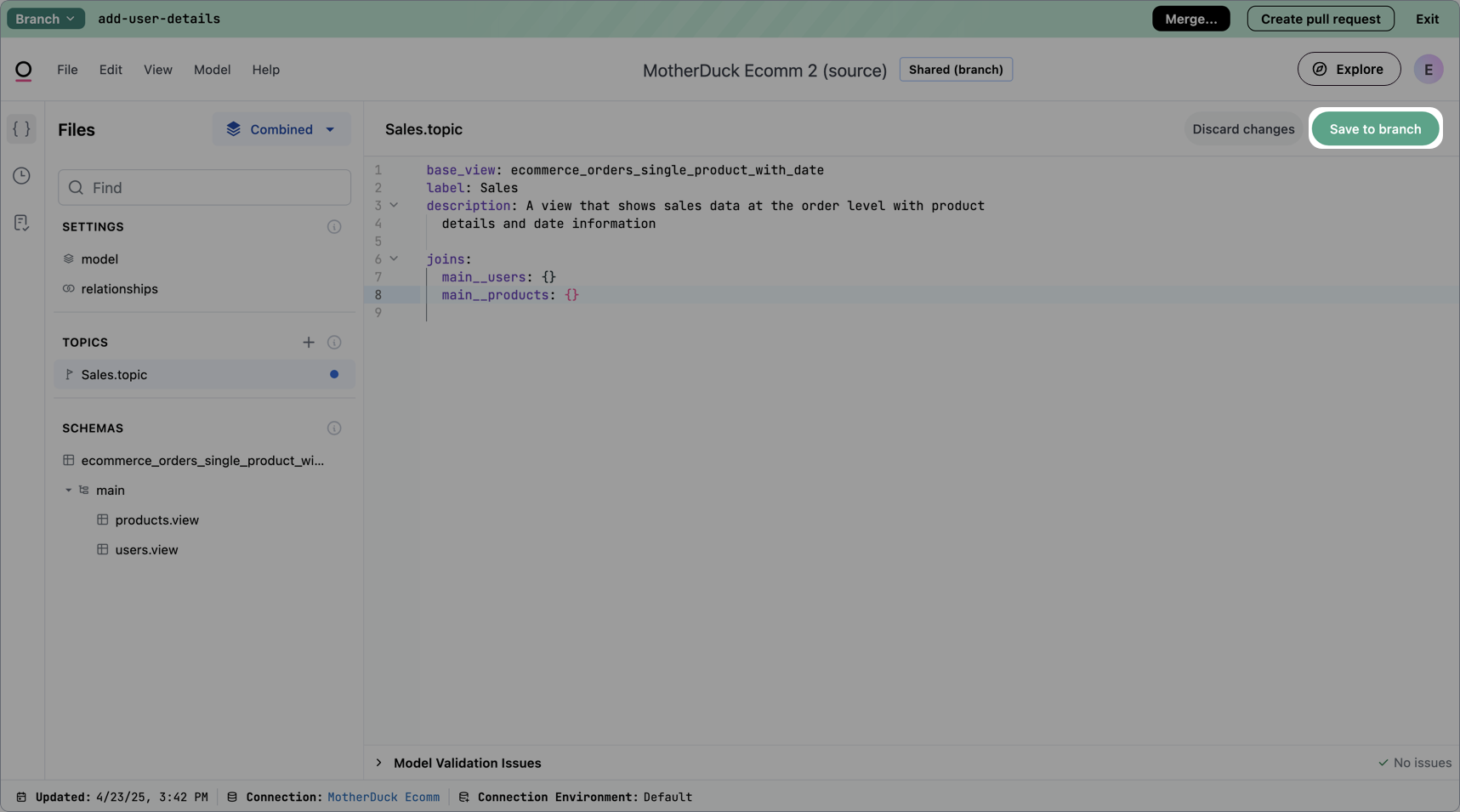
Viewing staged model changes
Each time you save a change in the IDE, an entry will be added to the Model history panel. Open this panel to view the changes currently on the branch, as well as the before and after (also called a diff) of each change: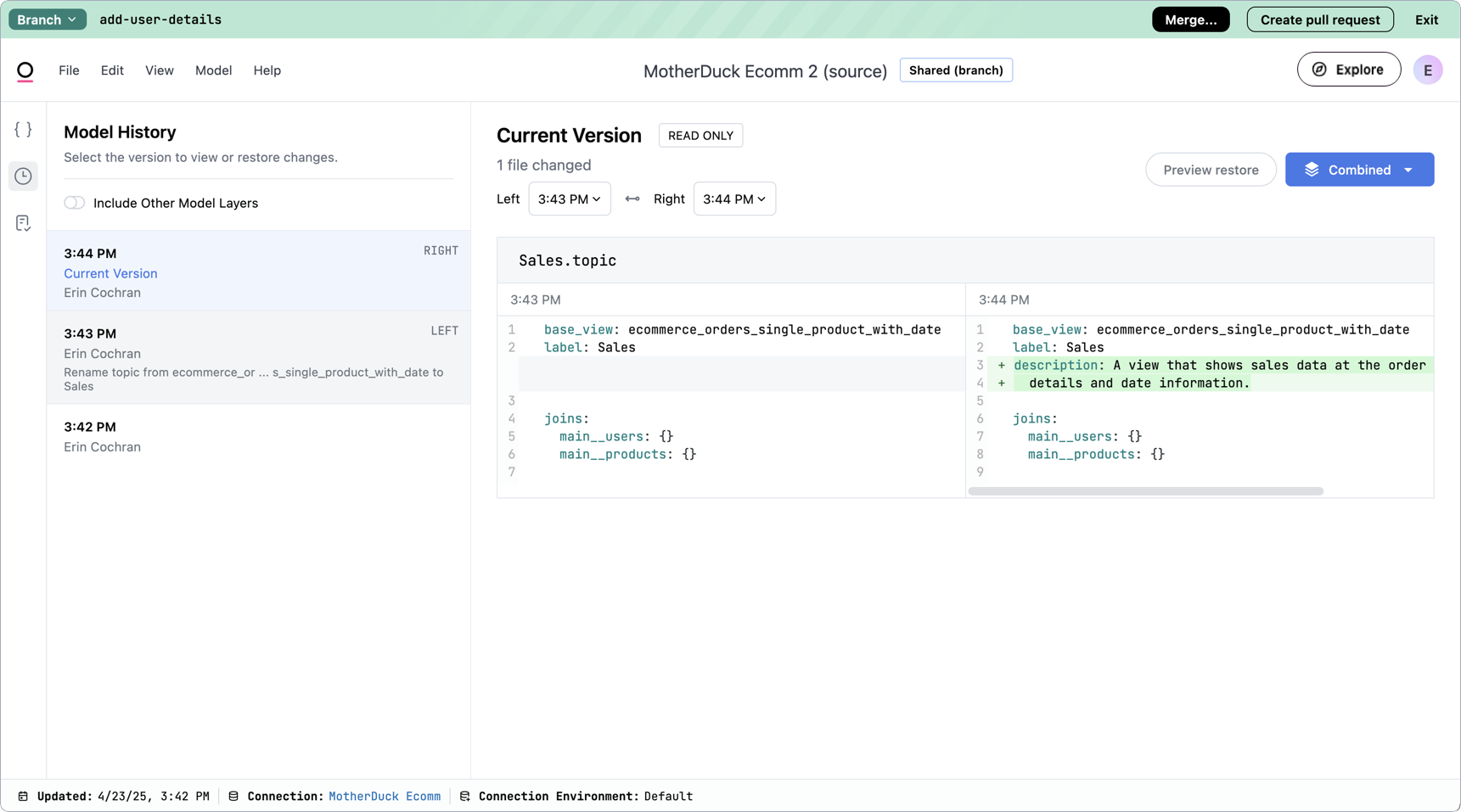
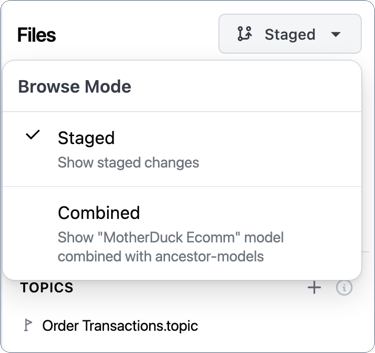
Validating changes with the Content Validator
As you make changes to the model, Omni recommends using the Content Validator to check your work. This tool makes it easy to identify issues in content and proactively address them. Refer to the Content Validator guide for more information and the Common publishing workflows guide to learn how to incorporate validation into your development strategy.Publishing and merging branches
Connection Admin or Modeler permissions are required to merge branches.

The automatic PR description link works for GitHub and GitLab pull requests. Azure DevOps and Bitbucket do not support pre-filling pull request descriptions via URL parameters, so the link will not be added for these providers.
- In the branch header at the top of the page, click Publish content drafts or Merge (which will display if the branch contains model changes).
-
You’ll be prompted to confirm the merge. Note: If the branch contains modeling changes, you’ll also see a Delete branch after merge box. Omni recommends leaving this checked.
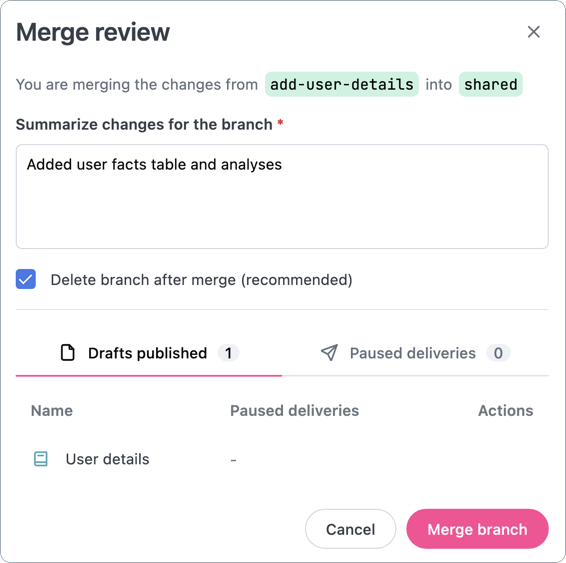
- Click Merge branch.
Working with out of date drafts
There may be times when you see the following out of date warning when preparing to publish content: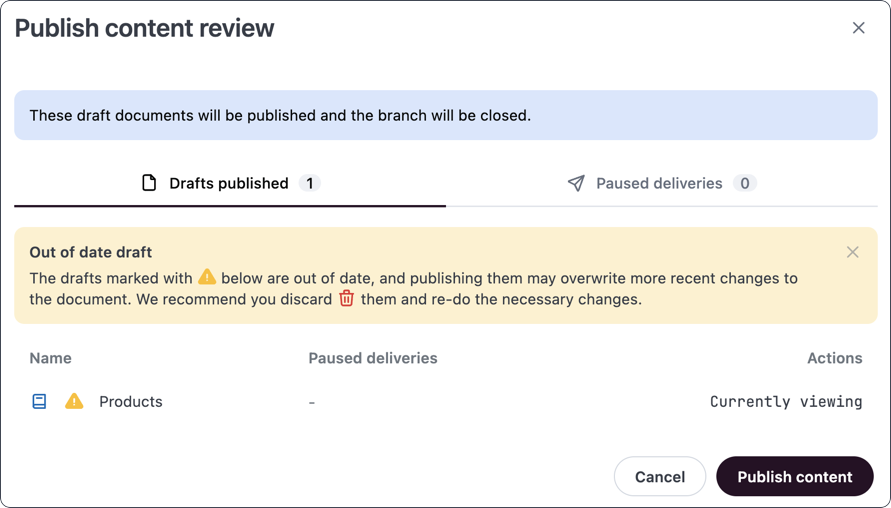
- Identify the changes in the outdated draft.
- Discard the draft.
- Create a new draft of the document.
- In the new draft, redo any changes you identified in step 1.
- When finished with all your changes, merge the branch.