

target your project expects.
A production environment is created automatically when you set up the dbt integration. Additional environments, typically one per developer, let you point Omni at development builds and swap between them from an Omni branch.
How it works
Every time Omni syncs, it compiles your dbt project to build a manifest. Just like a localdbt run, that compilation needs to know where your models are built. An Omni environment supplies that information by mirroring an entry from your dbt configuration:
- dbt Core — One output block under a profile in your
profiles.yml - dbt Cloud — One environment, or one developer’s credentials
Environment ownership
Every dbt environment is either personal, meaning it belongs to a single user, or shared, meaning it doesn’t have an owner. Ownership is controlled by the environment’s Belongs to setting. Ownership determines who can manage (create, edit, delete) the environment:
Anyone who can access the model IDE can create an environment for themselves. Creating a shared environment requires Connection Admin or Organization Admin permissions; only Organization Admins can reassign ownership of an environment.
The production environment is always shared and cannot be assigned an owner.
Requirements
To follow the steps in this guide, you’ll need:- An Omni connection with a configured dbt integration
- Restricted Querier permissions or higher on the shared model. If you’re using custom roles, you need the Use IDE permission.
Managing dbt environments
dbt environments can be managed in the Omni UI using the dbt IDE, the dbt environment APIs, or the Omni CLI.- Omni UI
- API
- CLI
- In Omni, click Develop in the main sidebar.
- If your organization has more than one model, click the model you want to work with in the list to open the model IDE. If you have only one model, Omni opens it automatically.
- In the model IDE, click the dbt icon in the sidebar.
- Click Sync at the top of the file list.
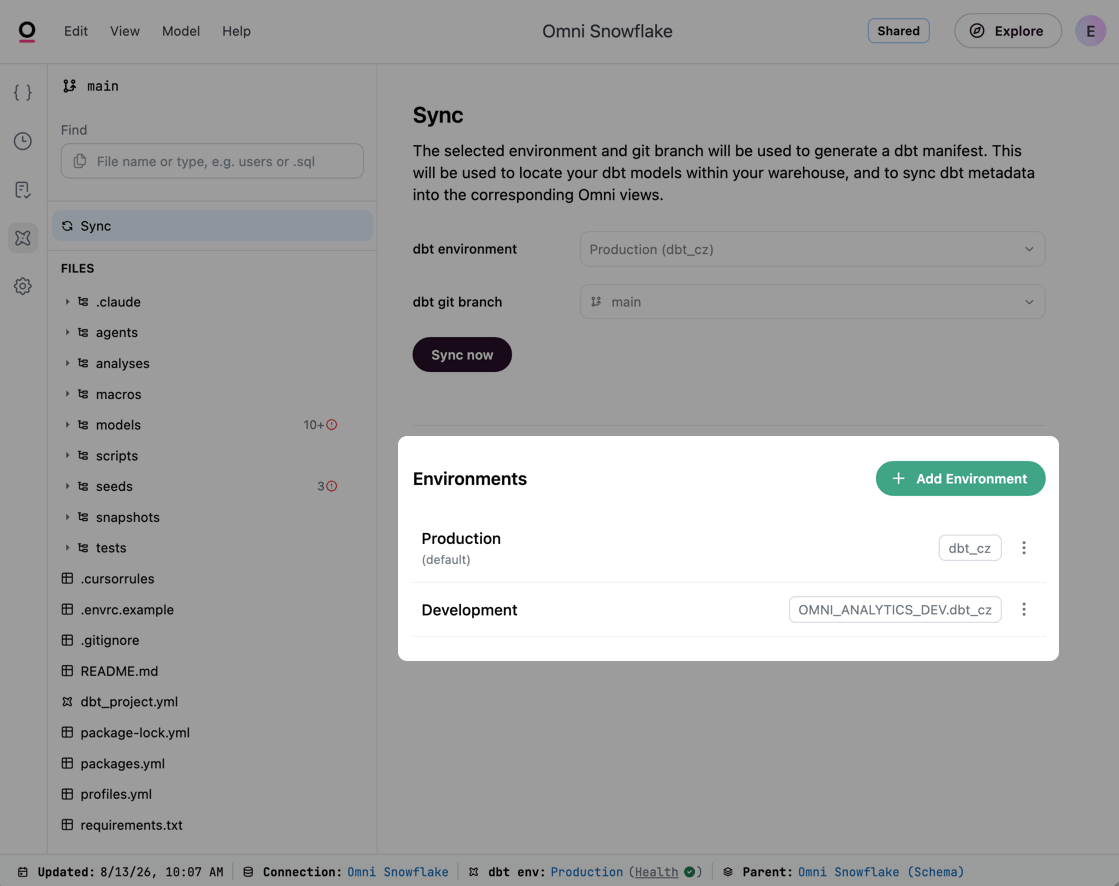
Access your dbt environments by clicking Sync in the dbt IDE's file list
Creating dbt environments
Creating personal environments
All users who want to preview their dbt changes in Omni need a dbt environment. A single personal environment only applies to the user who owns it.
- Omni UI
- API
- CLI
To create a personal dbt environment in the Omni UI:
- Open the Sync page in the dbt IDE.
- In the Environments section, click Add Environment.
- Define the environment settings, setting Belongs to to you or another user, if you’re an Organization Admin.
- Optional: Add your dbt project’s environment variables.
- Click Save to create the environment.
Creating shared environments
Connection Admin or Organization Admin permissions are required to create shared environments. See Environment ownership for more information.
Editing dbt environments
See Environment ownership for the permissions required to edit environments.
- Omni UI
- API
- CLI
To update an existing environment:
- In the Sync page of the dbt IDE, click the icon next to the environment.
- Click Edit.
- Update the environment’s settings, variables, or both.
- Click Save.
Assigning dbt environment ownership
Organization Admin permissions are required to assign environment ownership.The default production environment cannot be assigned an owner.
- Omni UI
- API
- CLI
- In the Sync page of the dbt IDE, click the icon next to the environment.
- Click Edit.
- Set Belongs to to the user that should own the environment.
- Click Save.
Configuring dbt environment settings
A dbt environment’s settings mirror one entry from your dbt configuration. Copy the values directly from yourprofiles.yml (dbt Core) or dbt Cloud environment credentials to ensure Omni runs dbt commands the way your project expects.
For example, take this profiles.yml entry for a developer working locally with dbt Core:
Note that Name and Belongs to don’t come from your dbt configuration - they’re the environment’s display label and owner, which are set in Omni.
Using dbt Cloud? Copy the values from Profile > Credentials > [your project] > Development credentials, where Schema maps to Default Schema and Target name maps to Target Name.
dbt environment settings reference
required
A user-friendly label displayed in the UI. This is what users pick from when switching environments, so name it after what it points at —
Production, Staging, or Blobby Dev.The user that owns the environment. Personal environments can only be edited by their owner or by Organization Admins. See Environment ownership for more information.Choose No one (shared) for environments like production or staging that any Connection Admin should be able to edit. The production environment is always shared.
Defers unbuilt dbt models in this environment to the production environment’s builds, so partial builds don’t make the rest of your models disappear. Only available on non-production environments.See Using virtual schemas with partial dbt builds for more information.
required
The schema where dbt models are built when the models don’t have a custom schema defined. Copy this value from the
schema in your profiles.yml (dbt Core) or your dbt Cloud environment credentials.For a developer environment, this is the developer’s personal schema.The default database where dbt models are built. Defaults to the connection’s database — copy the
database value from your profiles.yml or dbt Cloud environment if this environment builds models in a different database. Shown only on dialects that support multiple databases or catalogs.A custom value for
target.name when Omni runs dbt commands. Copy the target value from your profiles.yml or the Target name from dbt Cloud environment credentials if your dbt code relies on it — for example, a generate_schema_name macro that branches on target.name. New production environments default to prod.Snowflake only. A custom value for
target.role when Omni runs dbt commands. Copy the role value from your profiles.yml if your dbt code relies on it, which is most common when developers dynamically switch databases by role.Managing dbt environment variables
If your dbt project uses environment variables — such as to pull dependencies or determine the database or schema that models are built into — Omni needs the same values to compile your project. Environment variables are managed in an individual environment’s settings.Adding dbt variables
Variables aren’t shared across environments — they belong to a single environment. If multiple environments require the same variable, you’ll need to add it to each environment.
- Omni UI
- API
- CLI
- In the Sync page of the dbt IDE, click the icon next to the environment.
- Click Edit.
- In the Environment Variables section, click Add variable.
- Fill in the following:
- Name - Must begin with
DBT_and contain only letters, numbers, and underscores. This cannot be changed after the variable is saved. - Value - The value Omni passes when it runs dbt commands. Leave this blank to set a non-secret variable’s value to an empty string.
- Secret - Check this to store the value as write-only, so it’s masked after saving. Names beginning with
DBT_ENV_SECRET_are marked secret automatically.
- Name - Must begin with
- Click Save to create the variable.
Renaming dbt variables
Variable names cannot be changed after the variable is saved. To rename a variable:- In the Sync page of the dbt IDE, click the icon next to the environment.
- Click Edit.
- Scroll to the Environment Variables section.
- Delete the variable.
- Create a variable with the new name.
Deleting dbt variables
To delete a variable:- In the Sync page of the dbt IDE, click the icon next to the environment.
- Click Edit.
- Scroll to the Environment Variables section.
- Click the icon next to the variable. This immediately deletes the variable.
Next steps
- Syncing dbt — Sync an environment’s dbt metadata into your Omni model
- Debugging dbt sync issues — Resolve models that Omni couldn’t match after a sync