

- dbt syncs regenerate the dbt manifest from the selected dbt environment and Git branch, locate your dbt models in the database, and pull the model metadata into the corresponding Omni views. They do not scan the database, and therefore do not include structural changes.
- Schema refreshes inspect your connected database, identify structural changes, and update the associated Omni model to match. For example, if you add a new column in the warehouse, a schema refresh will pull it into Omni. When an Omni connection has dbt enabled, a schema refresh also performs a dbt sync.
What dbt syncs pull in
Omni includes some metadata in every dbt sync, while the rest depends on the connection’s dbt settings. See the dbt metadata reference for more information, including the metadata Omni excludes.Requirements
To sync dbt with Omni, you’ll need:- A connection with dbt configured
- Modeler or Connection Admin permissions on the Omni model
Triggering dbt syncs
When nothing has changed in the warehouse — you edited a description, added a tag, switched to a different dbt branch, or changed an environment’s settings — you don’t need a full schema refresh. You can sync dbt on its own from the dbt IDE.- In Omni, click Develop in the sidebar.
- If your organization has more than one model, click the model you want to work with in the list to open the model IDE. If you have only one model, Omni opens it automatically.
- In the model IDE, click the icon in the sidebar.
-
Click Sync at the top of the file list to open the Sync page:
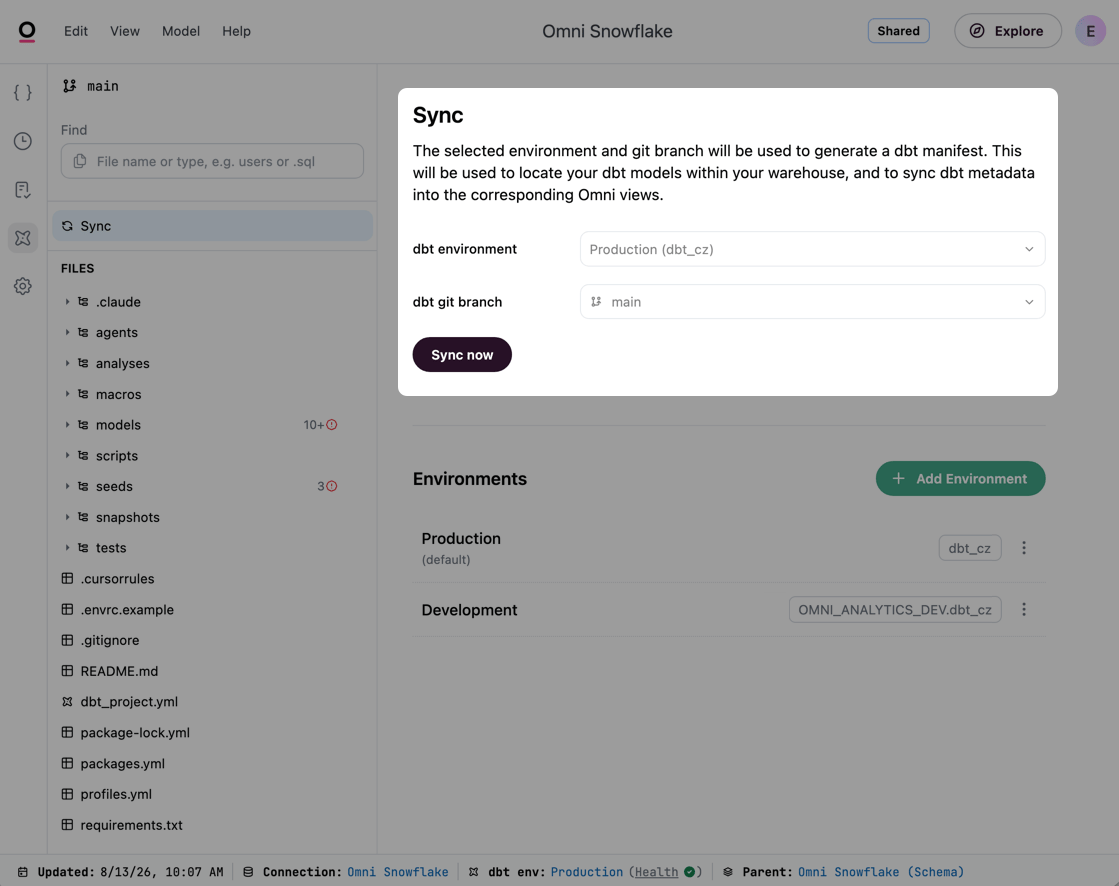
Access the dbt sync settings through the dbt IDE
- Check that dbt environment and dbt git branch point at the build you want Omni to read. Both selectors require an active Omni branch. The production environment always uses the repository’s default branch, so its branch selector stays disabled.
- Click Sync now. If you changed the environment or branch, the button reads Save and sync instead and does both.
Triggering schema refreshes
Run a schema refresh whenever a dbt run changes the structure of your warehouse, such as adding a model or adding, renaming, or removing columns. On a dbt-enabled connection, a schema refresh also runs a dbt sync. Schema refreshes happen at the connection level, so the steps are the same whether or not you use dbt. See Schema refreshes to learn how to trigger a refresh manually or on a schedule. To automatically update Omni, use Omni’s APIs to trigger a refresh as the last step of your orchestration workflow:- Call the Refresh schema API immediately after a successful
dbt run. By default, a schema refresh triggers a direct commit to your integrated Git branch to keep your model files in sync with the database. - Define cache policies (e.g., 24 hours) and use the Reset cache API to reset the cache specifically when your warehouse jobs complete.
Checking metadata freshness
Troubleshooting
If you notice a discrepancy between your warehouse and Omni, check these areas:- dbt sync issues - In the dbt IDE, click Sync to see what the last sync couldn’t translate, including dbt models that Omni couldn’t match to a view. See Debugging dbt sync issues for how to work through them.
- Model version history - Click the icon in the model IDE to see a chronological list of what changed and who triggered the refresh. See Viewing and restoring model versions in the model IDE for more information.
Common questions
Do dbt syncs read all the files I see in the dbt IDE?
Do dbt syncs read all the files I see in the dbt IDE?
No. The dbt IDE file tree shows your whole dbt project, including macros, tests, and files that aren’t dbt resources at all. Browsing a file there does not mean a sync reads it.Macros are the exception: Omni runs dbt to build the manifest, so
generate_schema_name and generate_database_name decide where Omni looks for each model’s table.Does Omni support custom schema-naming macros?
Does Omni support custom schema-naming macros?
Yes. Omni runs the dbt compiler directly. It detects and handles custom
generate_schema_name() macros, applying them based on your dbt environment parameters in Omni.- Production - Maps to standard schemas (e.g.,
marts,reports). - Development - Maps to prefixed schemas (e.g.,
dbt_blobby_marts).
Why are my column descriptions different from dbt or my database?
Why are my column descriptions different from dbt or my database?
When column descriptions differ between your dbt instance and your data warehouse’s catalog, Omni prioritizes dbt’s column descriptions. If descriptions are edited in Omni, Omni prioritizes those descriptions.
What happens if a column is renamed in dbt?
What happens if a column is renamed in dbt?
Upon refresh, Omni pulls in the new name automatically. The updated field will be available in your topics, but existing workbook references to the old name will break.Use the Content Validator to find and bulk-replace broken references across your workbooks. You can open a branch to make these fixes safely, then merge once everything is working as expected — rather than making changes live.
Can dbt constraints be used with views?
Can dbt constraints be used with views?
In many warehouses, constraints are applied to tables rather than views. If your dbt project outputs views, define constraints at the model level in dbt so Omni can still inherit that logic, even if the warehouse doesn’t enforce them on the view.
Does Omni automatically infer primary keys from dbt tests?
Does Omni automatically infer primary keys from dbt tests?
No. While a combination of
unique and not_null tests is logically equivalent to a primary key, Omni does not infer primary key status from these tests. Instead, Omni identifies a primary key through:- dbt constraints, which are included in dbt syncs when Auto-generate primary keys and relationships from dbt constraints is enabled in the connection’s dbt tab.
- Primary keys defined on the object in your database
- Manually adding the primary key in Omni
How can dbt metadata help with Omni's AI?
How can dbt metadata help with Omni's AI?
Omni pulls dbt metadata into your model in ways that directly improve AI accuracy. For example, integrated descriptions are used for AI context, which can help the Omni Agent generate more accurate queries.