Omni’s AI features consume credits each time they process a request. You can control this usage at two levels: across your entire organization, or for individual users. In this guide, you’ll learn what credits are, what drives consumption, how to set limits at both levels, and how to monitor usage across your account.
Credits are the unit of measurement for AI usage. Every interaction with an AI feature in Omni — such as asking a question, generating a summary, asking AI to make data model changes, or using the MCP Server — consumes tokens from an LLM provider. Omni rolls those up into credits.Credit usage varies depending on several factors:
Task complexity — More complex questions, multi-step analysis, or larger datasets use more credits than basic lookups. Each message in a session carries prior context, so long-running sessions can compound.
Data model and context size — Omni sends context from the data model to the LLM to improve answer accuracy (field descriptions, ai_context, synonyms, etc.). Larger data models use more credits.
LLM and thinking level — More capable LLMs (e.g., Sonnet-class) consume more credits per request than lighter LLMs (e.g., Haiku-class), and higher thinking levels consume more credits. See LLM settings to choose which LLMs your organization uses.
The Credits tab in AI Hub > General includes settings that allow you to limit AI credit consumption at the organization level. The settings can be used individually or combined.
Credits and multiple Omni organizations. Your Omni account represents your company — for example, Blobs R Us. Each account contains one or more organizations (also called instances), the individual Omni deployments you sign in to, such as blobsrus-usa and blobsrus-eu. AI credits are pooled at the account level, but managed per organization.
Disables AI features when the specified credit threshold is reached. Using AI beyond the included amount shown requires enabling overage billing.
Requests that are processing when the cap is met will complete, but subsequent requests will be blocked. This means that the hard cap limit may be slightly exceeded to account for in-process requests.
Some accounts may have AI usage automatically capped at their included credit allotment. If your account is hard-capped, Organization Admins will see a Review & accept banner on the Credits tab to enable overage billing.To enable overage billing, check the authorization box and click Agree & enable overage billing. This removes the usage cap for all organizations sharing the same billing account, allowing AI usage to continue beyond the included allotment.
To create a tiered approach, enable both the hard cap and downgrade settings. Set Downgrade to a less expensive model at a lower threshold than Set a hard cap on AI usage. As consumption rises, AI features switch to a less expensive model first, then stop entirely once the hard cap is reached.
To set a hard cap or less expensive model:
Omni UI
API
Navigate to AI Hub > General.
Click the Credits tab.
Toggle the setting to on.
In the credits field, enter the number of credits where usage should be hard-capped or downgraded.
Click Save.
Use the Update AI credit limits endpoint and include the downgradeCredits and shutoffCredits parameters in the request body:
When a hard cap or less expensive model is set, all Organization Admins will receive email notifications when usage passes 75% and 100% of the defined threshold for each setting.For example, when only a hard cap is defined, each Organization Admin could receive up to two notifications: one when 75% of the threshold is used, and another when usage passes 100%.
By default, users in your organization don’t have credit limits. Overall usage will be capped based on any organization-level controls you have defined, but limits for individual users are only enforced if you enable user-level credit limits.User-level credit limits are defined in the Credit usage tab and can be set in two ways:
A default limit sets a credit limit for each individual user in your organization. When defined, the default applies to all users in the organization that don’t have an individual AI credit limit configured.Default credit limits work alongside organization-level downgrade and hard cap thresholds. For example, you can set a per-user default of 10,000 credits while also configuring an organization-level hard cap of 500,000 credits to control total organizational usage.To define the per-user default credit limit:
Omni UI
API
Navigate to AI Hub > General.
Click the Credits tab.
Scroll to the User settings section.
Enter the number of credits in the Cap each user at field to set the organization-wide per-user default, or leave it empty to allow unlimited credits by default.
Click Save.
You can also set the per-user default credit limit in your organization’s Attributes page.
Use the Update AI credit limits endpoint and include the userDefaultCredits parameter in the request body:
Setting credit limits for individual users allows you to control how many credits specific users can consume. For example, you might set a higher limit for power users who rely heavily on AI features, or a lower limit for users who primarily work with static content.User-level limits are set using omni_ai_credit_limit user attribute. When a user-level limit is not set, the user inherits the organization’s per-user default limit. See User settings for more information.To configure a credit limit for a user:
Omni UI
API
Embed
Navigate to AI Hub > General.
Click the Credit usage tab.
Click the By user toggle to display a list of users.
In the row for the user, click the Edit limit button.
In the dialog that displays, configure the user’s credit limit:
To set a cap, enter a whole number (ex: 40) in the Credit limit field
To allow unrestricted usage, click the Unlimited toggle
Embed entity group controls only apply when embedding Omni.
If you’re embedding Omni, you can also set limits for entity groups in addition to organization and user-level settings. This allows you to control AI usage on a per-entity basis when embedding Omni for multiple customers or tenants.See Managing AI credits for embed entity groups for more information.
The Credits tab in AI Hub > General displays your total credit usage for the current month. The visualization behavior depends on whether your account has a single organization or multiple. Click the tabs below for more information.
Single organization
Multiple organizations
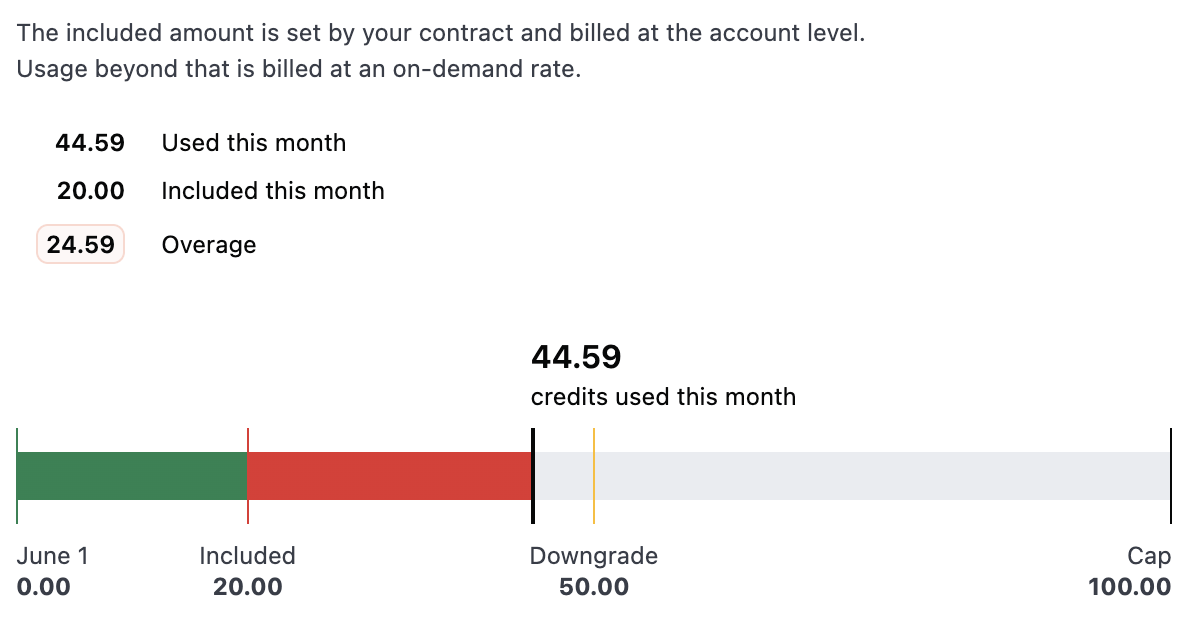
For accounts with only one organization, the usage chart always appears and displays your current usage plotted against your included credit allotment and any thresholds you’ve configured. This gives you a quick way to see how close you are to downgrading or reaching your hard cap.
Usage visualization for accounts with a single organization
The chart includes:
Included — The credit allotment included with your plan
Downgrade and Cap — The thresholds you’ve set, if any
Credits used this month — The organization’s current usage, with color-coded bars that transition from green when you’re within limits to red as usage approaches the cap
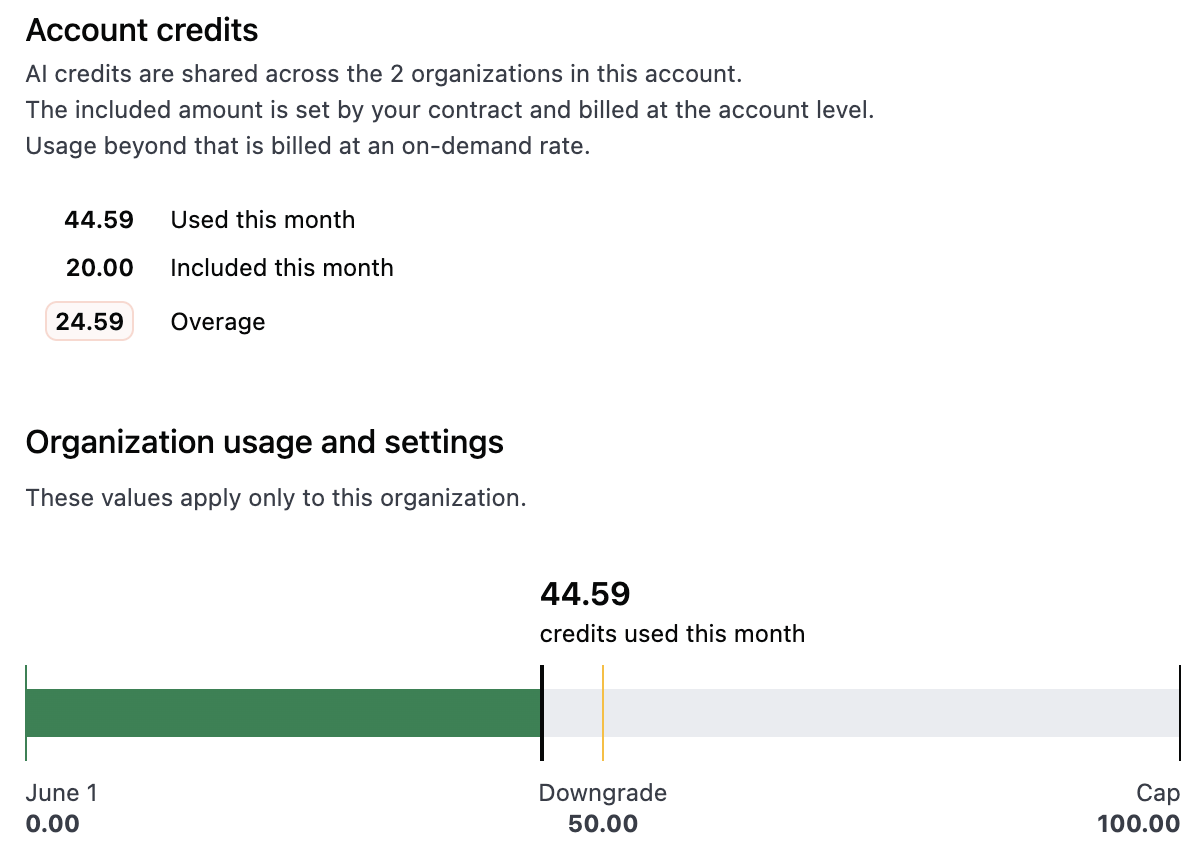
For accounts with multiple organizations, the chart only displays when the organization has a defined downgrade threshold or hard cap.When thresholds are configured, the chart displays the current organization’s usage plotted against the Downgrade and Cap thresholds you’ve set, with the same color-coded bars as the single organization view.
Usage visualization for accounts with multiple organizations and thresholds configured
Use the Get AI credit controls endpoint to get high-level information about the current period’s usage and your current AI control settings:
Use the AI Hub > General > Credit usage tab to view AI credit usage for users (and entities, if using embed) against their configured limit for the current billing period. Usage for external users is included with standard users.To allow embed users to view their own credit usage on their profile page, enable the Show AI credit usage on profile embed setting.
The Credit Tracking dashboard helps you understand how credits are being used in greater detail. You can access it:
In the AI Hub — Select Credit tracking in the sidebar. Note that unlike the other AI Hub dashboards, this dashboard is not filterable by the shared model selector, since credit usage reflects activity across all models.
In Analytics — Click Analytics in the sidebar and select the Credit Tracking dashboard.
The dashboard displays credit consumption over time and can break down usage in various ways, such as by feature and user.
Adjust the default LLM and thinking level, or approve fewer LLMs for users to pick. See LLM settings.
Trim unused fields, descriptions, or ai_context from the data model. Reducing context may lower per-call credit counts, but can increase the number of turns needed to get a good answer. The goal is optimizing efficiency overall.
If using Claude, use the ai_settings.conversation_prune_length parameter to control how aggressively conversation context is managed. When conversation context reaches the specified token threshold, older messages are automatically pruned from the conversation history to stay within limits.
AI usage is calculated on a monthly basis and resets on the first of the month at 12AM UTC.
Why does a single prompt generate multiple rows in the tracking data?
Omni’s AI is an agentic system. For a given prompt or request, it may fire off multiple tool calls to get the answer or complete the task.For example, asking “show me revenue by region” might involve the AI searching the data model for the right fields, building the query, creating a visualization, and summarizing results — each as a separate step. Each of these steps is logged individually in the tracking data, which is why a single user prompt can appear as several rows.
What are the blank prompts with credit usage?
These are “tool calls” — intermediate steps where the AI determines which action to take next. They don’t have a user-facing prompt because they are part of the AI’s internal reasoning as it works through a request. See the question above for more context on why these occur.
Why does the same question sometimes use different amounts of credits?
Credit usage can vary between identical prompts due to differences in conversation context (earlier messages in the session) or the AI choosing a different path to arrive at the answer.
Do AI summary tiles/sub-titles/descriptions on dashboards use credits on every refresh of the dashboard?
Omni caches AI summaries/sub-titles/descriptions so they will only recompute and use credits any time the data changes underneath (e.g., when a filter changes or it’s refreshed without cache).
Why am I seeing a banner about enabling overage billing?
This banner appears when your account has reached its included credit allotment and AI usage has been automatically capped. To continue using AI features beyond the included amount, an Organization Admin needs to review and accept the overage billing amendment. Once accepted, AI usage can continue and your organization will be billed at $1.00 per credit for usage beyond the included allotment.
Does Omni staff activity in my organization count against my AI credits?
No. When Omni support or engineering staff sign in to your organization to help troubleshoot an issue, any AI usage they incur doesn’t count against your organization’s AI credit totals.