Looking to change settings for your own account? See Your account for the self-service settings available from the profile menu.
Requirements
Organization Admin permissions are required to modify a user’s settings.Accessing user settings
To access the settings for an individual user:- Navigate to Settings > Users.
- In the user list, hover over the user you want to modify.
- Click the Manage button that appears.
Organization role
Controls the user’s permissions to manage the organization. This includes the ability to invite and manage other users, manage database connections, and modify organization settings. A user can be External, Member, or Organization Admin. Selecting External converts the user to an external user, at which point they lose access to the content and connections shared with the organization.Locale
Defines the language of the Omni UI for the user.- If a user-level locale is set, it controls the language this user sees in the app.
- If no user-level locale is set, the user inherits the organization’s default locale.
Query timezone
Defines the timezone used for query conversion, if user-specific timezones are enabled for a connection. Refer to the Timezone settings guide for more information.Personal content
Allows users to save content to their personal My documents folder. This setting is enabled by default. When disabled, My documents will be hidden in the sidebar and content operations will default to the organization scope. This setting also applies to external users. Disable it to prevent an external user from creating their own content.AI credit limit
Allows you to set a per-user credit limit that controls how many AI credits the user can consume. This setting provides an additional layer of control on top of organization-level credit limits. The control displays the user’s effective limit — either their individual override or the organization default when no user-level limit is set. Click Edit to configure the limit:- Set a cap — Define a specific credit limit in the Credit limit field
- Unlimited — Enable to allow unrestricted AI usage regardless of organization settings
- Unset — Remove any user-level override so the user inherits the organization’s credit controls on save
Custom email sender
This setting displays only if Custom email sender is enabled on a verified domain and sends email through Amazon SES. Additionally, customer sender information cannot be set for embed users.
User attributes
User attributes, managed in the user’s Attributes tab, allow you to map user-specific variables to operations in Omni, such as querying, dashboards, and controlling data access. Refer to the User attributes guide for more information and examples.Groups
The Groups tab lists the user groups that the user is a member of. You can modify the user’s group memberships directly from this tab:- Click Add to groups to open a picker showing all available groups. Groups the user already belongs to are shown as disabled.
- Click Remove from group in a group’s row to remove the user from that group. You will be prompted to confirm the removal.
Model Access
Model permissions determine the level of access the user has to individual models. Click on a model in the list to view more information about the user’s role and abilities: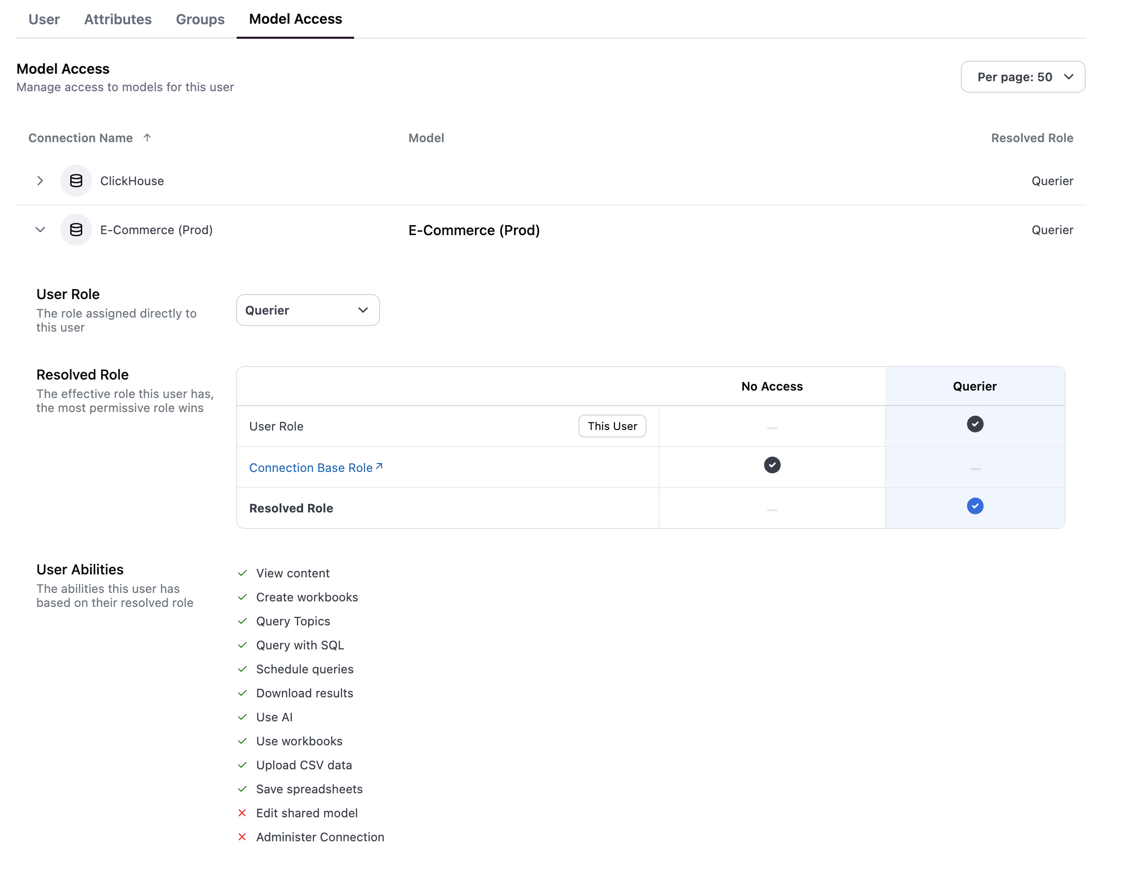
Viewing a user's model permissions
Impersonating a user
See Impersonating users for more information.Resetting introductions
If a user needs a refresher on Omni’s latest features, you can use the Reset introductions button at the bottom of their settings page. This will reactivate any previously dismissed feature introductions - specifically, the tooltips that highlight updates - that display in the app: