

This guide uses a service account key. To connect without storing a key, see Connecting BigQuery with workload identity federation. To have each user authenticate with their own Google account, see Configuring OAuth for BigQuery.
Requirements
To follow the steps in this guide, you’ll need:- Organization Admin permissions in Omni
- Google Cloud admin permissions, which are required to create a service account and private key.
-
The following details about the default dataset in your BigQuery project:
- The name of the default dataset
- Its data location
- Its timezone
Need help locating the dataset?
- Navigate to your BigQuery console.
- Select the project your dataset resides in. Use the top middle drop-down menu to toggle between projects.
-
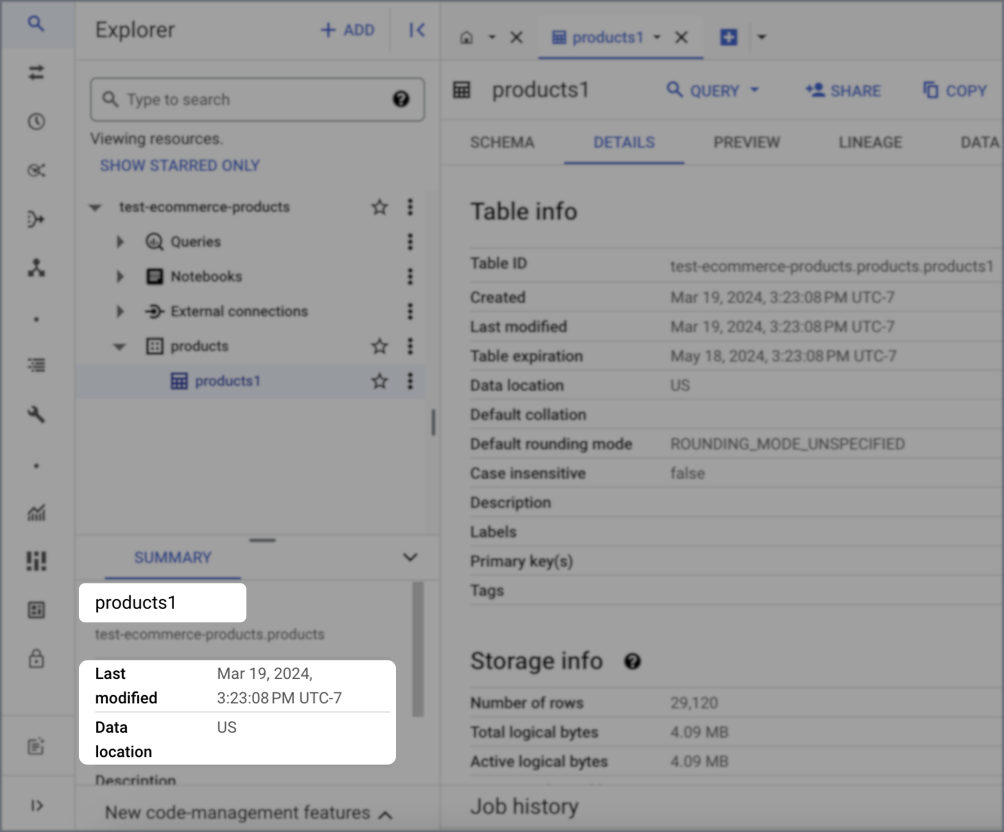
Select a dataset and the info will appear in the Dataset info menu. In this example:
- The dataset name is
products - The Data location is
US - The timezone is
UTC-7, as indicated in the Last modified field
- The dataset name is
Setup
Create a BigQuery service account and grant project access
- Open the credentials page in the Google Cloud Platform API Manager and, if necessary, select your project.
- Click Create credentials, located near the top center of the page, then Service account.
-
In the Service account details section:
- Enter a name and description for the new service account, such as
Omni BigQuery. - Click Create and continue.
- Enter a name and description for the new service account, such as
-
In the Grant this service account access to project section, grant the service account access to the following BigQuery roles:
- BigQuery Job User
- BigQuery Data Viewer
- BigQuery Metadata Viewer - This role is only required if you want to give Omni access to all views within a dataset (e.g.,
project.*) when setting up the connection in Omni. If you explicitly list specific datasets without wildcards in the connection setup step, Omni will skip the project-level metadata scan and work with dataset-level permissions only.
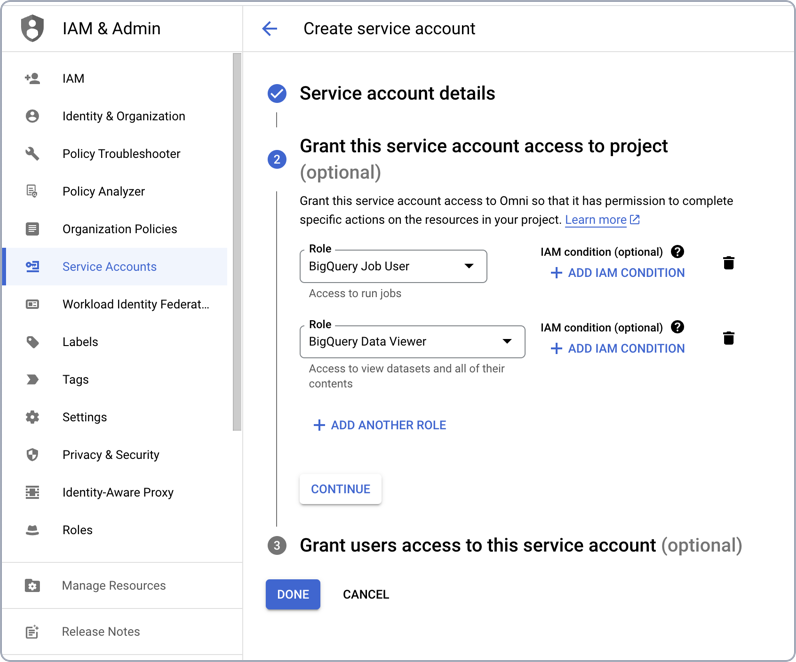
- After adding the roles, click Done. You’ll be redirected to the Credentials page.
Create a service account private key
- In the Service Accounts section, click the service account you created in the previous step.
- On the service account details page, click the Keys tab near the top of the page.
- Click Add Key > Create new key.
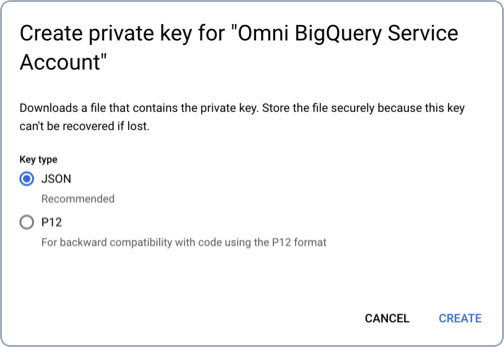
- When prompted, select JSON as the key type and then click Create:
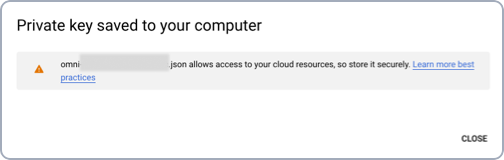
- The JSON key will be saved to your computer. After noting where the key was downloaded, click Close.
Set up a table upload dataset
This step is optional. However, we recommend completing it as part of the initial set up or you won’t be able to use uploaded files like CSVs in joins.
- This dataset can’t be used for other modeled tables
- This dataset must be in the same region as other projects and schemas in the connection, or you may encounter cross-region errors
- Navigate to your BigQuery project.
- Create the dataset.
- After the dataset is created, open it so that its details display.
- Click Share > Manage permissions, located next to the Copy option near the top right corner of the page.
- In the dialog that displays, click Add principal.
-
Fill in the fields as follows:
- New principals - Add the service account you created in step 1
- Role - Add the BigQuery Data Editor role
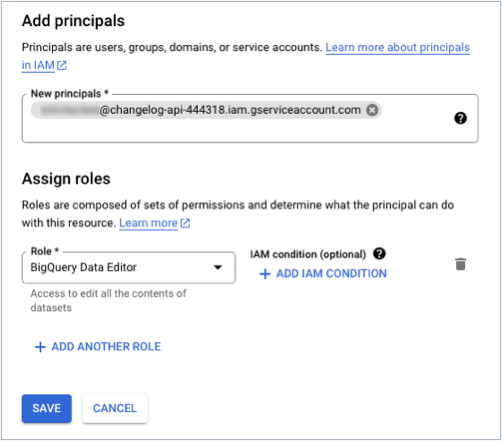
- Click Save.
Create the connection in Omni
- In Omni, click Settings > Connections.
- Click the BigQuery option.
-
On the connection setup page, fill in the connection details:
requiredThe type of authentication to use. Select Service Account Authentication.requiredThe region the dataset resides in. Refer to the Requirements section if you need help finding this information.default:"1TB"The maximum bytes billed for queries run on this connection.
- When finished, click Create connection.
What’s next?
Now that your database is set up, you can:- Use the Omni Agent’s quickstart skill to create your first topic from business questions
- Configure user permissions, schema refreshes, environments and timezone settings
- Learn how Omni generates the model associated with the connection