

- Development workflows that test and validate changes against a non-production database
- Embedded instances with multi-tenant data where each customer must be restricted to only their own data
To let users choose an environment themselves — rather than switching in a branch or being routed by a user attribute — see user-selected environments.
Limitations
The schemas in each database connection should be as close to identical as possible. When a connection is switched, the schema model - meaning the available tables, views, and so on - is swapped, but the overarching model remains the same. For example, if a model utilizes an object that exists in one connection but not in another, modeling errors will arise.Requirements
To follow the steps in this guide, you’ll need Omni Organization Admin permissions.Setup
Create the primary connection
The first step is to create the primary connection which will be used to build the shared model. Refer to the Database setup guides for instructions specific to different database types.
When setting the connection’s Base role, select the role you want all users who will interact with the connection and its environments to have. For example, if you select Querier, users will have Querier permissions on the primary connection and any associated environment.In this guide, the primary connection is a Snowflake database named Snowflake (production) that has an associated data model with the same name.
When setting the connection’s Base role, select the role you want all users who will interact with the connection and its environments to have. For example, if you select Querier, users will have Querier permissions on the primary connection and any associated environment.In this guide, the primary connection is a Snowflake database named Snowflake (production) that has an associated data model with the same name.
Create & configure the environments
- Create another connection and set the base access role to No Access.
- Navigate back to the details page for the primary connection.
- Click the Environments tab.
- Click the New Environment button, which will open a dialog like the following:
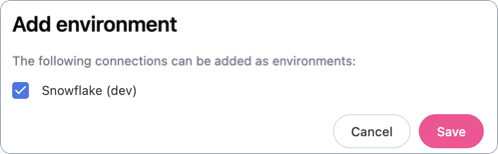
- Select the secondary connection. In this example, the connection is named Snowflake (dev).
- Click Save.

Create a user attribute
This step is required only if you want to dynamically assign database environments.
- Navigate to Settings > Attributes.
- Click New Attribute.
- Fill in the fields to create the attribute, including the Default Value field. This will set a default value for users that don’t have a value directly assigned:
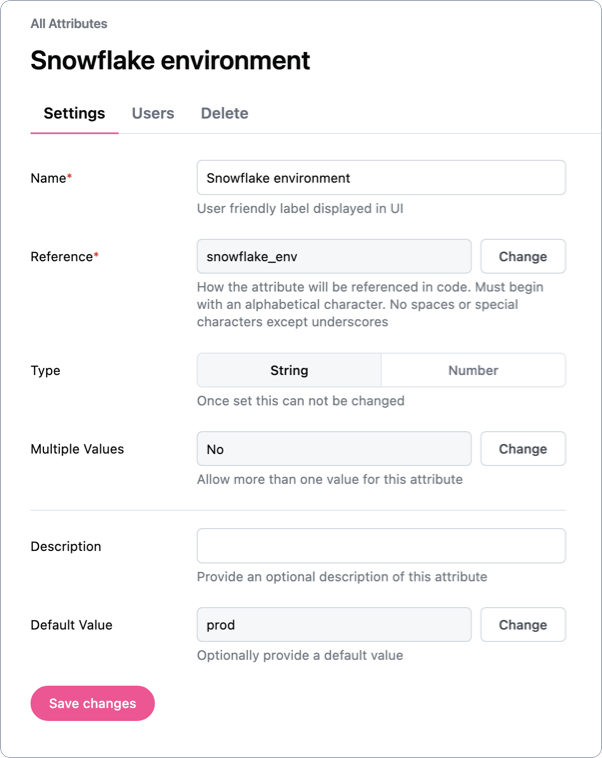
produnless theirsnowflake_envattribute is specifically set todev. - When finished, click Save.
Configure the connection for dynamic environments
This step is required only if you want to dynamically assign database environments.
- Navigate to the primary connection you created in step 1 of this guide.
- Click the Environments tab.
- Toggle Allow environments to be assigned dynamically to on. Fill in the fields that display as follows:
- User attribute - Enter the reference name of the user attribute you created in step 3. In this example, that would be
snowflake_env. - Values for the default connection - Enter the value to be used for the default connection. In this example, that would be
prod: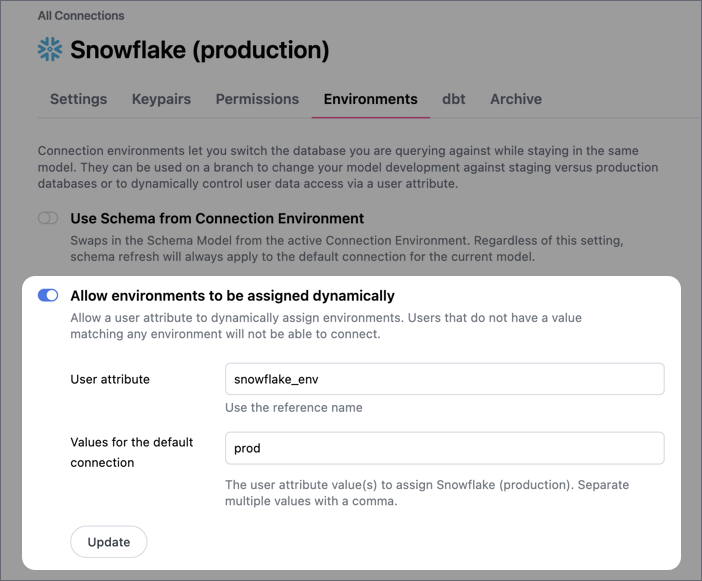
- User attribute - Enter the reference name of the user attribute you created in step 3. In this example, that would be
- Click Update.
- After clicking Update, a new field will display next to the connection in the Environments section. Use this field to assign a value to the connection, which will route users with this user attribute value to the connection.
In this example, users with a
devvalue for thesnowflake_envuser attribute will be routed to the Snowflake (dev) connection: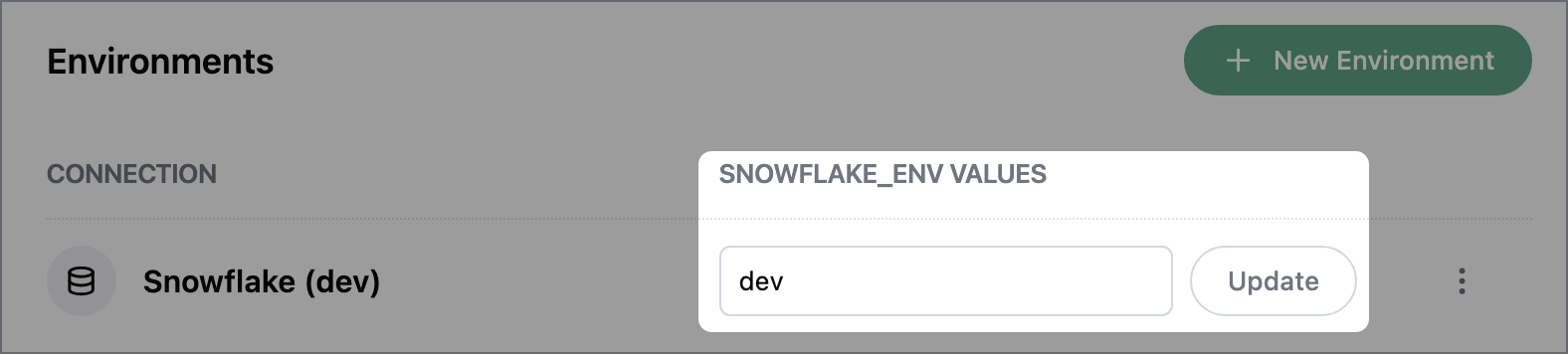
- Click Update.
A user’s attribute value must exactly match a value assigned to an environment to be routed to it. If the user attribute allows multiple values, only the first value in the comma-separated list is used for environment routing. For example, a user with the values
dev,staging,prod will be routed to the environment assigned the dev value.