

Requirements
Organization Admin permissions are required to create and modify custom color palettes.Creating custom chart palettes
- Omni UI
- API
- Navigate to Settings > Chart palettes.
- Click Add.
-
Customize by adding, editing and removing colors. Use the color picker control or select Open hex code editor and paste in a list of comma-separated hex codes:
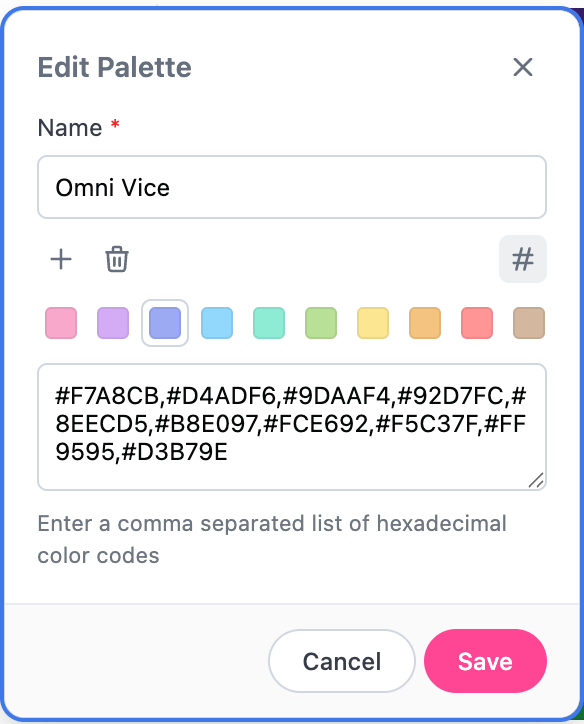
Editing a custom color palette
- When finished, click Save.
*) next to their name in the Chart palettes page: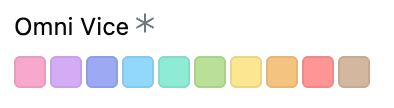
Custom color palette in Omni
Editing custom chart palettes
- Omni UI
- API
- Navigate to Settings > Chart palettes.
- Click the (three dots icon) next to a custom palette and select Edit.
- Make your changes.
- Click Save when finished. Existing charts that use the palette will be updated with the changes.
Deleting custom palettes
If deleting the default palette, set a new default palette first.
- Omni UI
- API
- Navigate to Settings > Chart palettes.
- Click the next to a custom palette and select Delete.