

Creating joins in the workbook
Unless promoted to the shared model, joins created in workbooks will only be available in the workbook where they were created.Queriers can create joins in workbooks, but Modeler or Connection Admin permissions are required for promotion.
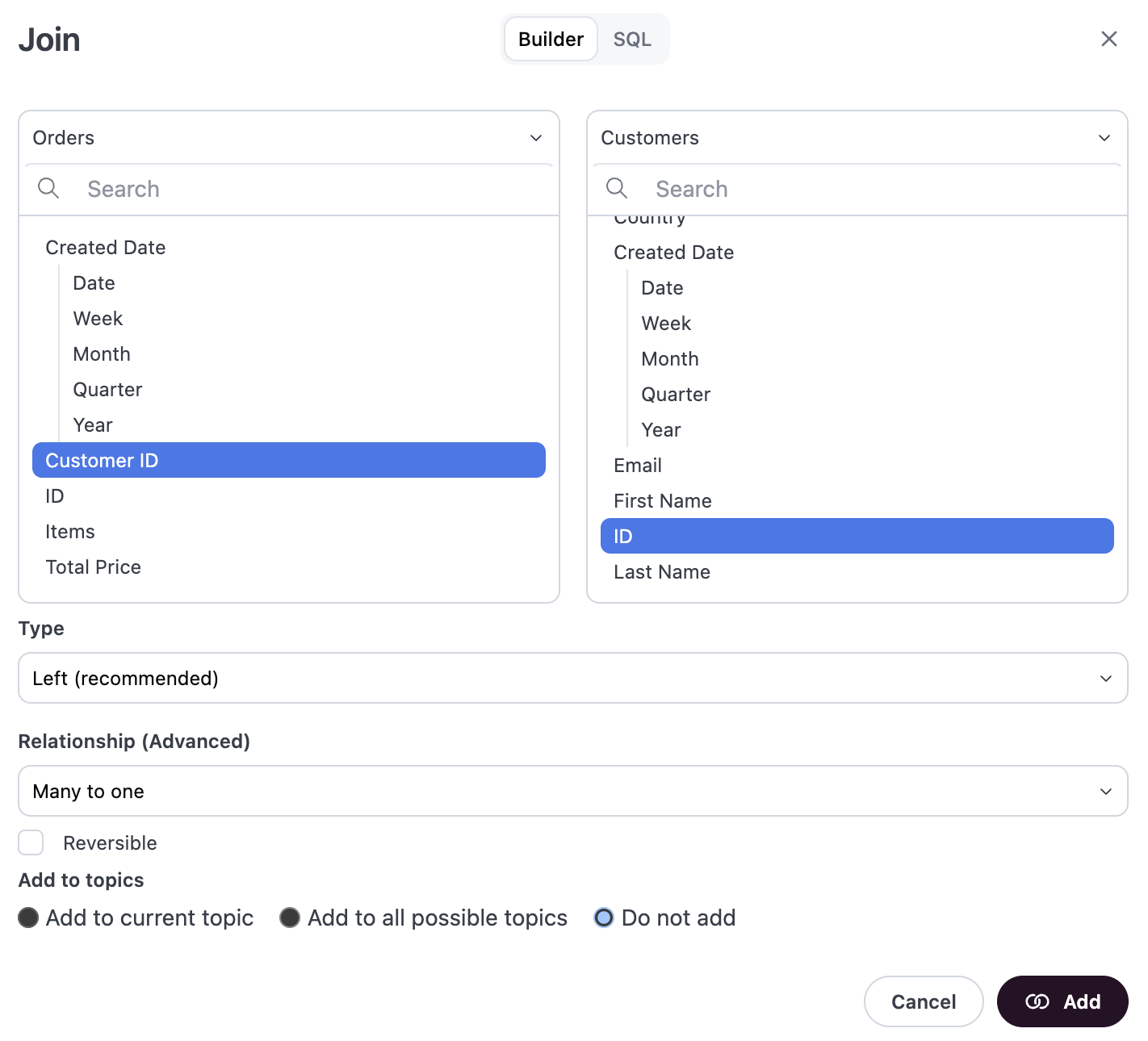
Builder tab
Define the join with a visual editor
Builder tab
Define the join with a visual editor
1
The left and right sides of the Builder tab represent the views you want to join. On each side, select the fields that should be used to join the views.For example, selecting
orders.customer_id and customers.id.2
Select a Type to define what type of join this is. Omni defaults to Left (
LEFT JOIN), but you can change this. Refer to the join_type reference for more information about this setting.3
Select a Relationship for the join. This setting is used to ensure that counts across the tables are accurate. If you’re not sure what this setting should be, click the Infer relationship button at the bottom left corner of the modal.Omni will check the cardinality between the datasets and select the relationship type on your behalf. Refer to the
relationship_type reference for more information about this setting.4
Check the Reversible box allow for exploration in both directions of the join.
5
Use the Add to topic settings to select if the join should be added to the current topic, all possible topics, or not added.
6
Click Save to create the join.
SQL joins
Define the join condition using SQL
SQL joins
Define the join condition using SQL
The SQL tab is useful if you’re creating a complex join or just prefer writing in SQL: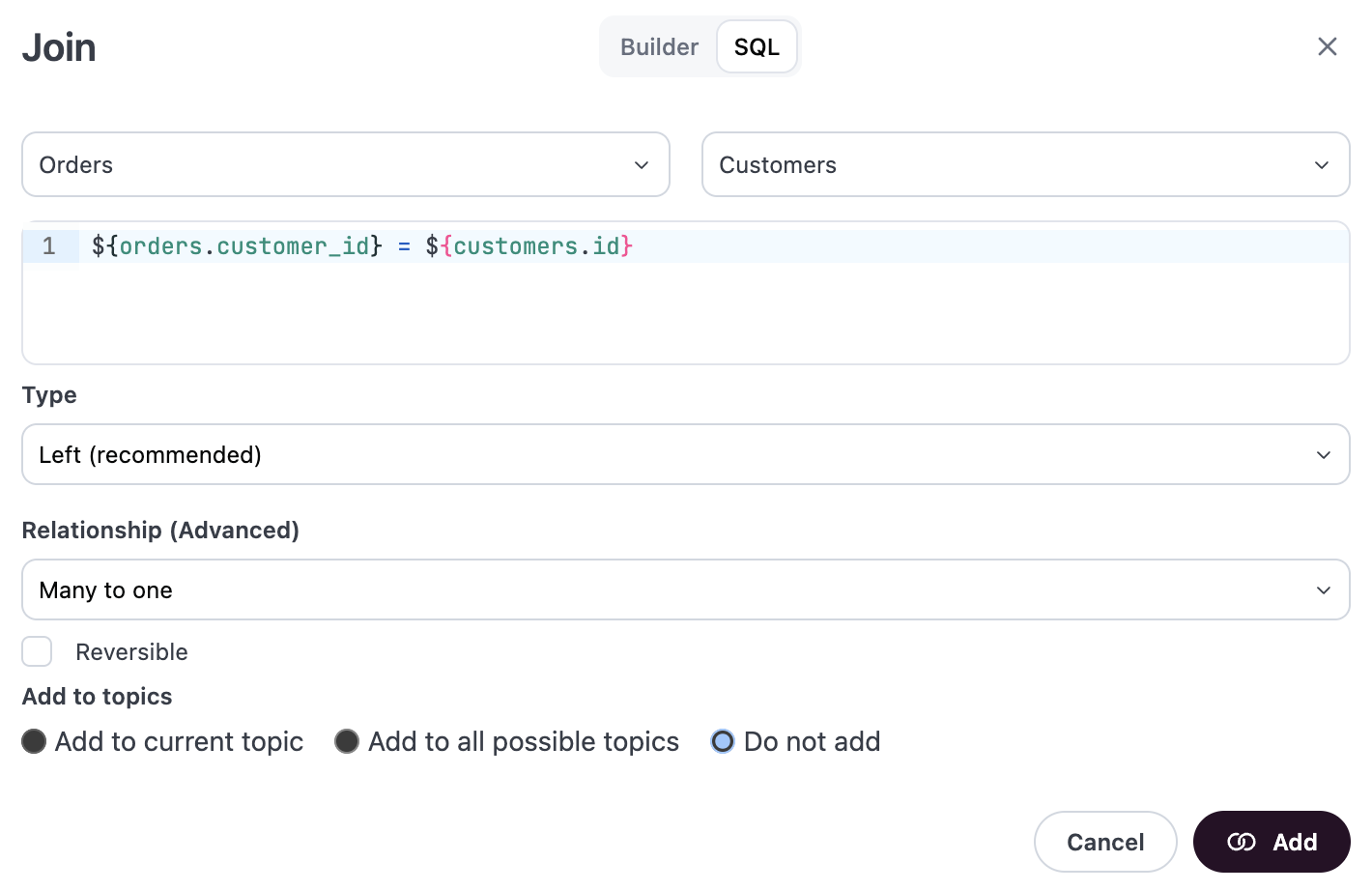
1
Select the source and target views using the dropdowns.
2
In the code block, write the join using SQL. Use
${view_name.field_name} syntax to reference fields.3
Select a Type to define what type of join this is. Omni defaults to Left (
LEFT JOIN), but you can change this. Refer to the join_type reference for more information about this setting.4
Select a Relationship for the join. This setting is used to ensure that counts across the tables are accurate. If you’re not sure what this setting should be, click the Infer relationship button at the bottom left corner of the modal.Omni will check the cardinality between the datasets and select the relationship type on your behalf. Refer to the
relationship_type reference for more information about this setting.5
Check the Reversible box allow for exploration in both directions of the join.
6
Use the Add to topic settings to select if the join should be added to the current topic, all possible topics, or not added.
7
Click Save to create the join.
relationships file, which you can view by clicking Model > Model layers > Workbook.
Defining relationships in the model IDE
Connection Admin or Modeler permissions are required to access the model IDE.
1
Open the model IDE by clicking Develop in the sidebar. If your organization has more than one model, click the model you want to work with. If you have only one model, Omni opens it automatically.
2
In the Settings section, click Relationships.
3
The
relationships file will open in the editor panel. Add a relationship definition, which will look similar to the following example:4
Define the parameters to complete the join. In addition to the parameters in the above example and template, you can add parameters like
where_sql or reversible to further customize the relationship. Refer to the Relationship parameters reference for more information and examples.5
Click Save changes.
If the model is currently configured to require branches, merge the branch to apply the changes to the shared model.If the model also uses the git integration, you may need to create a pull request to accomplish this.