

- Your verticalized teams need to own their own data models
- Your central data team is overwhelmed by team-specific metric requests
- You provide custom metrics for external tenants
- You need region-specific localizations or cache policies without altering the core model
Structure connections for scale
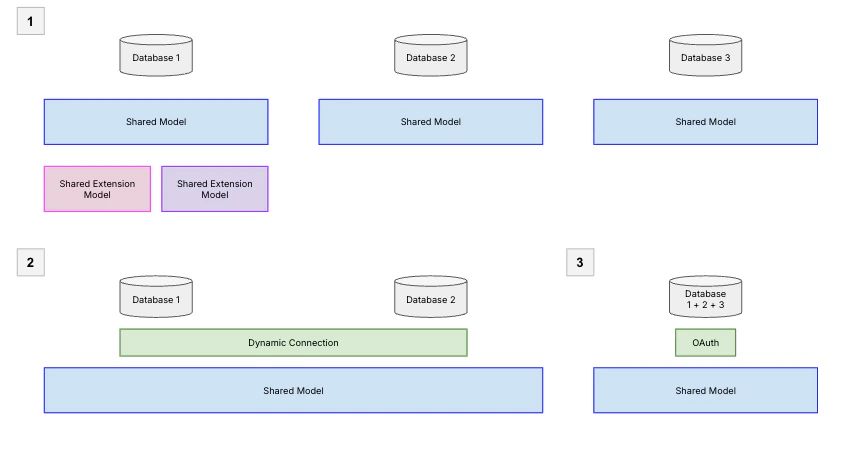
The first layer of your architecture is the database connection. Since each model in Omni is tied to a single database connection, the way you organize your connections directly shapes how you’ll structure your models. There are two common patterns for connecting databases at scale:- One database per model: Each database gets its own connection and shared model. This gives you the most isolation — teams can work independently — but it also means managing more models. Use shared model extensions to let teams customize without duplicating the core model.
- Dynamic connections, one model: Use dynamic connections to route users to different database connections (e.g., production vs. staging, or region-specific replicas) while sharing a single model definition. Be aware that tables must be structurally consistent across environments, or you’ll see validation errors.
Extend the shared model
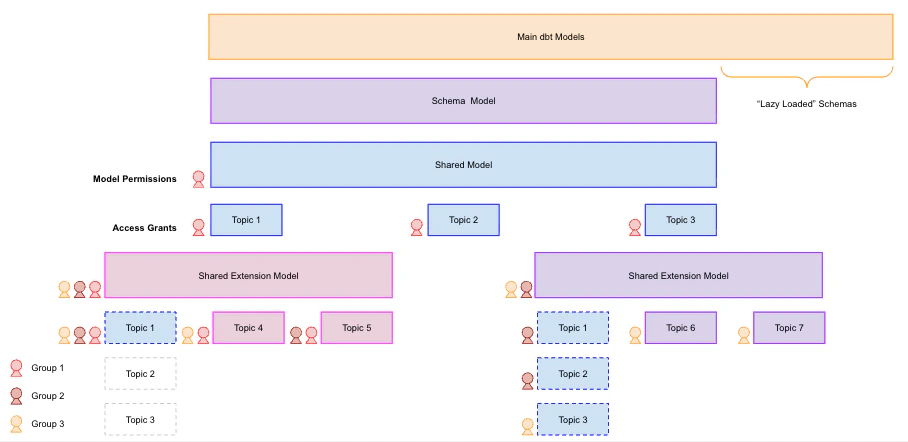
In a distributed organization, your core data team typically governs the shared model — the canonical source of truth — while departmental analysts manage shared model extensions. Extensions let teams modify logic in a “forked” environment against the same database connection without affecting the parent model. Extensions inherit everything from the upstream shared model by default, so they’re additive — if you need to exclude specific objects, you’ll need to manually hide them. This makes getting started with extensions straightforward, but keep these governance considerations in mind:- Upstream logic can be overwritten: Users with edit permissions to an extension can overwrite any logic from the upstream model, including data access policies. Establish clear ownership and review processes for extension changes.
- Connection-level access still applies: Developers can access all views allowed by the underlying connection credentials, regardless of what the model exposes. Keep this in mind when scoping connection permissions.
- Performance at scale: As your model grows, use offloaded schemas to defer loading metadata for specific schemas until they’re explicitly needed. This keeps the field browser responsive.
Manage version control
If your organization uses Git, you can integrate it with Omni to manage version control for your shared model. When planning your repository structure, there are three common strategies:| Strategy | Description | Best for |
|---|---|---|
| Monorepo | Parent model and extensions live in one repo; use CODEOWNERS for control | Teams that need visibility across models and want to manage dependencies in one place |
| Isolated repos | Separate repo per model | Teams that need strict isolation and independent release cycles |
| Hybrid | Sensitive extensions use isolated repos; others use a monorepo | Organizations balancing security requirements with cross-team collaboration |
How Git syncing works
Since Git isn’t yet native to extensions, it’s important to understand how Omni interacts with your repository:- Extensions store diffs, not full models: Extensions use extension-only mode, recording only changes relative to the parent. This keeps your repo clean but means you can’t reconstruct an extension without its parent.
- Syncs occur only on merge: Omni monitors for merges to the
mainbranch and copies those changes to its internal record. Changes on other branches won’t appear until they’re merged. - Branching may behave differently than expected: Omni uses its own internal database for version control, so branch behavior may not match standard Git workflows exactly.
Manage content access
With your shared model and extensions in place, the next step is making sure the right people can access the right content.Control document access with folders
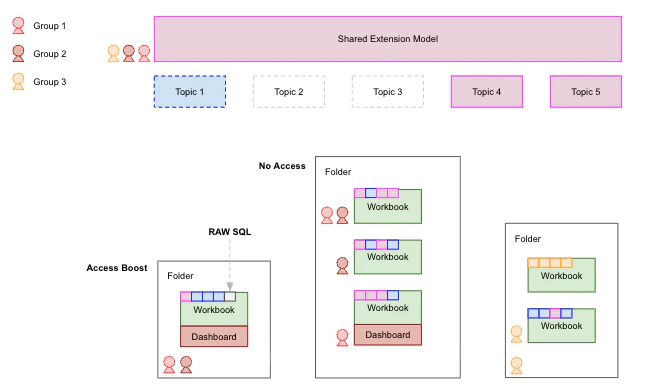
Folders are the primary mechanism for controlling who can see and interact with your content. Understanding how permissions cascade from folders to documents will help you design a folder structure that scales with your team.- Permissions flow downward: Workbooks and dashboards inherit permissions from their parent folder. You can grant broader access at the document level, but you can’t make a document more restrictive than its folder — so plan your folder structure around your most restrictive access needs first.
- Visibility is model-aware: Users only see documents associated with models they have permission to access. For workbooks that pull from multiple topics, users will see charts from their authorized topics but get an error for any charts tied to topics they can’t access — so avoid mixing broadly-shared and restricted topics in a single workbook when possible.
Increase permissions with AccessBoost
In a scaled deployment, you may have dashboards intended for a broad audience — like executives or external stakeholders — who don’t need to build their own queries but do need to see results from topics or fields they wouldn’t normally have access to. AccessBoost solves this by selectively elevating permissions at the dashboard or folder level. This allows users with lower-level connection roles - like Restricted Querier or Viewer — to view all data on a boosted dashboard, even content built with SQL they wouldn’t normally have access to.Next steps
- Set up your database connection and choose a connection pattern
- Create shared model extensions for your departmental teams
- Configure Git integration for your shared model
- Organize content with folders to manage access across teams