

Requirements
To follow the steps in this guide, you’ll need:- Some familiarity with APIs. This guide uses the command line to make API requests, which requires some technical know-how.
-
Permissions in Omni that allow you to:
- Create an API key (Settings > API keys)
- Access the model IDE
- An Omni dashboard you want to migrate.
Steps
1
Retrieve the dashboard ID
The first step is to retrieve the dashboard’s unique ID. You can do this by:
-
Using the dashboard’s URL. The string after
/dashboardsis the dashboard’s ID; for example:https://blobsrus.omniapp.co/dashboards/1c5e3040 -
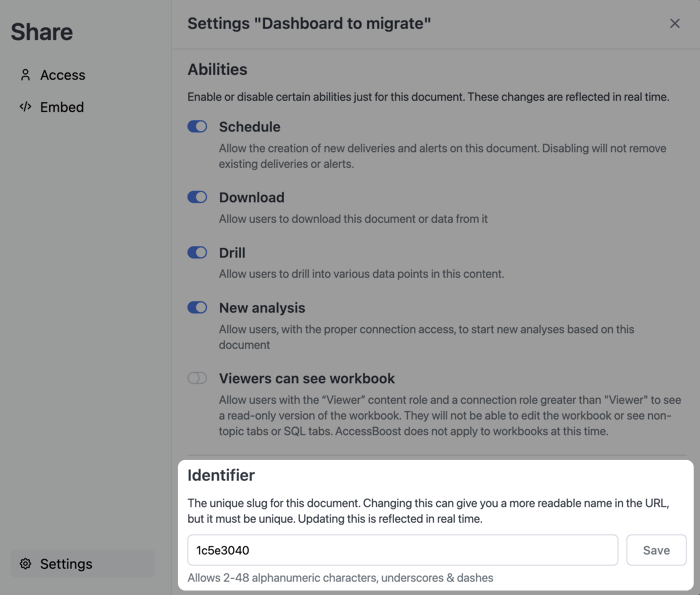
Opening the document settings. Navigate to File > Document settings. The Identifier field contains the dashboard ID:
2
Export the dashboard
Next, you’ll export the dashboard you want to migrate. Use the following as a template for your For example, the following request is for the A successful request will return a JSON object with the following structure:If the dashboard contains spreadsheet tiles, the response will include a
GET request:Template for GET /api/unstable/documents/:dashboardId/export
blobsrus organization and exports the 1c5e3040 dashboard:GET /api/unstable/documents/:dashboardId/export
Successful response
fileUploads array with the spreadsheet file data. This data is automatically included in the export and will be restored when you import the dashboard.Copy the response into a text editor, as you’ll be editing it in the next step.3
Retrieve the new model ID
The next step is to retrieve the ID for the model that the new dashboard should be built on.
- In Omni, navigate to Settings > Model and click the model to open it in the IDE.
-
Locate the string between
/models/and/idein the URL:In this example, the model ID isd37d0698-4558-41aa-b7f7-66ff85e89e9d. -
Add following
baseModelIdproperty to the response body from step 2 of this guide. Replace the value with the ID of the new model:The updated JSON should have the following structure:Example model ID
4
Import the new dashboard
The last step is to import the dashboard. Start by using the following template to set up the API request:Replace A successful request will return a JSON object similar to the following:
Template for POST /api/unstable/documents/import
<UPDATED_JSON_FROM_STEP_3> with the modified JSON from the previous step. Your request should look something like this:POST /api/unstable/documents/import
If the export response includes a
fileUploads array, include it in your import request to restore any spreadsheet tiles. The spreadsheet file data will be uploaded and linked to the imported dashboard automatically.Successful response