

Table calculations in Omni
What are functions?
What are functions?
What are arguments?
What are arguments?
1, 2, 3:-
String literals - Strings of text, which must be wrapped in double quotes. For example:
"Hello, Blobby!" -
Number literals - Numbers, such as
1or14. Can be used alone or as arguments. -
Logical literals - Boolean values (
TRUE,FALSE). Note: Must be all caps or the values will be interpreted as a cell reference. -
Unary Operators / Negation - Negates (
-) or adds (+) a value. Can be thought of as operators with only a right operand. For example:Note: The+operator can also be used as a unary. However, Omni typically ignores it because+1and1are logically equivalent. -
Cell references - Points to a specific cell in a dataset. The row can be omitted to reference only the column.
Omni interprets cell references relative to the first row of data. Calculations will be applied to all following rows with the number changed to offset how many rows down you are.
-
Cell range references - Compound cell reference that describes a span between one cell and another. Can be used to reference an entire column or a subset of the column’s data. Note: Cell ranges are inclusive.
What functions does Omni support?
What functions does Omni support?
Are Omni functions the same as Excel or Google Sheets?
Are Omni functions the same as Excel or Google Sheets?
What are the OMNI_PIVOT functions in the query's SQL?
What are the OMNI_PIVOT functions in the query's SQL?
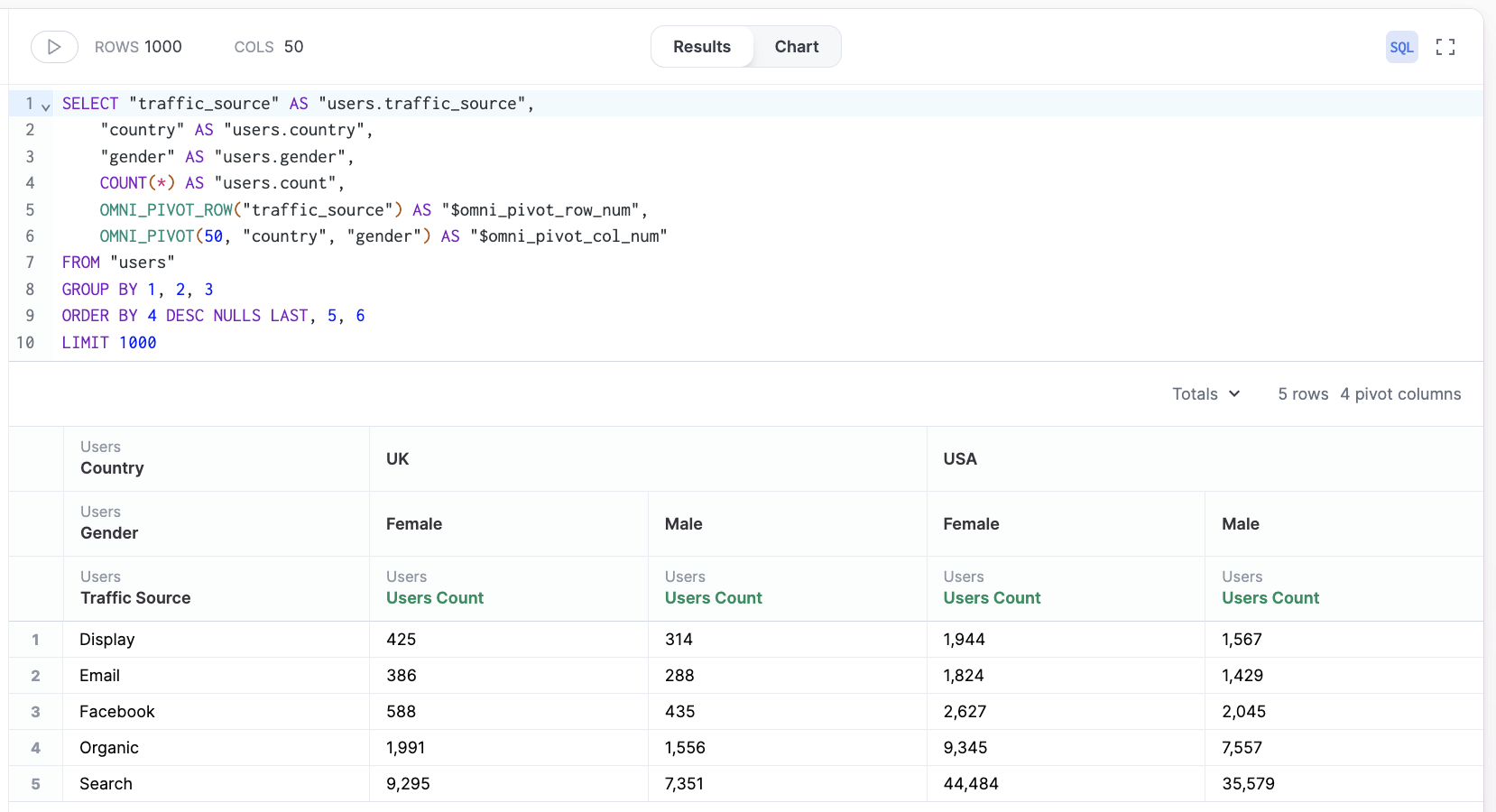
OMNI_PIVOT_ROW(dimensions) and OMNI_PIVOT(column_limit, pivots) structure the pivot table experience.OMNI_PIVOT_ROWsets the query columns outside the pivotOMNI_PIVOTsets the query columns to pivot, along with a limit on columns
Create table calculations
There are a few ways to create calculations in Omni:- Quick calculations, which allow you to create calculations like a running total or % of previous with just a few clicks
- Using AI, which can help you get started quickly
- Manually, which allows you to iterate and build at your own pace
- Make sure that the query includes the fields you want to use in the calculation
- Keep in mind that all alphabetic characters must be wrapped in double quotes (
") unless referring to a specific cell or column. For example:"Hello, Blobby!". Single quotes are not valid for wrapping strings in Omni.
Quick calculations
Quick calculations, such as percent of total, can be used on numeric data in a workbook results table in the query builder or SQL editor. They can also be used across pivots. For example, a running total for a row. To create a quick calculation: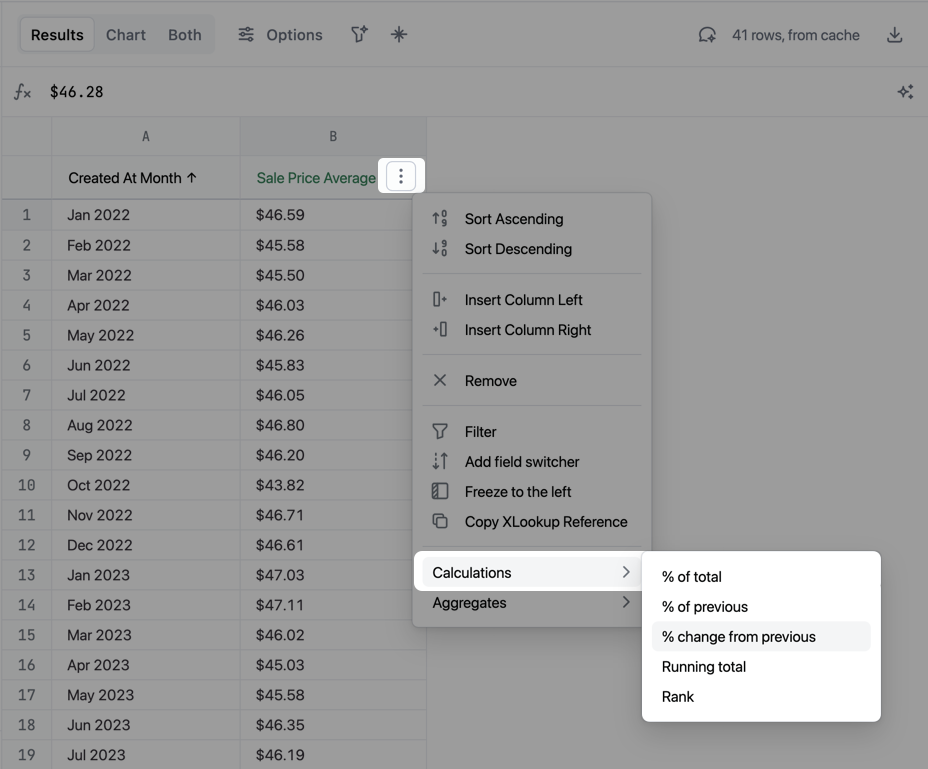
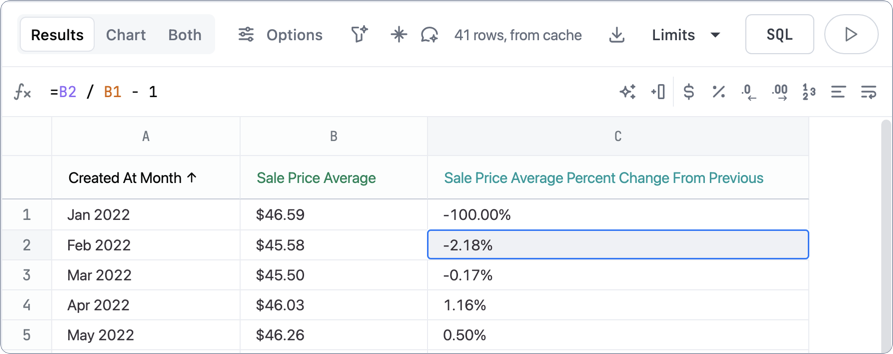
<column_name> + <quick_calculation>, but you can rename it if needed.
AI-generated
With Omni’s AI, you can write complex, Excel-like formulas using natural language. Having AI create calculated fields for you reduces the time you’d otherwise spend searching for the right syntax and iterating to get it just right.Open the calculation prompt
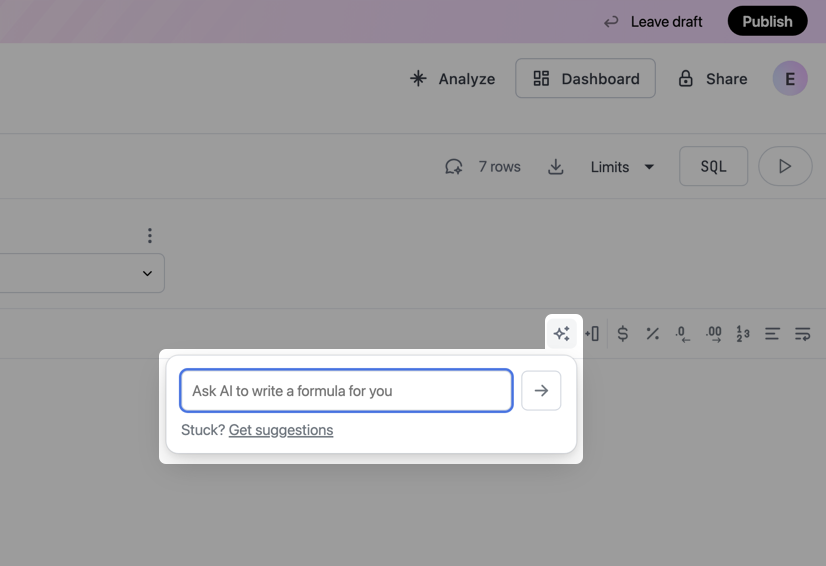
- Embedded - Click the icon in the workbook’s sidebar
- Non-embedded Omni - Click the floating avatar to open the chat panel
Describe the formula
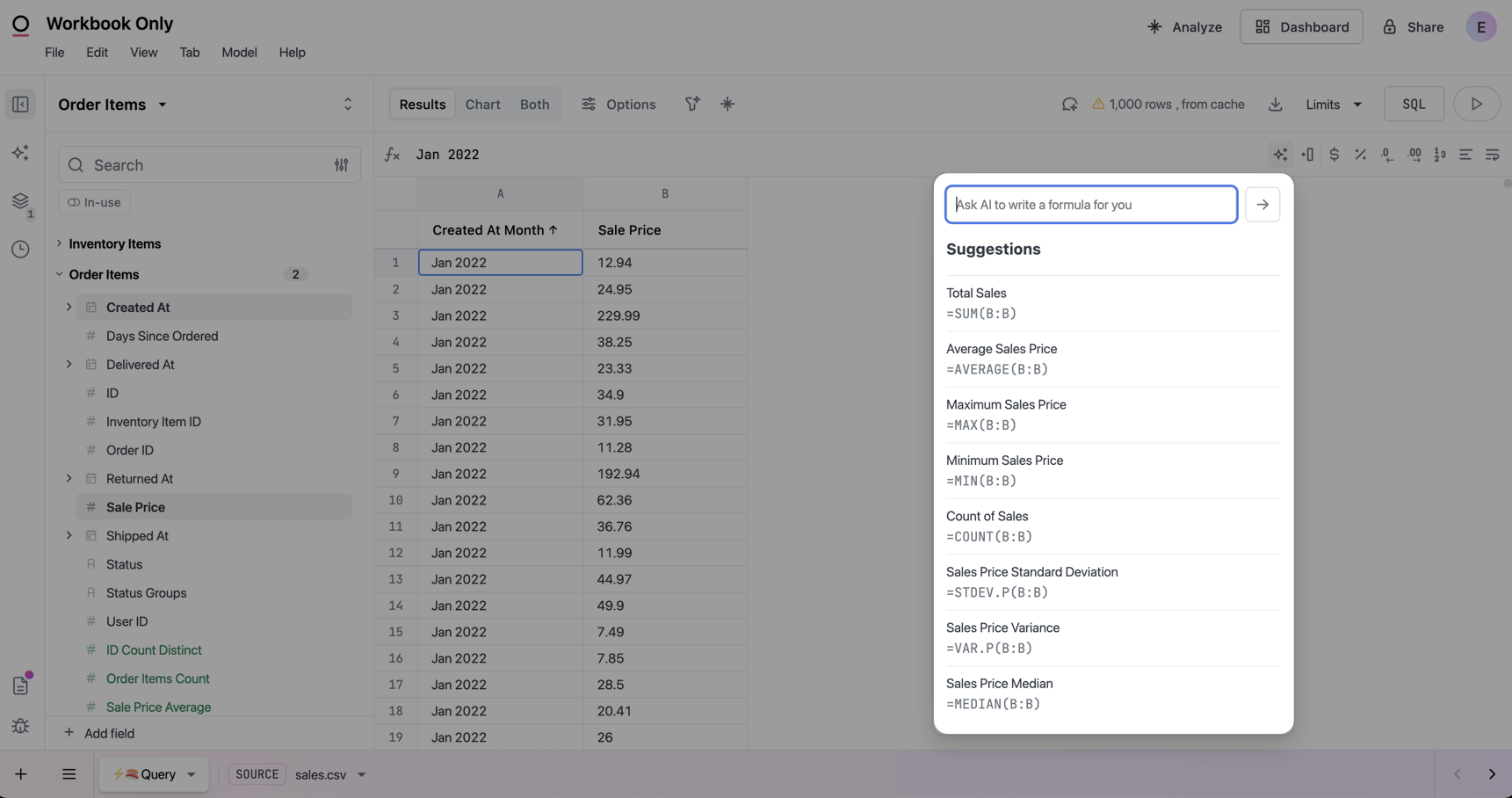
Submit the prompt
Manually-created calculations
You can also manually create calculations in the results table of a query:Calculation by default, but you can rename it.
= to start building the calculation. Note: The calculation must start with an equals sign (=).DATEDIF calculation, which was used to calculate the number of days between the Created At and Delivered At columns: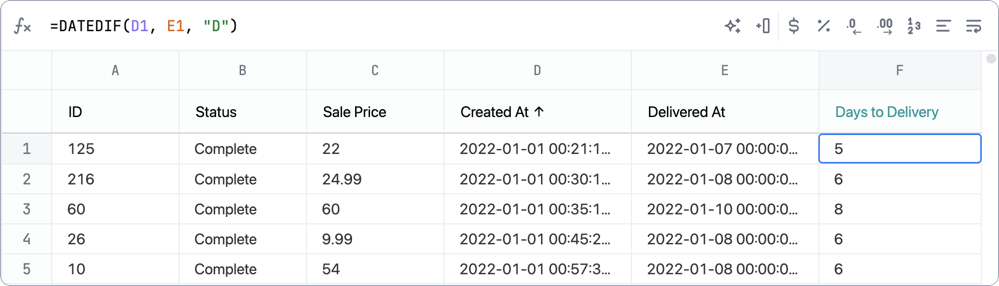
Evaluating calculations before or after row limits
When you create a calculation with a range reference like=SUM(B:B) in a query with a row limit, the calculation by default evaluates only on the rows returned - specifically, rows visible in the table - after the limit is applied. Calculation pushdown allows these calculations to run against the full underlying dataset before the row limit is applied.
For example, without pushdown, a =SUM(B:B) calculation in a query limited to 1,000 rows would sum only those 1,000 rows. With pushdown enabled, the calculation sums all rows in the dataset, then the row limit is applied to the final result.
Calculations are eligible for pushdown when they reference ranges (like B:B, A1:A100, or B1:B) rather than individual cells.
Examples of eligible calculations:
=SUM(B:B)- Sum all values in column B=RANK(B1, B:B, 0)- Rank current row within all values in column B=AVERAGE(C:C)- Average of all values in column C
Toggling evaluation behavior
When a calculation references a range and rows have been limited (either by offset or by reaching the row limit), Omni displays a icon in the calculation’s column header: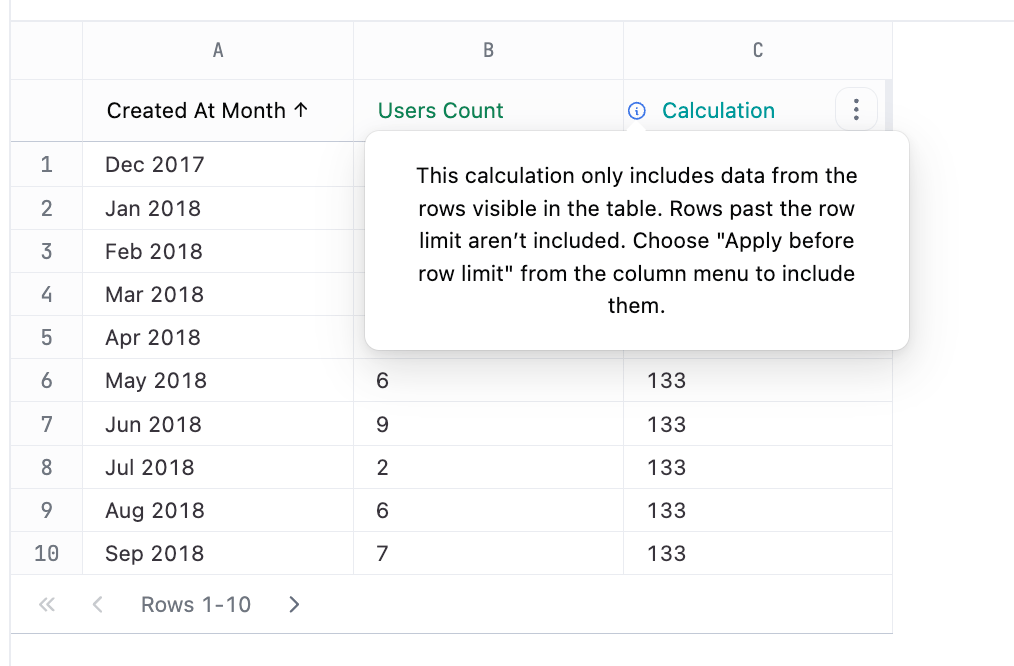
Caption text
- Click the column header for the calculation.
- Select Apply before row limit from the menu.
- The calculation will be re-evaluated.
Limitations
Pushdown isn’t currently supported for calculations in pivoted queries.Rename and format calculations
In the Options for the Results table, you can rename or change the formatting for calculations. You can also rename a calculation by double-clicking the column header and entering a new name:
Promote table calculations
To reuse a calculation in a workbook, you can promote it to the workbook model. Click the icon in the calculation column’s header, then Add to workbook: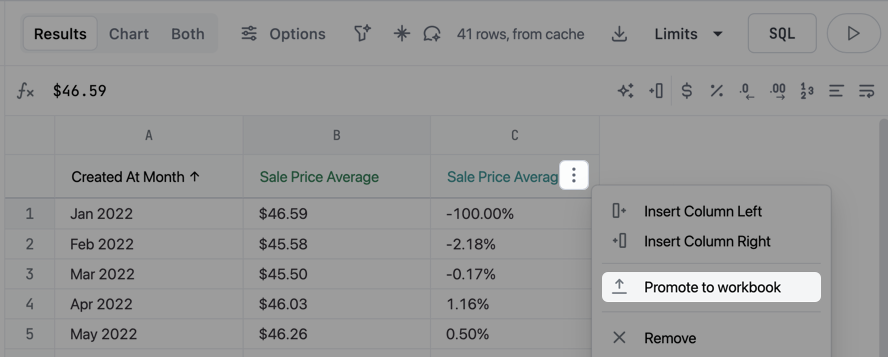
Duplicate calculations
To create a copy of an existing calculation, click the icon in the calculation column’s header, then Duplicate. This creates a new column with a copy of the calculation, which you can then modify. This is useful when you want to create variations of an existing calculation, such as testing a formula change or creating similar calculations for different fields.Drill from calculated fields
Calculated fields can surface drill options from the modeled fields they reference. When a calculation references fields that have drill metadata defined in your model, you can drill into those underlying fields directly from the calculation column. For example, if you have a calculation that divides one measure by another (like=B1 / C1), you can drill into either of those measures to see the underlying detail rows that make up the calculated value.
How drilling works for calculations
Drilling is automatically enabled for calculations that reference drillable fields. No additional configuration is required—the calculation inherits the drill behavior from the modeled fields it references. When you click on a calculated field value or open its context menu, you’ll see drill options for each of the drillable fields the calculation uses. If a referenced measure has named drill queries defined via thedrill_fields parameter, those drill queries will also appear in the menu.
Enable or disable drilling
Drilling is enabled by default for calculations, but you can disable it for specific calculations:- Click the icon in the calculation column’s header
- Toggle Enable drill or Disable drill to change the setting for that calculation
Limitations
Drilling from calculated fields only works for calculations that reference plain field values. The following types of references do not support drilling:- Offset references (like
=B1 / B0for period-over-period calculations) - Range references (like
=SUM(B1:B7)for moving averages) - Cross-query lookups using functions like
XLOOKUPthat reference fields from other queries
Examples
Return null values
Return null values
null value, use 1/0 as the calculation. Nulls will display as blanks.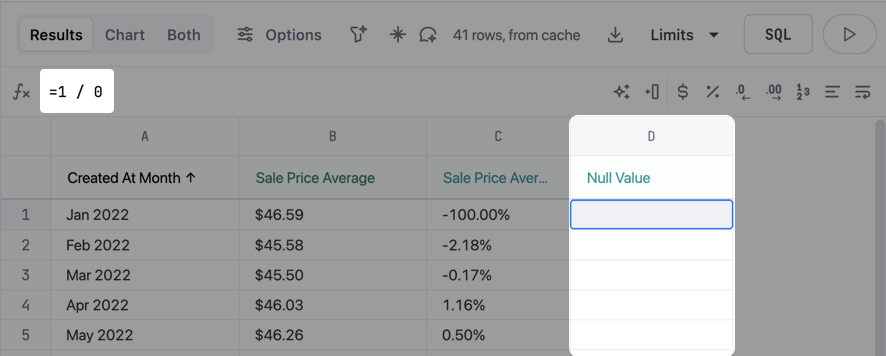
Total references
Total references
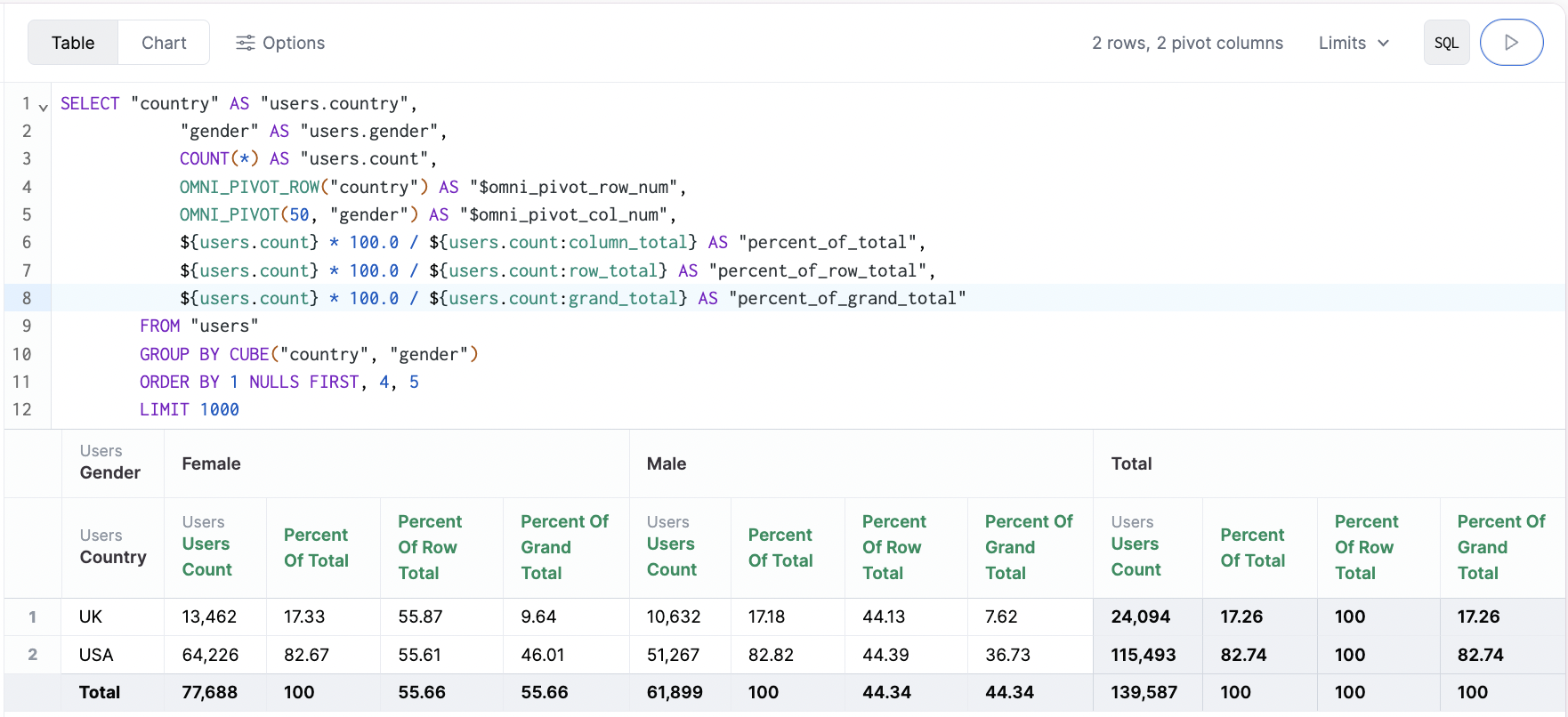
- Column total
${users.count:column_total} - Row total -
${users.count:row_total} - Grand total (columns and rows, lower right) -
${users.count:grand_total}
- Column total
<ROW_LETTER>_TOTAL - Row total
<ROW_LETTER>_ROW_TOTAL - Grand total
<ROW_LETTER>_GRAND_TOTAL
_ROW_TOTAL or _GRAND_TOTAL to offset the reference down the rows. Use this to compare a row’s total with another row’s total. For example, =B2_ROW_TOTAL / B1_ROW_TOTAL divides each row’s total by the total of the row above it. This offset works inside and outside a pivot.A column total reference (<ROW_LETTER>_TOTAL) can’t use this offset outside a pivot. A column total’s value depends on the pivot column, but a row total or grand total doesn’t.Note: When a total reference points to its own row, Omni shows it in the bare form (for example, B_ROW_TOTAL), even if you typed a row number. Omni only shows the row number when the reference points to a different row.Free text values
Free text values
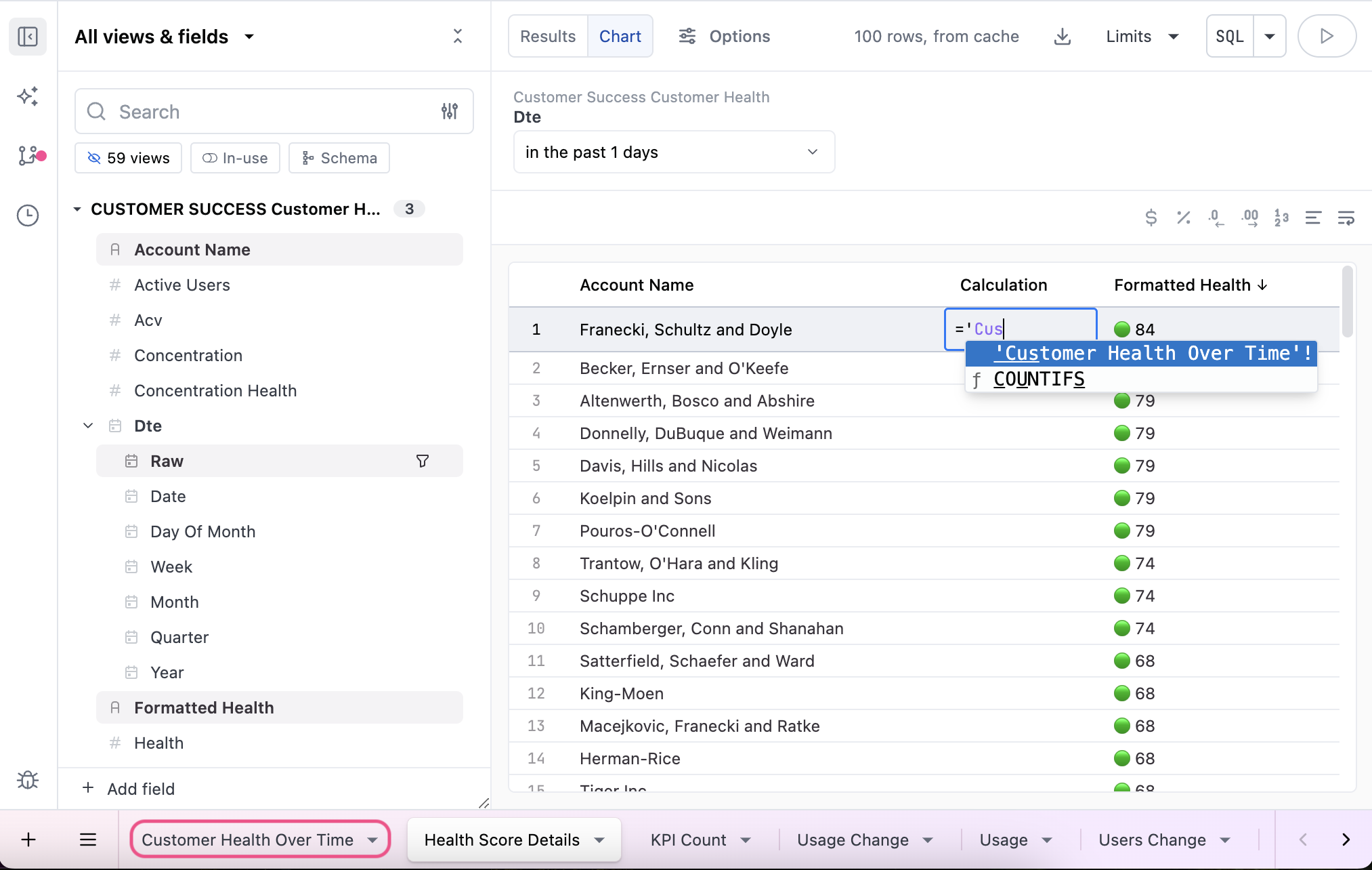
AI-generated: two letter abbreviations for US states
AI-generated: two letter abbreviations for US states
Using IFS, create a formula that uses the standard two letter abbreviations for US states. For District of Columbia, use DC as the abbreviation.
A column contains the full name of the state. For example, California or Pennsylvania.AI-generated: extract domain from email
AI-generated: extract domain from email
Give me the domain from the email column.
A column contains an email address. For example, blobby@blobsrus.com.AI-generated: identify a date as a weekday or a weekend
AI-generated: identify a date as a weekday or a weekend
Tell me if COLUMN_A is a weekday or a weekend.
Tell me if COLUMN_A is a weekday or a weekend. If using WEEKDAY, only provide a date as an argument.
A column contains a timestamp.