Google Gemini Enterprise Agent Platform (Vertex AI) - Bring Your Own Key (BYOK)
Configure Google Vertex AI as an AI model provider in Omni.
Google Gemini Enterprise Agent Platform (formerly Vertex AI) provides access to Claude models through Google Cloud Platform (GCP). By connecting Vertex AI to Omni, you can power AI features using your organization’s GCP infrastructure.Authentication uses workload identity federation (WIF), which federates Omni’s ECS task role identity into your GCP project. No long-lived service account keys are stored in Omni.
Replace <GCP_PROJECT_ID> with the ID of your GCP project.
2
Create a workload identity federation provider
Create a workload identity pool and provider to allow Omni’s AWS ECS tasks to authenticate to your GCP project.
1
Retrieve Omni's AWS identity information
In Omni, navigate to AI Hub > General and click the LLM settings tab.
In the Providers section, click the Your API keys tab, then click Gemini Enterprise Agent Platform to expand it.
The fields required to configure the provider will display, including a field with Omni’s AWS identity information. It will contain values similar to the following:
Federated Identity example
arn:aws:iam::123456789012:role/Prod-Prod
Attribute condition prefix example
arn:aws:sts::123456789012:assumed-role/Prod-Prod
These values identify Omni to Google Cloud. Note that:
It contains Omni’s AWS account ID. This is the 123456789012 segment. You’ll need this when creating the provider in the next step.
Both values are prefixes that match all AI-calling services. Omni uses multiple ECS task roles for AI-calling services that all share this prefix. Your attribute condition must use a starts-with comparison to match all of them. An exact-match condition will never match.
2
Create a workload identity pool and AWS provider
In your Google Cloud project, create a workload identity pool and an AWS provider that trusts the identity you copied in the previous step.
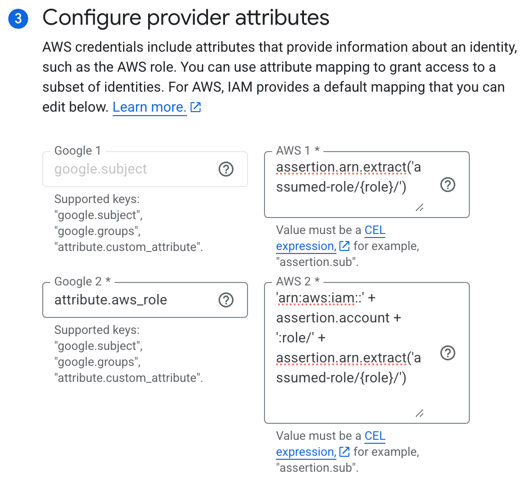
Configure the provider attribute mappings. AWS presents Omni’s identity in a different format than the value shown in Omni, so the mappings reconstruct the role ARN before comparing it.
Click Edit mapping.
For google.subject, paste the following into the corresponding AWS field:
assertion.arn.extract('assumed-role/{role}/')
For attribute.aws_role_arn, paste the following into the corresponding AWS field:
The mappings should look like the following when finished:
Configured provider attribute mappings
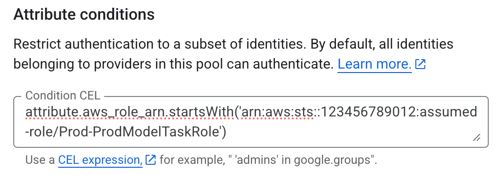
Configure the provider attribute conditions:
Click Add condition.
In the text field, add the attribute condition. Replace OMNI_ATTRIBUTE_CONDITION_PREFIX with the Attribute condition prefix value you copied from Omni in step 1 of this section:
When you configure Omni, leave the Service account impersonation URL field blank.
Option 2 - Impersonation through a service account
Have the pool impersonate a named service account that holds the Vertex AI User role.
If your organization requires Vertex AI access to be held by a named service account (for example, to satisfy least-privilege or audit policies), grant the pool permission to impersonate a service account that holds roles/aiplatform.user, instead of granting the pool directly.Run the following, replacing GCP_PROJECT_ID with the ID of your GCP project:
Grant access through a service account
# Create a service account (or use an existing one)gcloud iam service-accounts create omni-vertex-sa \ --display-name="Omni Vertex AI Service Account" \ --project=GCP_PROJECT_ID# Grant it the Vertex AI User rolegcloud projects add-iam-policy-binding GCP_PROJECT_ID \ --member="serviceAccount:omni-vertex-sa@GCP_PROJECT_ID.iam.gserviceaccount.com" \ --role="roles/aiplatform.user"# Allow the pool to impersonate the service accountPROJECT_NUMBER=$(gcloud projects describe GCP_PROJECT_ID --format='value(projectNumber)')gcloud iam service-accounts add-iam-policy-binding \ omni-vertex-sa@GCP_PROJECT_ID.iam.gserviceaccount.com \ --role="roles/iam.workloadIdentityUser" \ --member="principalSet://iam.googleapis.com/projects/${PROJECT_NUMBER}/locations/global/workloadIdentityPools/omni/*" \ --project=GCP_PROJECT_ID
When you configure Omni, set the Service account impersonation URL to the following, replacing GCP_PROJECT_ID with the ID of your GCP project:
Before Omni can generate responses, the Claude models you plan to use must be enabled for your GCP project and your region must have quota for them.
In the Vertex AI Model Garden, enable each Claude model you plan to use with Omni and accept its terms. Anthropic models aren’t enabled by default.
Confirm your project has non-zero quota for those models in the region you’ll configure in Omni. You can review and request quota changes under IAM & Admin > Quotas in the Google Cloud console.
Optional. If using service account impersonation, provide the URL in the format: https://iamcredentials.googleapis.com/v1/projects/-/serviceAccounts/<service-account-email>:generateAccessToken. Leave blank if using direct access.
Custom models
A comma-separated list of the Vertex AI model identifiers to offer in Omni. Each identifier displays as an LLM that you can approve for users.
5
Click Save and approve.
6
To run AI features on Gemini Enterprise Agent Platform by default, select one of the models as the organization default.
By default, Omni approves all available LLMs once a provider is successfully configured, which means users can select the LLMs in the chat picker. Use the LLM section to revoke specific LLMs, mark an LLM as test only, and add useful descriptions.
Model identifiers in Vertex AI may vary by region and project. Omni supports custom model identifiers to accommodate region-specific availability. Refer to the Google Cloud documentation for available models in your region.
Authentication errors (403): Verify that your workload identity pool uses the role prefix shown in Omni’s AI settings and that the attribute condition uses a starts-with comparison.
Permission denied errors: Ensure the service account has the roles/aiplatform.user role and that the workload identity pool has permission to impersonate the service account (roles/iam.workloadIdentityUser).
Model not found errors: Model availability varies by GCP region. Verify that the model IDs you’ve configured are available in your selected region, or enable cross-region access in your GCP project.
Rate limit or quota errors: If you receive an error like Your application has exceeded its allocated rate limit or quota for a specific API, verify that the models you’re using have a positive quota balance.
{"docsConfig":{"theme":"aspen","$schema":"https://mintlify.com/docs.json","name":"Omni Docs","colors":{"primary":"#FF5FA2","light":"#FF5FA2","dark":"#4D122C"},"logo":{"light":"https://mintcdn.com/omni-e7402367/m1fg0tfdkEcnYhky/images/logo/omni-black.png?fit=max\u0026auto=format\u0026n=m1fg0tfdkEcnYhky\u0026q=85\u0026s=85b81b605382b15b60eb75159899002a","dark":"https://mintcdn.com/omni-e7402367/m1fg0tfdkEcnYhky/images/logo/omni-white.png?fit=max\u0026auto=format\u0026n=m1fg0tfdkEcnYhky\u0026q=85\u0026s=18b529bed326b4f1be9d58ac65b9e002"},"favicon":"https://mintcdn.com/omni-e7402367/WTWdmWXPOMD5jOUY/favicon.png?fit=max\u0026auto=format\u0026n=WTWdmWXPOMD5jOUY\u0026q=85\u0026s=775ee4acbc06107599e3471e50161a2b","background":{"color":{"light":"#FCFCF7","dark":"#0e0b0e"}},"navbar":{"links":[{"href":"https://community.omni.co","label":"Community"}],"primary":{"type":"button","label":"Try Omni!","href":"https://omni.co/demo"}},"footer":{},"seo":{"metatags":{"canonical":"https://docs.omni.co"}},"fonts":{"heading":{"family":"Cal Sans","weight":400},"body":{"family":"IBM Plex Sans"}},"integrations":{"ga4":{"measurementId":"G-ZMG0QT2W9L"}},"banner":{"content":"Need help? Get answers from the docs with Omni's in-app AI! Log in to your Omni instance and open the [Omni Agent](/ai/chat) in the sidebar.","dismissible":true},"thumbnails":{"appearance":"dark","background":"https://mintcdn.com/omni-e7402367/J1q2UvTSjLHOwJ3G/images/og/og-background.png?fit=max\u0026auto=format\u0026n=J1q2UvTSjLHOwJ3G\u0026q=85\u0026s=63ad1c86bdbf4da4196959c391afb21f","fonts":{"family":"IBM Plex Sans"}},"styling":{"latex":false},"navigation":{"pages":[]}},"deployment":{"deploymentMetadataValue":{"subdomain":"omni-e7402367","hasAudioNarration":false,"actualSubdomain":"omni-e7402367","customDomains":["docs.omni.co"],"gitSource":{"type":"github","owner":"exploreomni","repo":"mintlify-omni","deployBranch":"main","contentDirectory":"","isPrivate":true,"mountPath":"","label":""},"chroma":{"liveDeploymentHistoryId":"6ada9b64763339d1f8973afe","collectionId":"6c22702d-8e6d-4470-9c2a-e81211545b63","schemaVersion":"v3","latestBuiltDeploymentHistoryId":"6ada9b64763339d1f8973afe"},"feedback":{"thumbs":true,"agentFeedback":true},"entitlements":{"AI_CHAT":{"status":"ENABLED"},"CONTEXTUAL_FEEDBACK":{"status":"DISABLED"},"CODE_SNIPPET_FEEDBACK":{"status":"DISABLED"},"WEB_MCP":{"status":"ENABLED"},"NARRATION":{"status":"ENABLED"}},"buildId":"6adb3335972671008903b3ab","clientVersion":"0.0.3939","searchFilterCounts":[{"language":"default","tag":"Docs","count":502},{"language":"default","tag":"Developers","count":367},{"language":"default","tag":"Model data","count":302},{"language":"default","tag":"REST APIs","count":250},{"language":"default","tag":"Parameters","count":187},{"language":"default","tag":"Product updates","count":158},{"language":"default","tag":"Demos","count":154},{"language":"default","tag":"Admin","count":122},{"language":"default","tag":"Visualize \u0026 present","count":99},{"language":"default","tag":"Embedding","count":79}],"searchSettings":{"isFiltersEnabled":true,"maxResults":10}},"assistantConfig":{"enableAskAiButton":true,"enableAskAiSearchBar":false},"hasChatPermissions":true,"hasWebMcpPermissions":true,"toggles":[{"name":"kill-isr","enabled":true,"variant":{"name":"disabled","enabled":false,"feature_enabled":true},"impressionData":false},{"name":"agent-mintlify-slack","enabled":true,"variant":{"name":"disabled","enabled":false,"feature_enabled":true},"impressionData":false},{"name":"editor-v7-file-tree","enabled":true,"variant":{"name":"disabled","enabled":false,"feature_enabled":true},"impressionData":false},{"name":"agent-integrations-settings","enabled":true,"variant":{"name":"disabled","enabled":false,"feature_enabled":true},"impressionData":false},{"name":"automations-pr-grouping","enabled":true,"variant":{"name":"disabled","enabled":false,"feature_enabled":true},"impressionData":false},{"name":"custom-prefix","enabled":true,"variant":{"name":"disabled","enabled":false,"feature_enabled":true},"impressionData":false},{"name":"analytics-v7","enabled":true,"variant":{"name":"disabled","enabled":false,"feature_enabled":true},"impressionData":false},{"name":"user-flows-analytics","enabled":true,"variant":{"name":"disabled","enabled":false,"feature_enabled":true},"impressionData":false},{"name":"no-publish-flow","enabled":true,"variant":{"name":"disabled","enabled":false,"feature_enabled":true},"impressionData":false},{"name":"workos-onboarding","enabled":true,"variant":{"name":"disabled","enabled":false,"feature_enabled":true},"impressionData":false},{"name":"llms-txt-v2","enabled":true,"variant":{"name":"disabled","enabled":false,"feature_enabled":true},"impressionData":false},{"name":"pause-universal-search-reconcile","enabled":true,"variant":{"name":"disabled","enabled":false,"feature_enabled":true},"impressionData":false},{"name":"snapshot-serving-live","enabled":true,"variant":{"name":"disabled","enabled":false,"feature_enabled":true},"impressionData":false},{"name":"stripTemperatureMiddleware","enabled":true,"variant":{"name":"disabled","enabled":false,"feature_enabled":true},"impressionData":false},{"name":"per-site-search-delta","enabled":true,"variant":{"name":"disabled","enabled":false,"feature_enabled":true},"impressionData":false},{"name":"support-platform-pylon-zendesk","enabled":true,"variant":{"name":"disabled","enabled":false,"feature_enabled":true},"impressionData":false},{"name":"snapshot-serving","enabled":true,"variant":{"name":"disabled","enabled":false,"feature_enabled":true},"impressionData":false},{"name":"instant-rollback","enabled":true,"variant":{"name":"disabled","enabled":false,"feature_enabled":true},"impressionData":false},{"name":"granular-notifications-server","enabled":true,"variant":{"name":"disabled","enabled":false,"feature_enabled":true},"impressionData":false},{"name":"granular-notifications","enabled":true,"variant":{"name":"disabled","enabled":false,"feature_enabled":true},"impressionData":false},{"name":"editor-private-page-search","enabled":true,"variant":{"name":"disabled","enabled":false,"feature_enabled":true},"impressionData":false},{"name":"automations-fable","enabled":true,"variant":{"name":"disabled","enabled":false,"feature_enabled":true},"impressionData":false},{"name":"fixed-ai-action-pricing","enabled":true,"variant":{"name":"disabled","enabled":false,"feature_enabled":true},"impressionData":false},{"name":"automation-resolve-merge-conflict","enabled":true,"variant":{"name":"disabled","enabled":false,"feature_enabled":true},"impressionData":false},{"name":"scoped-publishing","enabled":true,"variant":{"name":"disabled","enabled":false,"feature_enabled":true},"impressionData":false},{"name":"mintql","enabled":true,"variant":{"name":"disabled","enabled":false,"feature_enabled":true},"impressionData":false},{"name":"page-level-analytics","enabled":true,"variant":{"name":"disabled","enabled":false,"feature_enabled":true},"impressionData":false},{"name":"editor-version-history-v2","enabled":true,"variant":{"name":"disabled","enabled":false,"feature_enabled":true},"impressionData":false},{"name":"editor-nav-generations","enabled":true,"variant":{"name":"disabled","enabled":false,"feature_enabled":true},"impressionData":false},{"name":"billing-page-v2","enabled":true,"variant":{"name":"disabled","enabled":false,"feature_enabled":true},"impressionData":false},{"name":"workspace-projects","enabled":true,"variant":{"name":"disabled","enabled":false,"feature_enabled":true},"impressionData":false},{"name":"assistant-v5","enabled":true,"variant":{"name":"disabled","enabled":false,"feature_enabled":true},"impressionData":false},{"name":"byok-sep-25","enabled":true,"variant":{"name":"disabled","enabled":false,"feature_enabled":true},"impressionData":false},{"name":"fork-pr-previews","enabled":true,"variant":{"name":"disabled","enabled":false,"feature_enabled":true},"impressionData":false},{"name":"revalidation-jwt","enabled":true,"variant":{"name":"disabled","enabled":false,"feature_enabled":true},"impressionData":false},{"name":"vite-origin","enabled":true,"variant":{"name":"disabled","enabled":false,"feature_enabled":true},"impressionData":false},{"name":"editor-agent-model-picker","enabled":true,"variant":{"name":"disabled","enabled":false,"feature_enabled":true},"impressionData":false},{"name":"billing-updated-9-15","enabled":true,"variant":{"name":"disabled","enabled":false,"feature_enabled":true},"impressionData":false},{"name":"hobby-abuse-scan","enabled":true,"variant":{"name":"disabled","enabled":false,"feature_enabled":true},"impressionData":false},{"name":"dashboard-inbox","enabled":true,"variant":{"name":"disabled","enabled":false,"feature_enabled":true},"impressionData":false}],"privacy":{"consentBanner":{"enabled":false}},"isAtlas":false,"googleFontsInlined":true},"customCss":[{"filePath":"styles.css","content":"img{border:1px solid;border-color:rgb(var(--gray-200))}.nav-logo,.no-border{border:0}#banner{color:#fcfcf7;font-weight:600}#topbar-cta-button,[data-testid=rss-feed-button]{transition:background-color .2s ease,transform .1s ease}#topbar-cta-button{background-color:#ff5fa2;color:#fcfcf7!important;padding:2px 16px;border-radius:160px;text-decoration:none;font-weight:800;display:inline-block;cursor:pointer}#topbar-cta-button>*{padding-left:7px}#topbar-cta-button *{color:#fcfcf7!important}#topbar-cta-button:hover{background-color:#ff5fa2;transform:translateY(-1px)}#topbar-cta-button:active{transform:translateY(0)}#topbar-cta-button svg{display:none!important}.navbar-link a{border-radius:160px!important}[data-testid=rss-feed-button]{border-color:#ff5fa2!important;color:#ff5fa2!important;border-radius:160px!important;gap:6px}[data-testid=rss-feed-button]::after{content:\"Subscribe\";font-size:14px;font-weight:600}[data-testid=rss-feed-button] svg{stroke:#ff5fa2}[data-testid=rss-feed-button]:hover{background-color:rgba(255,95,162,.05)!important;transform:translateY(-1px)}.dark [data-testid=rss-feed-button]:hover{background-color:rgba(255,95,162,.1)!important}[class*=cursor-copy][class*=max-h-]{max-height:20px!important}:has(>.guide-header){position:relative;max-width:1100px;margin:0 auto;padding:24px 24px 72px calc(200px + 48px + 24px);color:rgb(var(--gray-700))}.dark :has(>.guide-header){color:rgb(var(--gray-400))}.guide-header{position:sticky;top:var(--scroll-mt, 9.5rem);z-index:20;background-color:#fcfcf7;padding:0 0 1px;margin-bottom:35px;box-shadow:0 -10rem 0 10rem #fcfcf7}.dark .guide-header{background-color:#0e0b0e;box-shadow:0 -10rem 0 10rem #0e0b0e}.guide-title{font-size:2.5rem;font-weight:700;color:rgb(var(--gray-900));margin:0;line-height:1.3}.dark .guide-title{color:rgb(var(--gray-50))}.guide-sidebar{position:absolute;left:24px;top:24px;bottom:0;width:200px}.guide-sidebar-content{position:sticky;top:calc(var(--scroll-mt, 9.5rem) + 10px)}.guide-sidebar-back{display:flex;align-items:center;gap:8px;color:rgb(var(--gray-500));text-decoration:none;font-size:14px;font-weight:500;margin-bottom:24px;transition:color .15s ease}.guide-sidebar-back:hover,.guide-sidebar-links a{color:rgb(var(--primary))}.guide-sidebar-section{margin-bottom:20px}.guide-sidebar-label{font-size:11px;font-weight:600;text-transform:uppercase;letter-spacing:.05em;color:rgb(var(--gray-500));margin-bottom:6px}.guide-sidebar-category{display:flex;align-items:center;gap:6px;font-size:14px;color:rgb(var(--gray-700));text-transform:capitalize}.dark .guide-sidebar-category{color:rgb(var(--gray-300))}.guide-sidebar-date{font-size:14px;color:rgb(var(--gray-600))}.dark .guide-sidebar-date,.dark .guide-sidebar-progress-text{color:rgb(var(--gray-400))}.guide-sidebar-links{list-style:none;padding:0;margin:0}.guide-sidebar-links li{margin-bottom:6px}.guide-sidebar-progress{display:flex;align-items:center;gap:12px}.guide-mascot{flex-shrink:0}.guide-mascot svg{display:block}.guide-sidebar-progress-text{font-size:14px;font-weight:600;color:rgb(var(--gray-600))}.guide-sidebar-links a{font-size:14px;text-decoration:none}:has(>.guide-header) .guide-sidebar a{border-bottom:none;font-weight:inherit}:has(>.guide-header) a.guide-sidebar-back{color:rgb(var(--gray-500));font-weight:500}:has(>.guide-header) .guide-sidebar-links a,:has(>.guide-header) a.guide-sidebar-back:hover{color:rgb(var(--primary))}:has(>.guide-header) .guide-sidebar-links a:hover{text-decoration:underline}@media (max-width:768px){:has(>.guide-header){padding:24px 24px 72px}.guide-sidebar{position:static;width:100%;margin-bottom:24px}.guide-sidebar-content{position:static;display:flex;flex-wrap:wrap;align-items:center;gap:12px}.guide-sidebar-back{width:100%;margin-bottom:4px}.guide-sidebar-section{margin-bottom:0}.guide-sidebar-section:has(.guide-sidebar-links),.guide-sidebar-section:has(.guide-sidebar-progress){display:none}.guide-sidebar-label{display:none}.guide-sidebar-category,.guide-sidebar-date{font-size:12px;padding:4px 10px;border-radius:4px;background-color:#f1f5f9;color:#1e191a}.dark .guide-sidebar-category,.dark .guide-sidebar-date{background-color:rgba(255,255,255,.03);color:#faf5f7}.guide-header{position:static;box-shadow:none}.guide-sticky-header{padding:12px 16px}.guide-progress-track{margin:-12px -16px 12px}.guide-sticky-title{font-size:1.5rem}}:has(>.guide-header) h1,:has(>.guide-header) h2,:has(>.guide-header) h3{color:rgb(var(--gray-900))}.dark :has(>.guide-header) a,.dark :has(>.guide-header) h1,.dark :has(>.guide-header) h2,.dark :has(>.guide-header) h3,.dark :has(>.guide-header) strong{color:rgb(var(--gray-50))}:has(>.guide-header) h1{font-size:2.25rem;margin:0 0 16px}:has(>.guide-header) h2{font-size:1.5rem;font-weight:600;margin:32px 0 16px;line-height:1.3}:has(>.guide-header) [data-component-part=step-title]{margin:0 0 16px}:has(>.guide-header) h3{font-size:1.25rem;font-weight:600;margin:24px 0 12px;line-height:1.4}:has(>.guide-header) [data-as=p],:has(>.guide-header) p{display:block;margin:16px 0;line-height:1.7}:has(>.guide-header)>.guide-header+[data-as=p],:has(>.guide-header)>.guide-header+p{margin-top:0}:has(>.guide-header) ol:not(.not-prose),:has(>.guide-header) ul:not(.not-prose){margin:16px 0;padding-left:24px}:has(>.guide-header) ul:not(.not-prose){list-style-type:disc}:has(>.guide-header) ol:not(.not-prose){list-style-type:decimal!important}:has(>.guide-header) :not(.not-prose)>li{margin-bottom:8px;line-height:1.6}:has(>.guide-header) .prose ul:not(.not-prose){list-style-type:none;padding-left:0}:has(>.guide-header) .prose :not(.not-prose)>li{margin-bottom:0}:has(>.guide-header) a{color:#111827;text-decoration:none;font-weight:600;border-bottom:1px solid rgb(var(--primary))}:has(>.guide-header) a:hover{border-bottom-width:2px}:has(>.guide-header) strong,:has(>.guide-header) th{font-weight:600;color:rgb(var(--gray-900))}:has(>.guide-header) code{font-size:.9em}:has(>.guide-header) table{width:100%;border-collapse:collapse;margin:16px 0}:has(>.guide-header) th{text-align:left;padding:8px 16px 8px 0;border-bottom:1px solid rgb(var(--gray-200))}.dark :has(>.guide-header) th{color:rgb(var(--gray-50))}:has(>.guide-header) td{padding:12px 16px 12px 0;border-bottom:1px solid rgb(var(--gray-200));vertical-align:top}.dark :has(>.guide-header) td,.dark :has(>.guide-header) th{border-bottom-color:rgb(var(--gray-700))}:has(>.guide-header) img{margin:16px 0;border-radius:8px}:has(>.guide-header) [data-component-part=card-title]{font-size:1rem!important;margin:4px 0 0!important}:has(>.guide-header) [data-component-part=card-content]{font-size:.875rem!important;line-height:1.5!important}:has(>.guide-header) [data-component-part=card-content] [data-as=p]{font-size:.875rem!important;margin:4px 0!important;line-height:1.5!important}.guides-container{max-width:1200px;margin:0 auto;padding:48px 24px}.guides-title{font-size:2.5rem;font-weight:700;color:#1e191a;margin-bottom:16px}.dark .guides-title{color:#e6e1e2}.guides-description{font-size:1.125rem;color:#1e191a;margin-bottom:32px}.dark .guides-description,.dark .guides-filter-label{color:#cbd5e1}.guides-layout{display:flex;gap:48px}.guides-sidebar{width:220px;flex-shrink:0}.guides-filters{position:sticky;top:100px;max-height:calc(100vh - 124px);overflow-y:auto;scrollbar-width:thin}.guides-filters::-webkit-scrollbar{width:6px}.guides-filters::-webkit-scrollbar-thumb{background:rgba(128,128,128,.35);border-radius:3px}.guides-filter-group{margin-bottom:24px}.guides-filter-label{display:block;font-size:12px;font-weight:600;text-transform:uppercase;letter-spacing:.05em;color:#1e191a;margin-bottom:8px}.guides-filter-input{width:100%;padding:8px 12px;border-top-left-radius:9999px;border-top-right-radius:9999px;border-bottom-left-radius:9999px;border-bottom-right-radius:9999px;border-color:#e6e1e2;font-size:14px;box-sizing:border-box;background-color:rgba(17,12,14,.03);color:#777274}.dark .guides-filter-input{background-color:rgba(255,255,255,.03);border-color:#334155;color:rgba(255,255,255,.5)}.guides-filter-input:focus{outline:0;border-color:#ff5fa2}.dark .guides-filter-input::placeholder{color:rgba(255,255,255,.5)}.guides-clear-button,.guides-filter-button{width:100%;border:1px solid #e2e8f0;border-radius:160px;color:#334155;font-size:14px;cursor:pointer;transition:all .15s ease}.guides-filter-button{display:block;padding:8px 12px;margin-bottom:4px;background:0 0;text-align:left}.dark .guides-filter-button{color:#cbd5e1;border-color:rgba(255,255,255,.1);border-style:solid;border-width:1.5px}.guides-filter-button:hover{background-color:#f8fafc}.dark .guides-filter-button:hover{background-color:#0e0b0e;border-color:#ff5fa2}.guides-filter-button.active{border-color:#ff5fa2;background-color:#fff0f6;color:#ff5fa2}.dark .guides-filter-button.active{background-color:rgba(255,95,162,.15)}.guides-clear-button{padding:10px 12px;margin-bottom:16px;background:#f8fafc;font-weight:500}.dark .guides-clear-button{background:#0e0b0e;color:#e2e8f0;border-color:rgba(255,255,255,.1);border-style:solid;border-width:1.5px}.guides-clear-button:hover{background:#f1f5f9;border-color:#cbd5e1}.dark .guides-clear-button:hover{background:#0e0b0e;border-color:#ff5fa2}.guides-content{flex:1;min-width:0}.guides-results-count{font-size:14px;color:#1e191a;margin-bottom:16px}.dark .guides-results-count{color:#cbd5e1}.guides-grid{display:grid;grid-template-columns:repeat(auto-fill,minmax(280px,1fr));gap:16px}.guides-card{border:1px solid #e2e8f0;border-radius:16px;padding:20px;text-decoration:none;color:inherit;display:flex;flex-direction:column;gap:12px;transition:border-color .15s ease,box-shadow .15s ease;background-color:#fcfcf7}.dark .guides-card{border-color:rgba(255,255,255,.1);border-style:solid;border-width:1.5px;background-color:#0e0b0e}.guides-card:hover{border-color:#ff5fa2;box-shadow:0 2px 8px rgba(0,0,0,.08)}.dark .guides-card:hover{box-shadow:0 2px 8px rgba(0,0,0,.3)}.guides-card-icon{margin-bottom:4px}.guides-card-title{font-size:16px;font-weight:600;color:#1e191a;margin:0;line-height:1.3}.dark .guides-card-title{color:#fcfcf7}.guides-card-description{font-size:16px;color:#575254;margin:0;line-height:1.5;flex-grow:1}.dark .guides-card-description{color:#a6a1a2}.guides-card-meta{display:flex;align-items:center;gap:8px;flex-wrap:wrap}.guides-card-tag{font-size:12px;padding:2px 8px;border-radius:4px;background-color:#f1f5f9;color:#1e191a}.dark .guides-card-tag{background-color:rgba(255,255,255,.03);color:#faf5f7}.guides-no-results{text-align:center;padding:48px 24px;color:#1e191a}.dark .guides-no-results{color:#cbd5e1}@media (max-width:768px){.guides-layout{flex-direction:column;gap:24px}.guides-sidebar{width:100%}.guides-filters{position:static;max-height:none;overflow-y:visible}.guides-filter-button{display:inline-block;width:auto;margin-right:8px}}.badge-color{background-color:#ff5fa2;color:#fcfcf7!important}.lib-page{--lib-muted:#575254;color:#1e191a}.dark .lib-page{--lib-muted:#a6a1a2;color:#e6e1e2}.lib-page a{color:#ff5fa2}.lib-card:hover{border-color:#ff5fa2!important}.lib-panel{background-color:#fcfcf7;color:#1e191a}.dark .lib-panel{background-color:#0e0b0e;color:#e6e1e2}.lib-logo-chip{display:inline-flex;align-items:center;justify-content:center;flex:none;overflow:hidden}.dark .lib-logo-chip{padding:3px 5px;border-radius:5px;background-color:#fff}.lib-logo-chip img{border:0;border-radius:0}.endpoint-table{table-layout:fixed}.endpoint-table td:first-child,.endpoint-table th:first-child{width:18rem;min-width:18rem;max-width:18rem}.endpoint-table td:last-child,.endpoint-table th:last-child{width:8rem;min-width:8rem;max-width:8rem}.icon{border:0}.icons{background-color:#000}.dark .icons{background-color:rgb(var(--gray-50))}.icon-position{display:inline;vertical-align:middle}[data-component-part=accordion-icon] svg{display:block!important}.side-by-side{display:flex;align-items:flex-start;gap:1.5rem;margin:1.5rem 0}.side-by-side-reverse{flex-direction:row-reverse}.side-by-side-divider{padding-bottom:1.5rem;border-bottom:1px solid rgb(var(--gray-200))}.dark .side-by-side-divider{border-bottom-color:rgb(var(--gray-700))}.side-by-side-media{flex:0 0 45%;display:flex;justify-content:center}.side-by-side-media img{width:auto;height:auto;max-width:100%;max-height:var(--side-by-side-height, 220px);margin:0}.side-by-side-body{flex:1;min-width:0}.side-by-side-body [data-as=p],.side-by-side-body p{display:block;margin:1rem 0}.side-by-side-body .side-by-side-title{margin:0 0 .5rem;font-weight:600;color:rgb(var(--gray-900))}.dark .side-by-side-body .side-by-side-title{color:rgb(var(--gray-50))}.side-by-side-body>:first-child{margin-top:0}.side-by-side-body>:last-child{margin-bottom:0}@media (max-width:768px){.side-by-side,.side-by-side-reverse{flex-direction:column;align-items:stretch}.side-by-side-media{flex:1 1 auto}}#page-title,.guides-title,:has(>.guide-header) h1{font-weight:400;line-height:1;letter-spacing:0;text-wrap:pretty}#page-title{font-size:2rem}@media (min-width:40rem){#page-title{font-size:2.625rem}}h2,h3,h4,h5,h6{font-family:var(--font-family-body-custom)}.mdx-content :is(h2, h3, h4, h5, h6):not([data-component-part]):not(.not-prose){font-weight:500;line-height:1.15;letter-spacing:0;text-wrap:pretty}.mdx-content h2:not([data-component-part]):not(.not-prose){font-size:1.5rem}"}],"page":{"pagePath":"ai/settings/model-providers/google-vertex-ai","slug":"/ai/settings/model-providers/google-vertex-ai","pageMetadata":{"title":"Google Gemini Enterprise Agent Platform (Vertex AI) - Bring Your Own Key (BYOK)","sidebarTitle":"Google Gemini Enterprise Agent Platform","description":"Configure Google Vertex AI as an AI model provider in Omni.","keywords":["google","vertex ai","vertexai","claude","workload identity federation","wif","byom","bring your own model","gcp","byok","bring your own key"],"href":"/ai/settings/model-providers/google-vertex-ai"},"description":{"compiledSource":"\"use strict\";\nconst {jsx: _jsx} = arguments[0];\nconst {useMDXComponents: _provideComponents} = arguments[0];\nfunction _createMdxContent(props) {\n const _components = {\n p: \"p\",\n ..._provideComponents(),\n ...props.components\n };\n return _jsx(_components.p, {\n children: \"Configure Google Vertex AI as an AI model provider in Omni.\"\n });\n}\nfunction MDXContent(props = {}) {\n const {wrapper: MDXLayout} = {\n ..._provideComponents(),\n ...props.components\n };\n return MDXLayout ? _jsx(MDXLayout, {\n ...props,\n children: _jsx(_createMdxContent, {\n ...props\n })\n }) : _createMdxContent(props);\n}\nreturn {\n default: MDXContent\n};\n","frontmatter":{},"scope":{}},"pageType":"default","mdx":{"mdxSource":{"compiledSource":"\"use strict\";const{Fragment:_Fragment,jsx:_jsx,jsxs:_jsxs}=arguments[0];const{useMDXComponents:_provideComponents}=arguments[0];const stepText_1=`step 1 of this section`;const omniPlaceholder_1=`OMNI_ATTRIBUTE_CONDITION_PREFIX`;const omniFieldName_1=`Attribute condition prefix`;const stepText_0=`step 1 of this section`;const omniPlaceholder_0=`OMNI_ATTRIBUTE_CONDITION_PREFIX`;const omniFieldName_0=`Attribute condition prefix`;const provider_1=`Gemini Enterprise Agent Platform`;const type_0=`models`;const fieldType_0=`text`;const provider_0=`Gemini Enterprise Agent Platform`;function _createMdxContent(props){const _components={a:`a`,code:`code`,li:`li`,ol:`ol`,p:`p`,pre:`pre`,span:`span`,strong:`strong`,tbody:`tbody`,td:`td`,th:`th`,thead:`thead`,tr:`tr`,ul:`ul`,..._provideComponents(),...props.components},{Accordion,AccordionGroup,CodeBlock,Frame,Heading,MDX,Note,OptimizedImage,Step,Steps,Tab,Table,Tabs}=_components;if(!Accordion)_missingMdxReference(`Accordion`,true);if(!AccordionGroup)_missingMdxReference(`AccordionGroup`,true);if(!CodeBlock)_missingMdxReference(`CodeBlock`,true);if(!Frame)_missingMdxReference(`Frame`,true);if(!Heading)_missingMdxReference(`Heading`,true);if(!MDX)_missingMdxReference(`MDX`,true);if(!Note)_missingMdxReference(`Note`,true);if(!OptimizedImage)_missingMdxReference(`OptimizedImage`,true);if(!Step)_missingMdxReference(`Step`,true);if(!Steps)_missingMdxReference(`Steps`,true);if(!Tab)_missingMdxReference(`Tab`,true);if(!Table)_missingMdxReference(`Table`,true);if(!Tabs)_missingMdxReference(`Tabs`,true);return _jsxs(_Fragment,{children:[_jsx(_components.p,{children:`Google Gemini Enterprise Agent Platform (formerly Vertex AI) provides access to Claude models through Google Cloud Platform (GCP). By connecting Vertex AI to Omni, you can power AI features using your organization’s GCP infrastructure.`}),`\n`,_jsx(_components.p,{children:`Authentication uses workload identity federation (WIF), which federates Omni’s ECS task role identity into your GCP project. No long-lived service account keys are stored in Omni.`}),`\n`,_jsx(Heading,{level:`2`,id:`requirements`,children:`Requirements`}),`\n`,_jsx(_components.p,{children:`To follow the steps in this guide, you’ll need:`}),`\n`,_jsxs(_components.ul,{children:[`\n`,_jsxs(_components.li,{children:[_jsx(_components.strong,{children:`In Omni`}),`:`,`\n`,_jsxs(_components.ul,{children:[`\n`,_jsx(_components.li,{children:_jsx(_components.strong,{children:`An AWS-hosted Omni instance`})}),`\n`,_jsxs(_components.li,{children:[_jsx(_components.strong,{children:`Organization Admin`}),` permissions`]}),`\n`]}),`\n`]}),`\n`,_jsxs(_components.li,{children:[_jsx(_components.strong,{children:`In Google Cloud Platform, permissions that allow you to`}),`:`,`\n`,_jsxs(_components.ul,{children:[`\n`,_jsx(_components.li,{children:`Create and configure workload identity federation providers`}),`\n`,_jsx(_components.li,{children:`Configure trust policies for external AWS identities`}),`\n`,_jsx(_components.li,{children:`Grant IAM permissions for Vertex AI API access`}),`\n`,_jsx(_components.li,{children:`Enable Vertex AI API in your GCP project`}),`\n`]}),`\n`]}),`\n`,_jsx(_components.li,{children:_jsxs(_components.strong,{children:[`The `,_jsx(_components.code,{children:`gcloud`}),` CLI`]})}),`\n`]}),`\n`,_jsx(Heading,{level:`2`,id:`setting-up-gcp`,children:`Setting up GCP`}),`\n`,_jsx(_components.p,{children:`Complete the following setup within your GCP project before configuring Vertex AI in Omni.`}),`\n`,_jsxs(Steps,{children:[_jsxs(Step,{title:`Enable Vertex AI API`,children:[_jsxs(_components.p,{children:[`Ensure the Vertex AI API is enabled in your GCP project. You can enable it through the `,_jsx(_components.a,{href:`https://console.cloud.google.com/apis/library/aiplatform.googleapis.com`,children:`Google Cloud Console`}),` or using the `,_jsx(_components.code,{children:`gcloud`}),` CLI:`]}),_jsx(CodeBlock,{filename:``,wrap:`true`,numberOfLines:`1`,language:`shellscript`,children:_jsx(_components.pre,{className:`shiki shiki-themes github-light-default dark-plus`,style:{backgroundColor:`#ffffff`,\"--shiki-dark-bg\":`#0B0C0E`,color:`#1f2328`,\"--shiki-dark\":`#D4D4D4`},language:`shellscript`,children:_jsxs(_components.code,{language:`shellscript`,numberOfLines:`1`,children:[_jsxs(_components.span,{className:`line`,children:[_jsx(_components.span,{style:{color:`#953800`,\"--shiki-dark\":`#DCDCAA`},children:`gcloud`}),_jsx(_components.span,{style:{color:`#0A3069`,\"--shiki-dark\":`#CE9178`},children:` services`}),_jsx(_components.span,{style:{color:`#0A3069`,\"--shiki-dark\":`#CE9178`},children:` enable`}),_jsx(_components.span,{style:{color:`#0A3069`,\"--shiki-dark\":`#CE9178`},children:` aiplatform.googleapis.com`}),_jsx(_components.span,{style:{color:`#0550AE`,\"--shiki-dark\":`#569CD6`},children:` --project=`}),_jsx(_components.span,{style:{color:`#CF222E`,\"--shiki-dark\":`#D4D4D4`},children:`\u003c`}),_jsx(_components.span,{style:{color:`#0550AE`,\"--shiki-dark\":`#569CD6`},children:`GCP_PROJECT_ID`}),_jsx(_components.span,{style:{color:`#CF222E`,\"--shiki-dark\":`#D4D4D4`},children:`>`})]}),`\n`]})})}),_jsxs(_components.p,{children:[`Replace `,_jsx(_components.code,{children:`\u003cGCP_PROJECT_ID>`}),` with the ID of your GCP project.`]})]}),_jsxs(Step,{title:`Create a workload identity federation provider`,children:[_jsx(_components.p,{children:`Create a workload identity pool and provider to allow Omni’s AWS ECS tasks to authenticate to your GCP project.`}),_jsxs(Steps,{children:[_jsx(Step,{title:`Retrieve Omni's AWS identity information`,id:`omni-aws-info`,children:_jsxs(_components.ol,{children:[`\n`,_jsxs(_components.li,{children:[`\n`,_jsxs(_components.p,{children:[`In Omni, navigate to `,_jsx(_components.strong,{children:`AI Hub > General`}),` and click the `,_jsx(_components.strong,{children:`LLM settings`}),` tab.`]}),`\n`]}),`\n`,_jsxs(_components.li,{children:[`\n`,_jsxs(_components.p,{children:[`In the `,_jsx(_components.strong,{children:`Providers`}),` section, click the `,_jsx(_components.strong,{children:`Your API keys`}),` tab, then click `,_jsx(_components.strong,{children:`Gemini Enterprise Agent Platform`}),` to expand it.`]}),`\n`]}),`\n`,_jsxs(_components.li,{children:[`\n`,_jsxs(_components.p,{children:[`The fields required to configure the provider will display, including a field with `,_jsx(_components.strong,{children:`Omni’s AWS identity information`}),`. It will contain values similar to the following:`]}),`\n`,_jsx(CodeBlock,{filename:`Federated Identity example`,numberOfLines:`2`,language:`text`,children:_jsx(_components.pre,{className:`shiki shiki-themes github-light-default dark-plus`,style:{backgroundColor:`#ffffff`,\"--shiki-dark-bg\":`#0B0C0E`,color:`#1f2328`,\"--shiki-dark\":`#D4D4D4`},language:`text`,children:_jsxs(_components.code,{language:`text`,numberOfLines:`2`,children:[_jsx(_components.span,{className:`line`,children:_jsx(_components.span,{children:`arn:aws:iam::123456789012:role/Prod-Prod`})}),`\n`,_jsx(_components.span,{className:`line`,children:_jsx(_components.span,{})})]})})}),`\n`,_jsx(CodeBlock,{filename:`Attribute condition prefix example`,numberOfLines:`2`,language:`text`,children:_jsx(_components.pre,{className:`shiki shiki-themes github-light-default dark-plus`,style:{backgroundColor:`#ffffff`,\"--shiki-dark-bg\":`#0B0C0E`,color:`#1f2328`,\"--shiki-dark\":`#D4D4D4`},language:`text`,children:_jsxs(_components.code,{language:`text`,numberOfLines:`2`,children:[_jsx(_components.span,{className:`line`,children:_jsx(_components.span,{children:`arn:aws:sts::123456789012:assumed-role/Prod-Prod`})}),`\n`,_jsx(_components.span,{className:`line`,children:_jsx(_components.span,{})})]})})}),`\n`,_jsx(_components.p,{children:`These values identify Omni to Google Cloud. Note that:`}),`\n`,_jsxs(_components.ul,{children:[`\n`,_jsxs(_components.li,{children:[_jsx(_components.strong,{children:`It contains Omni’s AWS account ID`}),`. This is the `,_jsx(_components.code,{children:`123456789012`}),` segment. You’ll need this when creating the provider in the next step.`]}),`\n`,_jsxs(_components.li,{children:[_jsx(_components.strong,{children:`Both values are prefixes that match all AI-calling services`}),`. Omni uses multiple ECS task roles for AI-calling services that all share this prefix. Your attribute condition must use a `,_jsx(_components.strong,{children:`starts-with`}),` comparison to match all of them. An exact-match condition will never match.`]}),`\n`]}),`\n`]}),`\n`]})}),_jsxs(Step,{title:`Create a workload identity pool and AWS provider`,children:[_jsx(_components.p,{children:`In your Google Cloud project, create a workload identity pool and an AWS provider that trusts the identity you copied in the previous step.`}),_jsxs(Tabs,{children:[_jsxs(Tab,{title:`Console`,icon:`window-maximize`,id:`console`,children:[_jsxs(_components.ol,{children:[`\n`,_jsxs(_components.li,{children:[`\n`,_jsxs(_components.p,{children:[`In the Google Cloud Console, navigate to `,_jsx(_components.a,{href:`https://console.cloud.google.com/iam-admin/workload-identity-pools`,children:_jsx(_components.strong,{children:`IAM \u0026 Admin > Workload Identity Federation`})}),`.`]}),`\n`]}),`\n`,_jsxs(_components.li,{children:[`\n`,_jsxs(_components.p,{children:[`Click `,_jsx(_components.strong,{children:`Create pool`}),`.`]}),`\n`]}),`\n`,_jsxs(_components.li,{children:[`\n`,_jsxs(_components.p,{children:[`Enter a name, such as `,_jsx(_components.code,{children:`omni`}),`, and continue.`]}),`\n`]}),`\n`,_jsxs(_components.li,{children:[`\n`,_jsx(_components.p,{children:`Add a provider to the pool:`}),`\n`,_jsxs(_components.ul,{children:[`\n`,_jsxs(_components.li,{children:[_jsx(_components.strong,{children:`Provider type`}),` - AWS`]}),`\n`,_jsxs(_components.li,{children:[_jsx(_components.strong,{children:`Provider name`}),` - Enter a name, such as `,_jsx(_components.code,{children:`Omni`})]}),`\n`,_jsxs(_components.li,{children:[_jsx(_components.strong,{children:`AWS account ID`}),` - The account ID from the value you copied in `,_jsx(_components.a,{href:`#omni-aws-info`,children:stepText_0})]}),`\n`]}),`\n`]}),`\n`,_jsxs(_components.li,{children:[`\n`,_jsx(_components.p,{children:`Configure the provider attribute mappings. AWS presents Omni’s identity in a different format than the value shown in Omni, so the mappings reconstruct the role ARN before comparing it.`}),`\n`,_jsxs(_components.ol,{children:[`\n`,_jsxs(_components.li,{children:[`\n`,_jsxs(_components.p,{children:[`Click `,_jsx(_components.strong,{children:`Edit mapping`}),`.`]}),`\n`]}),`\n`,_jsxs(_components.li,{children:[`\n`,_jsxs(_components.p,{children:[`For `,_jsx(_components.code,{children:`google.subject`}),`, paste the following into the corresponding `,_jsx(_components.strong,{children:`AWS`}),` field:`]}),`\n`,_jsx(CodeBlock,{filename:``,wrap:`true`,numberOfLines:`2`,language:`text`,children:_jsx(_components.pre,{className:`shiki shiki-themes github-light-default dark-plus`,style:{backgroundColor:`#ffffff`,\"--shiki-dark-bg\":`#0B0C0E`,color:`#1f2328`,\"--shiki-dark\":`#D4D4D4`},language:`text`,children:_jsxs(_components.code,{language:`text`,numberOfLines:`2`,children:[_jsx(_components.span,{className:`line`,children:_jsx(_components.span,{children:`assertion.arn.extract('assumed-role/{role}/')`})}),`\n`,_jsx(_components.span,{className:`line`,children:_jsx(_components.span,{})})]})})}),`\n`]}),`\n`,_jsxs(_components.li,{children:[`\n`,_jsxs(_components.p,{children:[`For `,_jsx(_components.code,{children:`attribute.aws_role_arn`}),`, paste the following into the corresponding `,_jsx(_components.strong,{children:`AWS`}),` field:`]}),`\n`,_jsx(CodeBlock,{filename:``,wrap:`true`,numberOfLines:`2`,language:`text`,children:_jsx(_components.pre,{className:`shiki shiki-themes github-light-default dark-plus`,style:{backgroundColor:`#ffffff`,\"--shiki-dark-bg\":`#0B0C0E`,color:`#1f2328`,\"--shiki-dark\":`#D4D4D4`},language:`text`,children:_jsxs(_components.code,{language:`text`,numberOfLines:`2`,children:[_jsx(_components.span,{className:`line`,children:_jsx(_components.span,{children:`'arn:aws:iam::' + assertion.account + ':role/' + assertion.arn.extract('assumed-role/{role}/')`})}),`\n`,_jsx(_components.span,{className:`line`,children:_jsx(_components.span,{})})]})})}),`\n`]}),`\n`]}),`\n`,_jsx(_components.p,{children:`The mappings should look like the following when finished:`}),`\n`,_jsx(Frame,{caption:`Configured provider attribute mappings`,children:_jsx(OptimizedImage,{src:`https://mintcdn.com/omni-e7402367/WZjB9Ag_8rCWDdYV/connect-data/images/google-wif-attribute-mappings.png?fit=max\u0026auto=format\u0026n=WZjB9Ag_8rCWDdYV\u0026q=85\u0026s=8579a637d92d01d184c45dbee6456a80`,alt:`Configured provider attribute mappings in the Google Cloud Console`,\"data-og-width\":`530`,width:`530`,\"data-og-height\":`482`,height:`482`,\"data-path\":`connect-data/images/google-wif-attribute-mappings.png`,\"data-optimize\":`true`,\"data-opv\":`3`,srcset:`https://mintcdn.com/omni-e7402367/WZjB9Ag_8rCWDdYV/connect-data/images/google-wif-attribute-mappings.png?w=280\u0026fit=max\u0026auto=format\u0026n=WZjB9Ag_8rCWDdYV\u0026q=85\u0026s=8f184291cea2f05bd9fe7db1968b62a4 280w, https://mintcdn.com/omni-e7402367/WZjB9Ag_8rCWDdYV/connect-data/images/google-wif-attribute-mappings.png?w=560\u0026fit=max\u0026auto=format\u0026n=WZjB9Ag_8rCWDdYV\u0026q=85\u0026s=1a26b147bd842e2c84e6542305c57eb9 560w, https://mintcdn.com/omni-e7402367/WZjB9Ag_8rCWDdYV/connect-data/images/google-wif-attribute-mappings.png?w=840\u0026fit=max\u0026auto=format\u0026n=WZjB9Ag_8rCWDdYV\u0026q=85\u0026s=c990a7158740ac573357102785f382fb 840w, https://mintcdn.com/omni-e7402367/WZjB9Ag_8rCWDdYV/connect-data/images/google-wif-attribute-mappings.png?w=1100\u0026fit=max\u0026auto=format\u0026n=WZjB9Ag_8rCWDdYV\u0026q=85\u0026s=d5a823200ea3c2c36b05aebfa8fba1fc 1100w, https://mintcdn.com/omni-e7402367/WZjB9Ag_8rCWDdYV/connect-data/images/google-wif-attribute-mappings.png?w=1650\u0026fit=max\u0026auto=format\u0026n=WZjB9Ag_8rCWDdYV\u0026q=85\u0026s=6094485138d49d7d7eb939b0ec542804 1650w, https://mintcdn.com/omni-e7402367/WZjB9Ag_8rCWDdYV/connect-data/images/google-wif-attribute-mappings.png?w=2500\u0026fit=max\u0026auto=format\u0026n=WZjB9Ag_8rCWDdYV\u0026q=85\u0026s=190e3be805a3b4fa7dad65b1252b2630 2500w`})}),`\n`]}),`\n`,_jsxs(_components.li,{children:[`\n`,_jsx(_components.p,{children:`Configure the provider attribute conditions:`}),`\n`,_jsxs(_components.ol,{children:[`\n`,_jsxs(_components.li,{children:[`\n`,_jsxs(_components.p,{children:[`Click `,_jsx(_components.strong,{children:`Add condition`}),`.`]}),`\n`]}),`\n`,_jsxs(_components.li,{children:[`\n`,_jsxs(_components.p,{children:[`In the text field, add the attribute condition. Replace `,_jsx(_components.strong,{children:omniPlaceholder_0}),` with the `,_jsx(_components.strong,{children:omniFieldName_0}),` value you copied from Omni in `,_jsx(_components.a,{href:`#omni-aws-info`,children:stepText_0}),`:`]}),`\n`,_jsx(CodeBlock,{filename:``,wrap:`true`,numberOfLines:`2`,language:`text`,children:_jsx(_components.pre,{className:`shiki shiki-themes github-light-default dark-plus`,style:{backgroundColor:`#ffffff`,\"--shiki-dark-bg\":`#0B0C0E`,color:`#1f2328`,\"--shiki-dark\":`#D4D4D4`},language:`text`,children:_jsxs(_components.code,{language:`text`,numberOfLines:`2`,children:[_jsx(_components.span,{className:`line`,children:_jsx(_components.span,{children:`attribute.aws_role_arn.startsWith('OMNI_ATTRIBUTE_CONDITION_PREFIX')`})}),`\n`,_jsx(_components.span,{className:`line`,children:_jsx(_components.span,{})})]})})}),`\n`,_jsx(_components.p,{children:`For example:`}),`\n`,_jsx(CodeBlock,{filename:``,wrap:`true`,numberOfLines:`2`,language:`text`,children:_jsx(_components.pre,{className:`shiki shiki-themes github-light-default dark-plus`,style:{backgroundColor:`#ffffff`,\"--shiki-dark-bg\":`#0B0C0E`,color:`#1f2328`,\"--shiki-dark\":`#D4D4D4`},language:`text`,children:_jsxs(_components.code,{language:`text`,numberOfLines:`2`,children:[_jsx(_components.span,{className:`line`,children:_jsx(_components.span,{children:`attribute.aws_role_arn.startsWith('arn:aws:sts::123456789012:assumed-role/Prod-Prod')`})}),`\n`,_jsx(_components.span,{className:`line`,children:_jsx(_components.span,{})})]})})}),`\n`,_jsx(_components.p,{children:`The attribute conditions should look like the following when finished:`}),`\n`]}),`\n`]}),`\n`]}),`\n`]}),_jsx(Frame,{caption:`Configured provider attribute condition`,children:_jsx(OptimizedImage,{src:`https://mintcdn.com/omni-e7402367/069S4MxcGWz9PKUT/connect-data/images/google-wif-ai-attribute-conditions.png?fit=max\u0026auto=format\u0026n=069S4MxcGWz9PKUT\u0026q=85\u0026s=79110eff377b10b1e4cc1e763d947cde`,alt:`Configured provider attribute condition in the Google Cloud Console`,\"data-og-width\":`502`,width:`502`,\"data-og-height\":`182`,height:`182`,\"data-path\":`connect-data/images/google-wif-ai-attribute-conditions.png`,\"data-optimize\":`true`,\"data-opv\":`3`,srcset:`https://mintcdn.com/omni-e7402367/069S4MxcGWz9PKUT/connect-data/images/google-wif-ai-attribute-conditions.png?w=280\u0026fit=max\u0026auto=format\u0026n=069S4MxcGWz9PKUT\u0026q=85\u0026s=4bd69c2e10c8ec91b33c7efd55eacb9f 280w, https://mintcdn.com/omni-e7402367/069S4MxcGWz9PKUT/connect-data/images/google-wif-ai-attribute-conditions.png?w=560\u0026fit=max\u0026auto=format\u0026n=069S4MxcGWz9PKUT\u0026q=85\u0026s=381c7e906a0f1059963841a916c691a6 560w, https://mintcdn.com/omni-e7402367/069S4MxcGWz9PKUT/connect-data/images/google-wif-ai-attribute-conditions.png?w=840\u0026fit=max\u0026auto=format\u0026n=069S4MxcGWz9PKUT\u0026q=85\u0026s=801ef120459a23dcbc0b9f148f7cfb7a 840w, https://mintcdn.com/omni-e7402367/069S4MxcGWz9PKUT/connect-data/images/google-wif-ai-attribute-conditions.png?w=1100\u0026fit=max\u0026auto=format\u0026n=069S4MxcGWz9PKUT\u0026q=85\u0026s=73f30a9c0207432520262ebd78783419 1100w, https://mintcdn.com/omni-e7402367/069S4MxcGWz9PKUT/connect-data/images/google-wif-ai-attribute-conditions.png?w=1650\u0026fit=max\u0026auto=format\u0026n=069S4MxcGWz9PKUT\u0026q=85\u0026s=0532e52c14368a08801e89af005a62f5 1650w, https://mintcdn.com/omni-e7402367/069S4MxcGWz9PKUT/connect-data/images/google-wif-ai-attribute-conditions.png?w=2500\u0026fit=max\u0026auto=format\u0026n=069S4MxcGWz9PKUT\u0026q=85\u0026s=5052d7336576ec4f770fe7941740373b 2500w`})}),_jsxs(_components.ol,{start:`7`,children:[`\n`,_jsxs(_components.li,{children:[`Click `,_jsx(_components.strong,{children:`Save`}),`.`]}),`\n`]})]}),_jsxs(Tab,{title:`gcloud CLI`,icon:`terminal`,id:`gcloud-cli`,children:[_jsxs(_components.p,{children:[`Using the `,_jsx(_components.code,{children:`gcloud CLI`}),`, run the following to create a workload identity pool:`]}),_jsx(CodeBlock,{filename:``,highlight:`[2]`,numberOfLines:`4`,language:`shellscript`,children:_jsx(_components.pre,{className:`shiki shiki-themes github-light-default dark-plus`,style:{backgroundColor:`#ffffff`,\"--shiki-dark-bg\":`#0B0C0E`,color:`#1f2328`,\"--shiki-dark\":`#D4D4D4`},language:`shellscript`,children:_jsxs(_components.code,{language:`shellscript`,numberOfLines:`4`,children:[_jsxs(_components.span,{className:`line`,children:[_jsx(_components.span,{style:{color:`#953800`,\"--shiki-dark\":`#DCDCAA`},children:`gcloud`}),_jsx(_components.span,{style:{color:`#0A3069`,\"--shiki-dark\":`#CE9178`},children:` iam`}),_jsx(_components.span,{style:{color:`#0A3069`,\"--shiki-dark\":`#CE9178`},children:` workload-identity-pools`}),_jsx(_components.span,{style:{color:`#0A3069`,\"--shiki-dark\":`#CE9178`},children:` create`}),_jsx(_components.span,{style:{color:`#0A3069`,\"--shiki-dark\":`#CE9178`},children:` omni`}),_jsx(_components.span,{style:{color:`#CF222E`,\"--shiki-dark\":`#D7BA7D`},children:` \\\\`})]}),`\n`,_jsxs(_components.span,{className:`line line-highlight`,children:[_jsx(_components.span,{style:{color:`#0550AE`,\"--shiki-dark\":`#569CD6`},children:` --project=GCP_PROJECT_ID`}),_jsx(_components.span,{style:{color:`#CF222E`,\"--shiki-dark\":`#D7BA7D`},children:` \\\\`})]}),`\n`,_jsxs(_components.span,{className:`line`,children:[_jsx(_components.span,{style:{color:`#0550AE`,\"--shiki-dark\":`#569CD6`},children:` --location=global`}),_jsx(_components.span,{style:{color:`#CF222E`,\"--shiki-dark\":`#D7BA7D`},children:` \\\\`})]}),`\n`,_jsxs(_components.span,{className:`line`,children:[_jsx(_components.span,{style:{color:`#0550AE`,\"--shiki-dark\":`#569CD6`},children:` --display-name=`}),_jsx(_components.span,{style:{color:`#0A3069`,\"--shiki-dark\":`#CE9178`},children:`\"Omni\"`})]}),`\n`]})})}),_jsxs(_components.p,{children:[`Replace `,_jsx(_components.strong,{children:`GCP_PROJECT_ID`}),` with the ID of your GCP project.`]}),_jsx(_components.p,{children:`Then, create the provider:`}),_jsx(CodeBlock,{filename:``,wrap:`true`,highlight:`[2,5,7]`,numberOfLines:`7`,language:`shellscript`,children:_jsx(_components.pre,{className:`shiki shiki-themes github-light-default dark-plus`,style:{backgroundColor:`#ffffff`,\"--shiki-dark-bg\":`#0B0C0E`,color:`#1f2328`,\"--shiki-dark\":`#D4D4D4`},language:`shellscript`,children:_jsxs(_components.code,{language:`shellscript`,numberOfLines:`7`,children:[_jsxs(_components.span,{className:`line`,children:[_jsx(_components.span,{style:{color:`#953800`,\"--shiki-dark\":`#DCDCAA`},children:`gcloud`}),_jsx(_components.span,{style:{color:`#0A3069`,\"--shiki-dark\":`#CE9178`},children:` iam`}),_jsx(_components.span,{style:{color:`#0A3069`,\"--shiki-dark\":`#CE9178`},children:` workload-identity-pools`}),_jsx(_components.span,{style:{color:`#0A3069`,\"--shiki-dark\":`#CE9178`},children:` providers`}),_jsx(_components.span,{style:{color:`#0A3069`,\"--shiki-dark\":`#CE9178`},children:` create-aws`}),_jsx(_components.span,{style:{color:`#0A3069`,\"--shiki-dark\":`#CE9178`},children:` omni-aws`}),_jsx(_components.span,{style:{color:`#CF222E`,\"--shiki-dark\":`#D7BA7D`},children:` \\\\`})]}),`\n`,_jsxs(_components.span,{className:`line line-highlight`,children:[_jsx(_components.span,{style:{color:`#0550AE`,\"--shiki-dark\":`#569CD6`},children:` --project=GCP_PROJECT_ID`}),_jsx(_components.span,{style:{color:`#CF222E`,\"--shiki-dark\":`#D7BA7D`},children:` \\\\`})]}),`\n`,_jsxs(_components.span,{className:`line`,children:[_jsx(_components.span,{style:{color:`#0550AE`,\"--shiki-dark\":`#569CD6`},children:` --location=global`}),_jsx(_components.span,{style:{color:`#CF222E`,\"--shiki-dark\":`#D7BA7D`},children:` \\\\`})]}),`\n`,_jsxs(_components.span,{className:`line`,children:[_jsx(_components.span,{style:{color:`#0550AE`,\"--shiki-dark\":`#569CD6`},children:` --workload-identity-pool=omni`}),_jsx(_components.span,{style:{color:`#CF222E`,\"--shiki-dark\":`#D7BA7D`},children:` \\\\`})]}),`\n`,_jsxs(_components.span,{className:`line line-highlight`,children:[_jsx(_components.span,{style:{color:`#0550AE`,\"--shiki-dark\":`#569CD6`},children:` --account-id=OMNI_AWS_ACCOUNT_ID`}),_jsx(_components.span,{style:{color:`#CF222E`,\"--shiki-dark\":`#D7BA7D`},children:` \\\\`})]}),`\n`,_jsxs(_components.span,{className:`line`,children:[_jsx(_components.span,{style:{color:`#0550AE`,\"--shiki-dark\":`#569CD6`},children:` --attribute-mapping=`}),_jsx(_components.span,{style:{color:`#0A3069`,\"--shiki-dark\":`#CE9178`},children:`\"google.subject=assertion.arn.extract('assumed-role/{role}/'),attribute.aws_role_arn='arn:aws:iam::'+assertion.account+':role/'+assertion.arn.extract('assumed-role/{role}/')\"`}),_jsx(_components.span,{style:{color:`#CF222E`,\"--shiki-dark\":`#D7BA7D`},children:` \\\\`})]}),`\n`,_jsxs(_components.span,{className:`line line-highlight`,children:[_jsx(_components.span,{style:{color:`#0550AE`,\"--shiki-dark\":`#569CD6`},children:` --attribute-condition=`}),_jsx(_components.span,{style:{color:`#0A3069`,\"--shiki-dark\":`#CE9178`},children:`\"attribute.aws_role_arn.startsWith('OMNI_ATTRIBUTE_CONDITION_PREFIX')\"`})]}),`\n`]})})}),_jsx(_components.p,{children:`Replace the following values:`}),_jsxs(Table,{children:[_jsx(_components.thead,{children:_jsxs(_components.tr,{children:[_jsx(_components.th,{children:`Placeholder`}),_jsx(_components.th,{children:`Replace with`})]})}),_jsxs(_components.tbody,{children:[_jsxs(_components.tr,{children:[_jsx(_components.td,{children:_jsx(_components.strong,{children:`GCP_PROJECT_ID`})}),_jsx(_components.td,{children:`The ID of your GCP project`})]}),_jsxs(_components.tr,{children:[_jsx(_components.td,{children:_jsx(_components.strong,{children:`OMNI_AWS_ACCOUNT_ID`})}),_jsxs(_components.td,{children:[`The account ID from the value you copied in `,_jsx(_components.a,{href:`#omni-aws-info`,children:stepText_1})]})]}),_jsxs(_components.tr,{children:[_jsx(_components.td,{children:_jsx(_components.strong,{children:omniPlaceholder_1})}),_jsxs(_components.td,{children:[`The entire `,_jsx(_components.strong,{children:omniFieldName_1}),` value you copied in `,_jsx(_components.a,{href:`#omni-aws-info`,children:stepText_1})]})]})]})]})]})]})]})]})]}),_jsxs(Step,{title:`Grant the workload identity pool access to Vertex AI`,children:[_jsx(_components.p,{children:`Give the workload identity pool permission to call Vertex AI.`}),_jsx(_components.p,{children:`Choose one of the following options:`}),_jsxs(AccordionGroup,{children:[_jsxs(Accordion,{title:`Option 1 - Grant direct access`,icon:`arrow-right`,description:`Grant the pool the Vertex AI User role directly on your project.`,id:`option-1-grant-direct-access`,children:[_jsxs(_components.p,{children:[`Grant the pool the `,_jsx(_components.strong,{children:`Vertex AI User`}),` role (`,_jsx(_components.code,{children:`roles/aiplatform.user`}),`) directly on your project, replacing `,_jsx(_components.strong,{children:`GCP_PROJECT_ID`}),` with the ID of your GCP project:`]}),_jsx(CodeBlock,{filename:`Grant the pool Vertex AI access`,wrap:`true`,numberOfLines:`5`,language:`shellscript`,children:_jsx(_components.pre,{className:`shiki shiki-themes github-light-default dark-plus`,style:{backgroundColor:`#ffffff`,\"--shiki-dark-bg\":`#0B0C0E`,color:`#1f2328`,\"--shiki-dark\":`#D4D4D4`},language:`shellscript`,children:_jsxs(_components.code,{language:`shellscript`,numberOfLines:`5`,children:[_jsxs(_components.span,{className:`line`,children:[_jsx(_components.span,{style:{color:`#1F2328`,\"--shiki-dark\":`#9CDCFE`},children:`PROJECT_NUMBER`}),_jsx(_components.span,{style:{color:`#CF222E`,\"--shiki-dark\":`#D4D4D4`},children:`=`}),_jsx(_components.span,{style:{color:`#1F2328`,\"--shiki-dark\":`#D4D4D4`},children:`$(`}),_jsx(_components.span,{style:{color:`#953800`,\"--shiki-dark\":`#DCDCAA`},children:`gcloud`}),_jsx(_components.span,{style:{color:`#0A3069`,\"--shiki-dark\":`#CE9178`},children:` projects`}),_jsx(_components.span,{style:{color:`#0A3069`,\"--shiki-dark\":`#CE9178`},children:` describe`}),_jsx(_components.span,{style:{color:`#0A3069`,\"--shiki-dark\":`#CE9178`},children:` GCP_PROJECT_ID`}),_jsx(_components.span,{style:{color:`#0550AE`,\"--shiki-dark\":`#569CD6`},children:` --format=`}),_jsx(_components.span,{style:{color:`#0A3069`,\"--shiki-dark\":`#CE9178`},children:`'value(projectNumber)'`}),_jsx(_components.span,{style:{color:`#1F2328`,\"--shiki-dark\":`#D4D4D4`},children:`)`})]}),`\n`,_jsx(_components.span,{className:`line`}),`\n`,_jsxs(_components.span,{className:`line`,children:[_jsx(_components.span,{style:{color:`#953800`,\"--shiki-dark\":`#DCDCAA`},children:`gcloud`}),_jsx(_components.span,{style:{color:`#0A3069`,\"--shiki-dark\":`#CE9178`},children:` projects`}),_jsx(_components.span,{style:{color:`#0A3069`,\"--shiki-dark\":`#CE9178`},children:` add-iam-policy-binding`}),_jsx(_components.span,{style:{color:`#0A3069`,\"--shiki-dark\":`#CE9178`},children:` GCP_PROJECT_ID`}),_jsx(_components.span,{style:{color:`#CF222E`,\"--shiki-dark\":`#D7BA7D`},children:` \\\\`})]}),`\n`,_jsxs(_components.span,{className:`line`,children:[_jsx(_components.span,{style:{color:`#0550AE`,\"--shiki-dark\":`#569CD6`},children:` --role=`}),_jsx(_components.span,{style:{color:`#0A3069`,\"--shiki-dark\":`#CE9178`},children:`\"roles/aiplatform.user\"`}),_jsx(_components.span,{style:{color:`#CF222E`,\"--shiki-dark\":`#D7BA7D`},children:` \\\\`})]}),`\n`,_jsxs(_components.span,{className:`line`,children:[_jsx(_components.span,{style:{color:`#0550AE`,\"--shiki-dark\":`#569CD6`},children:` --member=`}),_jsx(_components.span,{style:{color:`#0A3069`,\"--shiki-dark\":`#CE9178`},children:'\"principalSet://iam.googleapis.com/projects/${'}),_jsx(_components.span,{style:{color:`#1F2328`,\"--shiki-dark\":`#9CDCFE`},children:`PROJECT_NUMBER`}),_jsx(_components.span,{style:{color:`#0A3069`,\"--shiki-dark\":`#CE9178`},children:`}/locations/global/workloadIdentityPools/omni/*\"`})]}),`\n`]})})}),_jsxs(_components.p,{children:[`When you configure Omni, leave the `,_jsx(_components.strong,{children:`Service account impersonation URL`}),` field blank.`]})]}),_jsxs(Accordion,{title:`Option 2 - Impersonation through a service account`,icon:`mask`,description:`Have the pool impersonate a named service account that holds the Vertex AI User role.`,id:`option-2-impersonation-through-a-service-account`,children:[_jsxs(_components.p,{children:[`If your organization requires Vertex AI access to be held by a named service account (for example, to satisfy least-privilege or audit policies), grant the pool permission to impersonate a service account that holds `,_jsx(_components.code,{children:`roles/aiplatform.user`}),`, instead of granting the pool directly.`]}),_jsxs(_components.p,{children:[`Run the following, replacing `,_jsx(_components.strong,{children:`GCP_PROJECT_ID`}),` with the ID of your GCP project:`]}),_jsx(CodeBlock,{filename:`Grant access through a service account`,wrap:`true`,numberOfLines:`18`,language:`shellscript`,children:_jsx(_components.pre,{className:`shiki shiki-themes github-light-default dark-plus`,style:{backgroundColor:`#ffffff`,\"--shiki-dark-bg\":`#0B0C0E`,color:`#1f2328`,\"--shiki-dark\":`#D4D4D4`},language:`shellscript`,children:_jsxs(_components.code,{language:`shellscript`,numberOfLines:`18`,children:[_jsx(_components.span,{className:`line`,children:_jsx(_components.span,{style:{color:`#6E7781`,\"--shiki-dark\":`#6A9955`},children:`# Create a service account (or use an existing one)`})}),`\n`,_jsxs(_components.span,{className:`line`,children:[_jsx(_components.span,{style:{color:`#953800`,\"--shiki-dark\":`#DCDCAA`},children:`gcloud`}),_jsx(_components.span,{style:{color:`#0A3069`,\"--shiki-dark\":`#CE9178`},children:` iam`}),_jsx(_components.span,{style:{color:`#0A3069`,\"--shiki-dark\":`#CE9178`},children:` service-accounts`}),_jsx(_components.span,{style:{color:`#0A3069`,\"--shiki-dark\":`#CE9178`},children:` create`}),_jsx(_components.span,{style:{color:`#0A3069`,\"--shiki-dark\":`#CE9178`},children:` omni-vertex-sa`}),_jsx(_components.span,{style:{color:`#CF222E`,\"--shiki-dark\":`#D7BA7D`},children:` \\\\`})]}),`\n`,_jsxs(_components.span,{className:`line`,children:[_jsx(_components.span,{style:{color:`#0550AE`,\"--shiki-dark\":`#569CD6`},children:` --display-name=`}),_jsx(_components.span,{style:{color:`#0A3069`,\"--shiki-dark\":`#CE9178`},children:`\"Omni Vertex AI Service Account\"`}),_jsx(_components.span,{style:{color:`#CF222E`,\"--shiki-dark\":`#D7BA7D`},children:` \\\\`})]}),`\n`,_jsx(_components.span,{className:`line`,children:_jsx(_components.span,{style:{color:`#0550AE`,\"--shiki-dark\":`#569CD6`},children:` --project=GCP_PROJECT_ID`})}),`\n`,_jsx(_components.span,{className:`line`}),`\n`,_jsx(_components.span,{className:`line`,children:_jsx(_components.span,{style:{color:`#6E7781`,\"--shiki-dark\":`#6A9955`},children:`# Grant it the Vertex AI User role`})}),`\n`,_jsxs(_components.span,{className:`line`,children:[_jsx(_components.span,{style:{color:`#953800`,\"--shiki-dark\":`#DCDCAA`},children:`gcloud`}),_jsx(_components.span,{style:{color:`#0A3069`,\"--shiki-dark\":`#CE9178`},children:` projects`}),_jsx(_components.span,{style:{color:`#0A3069`,\"--shiki-dark\":`#CE9178`},children:` add-iam-policy-binding`}),_jsx(_components.span,{style:{color:`#0A3069`,\"--shiki-dark\":`#CE9178`},children:` GCP_PROJECT_ID`}),_jsx(_components.span,{style:{color:`#CF222E`,\"--shiki-dark\":`#D7BA7D`},children:` \\\\`})]}),`\n`,_jsxs(_components.span,{className:`line`,children:[_jsx(_components.span,{style:{color:`#0550AE`,\"--shiki-dark\":`#569CD6`},children:` --member=`}),_jsx(_components.span,{style:{color:`#0A3069`,\"--shiki-dark\":`#CE9178`},children:`\"serviceAccount:omni-vertex-sa@GCP_PROJECT_ID.iam.gserviceaccount.com\"`}),_jsx(_components.span,{style:{color:`#CF222E`,\"--shiki-dark\":`#D7BA7D`},children:` \\\\`})]}),`\n`,_jsxs(_components.span,{className:`line`,children:[_jsx(_components.span,{style:{color:`#0550AE`,\"--shiki-dark\":`#569CD6`},children:` --role=`}),_jsx(_components.span,{style:{color:`#0A3069`,\"--shiki-dark\":`#CE9178`},children:`\"roles/aiplatform.user\"`})]}),`\n`,_jsx(_components.span,{className:`line`}),`\n`,_jsx(_components.span,{className:`line`,children:_jsx(_components.span,{style:{color:`#6E7781`,\"--shiki-dark\":`#6A9955`},children:`# Allow the pool to impersonate the service account`})}),`\n`,_jsxs(_components.span,{className:`line`,children:[_jsx(_components.span,{style:{color:`#1F2328`,\"--shiki-dark\":`#9CDCFE`},children:`PROJECT_NUMBER`}),_jsx(_components.span,{style:{color:`#CF222E`,\"--shiki-dark\":`#D4D4D4`},children:`=`}),_jsx(_components.span,{style:{color:`#1F2328`,\"--shiki-dark\":`#D4D4D4`},children:`$(`}),_jsx(_components.span,{style:{color:`#953800`,\"--shiki-dark\":`#DCDCAA`},children:`gcloud`}),_jsx(_components.span,{style:{color:`#0A3069`,\"--shiki-dark\":`#CE9178`},children:` projects`}),_jsx(_components.span,{style:{color:`#0A3069`,\"--shiki-dark\":`#CE9178`},children:` describe`}),_jsx(_components.span,{style:{color:`#0A3069`,\"--shiki-dark\":`#CE9178`},children:` GCP_PROJECT_ID`}),_jsx(_components.span,{style:{color:`#0550AE`,\"--shiki-dark\":`#569CD6`},children:` --format=`}),_jsx(_components.span,{style:{color:`#0A3069`,\"--shiki-dark\":`#CE9178`},children:`'value(projectNumber)'`}),_jsx(_components.span,{style:{color:`#1F2328`,\"--shiki-dark\":`#D4D4D4`},children:`)`})]}),`\n`,_jsx(_components.span,{className:`line`}),`\n`,_jsxs(_components.span,{className:`line`,children:[_jsx(_components.span,{style:{color:`#953800`,\"--shiki-dark\":`#DCDCAA`},children:`gcloud`}),_jsx(_components.span,{style:{color:`#0A3069`,\"--shiki-dark\":`#CE9178`},children:` iam`}),_jsx(_components.span,{style:{color:`#0A3069`,\"--shiki-dark\":`#CE9178`},children:` service-accounts`}),_jsx(_components.span,{style:{color:`#0A3069`,\"--shiki-dark\":`#CE9178`},children:` add-iam-policy-binding`}),_jsx(_components.span,{style:{color:`#CF222E`,\"--shiki-dark\":`#D7BA7D`},children:` \\\\`})]}),`\n`,_jsxs(_components.span,{className:`line`,children:[_jsx(_components.span,{style:{color:`#0A3069`,\"--shiki-dark\":`#CE9178`},children:` omni-vertex-sa@GCP_PROJECT_ID.iam.gserviceaccount.com`}),_jsx(_components.span,{style:{color:`#CF222E`,\"--shiki-dark\":`#D7BA7D`},children:` \\\\`})]}),`\n`,_jsxs(_components.span,{className:`line`,children:[_jsx(_components.span,{style:{color:`#0550AE`,\"--shiki-dark\":`#569CD6`},children:` --role=`}),_jsx(_components.span,{style:{color:`#0A3069`,\"--shiki-dark\":`#CE9178`},children:`\"roles/iam.workloadIdentityUser\"`}),_jsx(_components.span,{style:{color:`#CF222E`,\"--shiki-dark\":`#D7BA7D`},children:` \\\\`})]}),`\n`,_jsxs(_components.span,{className:`line`,children:[_jsx(_components.span,{style:{color:`#0550AE`,\"--shiki-dark\":`#569CD6`},children:` --member=`}),_jsx(_components.span,{style:{color:`#0A3069`,\"--shiki-dark\":`#CE9178`},children:'\"principalSet://iam.googleapis.com/projects/${'}),_jsx(_components.span,{style:{color:`#1F2328`,\"--shiki-dark\":`#9CDCFE`},children:`PROJECT_NUMBER`}),_jsx(_components.span,{style:{color:`#0A3069`,\"--shiki-dark\":`#CE9178`},children:`}/locations/global/workloadIdentityPools/omni/*\"`}),_jsx(_components.span,{style:{color:`#CF222E`,\"--shiki-dark\":`#D7BA7D`},children:` \\\\`})]}),`\n`,_jsx(_components.span,{className:`line`,children:_jsx(_components.span,{style:{color:`#0550AE`,\"--shiki-dark\":`#569CD6`},children:` --project=GCP_PROJECT_ID`})}),`\n`]})})}),_jsxs(_components.p,{children:[`When you configure Omni, set the `,_jsx(_components.strong,{children:`Service account impersonation URL`}),` to the following, replacing `,_jsx(_components.strong,{children:`GCP_PROJECT_ID`}),` with the ID of your GCP project:`]}),_jsx(CodeBlock,{filename:``,wrap:`true`,numberOfLines:`2`,language:`text`,children:_jsx(_components.pre,{className:`shiki shiki-themes github-light-default dark-plus`,style:{backgroundColor:`#ffffff`,\"--shiki-dark-bg\":`#0B0C0E`,color:`#1f2328`,\"--shiki-dark\":`#D4D4D4`},language:`text`,children:_jsxs(_components.code,{language:`text`,numberOfLines:`2`,children:[_jsx(_components.span,{className:`line`,children:_jsx(_components.span,{children:`https://iamcredentials.googleapis.com/v1/projects/-/serviceAccounts/omni-vertex-sa@GCP_PROJECT_ID.iam.gserviceaccount.com:generateAccessToken`})}),`\n`,_jsx(_components.span,{className:`line`,children:_jsx(_components.span,{})})]})})})]})]})]}),_jsxs(Step,{title:`Get the workload identity provider audience`,id:`wip-audience`,children:[_jsx(_components.p,{children:`Retrieve the audience value for your workload identity provider. This will be used in the Omni configuration:`}),_jsx(CodeBlock,{filename:``,wrap:`true`,numberOfLines:`5`,language:`shellscript`,children:_jsx(_components.pre,{className:`shiki shiki-themes github-light-default dark-plus`,style:{backgroundColor:`#ffffff`,\"--shiki-dark-bg\":`#0B0C0E`,color:`#1f2328`,\"--shiki-dark\":`#D4D4D4`},language:`shellscript`,children:_jsxs(_components.code,{language:`shellscript`,numberOfLines:`5`,children:[_jsxs(_components.span,{className:`line`,children:[_jsx(_components.span,{style:{color:`#953800`,\"--shiki-dark\":`#DCDCAA`},children:`gcloud`}),_jsx(_components.span,{style:{color:`#0A3069`,\"--shiki-dark\":`#CE9178`},children:` iam`}),_jsx(_components.span,{style:{color:`#0A3069`,\"--shiki-dark\":`#CE9178`},children:` workload-identity-pools`}),_jsx(_components.span,{style:{color:`#0A3069`,\"--shiki-dark\":`#CE9178`},children:` providers`}),_jsx(_components.span,{style:{color:`#0A3069`,\"--shiki-dark\":`#CE9178`},children:` describe`}),_jsx(_components.span,{style:{color:`#0A3069`,\"--shiki-dark\":`#CE9178`},children:` omni-aws`}),_jsx(_components.span,{style:{color:`#CF222E`,\"--shiki-dark\":`#D7BA7D`},children:` \\\\`})]}),`\n`,_jsxs(_components.span,{className:`line`,children:[_jsx(_components.span,{style:{color:`#0550AE`,\"--shiki-dark\":`#569CD6`},children:` --project=GCP_PROJECT_ID`}),_jsx(_components.span,{style:{color:`#CF222E`,\"--shiki-dark\":`#D7BA7D`},children:` \\\\`})]}),`\n`,_jsxs(_components.span,{className:`line`,children:[_jsx(_components.span,{style:{color:`#0550AE`,\"--shiki-dark\":`#569CD6`},children:` --location=global`}),_jsx(_components.span,{style:{color:`#CF222E`,\"--shiki-dark\":`#D7BA7D`},children:` \\\\`})]}),`\n`,_jsxs(_components.span,{className:`line`,children:[_jsx(_components.span,{style:{color:`#0550AE`,\"--shiki-dark\":`#569CD6`},children:` --workload-identity-pool=omni`}),_jsx(_components.span,{style:{color:`#CF222E`,\"--shiki-dark\":`#D7BA7D`},children:` \\\\`})]}),`\n`,_jsxs(_components.span,{className:`line`,children:[_jsx(_components.span,{style:{color:`#0550AE`,\"--shiki-dark\":`#569CD6`},children:` --format=`}),_jsx(_components.span,{style:{color:`#0A3069`,\"--shiki-dark\":`#CE9178`},children:`\"value(name)\"`})]}),`\n`]})})}),_jsx(_components.p,{children:`The output will be in the format:`}),_jsx(CodeBlock,{filename:``,wrap:`true`,numberOfLines:`2`,language:`text`,children:_jsx(_components.pre,{className:`shiki shiki-themes github-light-default dark-plus`,style:{backgroundColor:`#ffffff`,\"--shiki-dark-bg\":`#0B0C0E`,color:`#1f2328`,\"--shiki-dark\":`#D4D4D4`},language:`text`,children:_jsxs(_components.code,{language:`text`,numberOfLines:`2`,children:[_jsx(_components.span,{className:`line`,children:_jsx(_components.span,{children:`//iam.googleapis.com/projects/GCP_PROJECT_ID/locations/global/workloadIdentityPools/omni/providers/omni-aws`})}),`\n`,_jsx(_components.span,{className:`line`,children:_jsx(_components.span,{})})]})})})]}),_jsxs(Step,{title:`Enable the Claude models and confirm quota`,children:[_jsx(_components.p,{children:`Before Omni can generate responses, the Claude models you plan to use must be enabled for your GCP project and your region must have quota for them.`}),_jsxs(_components.ol,{children:[`\n`,_jsxs(_components.li,{children:[`In the `,_jsx(_components.a,{href:`https://console.cloud.google.com/vertex-ai/model-garden`,children:`Vertex AI Model Garden`}),`, enable each Claude model you plan to use with Omni and accept its terms. Anthropic models aren’t enabled by default.`]}),`\n`,_jsxs(_components.li,{children:[`Confirm your project has non-zero quota for those models in the region you’ll configure in Omni. You can review and request quota changes under `,_jsx(_components.a,{href:`https://console.cloud.google.com/iam-admin/quotas`,children:`IAM \u0026 Admin > Quotas`}),` in the Google Cloud console.`]}),`\n`]}),_jsxs(_components.p,{children:[`See Google’s documentation on `,_jsx(_components.a,{href:`https://cloud.google.com/vertex-ai/generative-ai/docs/partner-models/use-claude`,children:`using Claude models on Vertex AI`}),` for more information.`]})]})]}),`\n`,_jsx(Heading,{level:`2`,id:`enabling-gemini-enterprise-agent-platform-as-a-provider`,children:`Enabling Gemini Enterprise Agent Platform as a provider`}),`\n`,_jsx(_components.p,{children:`After you complete the setup in GCP, you can add Google Vertex AI as your AI provider in Omni.`}),`\n`,_jsxs(Steps,{children:[_jsx(Step,{children:_jsxs(_components.p,{children:[`In Omni, navigate to `,_jsx(_components.strong,{children:`AI Hub > General`}),` and click the `,_jsx(_components.strong,{children:`LLM settings`}),` tab.`]})}),_jsx(Step,{children:_jsxs(_components.p,{children:[`In the `,_jsx(_components.strong,{children:`Providers`}),` section, click the `,_jsx(_components.strong,{children:`Your API keys`}),` tab.`]})}),_jsx(Step,{children:_jsxs(_components.p,{children:[`Click `,_jsx(_components.strong,{children:provider_0}),` to open its settings.`]})}),_jsxs(Step,{children:[_jsx(_components.p,{children:`Configure the following fields:`}),_jsxs(Table,{children:[_jsx(_components.thead,{children:_jsxs(_components.tr,{children:[_jsx(_components.th,{style:{textAlign:`left`},children:`Field`}),_jsx(_components.th,{style:{textAlign:`left`},children:`Description`})]})}),_jsxs(_components.tbody,{children:[_jsxs(_components.tr,{children:[_jsx(_components.td,{style:{textAlign:`left`},children:_jsx(_components.strong,{children:`GCP Project`})}),_jsx(_components.td,{style:{textAlign:`left`},children:`The ID of the GCP project where Vertex AI is enabled.`})]}),_jsxs(_components.tr,{children:[_jsx(_components.td,{style:{textAlign:`left`},children:_jsx(_components.strong,{children:`Region`})}),_jsxs(_components.td,{style:{textAlign:`left`},children:[`The GCP region where your Vertex AI models are hosted (e.g., `,_jsx(_components.code,{children:`us-east5`}),`).`]})]}),_jsxs(_components.tr,{children:[_jsx(_components.td,{style:{textAlign:`left`},children:_jsx(_components.strong,{children:`WIF Provider Audience`})}),_jsxs(_components.td,{style:{textAlign:`left`},children:[`The full `,_jsx(_components.a,{href:`#wip-audience`,children:`workload identity provider audience path`}),`.`]})]}),_jsxs(_components.tr,{children:[_jsx(_components.td,{style:{textAlign:`left`},children:_jsx(_components.strong,{children:`Service Account Impersonation URL`})}),_jsxs(_components.td,{style:{textAlign:`left`},children:[_jsx(_components.strong,{children:`Optional`}),`. If using service account impersonation, provide the URL in the format: `,_jsx(_components.code,{children:`https://iamcredentials.googleapis.com/v1/projects/-/serviceAccounts/\u003cservice-account-email>:generateAccessToken`}),`. Leave blank if using direct access.`]})]}),_jsxs(_components.tr,{children:[_jsx(_components.td,{style:{textAlign:`left`},children:_jsx(_components.strong,{children:`Custom models`})}),_jsx(_components.td,{style:{textAlign:`left`},children:`A comma-separated list of the Vertex AI model identifiers to offer in Omni. Each identifier displays as an LLM that you can approve for users.`})]})]})]})]}),_jsx(Step,{children:fieldType_0===`dropdown`?_jsx(MDX,{children:_jsxs(_components.p,{children:[`In the `,_jsx(_components.strong,{children:`Simple-task model`}),` dropdown, select the model you want to use for `,_jsx(_components.a,{href:`/ai/settings/llm-settings#simple-tasks`,children:`light tasks`}),`, such as naming a chat and writing summaries.`]})}):_jsx(MDX,{children:_jsxs(_components.p,{children:[`In the `,_jsx(_components.strong,{children:`Simple-task model`}),` field, enter the model identifier to use for `,_jsx(_components.a,{href:`/ai/settings/llm-settings#simple-tasks`,children:`light tasks`}),`, such as naming a chat and writing summaries. A smaller, faster LLM is recommended.`]})})}),_jsx(Step,{children:_jsxs(_components.p,{children:[`Click `,_jsx(_components.strong,{children:`Save and approve`}),`.`]})}),_jsx(Step,{children:_jsxs(_components.p,{children:[`To run AI features on `,provider_1,` by default, select one of the `,type_0,` as the `,_jsx(_components.a,{href:`/ai/settings/llm-settings#organization-defaults`,children:`organization default`}),`.`]})})]}),`\n`,_jsxs(_components.p,{children:[`By default, Omni approves all available LLMs once a provider is successfully configured, which means users can select the LLMs in the `,_jsx(_components.a,{href:`/ai/chat#selecting-an-ai-model-tier`,children:`chat picker`}),`. Use the LLM section to `,_jsx(_components.a,{href:`/ai/settings/llm-settings#llm-approval`,children:`revoke specific LLMs`}),`, mark an LLM as `,_jsx(_components.a,{href:`/ai/settings/llm-settings#test-only`,children:`test only`}),`, and add `,_jsx(_components.a,{href:`/ai/settings/llm-settings#description`,children:`useful descriptions`}),`.`]}),`\n`,_jsx(Note,{children:_jsxs(_components.p,{children:[`Model identifiers in Vertex AI may vary by region and project. Omni supports custom model identifiers to accommodate region-specific availability. Refer to the `,_jsx(_components.a,{href:`https://cloud.google.com/vertex-ai/docs/generative-ai/learn/model-versioning`,children:`Google Cloud documentation`}),` for available models in your region.`]})}),`\n`,_jsx(Heading,{level:`2`,id:`disabling-gemini-enterprise-agent-platform-as-a-provider`,children:`Disabling Gemini Enterprise Agent Platform as a provider`}),`\n`,_jsxs(_components.p,{children:[`In the `,_jsx(_components.strong,{children:`Your API keys`}),` tab, use the toggle next to `,_jsx(_components.strong,{children:`Gemini Enterprise Agent Platform`}),` to disable it as a provider.`]}),`\n`,_jsx(Heading,{level:`2`,id:`troubleshooting`,children:`Troubleshooting`}),`\n`,_jsxs(_components.ul,{children:[`\n`,_jsxs(_components.li,{children:[_jsx(_components.strong,{children:`Authentication errors (403):`}),` Verify that your workload identity pool uses the role prefix shown in Omni’s AI settings and that the attribute condition uses a `,_jsx(_components.strong,{children:`starts-with`}),` comparison.`]}),`\n`,_jsxs(_components.li,{children:[_jsx(_components.strong,{children:`Permission denied errors:`}),` Ensure the service account has the `,_jsx(_components.code,{children:`roles/aiplatform.user`}),` role and that the workload identity pool has permission to impersonate the service account (`,_jsx(_components.code,{children:`roles/iam.workloadIdentityUser`}),`).`]}),`\n`,_jsxs(_components.li,{children:[_jsx(_components.strong,{children:`Model not found errors:`}),` Model availability varies by GCP region. Verify that the model IDs you’ve configured are available in your selected region, or enable cross-region access in your GCP project.`]}),`\n`,_jsxs(_components.li,{children:[_jsx(_components.strong,{children:`Invalid audience:`}),` Double-check that the WIF Provider Audience matches the full path from the command output in the `,_jsx(_components.a,{href:`#wip-audience`,children:`Get the workload identity provider audience step`}),`.`]}),`\n`,_jsxs(_components.li,{children:[_jsx(_components.strong,{children:`Rate limit or quota errors:`}),` If you receive an error like `,_jsx(_components.code,{children:`Your application has exceeded its allocated rate limit or quota for a specific API`}),`, verify that the models you’re using have a positive quota balance.`]}),`\n`]}),`\n`,_jsx(Heading,{level:`2`,id:`related`,children:`Related`}),`\n`,_jsxs(_components.ul,{children:[`\n`,_jsx(_components.li,{children:_jsx(_components.a,{href:`/ai`,children:`AI in Omni`})}),`\n`,_jsx(_components.li,{children:_jsx(_components.a,{href:`/administration/ai-hub`,children:`AI settings`})}),`\n`,_jsx(_components.li,{children:_jsx(_components.a,{href:`/ai/settings/model-providers`,children:`Bring Your Own Key providers`})}),`\n`]})]})}function MDXContent(props={}){const{wrapper:MDXLayout}={..._provideComponents(),...props.components};return MDXLayout?_jsx(MDXLayout,{...props,children:_jsx(_createMdxContent,{...props})}):_createMdxContent(props)}return{stepText_1,omniPlaceholder_1,omniFieldName_1,stepText_0,omniPlaceholder_0,omniFieldName_0,provider_1,type_0,fieldType_0,provider_0,default:MDXContent};function _missingMdxReference(id,component){throw new Error(`Expected `+(component?`component`:`object`)+\" `\"+id+\"` to be defined: you likely forgot to import, pass, or provide it.\")}","frontmatter":{},"scope":{"config":{},"pageMetadata":{"title":"Google Gemini Enterprise Agent Platform (Vertex AI) - Bring Your Own Key (BYOK)","sidebarTitle":"Google Gemini Enterprise Agent Platform","description":"Configure Google Vertex AI as an AI model provider in Omni.","keywords":["google","vertex ai","vertexai","claude","workload identity federation","wif","byom","bring your own model","gcp","byok","bring your own key"],"href":"/ai/settings/model-providers/google-vertex-ai"}}},"mdxSourceWithNoJs":null,"noJsSplices":[[867,871,""],[1197,1238,""],[10053,10079,"`step 1 of this section`})]}),`\n`]}),`\n`"],[14536,14560,"`OMNI_ATTRIBUTE_CONDITION_PREFIX`}),` wi"],[14603,14630,"`Attribute condition prefix`}),` value y"],[14706,14732,"`step 1 of this section`}),`:`]}),`\n`,_j"],[24060,24086,"`step 1 of this section`})]})]}),_jsxs(_"],[24175,24199,"`OMNI_ATTRIBUTE_CONDITION_PREFIX`})}),_j"],[24277,24304,"`Attribute condition prefix`}),` value y"],[24370,24396,"`step 1 of this section`})]})]})]})]})]}"],[41509,46115,""],[46157,47445,"open its settings.`]})}),_jsxs(Step,{children:[_jsx(_components.p,{children:`Configure the following fields:`}),_jsxs(Table,{children:[_jsx(_components.thead,{children:_jsxs(_components.tr,{children:[_jsx(_components.th,{style:{textAlign:`left`},children:`Field`}),_jsx(_components.th,{style:{textAlign:`left`},children:`Description`})]})}),_jsxs(_components.tbody,{children:[_jsxs(_components.tr,{children:[_jsx(_components.td,{style:{textAlign:`left`},children:_jsx(_components.strong,{children:`GCP Project`})}),_jsx(_components.td,{style:{textAlign:`left`},children:`The ID of the GCP project where Vertex AI is enabled.`})]}),_jsxs(_components.tr,{children:[_jsx(_components.td,{style:{textAlign:`left`},children:_jsx(_components.strong,{children:`Region`})}),_jsxs(_components.td,{style:{textAlign:`left`},children:[`The GCP region where your Vertex AI models are hosted (e.g., `,_jsx(_components.code,{children:`us-east5`}),`).`]})]}),_jsxs(_components.tr,{children:[_jsx(_components.td,{style:{textAlign:`left`},children:_jsx(_components.strong,{children:`WIF Provider Audience`})}),_jsxs(_components.td,{style:{textAlign:`left`},children:[`The full `,"],[47496,47573,"workload identity provider audience path`}),`.`]})]}),_jsxs(_components.tr,{children:[_jsx(_components.td,{style:{textAlign:`left`},children:_jsx(_components.strong,{children:`Service Account Impersonation URL`})}),_jsxs(_components.td,{style:{textAlign:`left`},children:[_jsx(_components.strong,{children:`Optional`}),`. If using service account impersonation, provide the URL in the format: `,_jsx(_components.code,{children:`https://iamcredentials.googleapis.com/v1/projects/-/serviceAccounts/\u003cservice-account-email>:generateAccessToken`}),`. Leave blank if using direct access.`]})]}),_jsxs(_components.tr,{children:[_jsx(_components.td,{style:{textAlign:`left`},children:_jsx(_components.strong,{children:`Custom models`})}),_jsx(_components.td,{style:{textAlign:`left`},children:`A comma-separated list of the Vertex AI model identifiers to offer in Omni. Each identifier displays as an LLM that you can approve for users.`})]})]})]})]}),_jsx(Step,{children:_jsxs(_components.p,{children:[`Click `,_jsx(_components.strong,{children:`Save and approve`}),`.`]})}),_jsx(Step,{children:_jsxs(_components.p,{children:[`To run AI features on `,`Gemini Enterprise Agent Platform`,` by default, select one of the `,`models`,` as the `,_jsx(_components.a,{href:`/ai/settings/llm-settings#organization-defaults`,children:`organization default`}),`.`]})})]}),`\n`,_jsxs(_components.p,{children:[`By default, Omni approves all available LLMs once a provider is successfully configured, which means users can select the LLMs in the `,_jsx(_components.a,{href:`/ai/chat#selecting-an-ai-model-tier`,children:`chat picker`}),`. Use the LLM section to `,_jsx(_components.a,{href:`/ai/settings/llm-settings#llm-approval`,children:`revoke specific LLMs`}),`, mark an LLM as `,_jsx(_components.a,{href:`/ai/settings/llm-settings#test-only`,children:`test only`}),`, and add `,_jsx(_components.a,{href:`/ai/settings/llm-settings#description`,children:`useful descriptions`}),`.`]}),`\n`,_jsx(Note,{children:_jsxs(_components.p,{children:[`Model identifiers in Vertex AI may vary by region and project. Omni supports custom model identifiers to accommodate region-specific availability. Refer to the `,_jsx(_components.a,{href:`https://cloud.google.com/vertex-ai/docs/generative-ai/learn/model-versioning`,children:`Google Cloud documentation`}),` for available models in your region.`]})}),`\n`,_jsx(Heading,{level:`2`,id:`disabling-gemini-enterprise-agent-platform-as-a-provider`,children:`Disabling Gemini Enterprise Agent Platform as a provider`}),`\n`,_jsxs(_components.p,{children:[`In the `,_jsx(_components.strong,{children:`Your API keys`}),` tab, use the toggle next to `,_jsx(_components.strong,{children:`Gemini Enterprise Agent Platform`}),` to disable it as a provider.`]}),`\n`,_jsx(Heading,{level:`2`,id:`troubleshooting`,children:`Troubleshooting`}),`\n`,_jsxs(_components.ul,{children:[`\n`,_jsxs(_compone"],[47626,47632,"Authentication errors (403):`}),` Verify that your workload identity pool uses the role prefix shown in Omni’s AI settings and that the attribute condition uses a `,_jsx(_components.strong,{children:`starts-with`}),` comparison.`]}),`\n`,_jsxs(_components.li,{children:[_jsx(_components.strong,{children:`Permission denied errors:`}),` Ensure the service account has the `,_jsx(_components.code,{children:`roles/aiplatform.user`}),` role and that the workload identity pool has permission to impersonate the service account (`,_jsx(_components.code,{children:`roles/iam.workloadIdentityUser`}),`).`]}),`\n`,_jsxs(_components.li,{children:[_jsx(_components.strong,{children:`Model not found errors:`}),` Model availability varies by GCP region. Verify that the model IDs you’ve configured are available in your selected region, or enable cross-region access in your GCP project.`]}),`\n`,_jsxs(_components.li,{children:[_jsx(_components.strong,{children:`Invalid audience:`}),` Double-check that the WIF Provider Audience matches the full path from the command output in the `,_jsx(_components.a,{href:`#wip-audience`,children:`Get the workload identity provider audience step`}),`.`]}),`\n`,_jsxs(_components.li,{children:[_jsx(_components.strong,{children:`Rate l"]]},"mdxExtracts":{"tableOfContents":[{"title":"Requirements","slug":"requirements","depth":2,"children":[]},{"title":"Setting up GCP","slug":"setting-up-gcp","depth":2,"children":[]},{"title":"Enabling Gemini Enterprise Agent Platform as a provider","slug":"enabling-gemini-enterprise-agent-platform-as-a-provider","depth":2,"children":[]},{"title":"Disabling Gemini Enterprise Agent Platform as a provider","slug":"disabling-gemini-enterprise-agent-platform-as-a-provider","depth":2,"children":[]},{"title":"Troubleshooting","slug":"troubleshooting","depth":2,"children":[]},{"title":"Related","slug":"related","depth":2,"children":[]}],"codeExamples":{}},"jsLinks":[],"subdomain":"omni-e7402367","siteName":"Omni Docs","title":"Google Gemini Enterprise Agent Platform (Vertex AI) - Bring Your Own Key (BYOK) - Omni Docs","relatedPagesConfig":{"enabled":true,"limit":3,"mode":"manual"},"navMaps":{"firstHrefInVersion":{},"firstHrefInLanguage":{}},"lastModified":"2026-10-08T13:13:02.009Z","originalFileLocation":"ai/settings/model-providers/google-vertex-ai.mdx"},"headHtml":"\u003cscript data-mint-head>(function(){var d=document.documentElement,p=null;if(!p){try{p=localStorage.getItem(\"isDarkMode\")}catch(e){}if(p==='true')p='dark';else if(p==='false')p='light';if(p!=='light'\u0026\u0026p!=='dark'\u0026\u0026p!=='system')p=\"system\"}var r=p==='system'?(matchMedia(\"(prefers-color-scheme: dark)\").matches?'dark':'light'):p;d.classList.remove(r==='dark'?'light':'dark');d.classList.add(r);d.setAttribute(\"data-theme-preference\",p)})();\u003c/script>\u003cmeta data-mint-head name=\"description\" content=\"Configure Google Vertex AI as an AI model provider in Omni.\">\u003cmeta data-mint-head name=\"application-name\" content=\"Omni Docs\">\u003cmeta data-mint-head name=\"generator\" content=\"Mintlify\">\u003clink data-mint-head rel=\"icon\" type=\"image/png\" sizes=\"192x192\" href=\"/mintlify-assets/_mintlify/favicons/omni-e7402367/Hcd24pRrgU0Go9sj/_generated/favicon/android-chrome-192x192.png\" media=\"(prefers-color-scheme: light)\">\u003clink data-mint-head rel=\"apple-touch-icon\" type=\"image/png\" sizes=\"180x180\" href=\"/mintlify-assets/_mintlify/favicons/omni-e7402367/Hcd24pRrgU0Go9sj/_generated/favicon/apple-touch-icon.png\">\u003clink data-mint-head rel=\"icon\" type=\"image/png\" sizes=\"16x16\" href=\"/mintlify-assets/_mintlify/favicons/omni-e7402367/Hcd24pRrgU0Go9sj/_generated/favicon/favicon-16x16.png\" media=\"(prefers-color-scheme: light)\">\u003clink data-mint-head rel=\"icon\" type=\"image/png\" sizes=\"32x32\" href=\"/mintlify-assets/_mintlify/favicons/omni-e7402367/Hcd24pRrgU0Go9sj/_generated/favicon/favicon-32x32.png\" media=\"(prefers-color-scheme: light)\">\u003clink data-mint-head rel=\"shortcut icon\" type=\"image/x-icon\" href=\"/mintlify-assets/_mintlify/favicons/omni-e7402367/Hcd24pRrgU0Go9sj/_generated/favicon/favicon.ico\" media=\"(prefers-color-scheme: light)\">\u003clink data-mint-head rel=\"icon\" type=\"image/png\" sizes=\"192x192\" href=\"/mintlify-assets/_mintlify/favicons/omni-e7402367/Hcd24pRrgU0Go9sj/_generated/favicon-dark/android-chrome-192x192.png\" media=\"(prefers-color-scheme: dark)\">\u003clink data-mint-head rel=\"icon\" type=\"image/png\" sizes=\"16x16\" href=\"/mintlify-assets/_mintlify/favicons/omni-e7402367/Hcd24pRrgU0Go9sj/_generated/favicon-dark/favicon-16x16.png\" media=\"(prefers-color-scheme: dark)\">\u003clink data-mint-head rel=\"icon\" type=\"image/png\" sizes=\"32x32\" href=\"/mintlify-assets/_mintlify/favicons/omni-e7402367/Hcd24pRrgU0Go9sj/_generated/favicon-dark/favicon-32x32.png\" media=\"(prefers-color-scheme: dark)\">\u003clink data-mint-head rel=\"shortcut icon\" type=\"image/x-icon\" href=\"/mintlify-assets/_mintlify/favicons/omni-e7402367/Hcd24pRrgU0Go9sj/_generated/favicon-dark/favicon.ico\" media=\"(prefers-color-scheme: dark)\">\u003cmeta data-mint-head property=\"og:title\" content=\"Google Gemini Enterprise Agent Platform (Vertex AI) - Bring Your Own Key (BYOK) - Omni Docs\">\u003cmeta data-mint-head property=\"og:description\" content=\"Configure Google Vertex AI as an AI model provider in Omni.\">\u003cmeta data-mint-head property=\"og:site_name\" content=\"Omni Docs\">\u003cmeta data-mint-head property=\"og:url\" content=\"https://docs.omni.co/ai/settings/model-providers/google-vertex-ai\">\u003cmeta data-mint-head property=\"og:type\" content=\"website\">\u003cmeta data-mint-head property=\"og:image\" content=\"https://omni-e7402367.mintlify.app/_mintlify/api/og/v2?division=Bring+Your+Own+Key+%28BYOK%29\u0026amp;title=Google+Gemini+Enterprise+Agent+Platform+%28Vertex+AI%29+-+Bring+Your+Own+Key+%28BYOK%29\u0026amp;description=Configure+Google+Vertex+AI+as+an+AI+model+provider+in+Omni.\u0026amp;theme=b917250f1c057caa92671788\u0026amp;signature=18df3bfcfb1d1b7ba53712aff31656638b4c16846e79f147d454e37521b78160\">\u003cmeta data-mint-head property=\"og:image:width\" content=\"1200\">\u003cmeta data-mint-head property=\"og:image:height\" content=\"630\">\u003cmeta data-mint-head name=\"twitter:card\" content=\"summary_large_image\">\u003cmeta data-mint-head name=\"twitter:title\" content=\"Google Gemini Enterprise Agent Platform (Vertex AI) - Bring Your Own Key (BYOK) - Omni Docs\">\u003cmeta data-mint-head name=\"twitter:description\" content=\"Configure Google Vertex AI as an AI model provider in Omni.\">\u003cmeta data-mint-head name=\"twitter:image\" content=\"https://omni-e7402367.mintlify.app/_mintlify/api/og/v2?division=Bring+Your+Own+Key+%28BYOK%29\u0026amp;title=Google+Gemini+Enterprise+Agent+Platform+%28Vertex+AI%29+-+Bring+Your+Own+Key+%28BYOK%29\u0026amp;description=Configure+Google+Vertex+AI+as+an+AI+model+provider+in+Omni.\u0026amp;theme=b917250f1c057caa92671788\u0026amp;signature=18df3bfcfb1d1b7ba53712aff31656638b4c16846e79f147d454e37521b78160\">\u003cmeta data-mint-head name=\"twitter:image:width\" content=\"1200\">\u003cmeta data-mint-head name=\"twitter:image:height\" content=\"630\">\u003cmeta data-mint-head name=\"msapplication-config\" content=\"/mintlify-assets/_mintlify/favicons/omni-e7402367/Hcd24pRrgU0Go9sj/_generated/favicon/browserconfig.xml\">\u003cmeta data-mint-head name=\"apple-mobile-web-app-title\" content=\"Omni Docs\">\u003cmeta data-mint-head name=\"msapplication-TileColor\" content=\"#FF5FA2\">\u003clink data-mint-head rel=\"canonical\" href=\"https://docs.omni.co/ai/settings/model-providers/google-vertex-ai\">\u003clink data-mint-head rel=\"alternate\" type=\"application/xml\" href=\"/sitemap.xml\">\u003clink data-mint-head rel=\"alternate\" type=\"text/markdown\" href=\"/ai/settings/model-providers/google-vertex-ai.md\">\u003cscript data-mint-head type=\"application/ld+json\">{\"@context\":\"https://schema.org\",\"@graph\":[{\"@type\":\"Organization\",\"@id\":\"https://docs.omni.co/#organization\",\"name\":\"Omni Docs\",\"url\":\"https://docs.omni.co\",\"logo\":{\"@type\":\"ImageObject\",\"url\":\"https://mintcdn.com/omni-e7402367/m1fg0tfdkEcnYhky/images/logo/omni-black.png?fit=max\u0026auto=format\u0026n=m1fg0tfdkEcnYhky\u0026q=85\u0026s=85b81b605382b15b60eb75159899002a\"}},{\"@type\":\"WebSite\",\"@id\":\"https://docs.omni.co#website\",\"name\":\"Omni Docs\",\"url\":\"https://docs.omni.co\",\"publisher\":{\"@id\":\"https://docs.omni.co/#organization\"}},{\"@type\":\"WebPage\",\"@id\":\"https://docs.omni.co/ai/settings/model-providers/google-vertex-ai#webpage\",\"url\":\"https://docs.omni.co/ai/settings/model-providers/google-vertex-ai\",\"name\":\"Google Gemini Enterprise Agent Platform (Vertex AI) - Bring Your Own Key (BYOK)\",\"description\":\"Configure Google Vertex AI as an AI model provider in Omni.\",\"dateModified\":\"2026-10-08T13:13:02.009Z\",\"isPartOf\":{\"@id\":\"https://docs.omni.co#website\"},\"breadcrumb\":{\"@id\":\"https://docs.omni.co/ai/settings/model-providers/google-vertex-ai#breadcrumb\"}},{\"@type\":\"BreadcrumbList\",\"@id\":\"https://docs.omni.co/ai/settings/model-providers/google-vertex-ai#breadcrumb\",\"itemListElement\":[{\"@type\":\"ListItem\",\"position\":1,\"name\":\"Manage organization\",\"item\":\"https://docs.omni.co/administration/settings\"},{\"@type\":\"ListItem\",\"position\":2,\"name\":\"AI settings\",\"item\":\"https://docs.omni.co/administration/ai-hub\"},{\"@type\":\"ListItem\",\"position\":3,\"name\":\"Bring Your Own Key (BYOK)\",\"item\":\"https://docs.omni.co/ai/settings/model-providers/index\"},{\"@type\":\"ListItem\",\"position\":4,\"name\":\"Google Gemini Enterprise Agent Platform (Vertex AI) - Bring Your Own Key (BYOK)\",\"item\":\"https://docs.omni.co/ai/settings/model-providers/google-vertex-ai\"}]},{\"@type\":[\"Article\",\"TechArticle\"],\"@id\":\"https://docs.omni.co/ai/settings/model-providers/google-vertex-ai#article\",\"headline\":\"Google Gemini Enterprise Agent Platform (Vertex AI) - Bring Your Own Key (BYOK)\",\"name\":\"Google Gemini Enterprise Agent Platform (Vertex AI) - Bring Your Own Key (BYOK)\",\"description\":\"Configure Google Vertex AI as an AI model provider in Omni.\",\"url\":\"https://docs.omni.co/ai/settings/model-providers/google-vertex-ai\",\"mainEntityOfPage\":{\"@id\":\"https://docs.omni.co/ai/settings/model-providers/google-vertex-ai#webpage\"},\"dateModified\":\"2026-10-08T13:13:02.009Z\",\"keywords\":\"google, vertex ai, vertexai, claude, workload identity federation, wif, byom, bring your own model, gcp, byok, bring your own key\",\"publisher\":{\"@id\":\"https://docs.omni.co/#organization\"},\"isPartOf\":{\"@id\":\"https://docs.omni.co#website\"}}]}\u003c/script>\u003cscript data-mint-head type=\"application/ld+json\">{\"@context\":\"https://schema.org\",\"@type\":\"WebSite\",\"name\":\"Omni Docs\",\"creator\":{\"@type\":\"Organization\",\"name\":\"Mintlify\",\"url\":\"https://mintlify.com\"}}\u003c/script>","siteName":"Omni Docs","nav":{"global":null,"tabs":[{"tab":"Docs","pages":[{"title":"Docs","href":""}]},{"tab":"Admin","pages":[{"title":"Omni administration","sidebarTitle":"Admin home","mode":"wide","href":"/administration"},{"group":"Connect data","icon":"database","pages":[{"title":"Connect data","sidebarTitle":"Overview","mode":"wide","href":"/connect-data/index"},{"group":"Connect databases","root":{"title":"Connect a database","sidebarTitle":"Overview","mode":"wide","href":"/connect-data/setup/index"},"pages":[{"title":"Creating quick database connections with connection strings","sidebarTitle":"Quick connect","href":"/connect-data/setup/quick-connect"},{"title":"Connecting Amazon Athena to Omni as a data source","sidebarTitle":"Amazon Athena","href":"/connect-data/setup/athena"},{"group":"BigQuery","pages":[{"title":"Connecting Google BigQuery to Omni with a service account","sidebarTitle":"Service account + key","href":"/connect-data/setup/bigquery"},{"title":"Connecting Google BigQuery to Omni with workload identity federation","sidebarTitle":"Workload identity federation","href":"/connect-data/setup/bigquery-workload-identity"}]},{"title":"Connecting ClickHouse to Omni","sidebarTitle":"ClickHouse","href":"/connect-data/setup/clickhouse"},{"title":"Connecting Databricks to Omni","sidebarTitle":"Databricks","href":"/connect-data/setup/databricks"},{"title":"Connecting Exasol to Omni","sidebarTitle":"Exasol","href":"/connect-data/setup/exasol"},{"title":"Connecting MariaDB to Omni","sidebarTitle":"MariaDB","href":"/connect-data/setup/mariadb"},{"title":"Connecting Microsoft Fabric to Omni","sidebarTitle":"Microsoft Fabric","href":"/connect-data/setup/microsoft-fabric"},{"title":"Connecting Microsoft SQL Server to Omni","sidebarTitle":"Microsoft SQL Server","href":"/connect-data/setup/microsoftsql"},{"title":"Connecting MotherDuck to Omni","sidebarTitle":"MotherDuck","href":"/connect-data/setup/motherduck"},{"title":"Connecting MySQL to Omni","sidebarTitle":"MySQL","href":"/connect-data/setup/mysql"},{"title":"Connecting Postgres to Omni","sidebarTitle":"Postgres","href":"/connect-data/setup/postgres"},{"title":"Connecting Amazon Redshift to Omni","sidebarTitle":"Redshift","href":"/connect-data/setup/redshift"},{"title":"Connecting Snowflake to Omni","sidebarTitle":"Snowflake","href":"/connect-data/setup/snowflake"},{"title":"Connecting Starburst Galaxy to Omni","sidebarTitle":"Starburst Galaxy (Trino)","href":"/connect-data/setup/starburst-galaxy"},{"title":"Connecting StarRocks to Omni","sidebarTitle":"StarRocks","href":"/connect-data/setup/starrocks"}]},{"group":"Configure OAuth","root":{"title":"OAuth for database connections","sidebarTitle":"Overview","href":"/connect-data/oauth/index"},"pages":[{"title":"Configuring OAuth for BigQuery","sidebarTitle":"BigQuery","href":"/connect-data/oauth/bigquery"},{"title":"Configuring native OAuth for Databricks databases","sidebarTitle":"Databricks","href":"/connect-data/oauth/databricks"},{"group":"Snowflake","root":{"title":"OAuth for Snowflake connections","sidebarTitle":"Overview","href":"/connect-data/oauth/snowflake/index"},"pages":[{"title":"Configuring native OAuth for Snowflake databases","sidebarTitle":"Native OAuth","href":"/connect-data/oauth/snowflake/native"},{"title":"Configuring Snowflake External OAuth with Microsoft Entra ID","sidebarTitle":"Entra ID","href":"/connect-data/oauth/snowflake/external-entra"},{"title":"Configuring Snowflake External OAuth with Okta","sidebarTitle":"Okta","href":"/connect-data/oauth/snowflake/external-okta"},{"title":"Troubleshooting Snowflake OAuth","sidebarTitle":"Troubleshooting","href":"/connect-data/oauth/snowflake/troubleshooting"}]}]},{"group":"Manage connections","pages":[{"title":"Restricting connection schemas","sidebarTitle":"Restrict schemas","href":"/connect-data/schema-restriction"},{"title":"Defining view name generation for database connections","sidebarTitle":"View name generation","href":"/connect-data/view-name-generation"},{"title":"Understanding timezone conversion \u0026 connection settings","sidebarTitle":"Timezone conversion","href":"/connect-data/timezones"},{"title":"Archiving (deleting) connections","sidebarTitle":"Delete connections","href":"/connect-data/archive-connection"}]},{"group":"PrivateLink \u0026 SSH","pages":[{"title":"Connect to private databases with AWS PrivateLink","sidebarTitle":"AWS PrivateLink","href":"/connect-data/aws-privatelink"},{"title":"Connect to private databases with Azure PrivateLink","sidebarTitle":"Azure PrivateLink","href":"/connect-data/azure-privatelink"},{"title":"Connect to Azure SQL Database with Azure Private Link","sidebarTitle":"Azure SQL Private Link","href":"/connect-data/azure-sql-privatelink"},{"title":"Connect to ClickHouse Cloud with AWS PrivateLink","sidebarTitle":"ClickHouse PrivateLink","href":"/connect-data/clickhouse-privatelink"},{"title":"Connecting to Databricks using AWS or Azure PrivateLink","sidebarTitle":"Databricks PrivateLink","href":"/connect-data/databricks-privatelink"},{"title":"Connect to Redshift with AWS PrivateLink","sidebarTitle":"Redshift PrivateLink","href":"/connect-data/redshift-privatelink"},{"title":"Connecting to Snowflake using AWS or Azure PrivateLink","sidebarTitle":"Snowflake PrivateLink","href":"/connect-data/snowflake-privatelink"},{"title":"Connecting databases using SSH","sidebarTitle":"SSH tunnels","href":"/connect-data/ssh-tunnels"}]},{"group":"Advanced configuration","pages":[{"title":"Dynamic connection environments","sidebarTitle":"Dynamic environments","href":"/connect-data/dynamic-environments"},{"title":"User-selected connection environments","sidebarTitle":"User-selected environments","href":"/connect-data/user-selected-environments"},{"title":"Offloading schemas","sidebarTitle":"Offloaded schemas","href":"/connect-data/offloading-schemas"},{"title":"Pulling Databricks metrics and metrics views into Omni","sidebarTitle":"Databricks Unity Catalog","href":"/connect-data/databricks-unity-catalog-integration"},{"group":"Snowflake semantic views","pages":[{"title":"Getting started with Snowflake semantic views","sidebarTitle":"Getting started","href":"/connect-data/snowflake-semantic-views/index"},{"group":"Sync to Omni","pages":[{"title":"Syncing Snowflake semantic views","sidebarTitle":"Trigger sync","href":"/connect-data/snowflake-semantic-views/sync/trigger-sync"},{"title":"Snowflake semantic view metadata reference","sidebarTitle":"Metadata reference","href":"/connect-data/snowflake-semantic-views/sync/metadata-reference"},{"title":"Snowflake semantic view example","sidebarTitle":"Example","href":"/connect-data/snowflake-semantic-views/sync/example"}]},{"title":"Querying Snowflake semantic view topics","sidebarTitle":"Query topics","href":"/connect-data/snowflake-semantic-views/querying"},{"title":"Pushing Omni topics to Snowflake","sidebarTitle":"Push to Snowflake","href":"/connect-data/snowflake-semantic-views/push-to-snowflake"},{"title":"Snowflake semantic view limitations","sidebarTitle":"Limitations","href":"/connect-data/snowflake-semantic-views/limitations"}]}]},{"title":"Troubleshooting connection issues","sidebarTitle":"Troubleshooting","href":"/connect-data/troubleshooting"}]},{"group":"Manage users and permissions","icon":"user-shield","pages":[{"title":"Managing users","sidebarTitle":"Manage users","href":"/administration/users/index"},{"title":"Inviting users","sidebarTitle":"Invite new users","href":"/administration/users/invite"},{"title":"Managing your account settings","sidebarTitle":"Your account","href":"/administration/users/your-account"},{"title":"Email-only users","sidebarTitle":"Email-only users","href":"/administration/users/email-only"},{"title":"External users","sidebarTitle":"External users","href":"/administration/users/external-users"},{"group":"Assign permissions","pages":[{"title":"Managing data access with connection permissions","sidebarTitle":"Assign \u0026 test permissions","href":"/administration/users/permissions"},{"title":"Defining custom model roles","sidebarTitle":"Custom roles","href":"/administration/users/custom-roles"},{"title":"Common user access scenarios","sidebarTitle":"Access scenarios","href":"/administration/users/permissions-scenarios"},{"title":"Connection and model permissions reference","sidebarTitle":"Permissions reference","href":"/administration/users/permissions-reference"},{"title":"Troubleshooting user permissions","sidebarTitle":"Troubleshooting","href":"/administration/users/permissions-troubleshooting"}]},{"title":"Managing a user's settings","sidebarTitle":"User settings","href":"/administration/users/settings"},{"title":"Testing access grants and permissions with user impersonation","sidebarTitle":"Impersonation","href":"/administration/users/impersonate"},{"title":"User groups","sidebarTitle":"User groups","href":"/administration/users/groups"},{"group":"User attributes","root":{"title":"User attributes","href":"/administration/users/attributes"},"pages":[{"title":"User-selected attribute values","sidebarTitle":"User-selected attributes","href":"/administration/users/attributes/user-selected"}]},{"title":"Revoking user memberships","sidebarTitle":"Revoke membership","href":"/administration/users/delete"}]},{"group":"Manage organization","icon":"building","pages":[{"title":"Organization settings","sidebarTitle":"Organization-level settings","href":"/administration/settings"},{"title":"App settings","sidebarTitle":"Apps","href":"/administration/settings/app-policy"},{"title":"Delivery settings","sidebarTitle":"Deliveries","href":"/administration/settings/deliveries"},{"title":"Authentication settings","sidebarTitle":"Authentication","href":"/administration/settings/authentication"},{"group":"AI settings","root":{"title":"AI Hub","sidebarTitle":"AI Hub","href":"/administration/ai-hub"},"pages":[{"title":"AI Feature settings","sidebarTitle":"Features","href":"/ai/settings/features"},{"title":"AI MCP Server settings","sidebarTitle":"MCP","href":"/ai/settings/mcp"},{"title":"Managing AI credit usage","sidebarTitle":"Credit controls \u0026 usage","href":"/ai/settings/usage"},{"title":"AI branding","sidebarTitle":"Branding","href":"/ai/settings/branding"},{"title":"LLM settings","sidebarTitle":"LLM settings","href":"/ai/settings/llm-settings"},{"group":"Bring Your Own Key (BYOK)","root":{"title":"Bring Your Own Key (BYOK)","sidebarTitle":"Bring Your Own Key (BYOK)","href":"/ai/settings/model-providers/index"},"pages":[{"title":"Anthropic Direct - Bring Your Own Key (BYOK)","sidebarTitle":"Anthropic Direct","href":"/ai/settings/model-providers/anthropic-direct"},{"title":"Databricks Genie - Bring Your Own Key (BYOK)","sidebarTitle":"Databricks Genie","description":"Configure Databricks Genie as an AI model provider in Omni using your own serving endpoints.","href":"/ai/settings/model-providers/databricks-genie"},{"title":"Google Gemini Enterprise Agent Platform (Vertex AI) - Bring Your Own Key (BYOK)","sidebarTitle":"Google Gemini Enterprise Agent Platform","href":"/ai/settings/model-providers/google-vertex-ai"},{"title":"Grok (xAI) - Bring Your Own Key (BYOK)","sidebarTitle":"Grok (xAI)","description":"Use the xAI Grok API to power AI features in Omni.","href":"/ai/settings/model-providers/grok-xai"},{"title":"Custom OpenAI models - Bring Your Own Key (BYOK)","sidebarTitle":"OpenAI custom models","href":"/ai/settings/model-providers/openai"},{"title":"Snowflake Cortex - Bring Your Own Key (BYOK)","sidebarTitle":"Snowflake Cortex","href":"/ai/settings/model-providers/snowflake-cortex"}]}]},{"title":"Localization settings","sidebarTitle":"Localization","href":"/administration/localization"},{"title":"Content permission settings","sidebarTitle":"Content permissions","href":"/administration/content-permissions"},{"title":"Managing billing \u0026 invoices","sidebarTitle":"Billing","href":"/administration/billing"},{"group":"Appearance","pages":[{"group":"Chart palettes","root":{"title":"Managing chart palettes","sidebarTitle":"Overview","href":"/administration/chart-palettes/index"},"pages":[{"title":"Setting a default chart palette for your organization","sidebarTitle":"Default palette","href":"/administration/chart-palettes/default"},{"title":"Managing custom chart palettes","sidebarTitle":"Custom palettes","href":"/administration/chart-palettes/custom"},{"title":"Built-in palette color reference","sidebarTitle":"Built-in palette reference","href":"/administration/chart-palettes/omni"}]},{"title":"Emoji settings","sidebarTitle":"Emoji","href":"/administration/settings/emoji"},{"group":"Themes","root":{"title":"Application and document theme settings","sidebarTitle":"Themes","href":"/administration/themes/index"},"pages":[{"title":"Application theme settings","sidebarTitle":"Application theme","href":"/administration/themes/application"},{"title":"Document theme settings","sidebarTitle":"Document themes","href":"/administration/themes/documents"}]},{"title":"Customizing your organization's navigation sidebar","sidebarTitle":"Sidebar","href":"/administration/settings/sidebar"}]},{"title":"Canceling long-running and hanging queries","sidebarTitle":"Cancel queries","href":"/administration/running-queries"}]},{"group":"Identity Providers","icon":"key","pages":[{"title":"Set up Identity Providers (IdP) for authentication","sidebarTitle":"Overview","mode":"wide","href":"/administration/authentication/index"},{"title":"Managing users with Google Workspace SAML","sidebarTitle":"Google Workspace","href":"/administration/authentication/google-workspace"},{"group":"Microsoft Entra (Azure AD)","root":{"title":"Microsoft Entra authentication","sidebarTitle":"Overview","href":"/administration/authentication/entra/index"},"pages":[{"title":"Microsoft Entra SAML authentication","sidebarTitle":"SAML","href":"/administration/authentication/entra/saml"},{"title":"Auto-provisioning Omni users with Microsoft Entra SCIM","sidebarTitle":"SCIM","href":"/administration/authentication/entra/scim"},{"title":"Syncing Microsoft Entra user attributes to Omni with SCIM","sidebarTitle":"User attributes","href":"/administration/authentication/entra/user-attributes"}]},{"group":"Okta","root":{"title":"Okta authentication","sidebarTitle":"Overview","href":"/administration/authentication/okta/index"},"pages":[{"title":"Configuring Okta SAML authentication","sidebarTitle":"SAML","href":"/administration/authentication/okta/saml"},{"title":"Auto-provisioning Omni users with Okta SCIM","sidebarTitle":"SCIM","href":"/administration/authentication/okta/scim"},{"title":"Syncing Okta user attributes to Omni with SCIM","sidebarTitle":"User attributes","href":"/administration/authentication/okta/user-attributes"}]},{"group":"Rippling","root":{"title":"Rippling authentication","sidebarTitle":"Overview","href":"/administration/authentication/rippling/index"},"pages":[{"title":"Configuring Rippling SAML SSO","sidebarTitle":"SAML","href":"/administration/authentication/rippling/saml"},{"title":"Auto-provisioning Omni users with Rippling SCIM","sidebarTitle":"SCIM","href":"/administration/authentication/rippling/scim"}]},{"title":"Configuring OIDC authentication","sidebarTitle":"OpenID Connect (OIDC)","href":"/administration/authentication/oidc"},{"title":"SAML and SCIM troubleshooting","sidebarTitle":"Troubleshooting","href":"/administration/authentication/troubleshooting"}]},{"group":"Security","icon":"shield","pages":[{"title":"Omni product \u0026 system security","sidebarTitle":"Product security","href":"/administration/security/index"},{"title":"Omni supported cloud regions","sidebarTitle":"Cloud regions","href":"/administration/security/cloud-regions"},{"title":"Omni information security program","sidebarTitle":"Information security program","href":"/administration/security/information-security-program"},{"title":"AI data security","sidebarTitle":"AI data privacy","href":"/ai/security"},{"title":"Restricting Omni access with an IP allowlist","sidebarTitle":"IP allowlist","href":"/administration/security/ip-allowlist"},{"title":"Allowlisting Omni's IP addresses","sidebarTitle":"Omni IP addresses","href":"/administration/security/omni-ip-addresses"},{"title":"Vulnerability disclosure policy","sidebarTitle":"Vulnerability disclosure","href":"/administration/security/vulnerability-disclosure"}]},{"group":"Monitor Omni","icon":"eye","pages":[{"title":"Usage analytics","sidebarTitle":"Usage analytics","href":"/administration/analytics"},{"group":"Audit logs","root":{"title":"Audit logs","sidebarTitle":"Audit logs","href":"/administration/audit-logs/index"},"pages":[{"title":"Using Amazon S3 for Omni audit logs","sidebarTitle":"Amazon S3","href":"/administration/audit-logs/amazon-s3"},{"title":"Using Google Cloud Storage for Omni audit logs","sidebarTitle":"Google Cloud Storage","href":"/administration/audit-logs/google-cloud-storage"},{"title":"Using Azure Blob Storage for Omni audit logs","sidebarTitle":"Azure Blob Storage","href":"/administration/audit-logs/azure-blob-storage"},{"title":"Audit log event types","sidebarTitle":"Event types","href":"/administration/audit-logs/event-types"}]}]}]},{"tab":"Guides","pages":[{"title":"Guides","href":"/guides"}]},{"tab":"Library","pages":[{"title":"Library","href":"/library"}]},{"tab":"Developers","menu":[{"item":"REST APIs","icon":"cloud","description":"Programmatically interact with Omni","pages":[{"title":"REST APIs","href":"/api"}]},{"item":"Embedding","icon":"chart-column","description":"Embed Omni's analytics \u0026 AI in apps","pages":[{"title":"Embedding","href":"/embed"}]},{"item":"CLI","icon":"terminal","description":"Interact with Omni APIs from the terminal","pages":[{"title":"CLI","href":"/developers/cli"}]},{"item":"Agent skills","icon":"robot","description":"Bring Omni workflows into your agent environment","pages":[{"title":"Agent skills","href":"/developers/agent-skills"}]}],"pages":[{"title":"Developers","href":"/api"}]},{"tab":"Product updates","menu":[{"item":"Demos","icon":"rocket","description":"Weekly updates of upcoming and experimental features","pages":[{"title":"Demos","href":"/demos"}]},{"item":"Changelog","icon":"file-lines","description":"New features, improvements, and bug fixes","pages":[{"title":"Changelog","href":"/changelog"}]}],"pages":[{"title":"Product updates","href":"/demos"}]}]},"title":"Google Gemini Enterprise Agent Platform (Vertex AI) - Bring Your Own Key (BYOK) - Omni Docs","buildId":"dpl_5UDDZ9hnigTkoV7QtvQ39eUp84nu","deploymentId":"dpl_5UDDZ9hnigTkoV7QtvQ39eUp84nu","dynamics":["10e4515597","07c022d89b","a74be98ba7"],"chunks":["BannerMarkdown-DDchecE6.js","dist-Bv80vOZR.js","lib--scc4DXi.js","lib-B8HbPgcC.js","clsx-BLvOhwI7.js","html-void-elements-mCSPHezU.js","katex-YMM-FMeD.js","marked.esm-CZWythHk.js","Frame-CUTvSGqu.js","DynamicMarkdown-BGu84FgU.js","zoom-image-lightbox-ChyC7Hte.js","PlusIcon-DXkY3IBj.js","lightbox-handle-r17bVUz3.js"]}