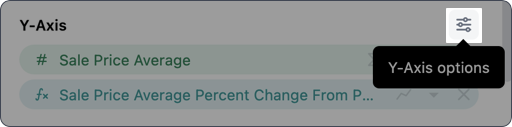
Options
These settings control only the axis itself. To customize the series mapped to the axis, use the dropdown next to the series/field.
Axis types
The Type setting controls the type of Y-axis used in the visualization. Omni will select a default axis type depending on the data in the query, but you can override it using this setting. Note: Depending on the selected type, some settings - such as domain and scale - may become unavailable.Labels
The settings in the Labels tab allow you to customize how labels associated with the Y-axis display in the visualization:- Show labels - If enabled, labels will display on the Y-axis
- Show axis line - If enabled, a line representing the Y-axis will display
- Show ticks - If enabled, ticks will display along the Y-axis
-
Font - Options for customizing the styling and color of Y-axis labels
When selecting axis colors, note that there aren’t separate settings for light and dark mode.The default palette will adjust colors based on the selected mode - such as a dark axis in light mode - but when explicitly defined, the color you select will be used in both light and dark mode.
- Format - Defines the format Y-axis labels use, such as the number of decimals for numbers
- Label rotation - Controls the degree of rotation for Y-axis labels
- Ticks - Controls the number of ticks that display between labels
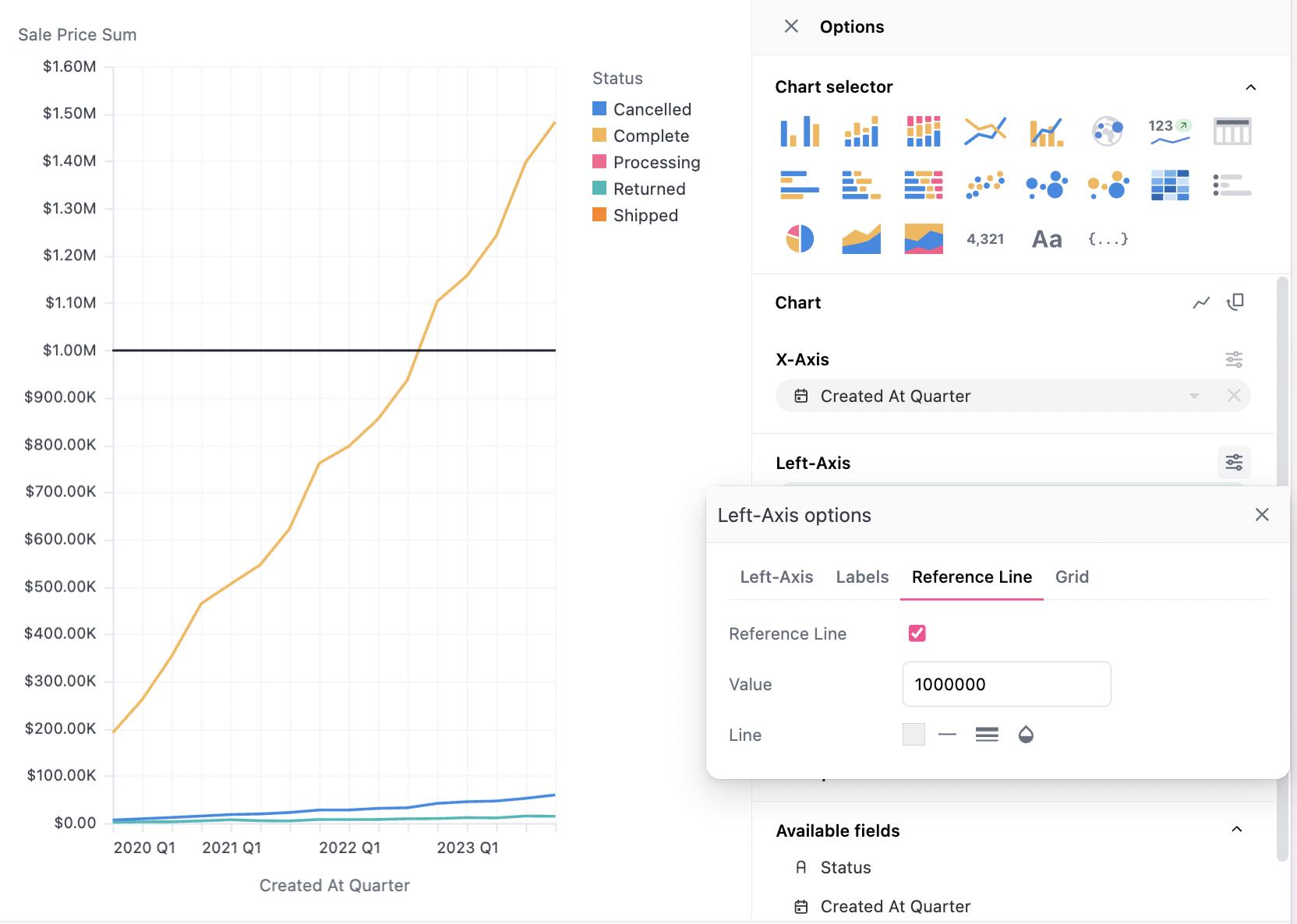
Reference lines