

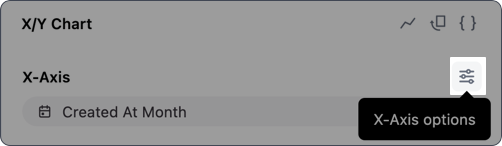
Options
These settings control only the axis itself. To customize the series mapped to the axis, use the dropdown next to the series/field.
Axis types
The Type setting controls the type of X-axis used in the visualization. Omni will select a default axis type depending on the data in the query, but you can override it using this setting. Omni adjusts axis treatment for different data types and visualization types:- Strings - Axes will always be ordinal, and, by default, obey sort in the results table
- Numbers - Bars are ordinal; line, scatter, area are quantitative (continuous)
- Dates - Bars are ordinal; line, scatter, area are temporal (continuous)
Labels
The settings in the Labels tab allow you to customize how labels associated with the X-axis display in the visualization:- Show labels - If enabled, labels will display on the X-axis
- Show axis line - If enabled, a line representing the X-axis will display
- Show ticks - If enabled, ticks will display along the X-axis
-
Font - Options for customizing the styling and color of X-axis labels
When selecting axis colors, note that there aren’t separate settings for light and dark mode.The default palette will adjust colors based on the selected mode - such as a dark axis in light mode - but when explicitly defined, the color you select will be used in both light and dark mode.
-
Format - Defines the format X-axis labels use, such as
MMM-DD-YYfor dates - Label rotation - Controls the degree of rotation for X-axis labels
- Ticks - Controls the number of ticks that display between labels
Label spacing
Axis labels will behave differently for continuous / temporal axes (vs ordinal / string).- In continuous mode, the labels will be spaced so as not to cut text, but may not align exactly with the visualization points
- In ordinal mode, the values will be labeled one-by-one and hidden in consistent intervals to avoid collision.