

- Teams, such as Operations or Finance
- Employee level, such as Manager or Executive
- Projects
- Clients
Creating folders
- Omni UI
- API
To create a folder in the Omni UI, click Add folder in the My documents folder or your organization’s Hub. If your organization’s Shared root is open setting is disabled, you won’t be able to create content in the Hub.
Nesting folders
Creating subfolders in folders is supported. The parent folder can contain up to seven levels of nesting, for example:. Shared (root)
Folder 1
Folder 2
Folder 3
Folder 4
Folder 5
Folder 6
Folder 7 (nesting limit)
Accessing and sharing folders
When you share a folder, permissions cascade to all documents and subfolders inside it. This means that the access role you assign to a folder applies to everything the folder contains. Content access roles on folders work differently than on individual documents. For a detailed comparison of folder and document permissions, and information about inheriting access roles, refer to the Sharing content guide.Configuring folder settings
Manager or Owner permissions are required to modify folder settings.
- General - The folder’s name, its URL path, and where breadcrumbs start. Refer to General settings for more information.
- Document settings - Defaults and locks for the document abilities of every document in the folder’s subtree. Refer to Default document abilities for more information.
General settings
- Omni UI
- API
To access a folder’s general settings, click the icon next to the folder in a content list page, then Folder settings.The General tab contains the following settings; click Advanced to view all settings. Click Save to apply any changes.Changing a folder’s Path changes its URL - it doesn’t change the folder’s location. See Moving folders for more information.
Name
Defines the display name of the folder.Path
Defines the URL segment of the folder. For example, if a folder’s Path is set toblob-sales, the URL to access the folder might be something like:Start breadcrumbs at this folder
When enabled for a folder, breadcrumbs for the folder and everything inside it start at that folder.Ancestor folders and the crumbs for the top-level spaces (Shared and My Documents by default) are hidden. If your organization has renamed these spaces, the hidden crumbs use the custom names instead — see Group titles and visibility. This setting affects:- Folder page breadcrumbs and the file picker
- Dashboard and document title breadcrumbs and hover cards
- Content list location strings
contentPath folder.Default document abilities
Folder managers can set defaults or locks for a folder’s document abilities — such as Download or Require pull request to publish — so the setting applies across every document in the folder’s subtree.- Omni UI
- API
- Open the folder and click the icon next to the Share icon.
- Click Folder settings.
- Click the Document settings tab.
-
For each document ability, select an option:
- Organization default - New documents use the ability’s default setting in Settings > Content permissions
- On - New documents have the ability enabled by default
- Off - New documents have the ability disabled by default
-
Optional. To prevent Editors from changing the ability in individual documents, click the icon:
When locked, Editors won’t be able to change the ability’s value. Additionally, documents already in the folder’s subtree - that is, documents in the folder and the folders it contains - won’t be able to change the ability either. If a folder higher in the tree already locks an ability, you won’t be able to change its value. Instead, you’ll see a yellow lock and a note indicating the folder locking the ability:
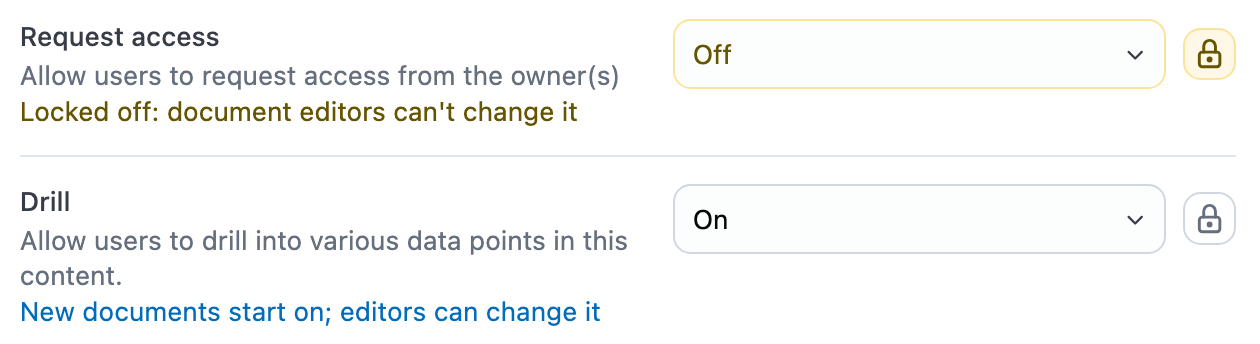
Locking an ability prevents document Editors from changing it, even if they otherwise have permissions to modify document settings
When folders are nested and more than one locks the same ability, the topmost folder’s setting is used even if a subfolder has a stricter setting.
Document ability is locked by the Blobs folder, which is higher in the folder tree
- When finished, click Save to apply your changes.
A folder’s default ability settings don’t apply to documents moved into the folder, only to documents created in the folder after the settings are defined.
Moving folders
- Open the folder options menu:
- Open the folder and click the icon next to the Share icon, or
- On a page like the shared Hub or My Documents, right-click the folder or click the icon next to the folder.
- Click Move.
- Select the folder to move to.
- Click Save.
Deleting folders
Folders can only be deleted if they’re empty. Who can delete a folder depends on their content access role:- Editors can delete empty folders they created
- Managers can delete any empty folder they have access to
- Omni UI
- API
To delete a folder in the Omni UI, click the folder’s icon and then Delete.