

Adding a filter to a new measure
You can create a new measure by picking a quick aggregation from an existing dimension (e.g. sum, average), or by duplicating an existing measure. When you go to edit the new measure, you will have the option to add filters. The gif below shows duplicating a measure and adding a filter: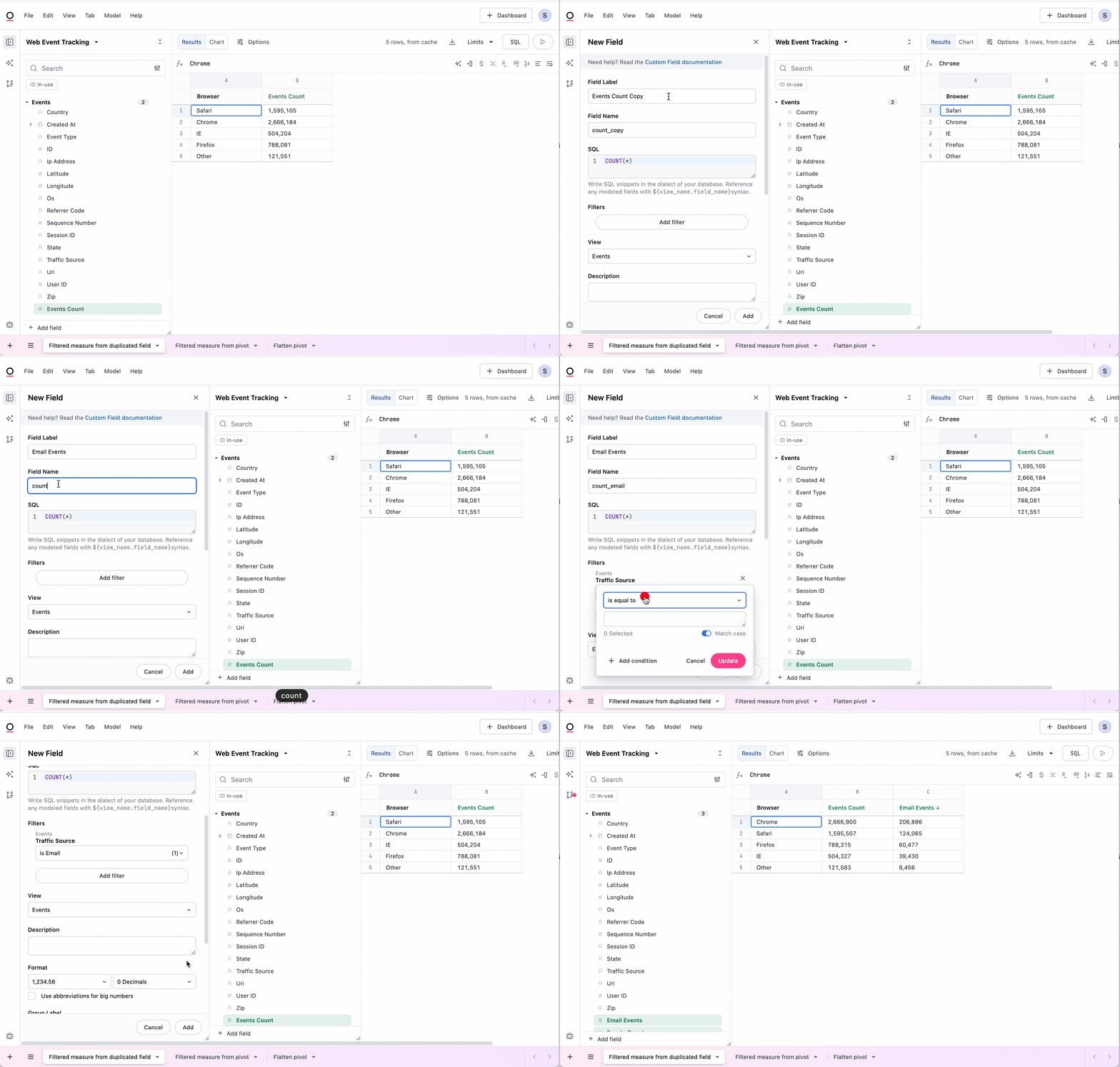
If the measure was created from custom SQL or a calculated field, the filter created in the UI will not populate.
Creating the measure from a pivot
Filtered measures can be created directly from pivots. Right clicking on the measure underneath a given pivot value and select Create filtered measure. This is a fast way to prototype and build filtered measures from existing fields, as the following gif shows: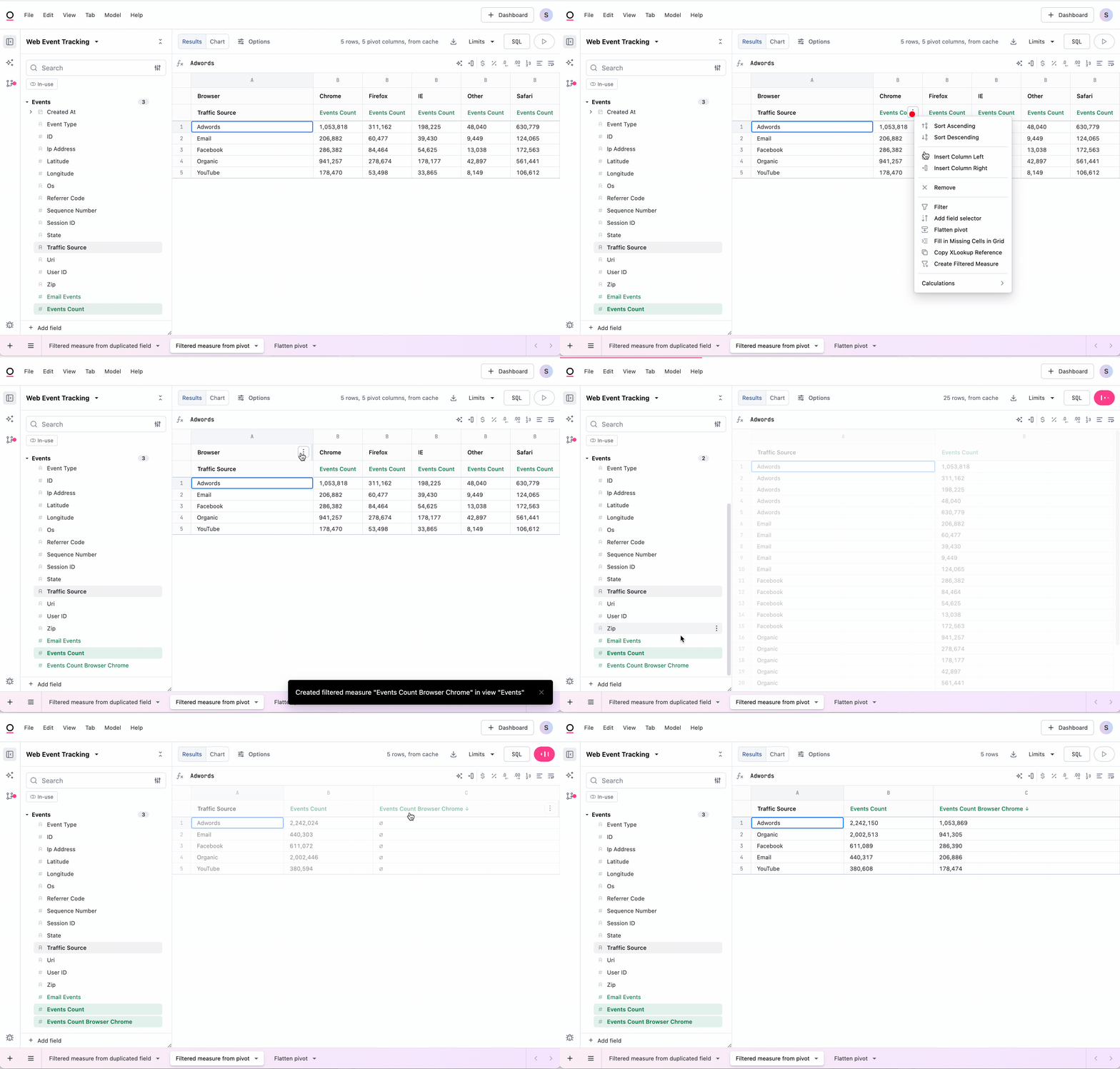
Flattening a pivot
If you have a pivoted results table and want to create multiple filtered measures, you can flatten the pivot via the pivot header menu. If you need to turn many of your pivot columns into filtered measure, this is a great way to do it in a single swoop.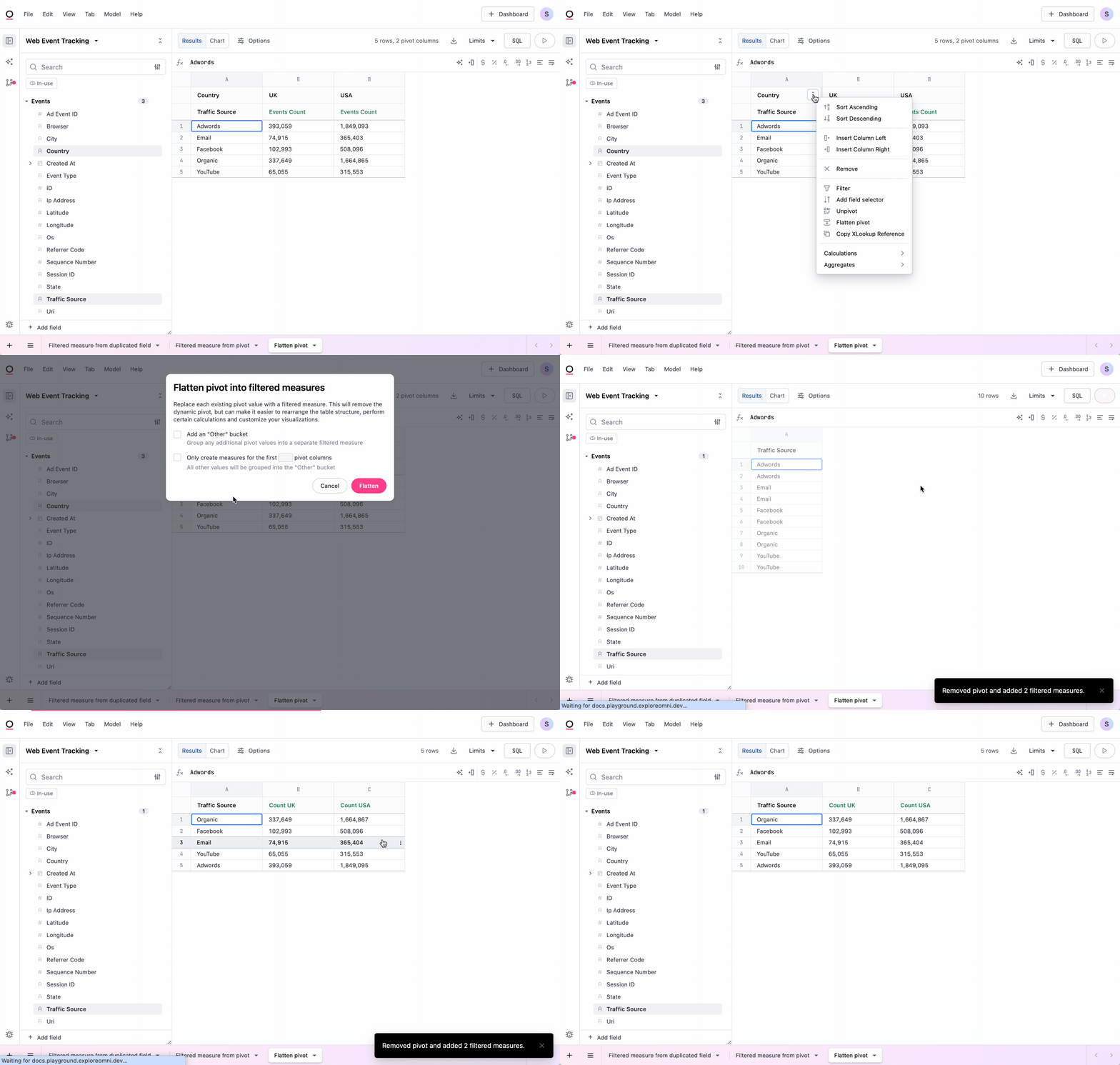
- Add an “other” bucket: Checking this box allows you to create a filtered measure for any values of the pivoted dimension not flattened. This could include values that have been filtered out of the current query or values that may appear for that dimension yet.
- Only create measures for the first N pivot columns: If you’ve checked to create an “other” bucket, you can also choose to specify how many of the columns are flattened into filtered measures. The other columns will be grouped into the “other” bucket.