

Requirements
To configure any of the Google AI integrations for your Omni organization, you’ll need:- Organization Admin permissions in Omni
- Permissions in Google Cloud that allow you to:
- Create projects
- Create OAuth apps
Create a Google Cloud project
- Open the New Project page in the Google Cloud Console.
- Complete the project form fields.
- Click Create when finished.
Configure Google Auth Platform for the project
Google requires you to configure Google Auth Platform for the project before you can generate credentials.
-
Open the project’s Auth overview page. If Google Auth Platform isn’t configured for the project, this page will look like the following:
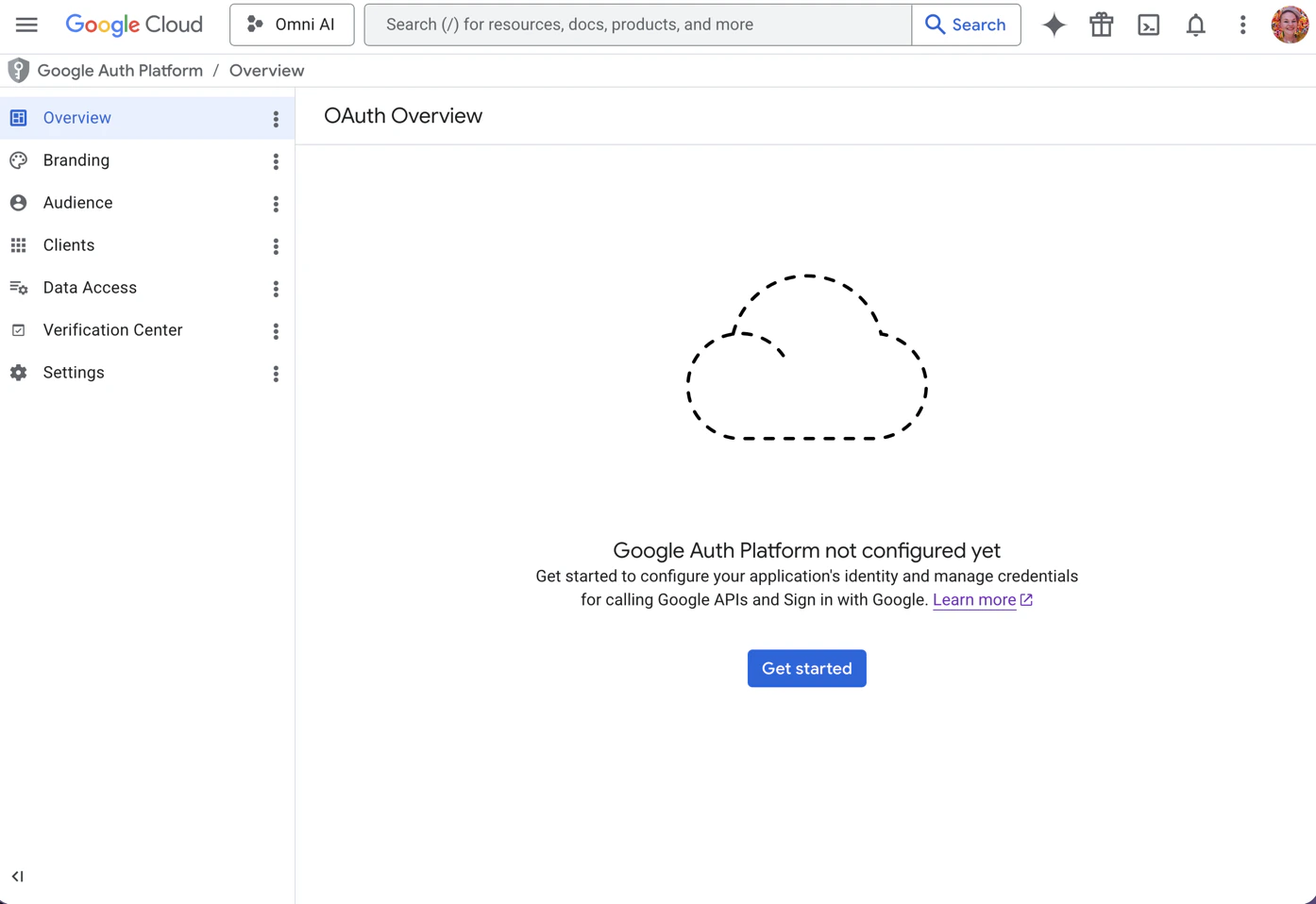
Project where Google Auth Platform isn't configured
- Click Get started.
-
Fill in the form:
- App information - Enter a Name and an Email
- Audience - Select Internal
- Contact information - Enter an email address
- Finish - Check the I agree box
- Click Create.
Enable APIs for your project
Enable only the APIs for the integrations you plan to use. You can return later to enable more.
- Open the API Library in the Google API Console.
- Add the following APIs:
- Google Calendar - Required to use the Google Calendar AI integration
- Google Drive - Required to use the Google Drive AI integration
- Google Sheets - Required to search for and retrieve Sheets when using the Google Drive AI integration
- After you locate an API, click it and then click the Enable button.
Create OAuth credentials
- Open the project’s Clients page.
- Click Create Client.
- In the application type dropdown, select the Web application.
-
Enter a Name for the client, such as
Omni AI integration. -
In the Authorized redirect URIs, add the following URIs:
- Google Calendar -
https://callbacks.omniapp.co/callback/google-calendar - Google Drive -
https://callbacks.omniapp.co/callback/google-drive - Google Sheets -
https://callbacks.omniapp.co/callback/google-sheets
At this point, the page should look like the following:Add only the redirect URIs for the integrations you plan to use.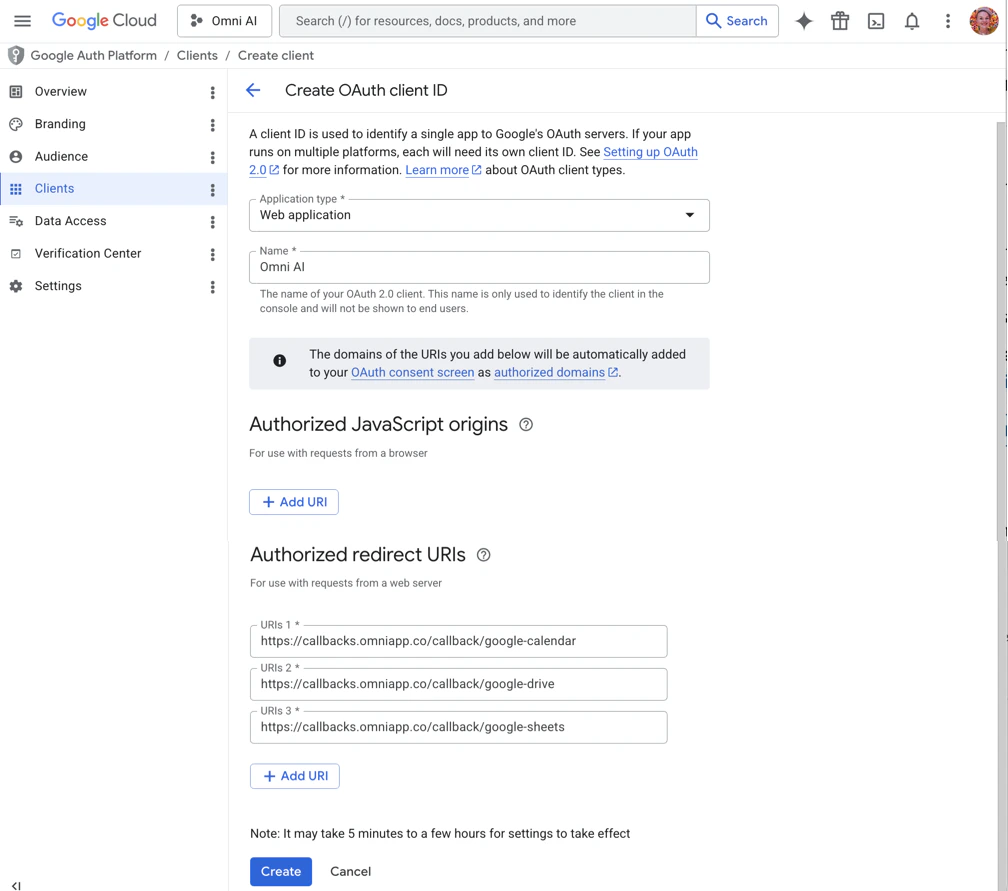
Completed OAuth client form
- Google Calendar -
-
Click Create. After you create the client, a dialog like the following will display:
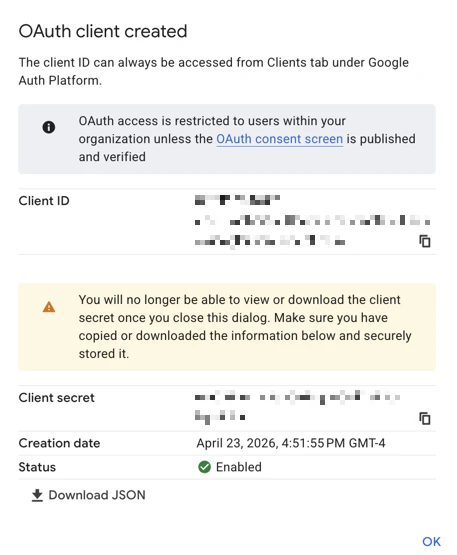
Generated OAuth credentials
- Keep this dialog open for now - you’ll need it to complete the setup in Omni.
Enable and configure the Omni integrations
- In Omni, navigate to Settings > Integrations.
- Click the AI Integrations tab.
- For each Google integration you want to connect, complete the following steps:
- Toggle the integration to on.
- When prompted, enter your credentials:
- OAuth Client ID - Paste the Client ID from the Google OAuth client
- OAuth Client Secret - Paste the Client secret from the Google OAuth client
- Click Save.
Next steps
- Learn how to use the Google Calendar AI integration to reference events and meetings in the Omni Agent
- Learn how to use the Google Drive AI integration to search and retrieve files in the Omni Agent
- Explore the Omni Agent to learn more about conversational data analysis
- Connect other AI integrations to add context from additional tools
- Review AI security practices to understand how Omni processes data