

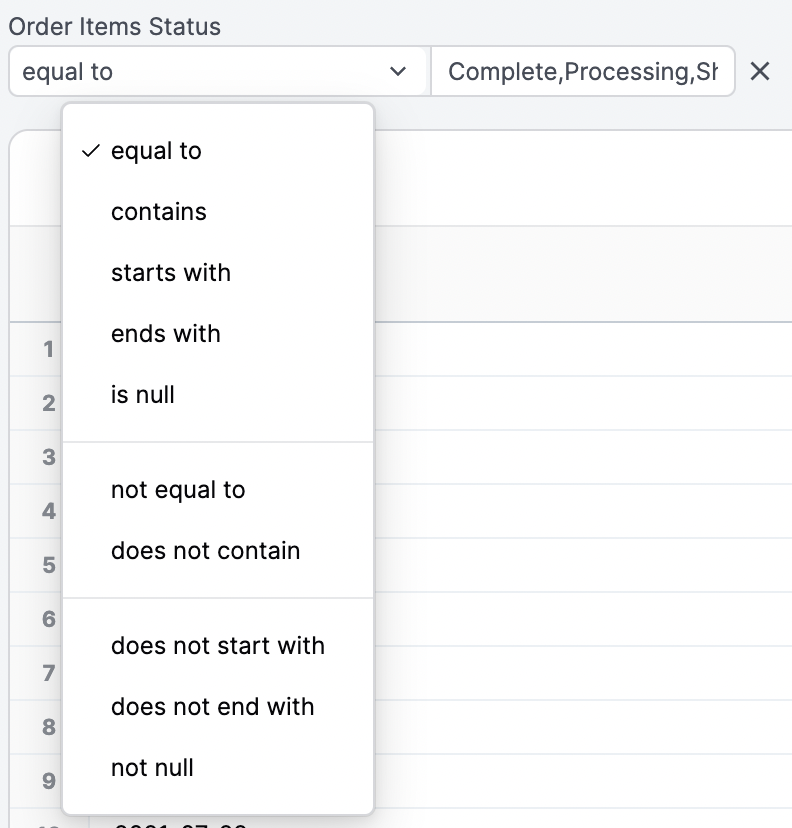
OR), insert a comma between values: [bread, cheese]. If your filter values include commas, you can escape them with \: San Francisco\, CA.
Date filters
Filter suggestions are limited to 2,000 rows.
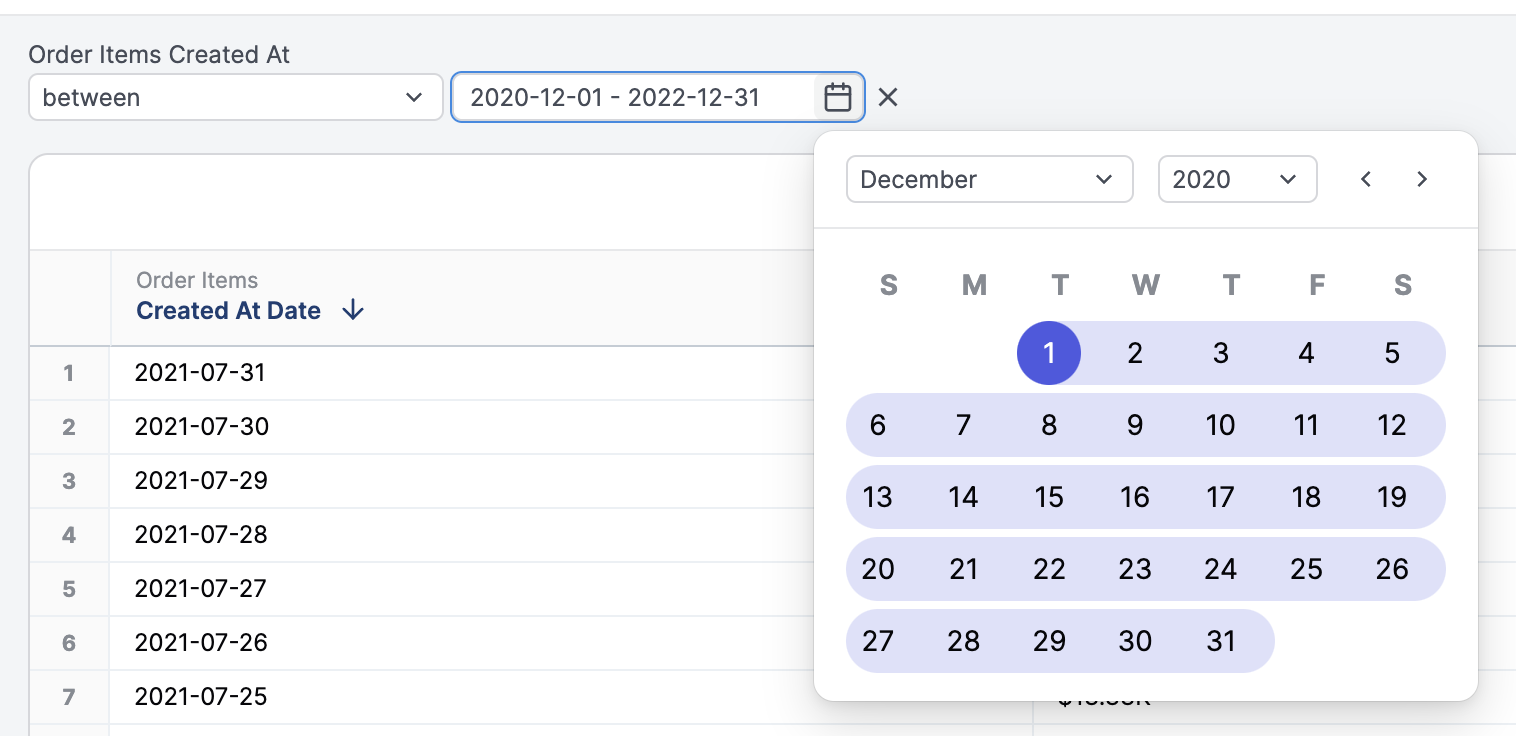
- Absolute date filtering, such as
2022,2023-01-01,2021-Q4 - Relative date filtering, such as
after 7 complete days ago,1 year ago
first ten days of 2023 or 100 days ago for 10 days. For these situations, time for an interval duration offers more flexible time inputs:
- The first input should contain the starting point. This value should either be a date (
2023-01-01) or a relative date (10 days ago). Note:Agois required. - The second input should contain the duration.
Interval timeframe units
Intervals can accept any timeframe unit:Filtering by another query
With two or more tabs, one tab, or query, can be used as a filter in other queries. This is particularly useful for creating a dynamic subset of information in one query and a deep dive into the results on another tab. For example, you want to understand the brands your top customers are purchasing. To do this, you would:- In a workbook, create a tab with the definition of a top customer.
- Create a new tab.
- In the new tab, add the dimensions and measures you want to analyze.
- In the field picker, locate a dimension used in the top customer definition tab.
- On the dimension, click the options menu (three dots) and select Filter.
- Select Is from another query.
-
In the modal that displays, select the tab and dimension you want to filter by:
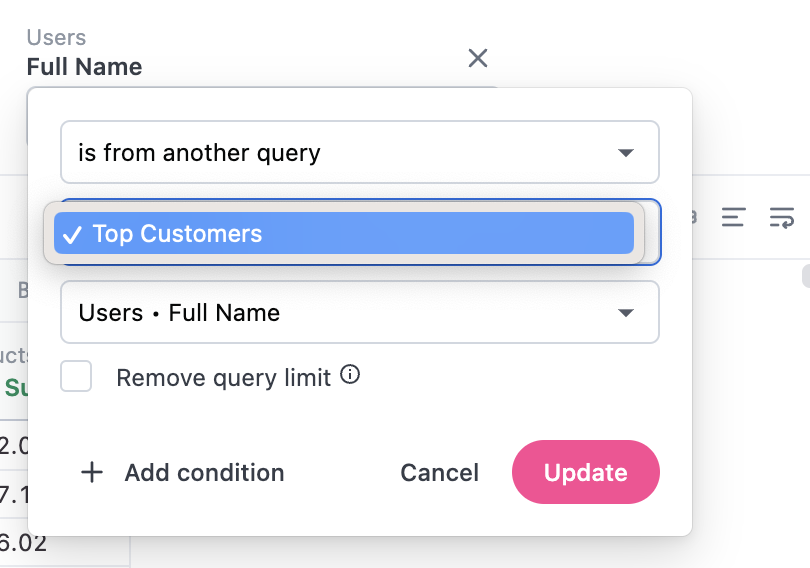
WHERE clauses that look like WHERE IN (SELECT...) where the SELECT clause is the filtering query.
You can also use this approach to filter out data. To do this, select Is not from another query in the Filter menu or the
field_name_not_in_query filter parameter.Filtering by multiple conditions
You can filter a field by multiple conditions (e.g.Date is in the past 30 days OR date is null) by clicking Add Condition in the filter modal. Then, select if you want All or Any of the conditions to apply to the query.
Filtering across multiple fields
You can create filter groups of OR filters that span multiple fields, allowing you to build queries where any of several conditions across different fields can be true, such asCountry is USA OR Joined Month is March.
Unlike filtering by multiple conditions on a single field, multi-field OR filters let you combine conditions from entirely different dimensions, while single-field multi-condition filtering applies multiple conditions to the same field.
For example:
- Single-field filtering -
Date is in the past 30 days OR date is null, where both conditions apply to the same date field - Multi-field filtering -
Country is USA OR Gender is Female, where conditions apply to two different fields
- Add a filter to your query by selecting a dimension and choosing your filter condition.
- Hover over the filter and click the icon.
- Click Add to filter group > New filter group.
- In the dialog that displays, click Add filter.
- Select another field and configure its filter condition.
- Repeat as needed to add additional fields to the filter group.
- When finished, click Create.
Filter suggestions
When you filter on a field, Omni suggests values to pick from. By default these come from a query for the field’s distinct values, capped at 2,000 rows, scoped to the topic the field belongs to. See Customizing filter suggestions for more information, including changing where suggestions come from, how other filters facet them, and how they’re cached and refreshed.Refreshing stale filter suggestions
If you are not seeing all the filter suggestions, suggestions may be cached in a stale state. See Customizing filter suggestions on how to enable the refresh option for a specific query.Adding dashboard filters to workbook queries
This feature is not available in raw SQL mode or on read-only/linked tabs.
- Filters already present on the query
- Filters whose fields are covered by existing controls
- Hidden filters
- Cross-topic filters (filters that don’t match the tab’s topic)
- Dashboard controls