

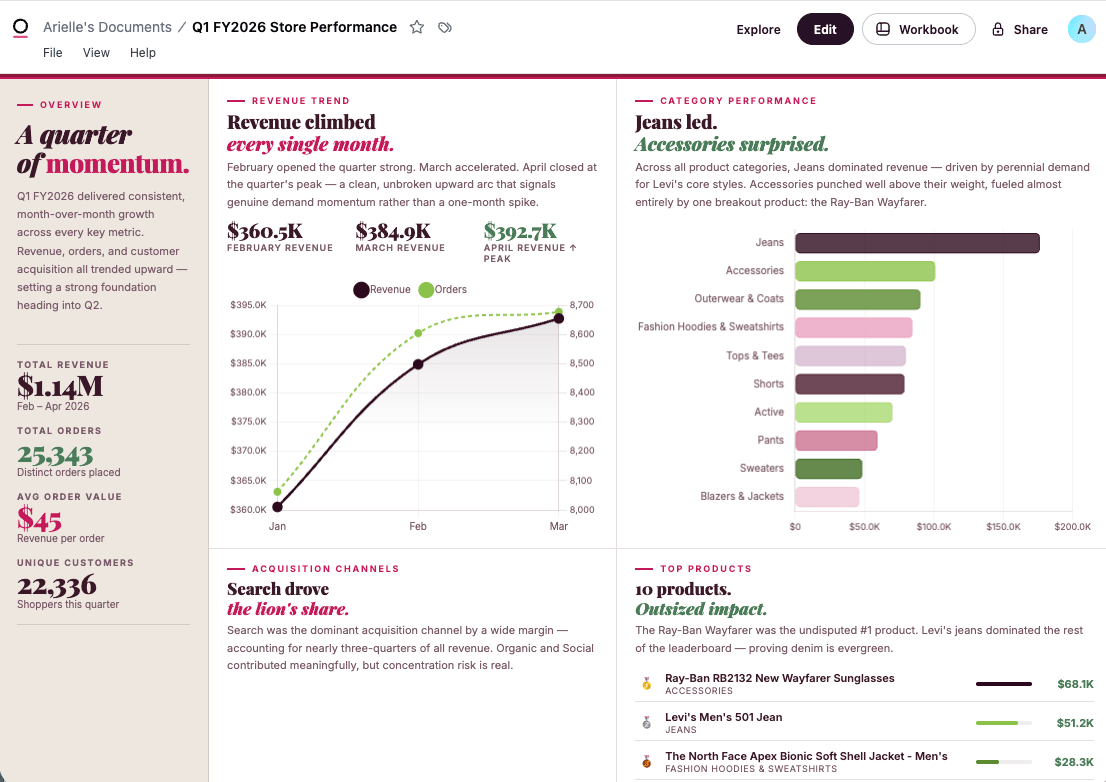
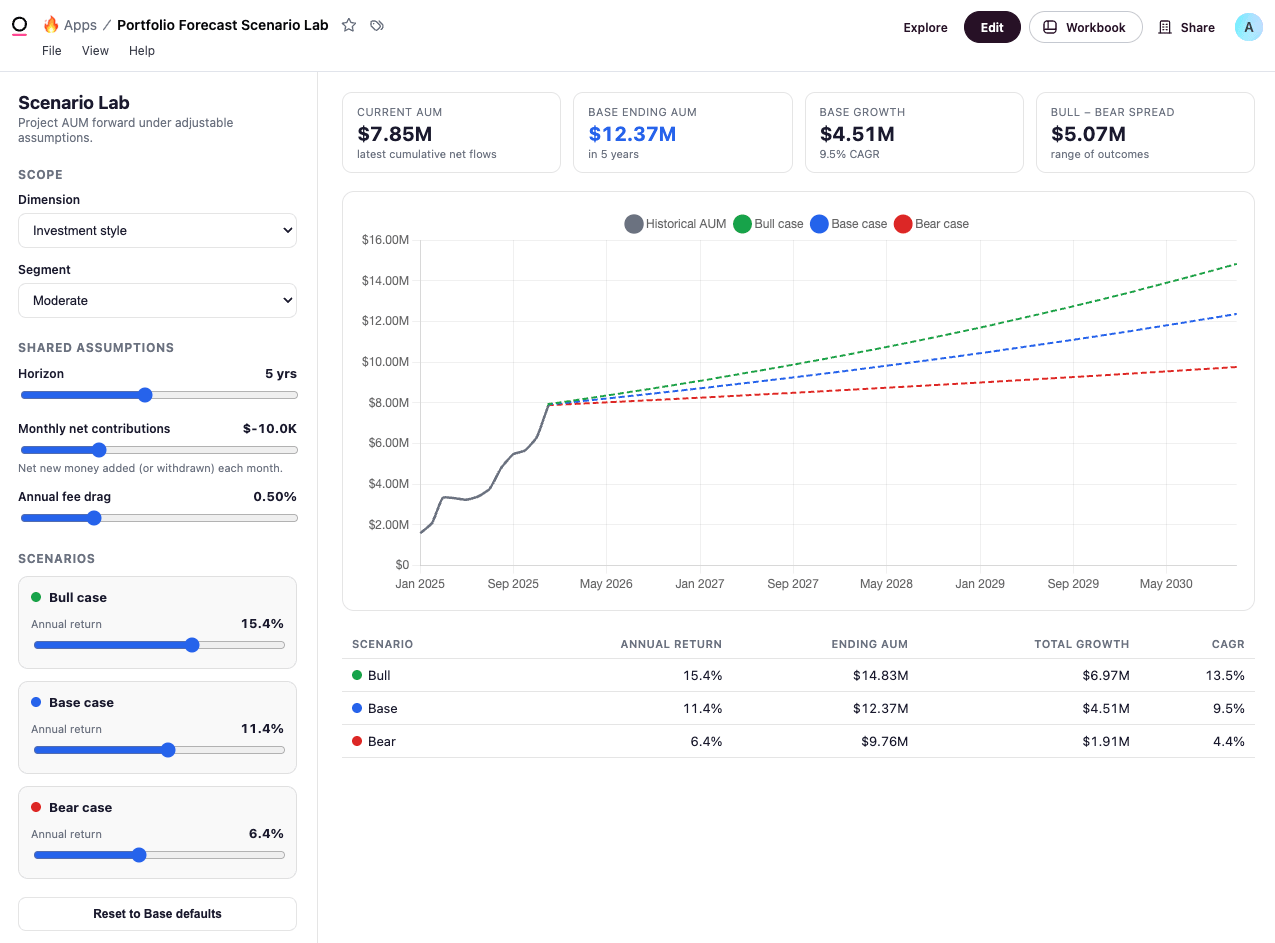
Enabling apps
Apps are enabled by default. An Organization Admin can toggle the Enable apps setting in Settings > Apps to disable them if needed. Additionally, Organization Admins can restrict individual users or groups from creating apps through a granular permission on a custom role. The same tab carries the external source policy, which sets the organization-wide ceiling on the external hosts any app may load resources from.When to use apps
Apps are the recommended content type to choose. Reach for a dashboard when you need a fully drag-and-drop creation process.Creating apps
The Enable apps setting in Settings > Apps must be enabled to create apps.
- Omni Agent
- Omni UI
You can do this:
- In a chat — Describe the interface and the data it should show in the Omni Agent. The agent generates each query the app needs against your model, writes the HTML, and wires it to the data. When it’s done, the app opens in the editor, where you can keep iterating in chat or by hand.
- In a workbook — Ask the Omni Agent to turn your current workbook into an app. The app attaches to that workbook and reads its existing tabs. The agent uses every query tab unless you ask it to use a specific subset, and reports which tabs it skipped. If you reference a tab name that doesn’t exist, the tool will fail and list the real tab names. If the workbook’s tabs are built on more than one model (see cross model tabs), the agent can switch between those models while building or editing the app. If your workbook contains a cross model tab, the agent can switch between the models used while building the app. Note: Creating a new cross model query or making changes to one inside an app may not work correctly yet.
Editing apps
Open an app and click Edit in the top right corner of the workbook to enter a draft. The editor has two panels: a live preview of your app running against real data, and a code editor for the HTML (click Code in the toolbar to show or hide it). If you have access to the agent, the chat split-view opens alongside the editor so you can iterate with AI as you go. When you ask the agent to change an app, it will make targeted edits by locating the exact snippet in the code and only modifying the relevant portions. Each edit appears in chat as a diff preview showing precisely what changed. If a partial edit can’t be applied — for example, if the target code has changed — the agent will retry with more context or, as a last resort, rewrite the affected section of HTML. The agent can also automatically detect and fix runtime errors in the app while you’re working on a draft. This is possible only while you’re editing the app in a draft.Styling apps
Apps automatically have access to Omni’s design system CSS variables and your organization’s custom theme styles. This allows you to build interfaces that match Omni’s look and feel and your organization’s branding, with automatic support for light and dark mode. See Styling apps for details.Access Warnings
When editing a draft app, an Access Warnings button may appear in the edit toolbar. This button shows which tiles will be restricted for Viewer and Restricted Querier users, helping you identify accessibility issues before publishing. When clicked, a popover lists the specific tiles that will be restricted and explains why users with limited permissions won’t be able to see them. The Access Warnings button only appears when all of the following conditions are met:- You are editing a draft app
- Restricted Queriers or Viewers have access to the underlying model
- One or more tiles in the app are restricted
Filters
When an app applies dynamic filters to its data (for example, when you interact with custom controls in the app interface), those filter values are automatically saved to the URL asaf-- query parameters. This gives apps the same filter persistence that dashboards have.
Reloading the app, sharing the link, or opening it in a new tab will restore the filtered state. Using your browser’s back and forward buttons steps through filter changes, so you can navigate through the app’s filter history.
Drilling
The document’s Drill setting must be enabled to use drilling in an app.
Let users click a cell in the orders table to see the order items behind it.The Omni Agent uses the available drill fields in the model to fulfill the request. To change the columns that appear when someone drills, refer to Customize drill fields.
Writing to input columns
Apps can write values back to input columns — the editable columns a workbook author adds to a query. This lets an app collect input from the people using it, such as a triage state, a review score, or a forecast override, and persist it the same way input columns persist everywhere else in Omni. An app can write to an input column that already exists, or you can ask the Omni Agent to create one in the same chat while you build or edit the app. The agent only sets up the column’s structure — name, data type, edit mode, and key columns — subject to the same requirements as creating one from a workbook. Someone still has to enter values, either in the tab or through the app itself. Describe the behavior to the Omni Agent when you build or edit the app. For example:
Show open opportunities as cards. Add a Mark as in call button to each card that writes Yes to the in_call input column for that opportunity.
The agent finds the input column on the query, sends the correct key values with each write, and surfaces failures in the app.
Written values appear in the query results the next time the query runs.
Writes respect the input column’s edit mode and the viewer’s row-level data access, so an app can’t be used to write around either.
Calling the Omni API
Apps can call a small allowlist of Omni API endpoints. This lets an app read Omni’s own metadata — the viewer’s identity, the content they can open, the models they can query — so you can build homepages, navigation portals, content catalogs, and data dictionaries that stay current on their own. Calls run with the permissions of the person viewing the app. Two people opening the same app can get different results, and an app can never show someone more than they could see in Omni itself. Access is read-only. An app can read metadata through these endpoints, but it can’t change anything with them.What you can build
- Homepages and navigation — a branded landing page of the viewer’s favorites and recents, each tile linking into the real dashboard
- Curated content portals — a Verified reports hub filtered by label, or a per-team portal driven by folders
- Search experiences — a custom search box over everything the viewer can open, styled to your brand, for embeds where Omni’s own navigation isn’t available
- Data dictionaries — a self-serve catalog of every view, dimension, and measure in a model
- Live ERDs — an always-current diagram of topics and their join relationships, drawn from the model itself
Available endpoints
Inspecting app elements
When editing a draft app, an Inspect button appears in the edit toolbar, allowing you to select elements in the running app and send them as annotated images to the Omni Agent for context. See Using the App inspector for more information.Settings
Apps run in a sandboxed iframe with strict security controls by default. App-level settings let you enable specific features on a per-app basis, giving you fine-grained control over what each app can do. For example, enabling app settings can allow you to:- Load resources like images and fonts from a list of allowed domains
- Render map tiles using keyless providers such as Carto
- Open links to external sites or navigate to other pages inside Omni
- Copy text or values to the clipboard from a button in the app
Delivering and downloading apps
A published, viewable app can be downloaded as a PNG, PDF, Excel workbook, or zipped CSVs from File > Download. See Downloading apps for details. You can also schedule the delivery of an app to an email destinations, with more destination options coming soon. A delivery can pin a specific environment connection, so it always runs against the same data.Embedding apps
Apps can be embedded in your own product with the same SSO embed flow used for dashboards and workbooks. PointcontentPath at the app and everything else about the session — modes, user attributes, connection roles, filters — behaves as it does for a dashboard. Embedded apps also work with Omni’s embed events.
Limitations
Apps support up to 100 wired queries per app. This limit applies to the total number of queries referenced in an app’s workbook.Security
Apps run in a sandboxed iframe
Each app runs inside a sandboxed iframe that blocks outbound network requests. App code can’t call third-party services or open its own connection to your data — it only works with what Omni passes in, so there’s no route for it to send your data anywhere. Omni API calls are no exception: the app names an endpoint and Omni makes the request on the server, against a fixed allowlist. No API key or credential ever reaches the app.Specific features that require widening the iframe’s security policy (such as loading map tiles, allowing navigation, or displaying externally-hosted images) can be enabled on a per-app basis through app settings. These settings are off by default and must be explicitly enabled by an editor.However, inline images, video, and audio can be displayed or played without configuring a Safe domain allowlist. This includes inline base64 content (
data: URIs) and canvas-generated or in-browser-recorded content (blob: URIs), as these are all rendered within the iframe without making network requests.Data access stays governed
An app can’t query your warehouse directly. The only data it sees is the results of its workbook’s queries, which Omni passes into the iframe. Every app inherits the access rules already in place — connection permissions, the semantic model and data permissions, and content sharing all carry over.The same holds for the two ways an app reaches beyond its own query results. Input column writes respect the column’s edit mode and the writer’s row-level data access. Omni API calls run with the permissions of the person viewing the app, so two people can get different results from the same app, and an app can never widen anyone’s access.
Only trusted libraries can load
Apps can load charting, styling, and font libraries from a short list of trusted CDNs, but nothing else. App editors can optionally configure Safe domains to load resources from additional trusted hosts beyond the default CDNs, within whatever ceiling the organization’s external source policy sets. Video and audio hosts work the same way as images: they load only from a host added to Safe domains.
An app rendered inline through the Omni MCP server’s
showApp tool runs under the same sandboxing and governed queries described above.