

@Omni it in a channel, or fire off a slash command and get back summaries, tables, and charts.
Requirements
To interact with the Omni Slack Agent, you’ll need:- To connect your Omni organization to Slack. An Omni Organization Admin only needs to do this once. See Connecting your Omni organization for more information.
- To link your Omni and Slack accounts. See Connecting your Omni account to Slack for more information.
Asking questions
Omni’s AI responses can be inaccurate. Double-check your results before making any major decisions.
- Direct message - DM the Omni Slack Agent.
@mentionin a channel - Type@Omnifollowed by your question in a channel that Omni is a member of.- Group DM - Start a new group DM with the agent as one of the participants. The agent can’t be added to existing group DMs.
Asking follow-up questions
To ask a follow-up question in a channel thread, mention the agent (@Omni) and include your question in the same Slack thread:
Providing response feedback
Use the and buttons that appear on AI responses to rate the quality of the response. Your feedback helps improve the accuracy and usefulness of future responses.Using slash commands
The Omni Slack Agent supports slash commands as an alternative way to interact with the agent. All slash commands use the/omni prefix.
If the agent isn’t enabled for your workspace, you can use only /omni, /omni help, and, if you’re connected, /omni disconnect.
/omni or /omni help
Shows a list of available commands.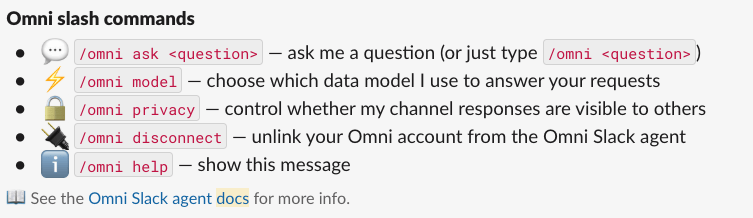
Omni Slack Agent response to /omni and /omni help
/omni ask [question]
Sends a question to the Omni Slack Agent. You can use this command with or without theask keyword:
If you use
/omni ask while your account isn’t connected, you’ll see a prompt to connect. After you connect, ask your question again./omni model
Opens a menu to select your preferred Omni model.
Omni Slack Agent response to /omni model
- If your organization has multiple models, you’ll see a dropdown to choose from
- If only one model is available, you’ll see that model displayed
- If you don’t have access to any models, you’ll see a message asking you to contact your administrator
/omni privacy
Toggles whether your responses in channels are visible to everyone or only to you.
Omni Slack Agent response to /omni privacy
/omni disconnect
Disconnects your Slack account from your Omni account.
Omni Slack Agent response to /omni disconnect
Next steps
- Delivering content to Slack - Schedule automated dashboard deliveries to Slack channels
- Omni Agent - Use the Omni Agent directly in the Omni UI
- Skills - Build reusable, AI-powered processes that your team can trigger by name