

Requirements
Every person who wants to use the MCP Server must complete the setup.
- To install Claude Code
- To have the following enabled in Omni:
- The MCP Server AI setting. An Organization Admin can enable this setting by navigating to AI Hub > MCP.
- Personal access tokens (PATs). An Organization Admin can activate them by going to Settings > API Keys > Personal tokens.
Setup
- Claude Connector (Recommended)
- Manual CLI Setup
- Claude Code Cloud
The official Omni connector for Claude provides the fastest setup experience with no manual configuration required.
1
Install the connector
Visit the Omni Analytics connector page and click Add to Claude to install the connector. This adds the Omni MCP server to both Claude Desktop and Claude Code.
2
Start a new Claude Code session
Run
claude to start a new session. The Omni MCP server will be available automatically.3
Authorize the connection
- Claude Code will detect the Omni connector and prompt you to authenticate.
- Your browser will open and redirect you to an Omni authorization page.
- Review the requested permissions and click Authorize.
4
Verify the connection
At this point, you should be able to use the Omni MCP server in your Claude Code sessions: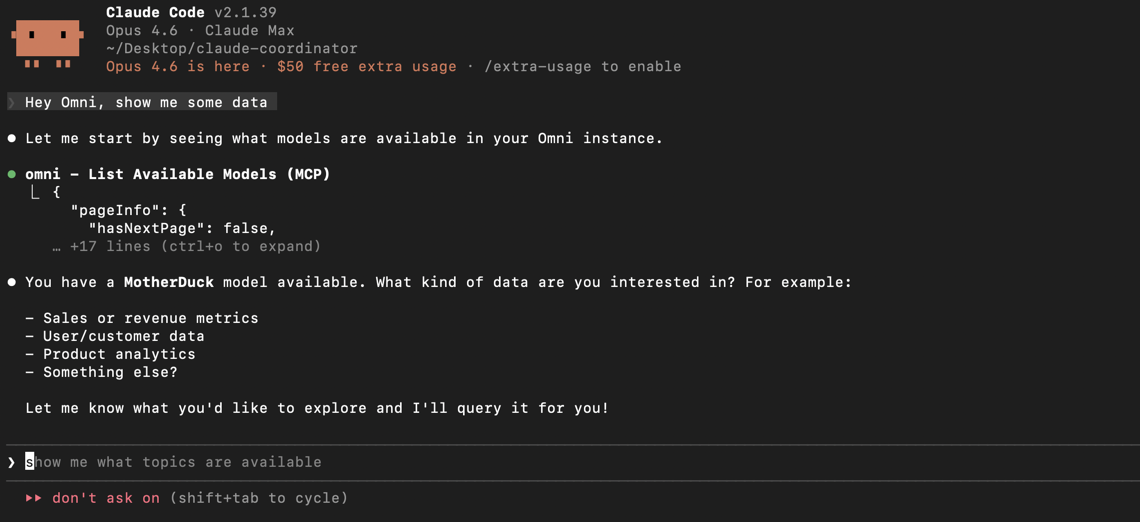
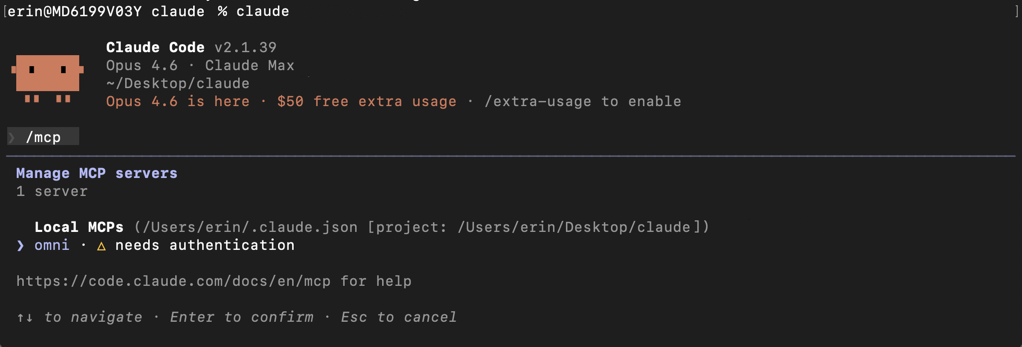
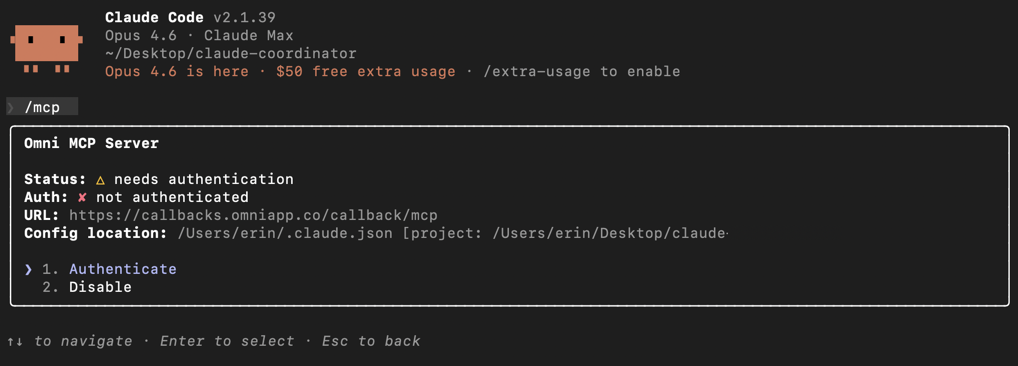
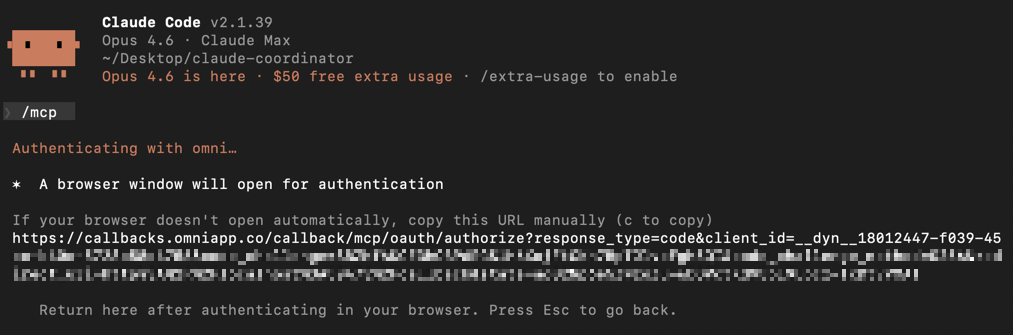
Troubleshooting
Tool denial in 'don't ask' mode
Tool denial in 'don't ask' mode
Claude Code may sometimes return an error similar to:This mode automatically blocks tools that aren’t pre-approved rather than prompting you for approval. To resolve this issue, you have a few options:
- Restart Claude Code with the tools allowed:
- Update your permission settings to allow MCP tools. Add
mcp__omni__*to your allowed tools in your Claude Code settings or.claude/settings.json - Switch out of ‘don’t ask’ mode, which will ensure you are prompted to approve tool calls