

Requirements
To manage embed secrets, you’ll need:- Organization Admin permissions
- The Embed feature enabled in your Omni instance
Viewing embed secrets
Navigate to Settings > Embed > Admin to view embed secrets in your organization: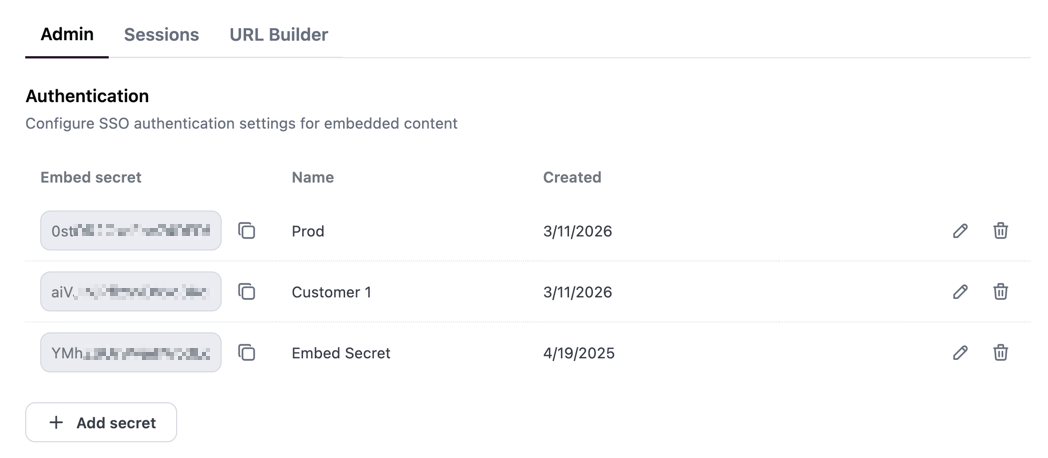
Embed secrets table in the Omni UI
Creating secrets
To create a new embed secret:- Navigate to Settings > Embed > Admin in your Omni instance.
- Click the Add Secret button below the secrets table.
- In the dialog that appears:
- A 32-character secret key is automatically generated for you
- Enter a descriptive Name to identify the secret’s purpose (e.g., “Production”, “Staging”, or “Partner Integration”)
- Click Add secret to save the new secret.
Renaming secrets
Only the secret’s Name can be edited - the secret key value itself cannot be changed. If you need a new secret key, create a new secret instead.
- Navigate to Settings > Embed > Admin.
- Click the Edit button in the Actions column for the secret you want to modify.
- Update the Name field in the dialog.
- Click Save to apply your changes.
Rotating secrets
Because Omni allows multiple active secrets at the same time, you can rotate a secret without disrupting active embed sessions:- Create a new secret in Settings > Embed > Admin.
- Update your applications to sign embed URLs with the new secret. Both the old and new secret will continue to authenticate embed URLs during this phase.
- Verify that all environments are signing with the new secret and that no traffic is still using the old one.
- Delete the old secret to immediately invalidate any URLs still signed with it.
Deleting secrets
To delete an embed secret:- Navigate to Settings > Embed > Admin.
- Click the Delete button in the Actions column for the secret you want to remove.
- Confirm the deletion in the dialog that appears.