> ## Documentation Index
> Fetch the complete documentation index at: https://docs.omni.co/llms.txt
> Use this file to discover all available pages before exploring further.
# KPI
> KPI visualizations highlight the metrics that matter most, with components for single values, comparisons, progress to a goal, sparklines, text, and images.
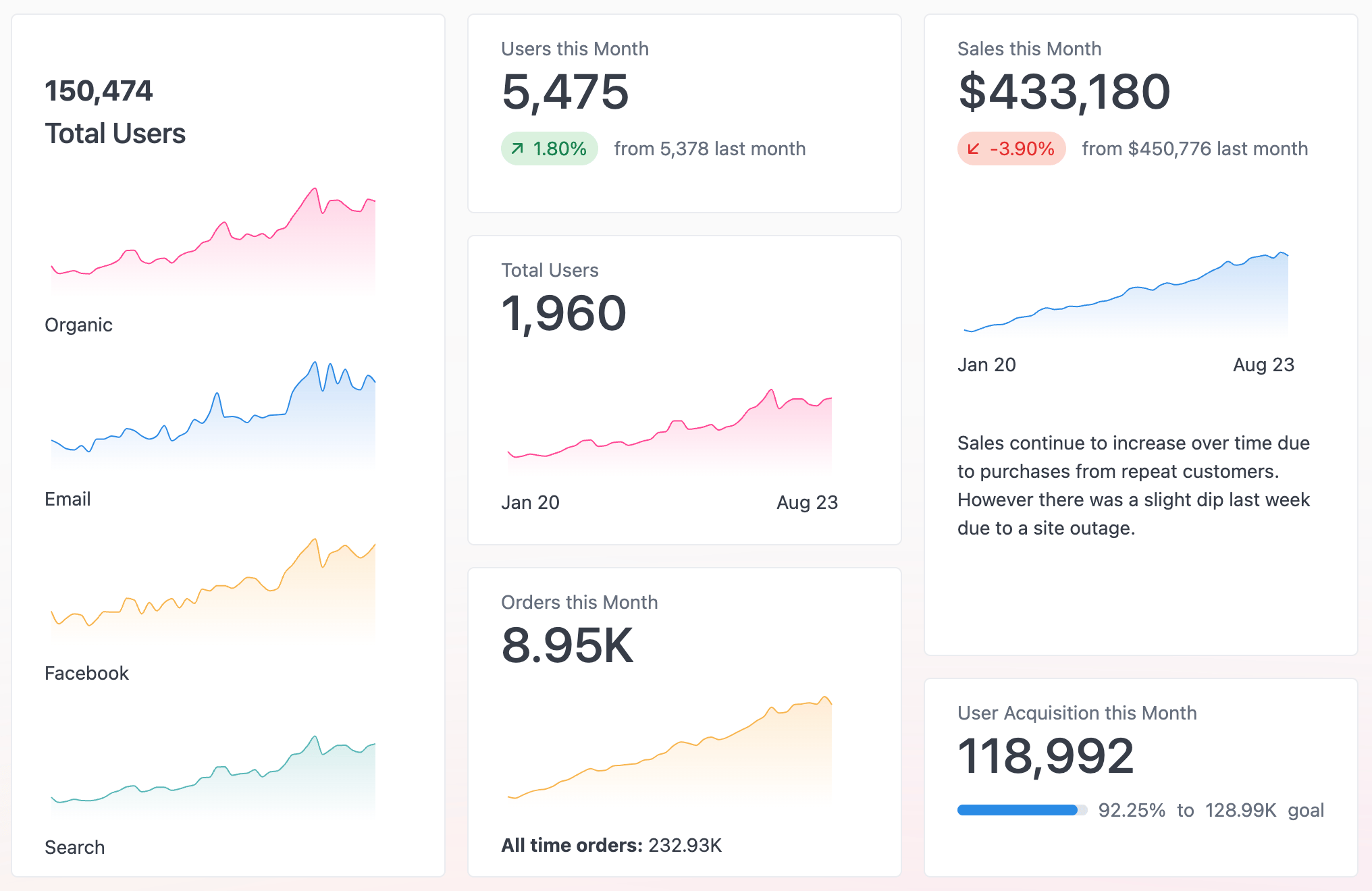
KPI visualizations spotlight key metrics and data points, from a single headline number to side-by-side comparisons and progress toward a goal. Each KPI is built from one or more rows, and every row can be a different component type, giving you fine-grained control over layout and presentation.
 ## Adding components
KPIs support several types of components, allowing you to customize the content and layout of your visualization. Click the **Add** button in the visualization to add a new component.
## Customizing components
To customize the display of a component, click the component in the visualization editor. Use the **KPI Builder** tab in the chart configuration options to make changes to the component.
## Component types
KPIs support several component types, each suited to a different way of presenting data. You can mix and match them within a single visualization.
### Number
Highlights a single value.
## Adding components
KPIs support several types of components, allowing you to customize the content and layout of your visualization. Click the **Add** button in the visualization to add a new component.
## Customizing components
To customize the display of a component, click the component in the visualization editor. Use the **KPI Builder** tab in the chart configuration options to make changes to the component.
## Component types
KPIs support several component types, each suited to a different way of presenting data. You can mix and match them within a single visualization.
### Number
Highlights a single value.
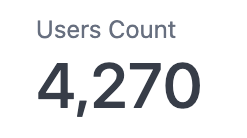 Automatically scale the text size of number components by setting **KPI numbers** to **Dynamic size** in the chart configuration's **Style** tab. When set, numbers will dynamically change size as tiles are resized or dashboard layouts are changed. **Not supported for classic dashboards.**
### Comparison
Comparison components compare one value to another and support comparing across columns and pivots. Select the same column for both comparison fields to compare two rows within a dataset.
Automatically scale the text size of number components by setting **KPI numbers** to **Dynamic size** in the chart configuration's **Style** tab. When set, numbers will dynamically change size as tiles are resized or dashboard layouts are changed. **Not supported for classic dashboards.**
### Comparison
Comparison components compare one value to another and support comparing across columns and pivots. Select the same column for both comparison fields to compare two rows within a dataset.
 ### Progress
Compares two values. Useful for showing progress to a goal. Can be displayed as a bar (shown) or a circle.
### Progress
Compares two values. Useful for showing progress to a goal. Can be displayed as a bar (shown) or a circle.
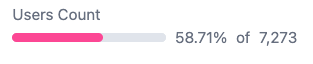 Compare to a static number - like a goal - by adding a column to the query that always returns the same number.
### Chart
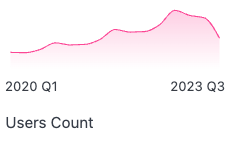
Chart components display a mini sparkline, bar, or line chart. Renders a sparkline by default.
Compare to a static number - like a goal - by adding a column to the query that always returns the same number.
### Chart
Chart components display a mini sparkline, bar, or line chart. Renders a sparkline by default.
 ### Text
[Markdown](https://www.markdownguide.org/cheat-sheet/) enabled free text. Useful for titles, headings, and descriptions.
For complex layouts, use the [Markdown visualization](/visualize-present/visualizations/types/markdown).
### Text
[Markdown](https://www.markdownguide.org/cheat-sheet/) enabled free text. Useful for titles, headings, and descriptions.
For complex layouts, use the [Markdown visualization](/visualize-present/visualizations/types/markdown).
 ### Image
Images display an inline image. Configured by providing a URL to a publicly accessible image.
### Image
Images display an inline image. Configured by providing a URL to a publicly accessible image.
 Use [Mustache](/visualize-present/mustache-reference) to parameterize the URL. For example, `https://en.gravatar.com/{{result._first.users.img_link}}`
## Styling options
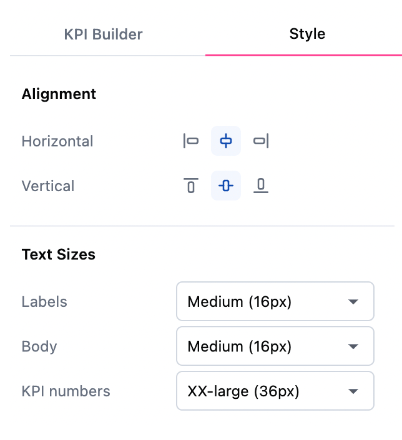
Use the **Style** tab in the chart configuration options to customize the alignment and text sizes for KPI components.
Use [Mustache](/visualize-present/mustache-reference) to parameterize the URL. For example, `https://en.gravatar.com/{{result._first.users.img_link}}`
## Styling options
Use the **Style** tab in the chart configuration options to customize the alignment and text sizes for KPI components.
 ## Converting to raw Markdown
If you want to customize a KPI beyond Omni's built-in options, you can convert the visualization directly to Markdown by changing the visualization type to **Markdown**.
To undo changes, use the back button in your browser.
## Converting to raw Markdown
If you want to customize a KPI beyond Omni's built-in options, you can convert the visualization directly to Markdown by changing the visualization type to **Markdown**.
To undo changes, use the back button in your browser.