> ## Documentation Index
> Fetch the complete documentation index at: https://docs.omni.co/llms.txt
> Use this file to discover all available pages before exploring further.

<AgentInstructions>

## Submitting Feedback

If you encounter incorrect, outdated, or confusing documentation on this page, submit feedback:

POST https://docs.omni.co/feedback

```json
{
  "path": "/visualize-present/mustache-reference",
  "feedback": "Description of the issue"
}
```

Only submit feedback when you have something specific and actionable to report.

</AgentInstructions>

# Mustache syntax reference

> Complete reference for Mustache template syntax in Omni, including tags, keys, sections, and dynamic content for dashboards.

In Mustache, a **tag** is indicated by double mustaches, for example `{{results}}`. A tag is made up of one or more **keys**, which are used to find the requested data. In the previous example, `results` is the key in `{{results}}`.

<Tip>
  Check out the [Cheatsheet](/visualize-present/mustache-cheatsheet) for a high-level summary of all Omni's currently-supported tags.
</Tip>

## Locating keys

Several Omni tags require specific keys, such as a `view_name` or a `field_name`. Refer to the following sections for help finding this information in Omni.

### view\_name and field\_name

The `view_name` and `field_name` keys are used in [Query field](#query-fields) and [Query result](#query-results) tags.

To locate the name of a view or field in a query:

1. Enter **draft** mode in a workbook.
2. In the tab of the query, open the **Results** panel.
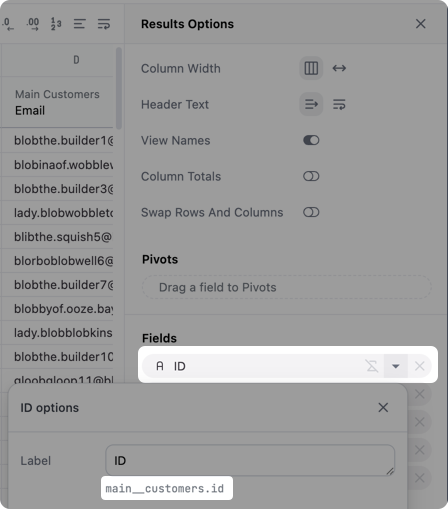
3. In the **Fields** section, locate a field and click the <Icon icon="caret-down" iconType="solid" /> (caret) icon.

Below the **Label** field will be the name of the view and the field. In the example image (click to enlarge), this is `main__customers.id`. `main__customers` is the `view_name`, and `id` is the `field_name`.

<Frame caption="Click to enlarge">
  <img src="https://mintcdn.com/omni-e7402367/LV2c4CXjbFMv1AXp/images/docs/visualization-and-dashboards/dynamic-vis-and-text/assets/images/find-view-field-name-2b8de63509b3f07ca4c23cbbd522a7eb.png?fit=max&auto=format&n=LV2c4CXjbFMv1AXp&q=85&s=fc12c43359c1c33fad43469e447e3c2e" alt="Using the query results panel to locate the names of a view and field" width="448" height="509" data-path="images/docs/visualization-and-dashboards/dynamic-vis-and-text/assets/images/find-view-field-name-2b8de63509b3f07ca4c23cbbd522a7eb.png" />
</Frame>

### control\_id and filter\_id

The `control_id` and `filter_id` keys are used in [Control](#controls) and [Filter](#filters) tags for dashboards.

To locate the ID of a dashboard control or filter:

1. Enter **draft** mode in a dashboard.
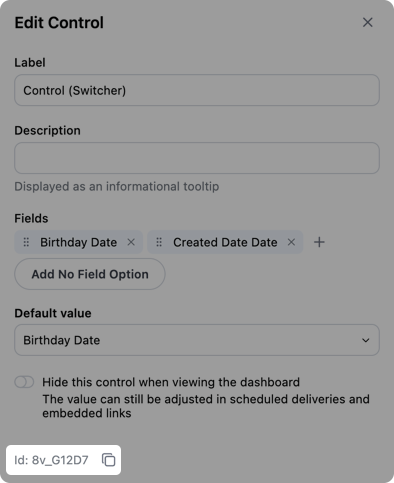
2. Locate the control or filter at the top of the dashboard and click the <Icon icon="pencil" iconType="solid" /> (pencil) icon to open the **Edit** panel.
3. Locate the **ID** field at the bottom of the panel. In the example image, the ID is `8v_G12D7`.

<img src="https://mintcdn.com/omni-e7402367/LV2c4CXjbFMv1AXp/images/docs/visualization-and-dashboards/dynamic-vis-and-text/assets/images/find-control-id-1e33ca3928e319f5807f1c7501023be0.png?fit=max&auto=format&n=LV2c4CXjbFMv1AXp&q=85&s=1f342757e3a447ff545e09125ac2ec26" alt="Highlighted ID value in the Edit control panel" width="394" height="483" data-path="images/docs/visualization-and-dashboards/dynamic-vis-and-text/assets/images/find-control-id-1e33ca3928e319f5807f1c7501023be0.png" />

<Tip>
  Control and filter IDs are configurable. To change an ID, edit the **ID** field in the control or filter's **Edit** panel. You'll have to update existing references - Omni won't automatically do this when you change the ID.
</Tip>

## Query fields

<Note>
  Query field tags are only supported in visualizations, meaning they can't be used in [Markdown dashboard tiles](/visualize-present/dashboards/text-markdown).
</Note>

Returns metadata about a specific query field.

```handlebars title="Syntax" theme={null}
{{fields.view_name.field_name.element}}
```

Requires the following keys:

<ParamField path="fields" required>
  Accesses query field data
</ParamField>

<ParamField path="view_name" required>
  The name of the view that contains the field
</ParamField>

<ParamField path="field_name" required>
  The name of the field
</ParamField>

<ParamField path="element" required>
  The data you want to retrieve, such as the display name of the field. Refer to the following sections for information on what is currently supported.
</ParamField>

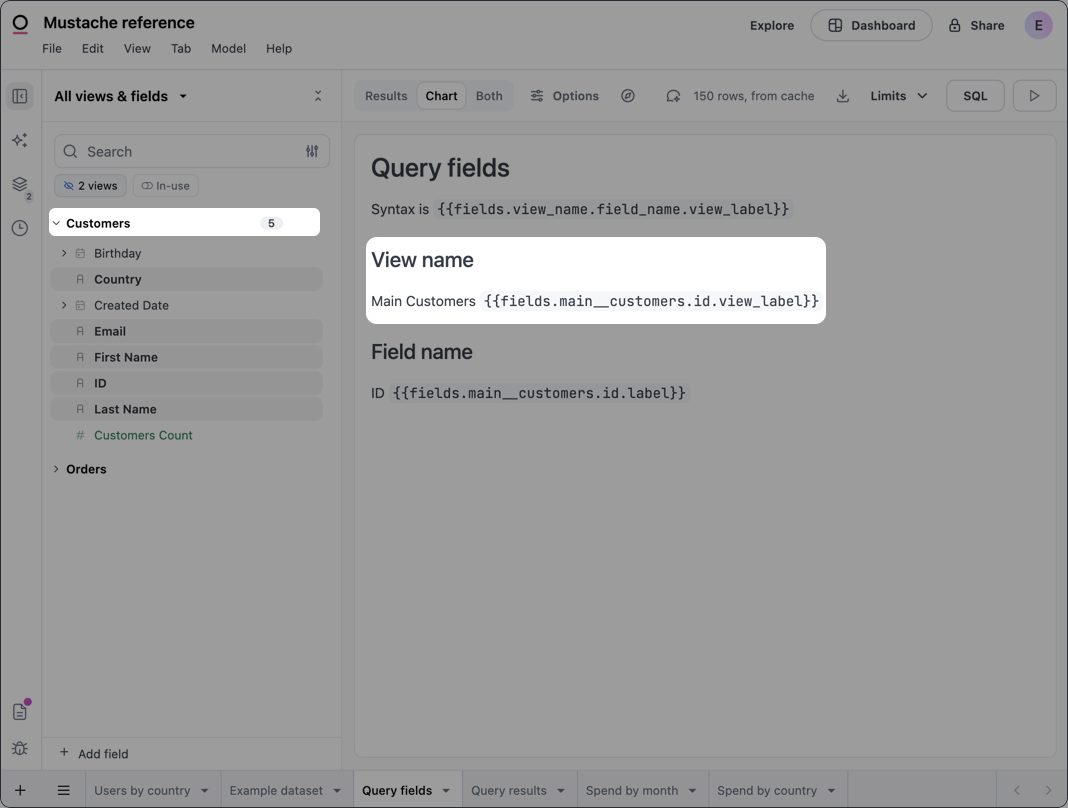
### View name

Returns the display name of the view that contains the specified field.

```handlebars title="Syntax" theme={null}
{{fields.view_name.field_name.view_label}}
```

<Card cols={2} title="Example">
  <Columns>
    <div>
      ```handlebars title="Input" theme={null}
      {{fields.customers.id.view_label}}
      ```
    </div>

    <Frame>
      <img src="https://mintcdn.com/omni-e7402367/LV2c4CXjbFMv1AXp/images/docs/visualization-and-dashboards/dynamic-vis-and-text/assets/images/mustache-view-name-6dcd5c95af0f5216fbede8b9bf1cf1bc.png?fit=max&auto=format&n=LV2c4CXjbFMv1AXp&q=85&s=977300cf89d24eed7827d7a107342d37" alt="Example view name" width="1068" height="808" data-path="images/docs/visualization-and-dashboards/dynamic-vis-and-text/assets/images/mustache-view-name-6dcd5c95af0f5216fbede8b9bf1cf1bc.png" />
    </Frame>
  </Columns>
</Card>

### Field name

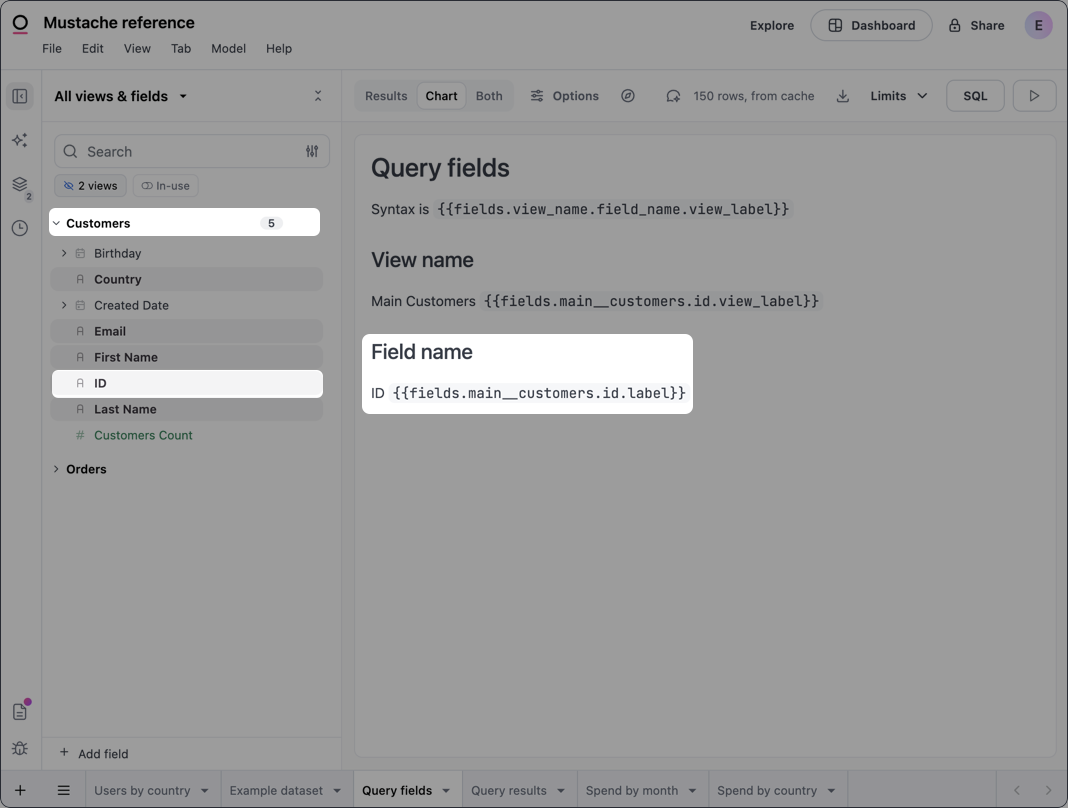
Returns the display name of the field.

```handlebars title="Syntax" theme={null}
{{fields.view_name.field_name.label}}
```

<Card cols={2} title="Example">
  <Columns>
    <div>
      ```handlebars title="Input" theme={null}
      {{fields.customers.id.label}}
      ```
    </div>

    <Frame>
      <img src="https://mintcdn.com/omni-e7402367/LV2c4CXjbFMv1AXp/images/docs/visualization-and-dashboards/dynamic-vis-and-text/assets/images/mustache-field-name-8108cca7ff110a46a0320689c8656728.png?fit=max&auto=format&n=LV2c4CXjbFMv1AXp&q=85&s=beabfd123bd7c94ee7e5be1093ed851c" alt="Example field name" width="1068" height="808" data-path="images/docs/visualization-and-dashboards/dynamic-vis-and-text/assets/images/mustache-field-name-8108cca7ff110a46a0320689c8656728.png" />
    </Frame>
  </Columns>
</Card>

### Field description

Returns the [description](/modeling/dimensions/parameters/description) of the field as defined in the model.

```handlebars title="Syntax" theme={null}
{{fields.view_name.field_name.description}}
```

```handlebars title="Example" theme={null}
{{fields.customers.lifetime_value.description}}
```

## Query results

<Note>
  Query result tags are only supported in visualizations, meaning they can't be used in [Markdown dashboard tiles](/visualize-present/dashboards/text-markdown).
</Note>

Returns a result value from a query. The syntax varies depending on the data point you want to retrieve, but typically looks like the following:

```handlebars title="Syntax" theme={null}
{{result.data_point.view_name.field_name.value_type}}
```

The following keys must always be provided, regardless of the data point being retrieved:

<ParamField path="result" required>
  Accesses query result data
</ParamField>

<ParamField path="data_point" required>
  The type of data point you want to retrieve, such as the value of a field in the first row of query results (`_first`). Refer to the following sections for information on what's currently supported.
</ParamField>

<ParamField path="view_name" required>
  The name of the view that contains the field
</ParamField>

<ParamField path="field_name" required>
  The name of the field. Refer to the [Locating keys section](#view_name-and-field_name) for help finding this and the `view_name`.
</ParamField>

<ParamField path="value_type" required>
  Determines the level of interactivity and formatting of the returned value:

  * `value` - Interactive; user can click to copy, drill, etc.
  * `value_static` - Formatting applied, no interactivity
  * `raw` - No formatting or interactivity
</ParamField>

### First row value

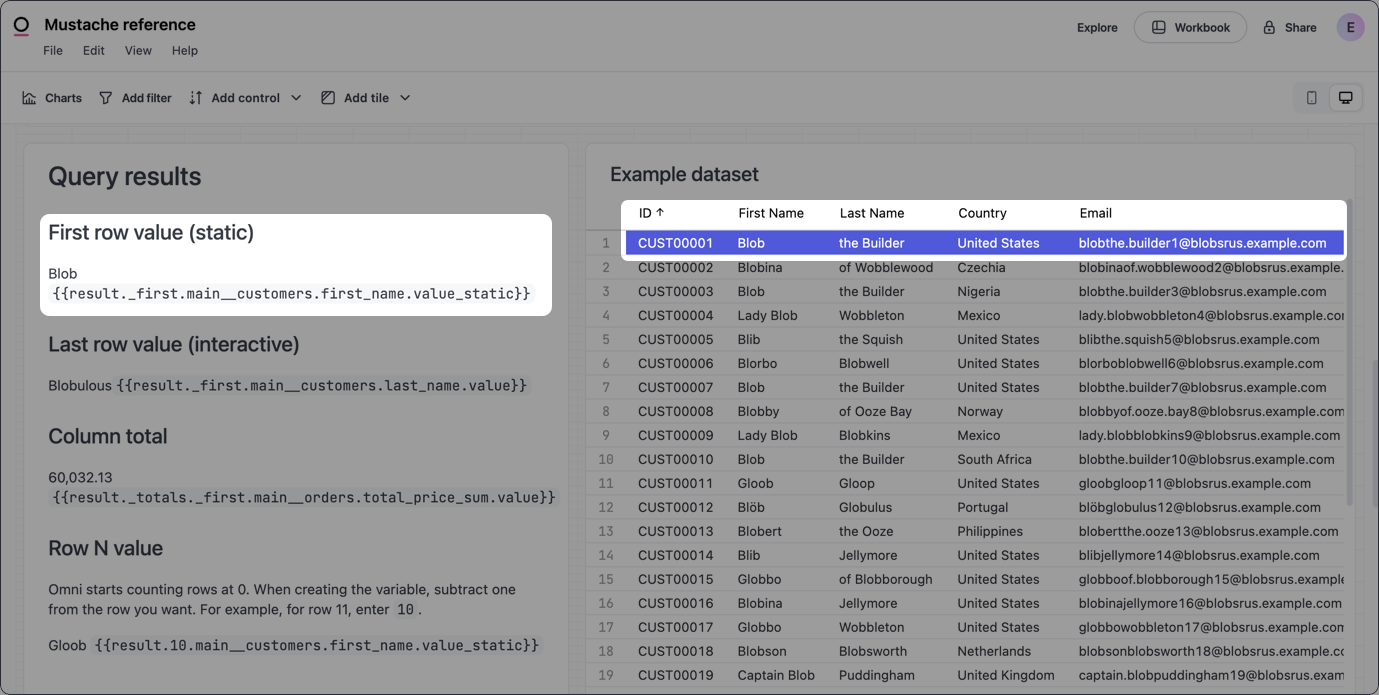
Returns the first value in the result set for the specified field.

```handlebars title="Syntax" theme={null}
{{result._first.view_name.field_name.value_type}}
```

This example uses `value_static`, which returns a formatted value with no interactivity:

<Card cols={2} title="Example">
  <Columns>
    <div>
      ```handlebars title="Input" theme={null}
      {{result._first.customers.first_name.value_static}}
      ```
    </div>

    <Frame>
      <img src="https://mintcdn.com/omni-e7402367/LV2c4CXjbFMv1AXp/images/docs/visualization-and-dashboards/dynamic-vis-and-text/assets/images/mustache-results-first-row-1f6c480a06ee3a2d74698c82d3fa5462.png?fit=max&auto=format&n=LV2c4CXjbFMv1AXp&q=85&s=8b7892371bb0b00f0b580124232a97ad" alt="Example first row value" width="1379" height="695" data-path="images/docs/visualization-and-dashboards/dynamic-vis-and-text/assets/images/mustache-results-first-row-1f6c480a06ee3a2d74698c82d3fa5462.png" />
    </Frame>
  </Columns>
</Card>

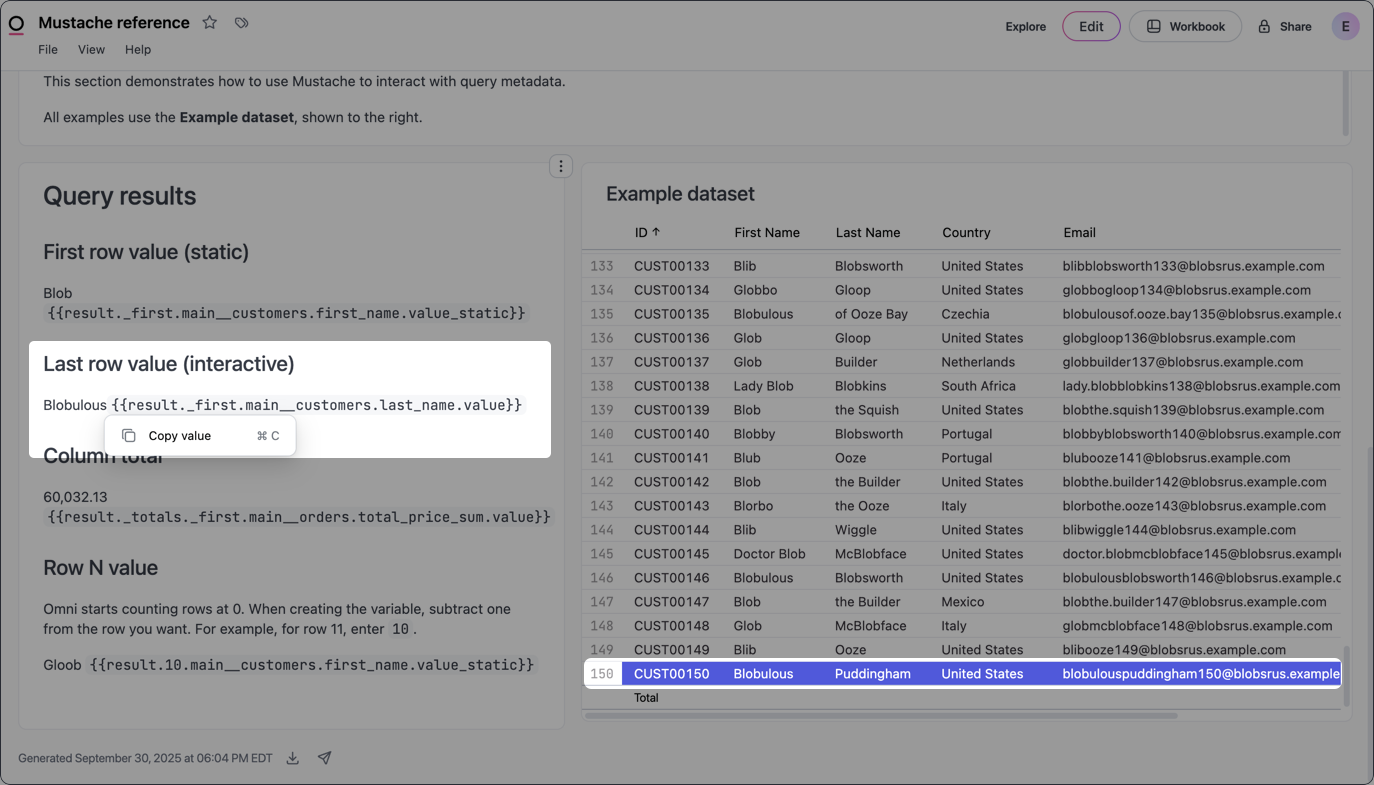
### Last row value

Returns the last value in the result set for the specified field.

```handlebars title="Syntax" theme={null}
{{result._last.view_name.field_name.value_type}}
```

This example uses `value`, which allows dashboard users to click and interact with the value. Note the dropdown menu over the value in the example image.

<Card cols={2} title="Example">
  <Columns>
    <div>
      ```handlebars title="Input" theme={null}
      {{result._last.customers.first_name.value}}
      ```
    </div>

    <Frame>
      <img src="https://mintcdn.com/omni-e7402367/LV2c4CXjbFMv1AXp/images/docs/visualization-and-dashboards/dynamic-vis-and-text/assets/images/mustache-results-last-row-237782dfff1930b52f45902cefd55a74.png?fit=max&auto=format&n=LV2c4CXjbFMv1AXp&q=85&s=26f61ae27727efb8784266a6aecf00ca" alt="Example last row value" width="1374" height="785" data-path="images/docs/visualization-and-dashboards/dynamic-vis-and-text/assets/images/mustache-results-last-row-237782dfff1930b52f45902cefd55a74.png" />
    </Frame>
  </Columns>
</Card>

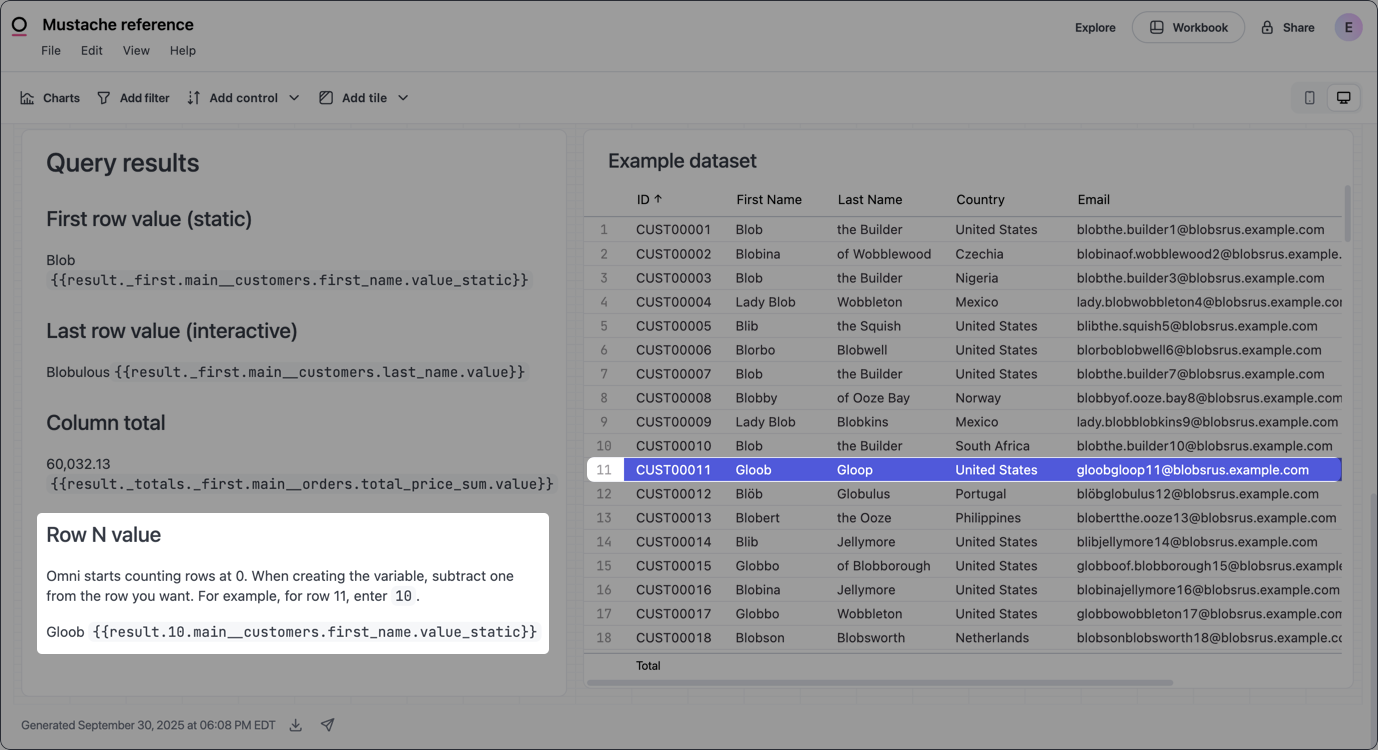
### Specific row value

Returns a field value from the specified row (`row_number`) in the result set.

In Omni, row numbering begins at 0. When you define the variable, subtract **one** from the number of the actual row you want to reference.

```handlebars title="Syntax" theme={null}
{{result.row_number.view_name.field_name.value_type}}
```

For example, to return a value from row `11`, use `10` as the `row_number`:

<Card cols={2} title="Example">
  <Columns>
    <div>
      ```handlebars title="Input" theme={null}
      {{result.10.customers.first_name.raw}}
      ```
    </div>

    <Frame>
      <img src="https://mintcdn.com/omni-e7402367/LV2c4CXjbFMv1AXp/images/docs/visualization-and-dashboards/dynamic-vis-and-text/assets/images/mustache-results-row-n-value-df2d5390e770ab1d7c5b5fabb9b1ed85.png?fit=max&auto=format&n=LV2c4CXjbFMv1AXp&q=85&s=f5bf7d0259d856eb204c9a6dc0e1a76e" alt="Example specific row value" width="1378" height="750" data-path="images/docs/visualization-and-dashboards/dynamic-vis-and-text/assets/images/mustache-results-row-n-value-df2d5390e770ab1d7c5b5fabb9b1ed85.png" />
    </Frame>
  </Columns>
</Card>

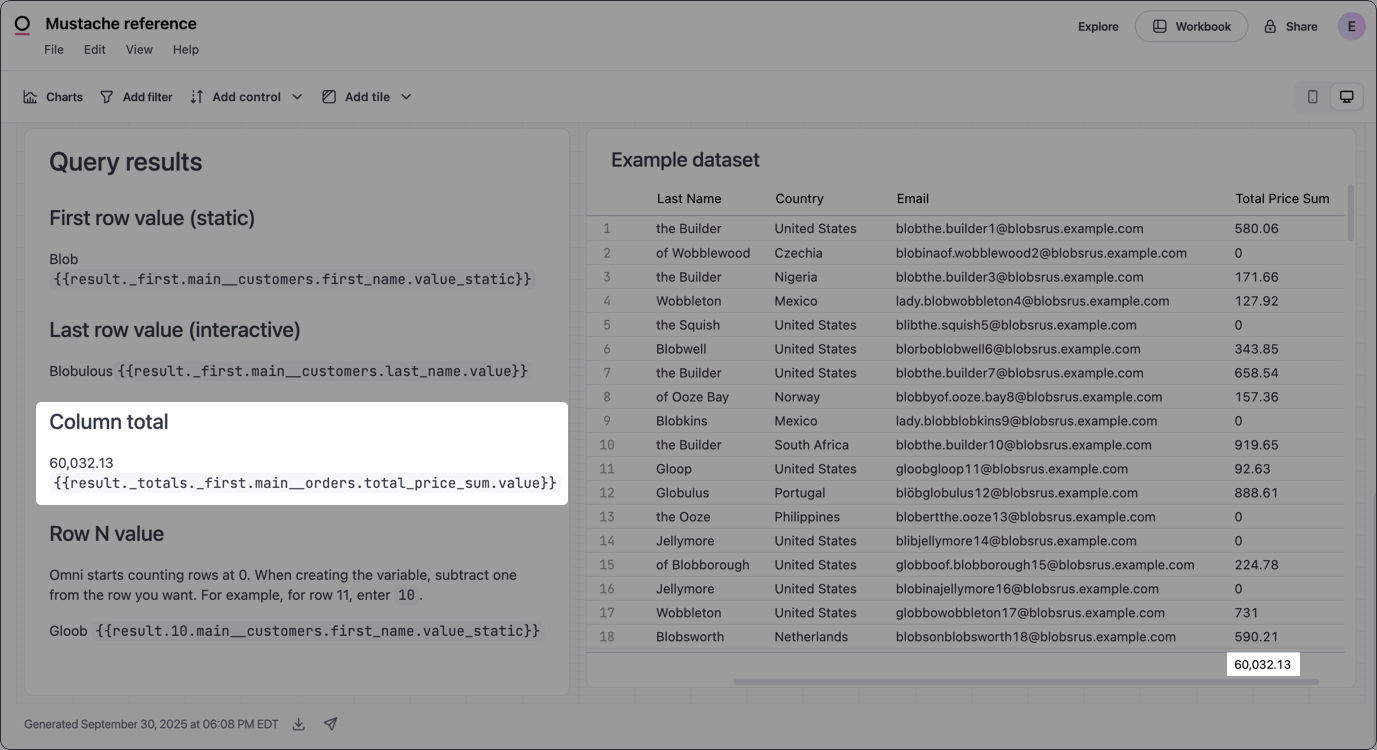
### Column total

Returns the total of a specified column in the result set. Requires [**Column totals**](/analyze-explore/point-click-queries#column-totals) to be enabled in the query's **Results options** panel.

```handlebars title="Syntax" theme={null}
{{result._total.first.view_name.field_name.value_type}}
```

<Card cols={2} title="Example">
  <Columns>
    <div>
      ```handlebars title="Input" theme={null}
      {{result._total.first.customers.total_price_sum.value}}
      ```
    </div>

    <Frame>
      <img src="https://mintcdn.com/omni-e7402367/LV2c4CXjbFMv1AXp/images/docs/visualization-and-dashboards/dynamic-vis-and-text/assets/images/mustache-column-total-b2dca5c3a7f0c9e41c474e1b36ff41e1.png?fit=max&auto=format&n=LV2c4CXjbFMv1AXp&q=85&s=95f0c2719cc56d8a0b4d25159970a30a" alt="Example column total" width="1377" height="750" data-path="images/docs/visualization-and-dashboards/dynamic-vis-and-text/assets/images/mustache-column-total-b2dca5c3a7f0c9e41c474e1b36ff41e1.png" />
    </Frame>
  </Columns>
</Card>

### Row total

Returns the total of a specified row (`row_number`) in a **pivoted** result set. Requires a query with at least one pivot and for [**Row totals**](/analyze-explore/point-click-queries#row-totals) to be enabled in the query's **Results options** panel.

In Omni, row numbering begins at 0. When you define the variable, subtract **one** from the number of the actual row you want to reference.

```handlebars title="Syntax" theme={null}
{{result.row_number.row_total.view_name.field_name.value_type}}
```

For example, to return values from row `6`, use `5` as the `row_number`:

```handlebars title="Example" theme={null}
{{result.5.row_total.order_items.sale_price_sum.value}}
```

### Grand total

Returns the grand total of a specified column in a **pivoted** result set. Requires a query with at least one pivot and for [**Column totals**](/analyze-explore/point-click-queries#column-totals) to be enabled in the query's **Results options** panel.

```handlebars title="Syntax" theme={null}
{{result.totals._first.row_total.view_name.field_name.value_type}}
```

```handlebars title="Example" theme={null}
{{result.totals._first.row_total.customers.total_price_sum.value}}
```

## Query and user attribute inspection

<Note>
  Query & user attribute inspection is only supported in Markdown visualizations.
</Note>

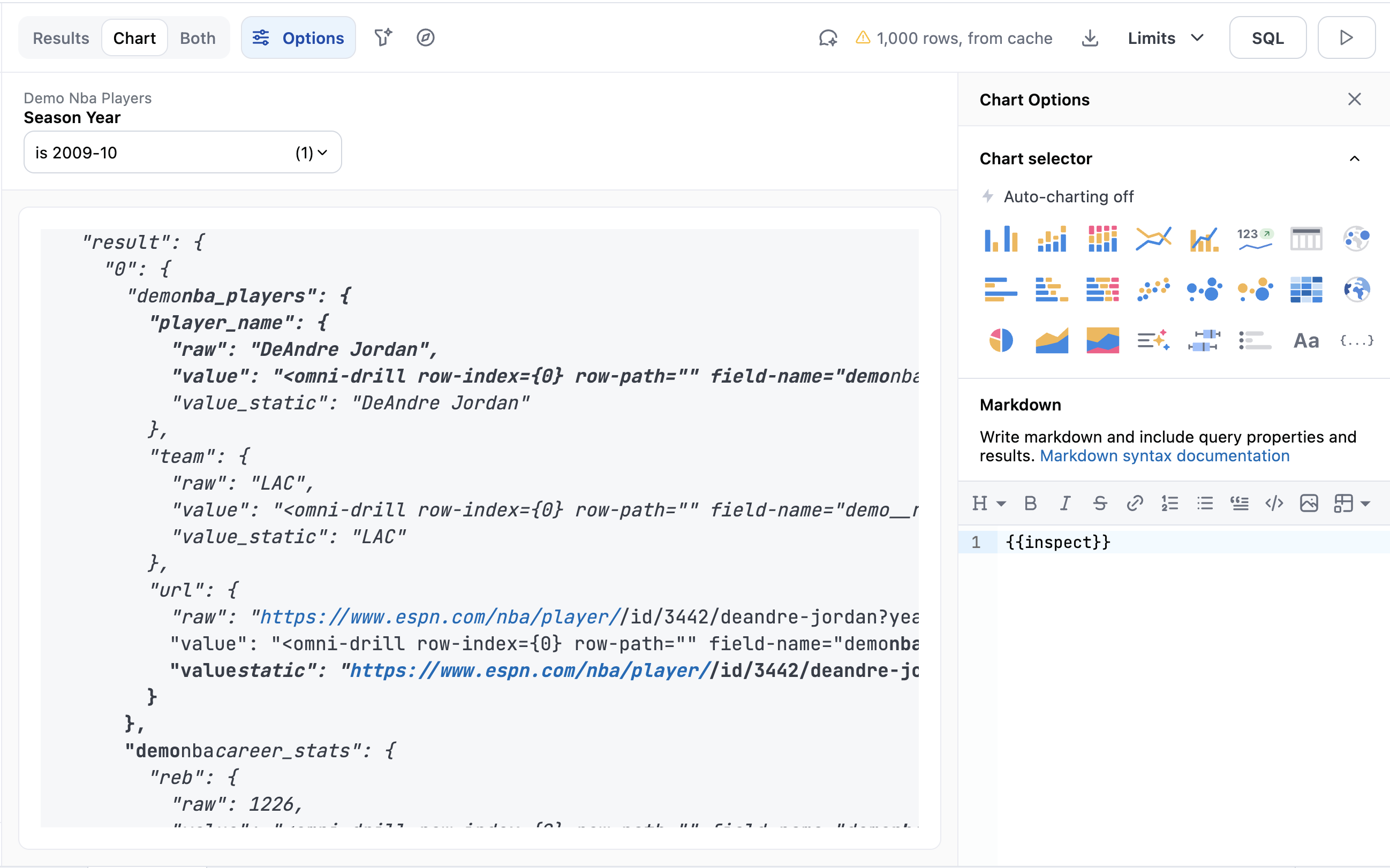
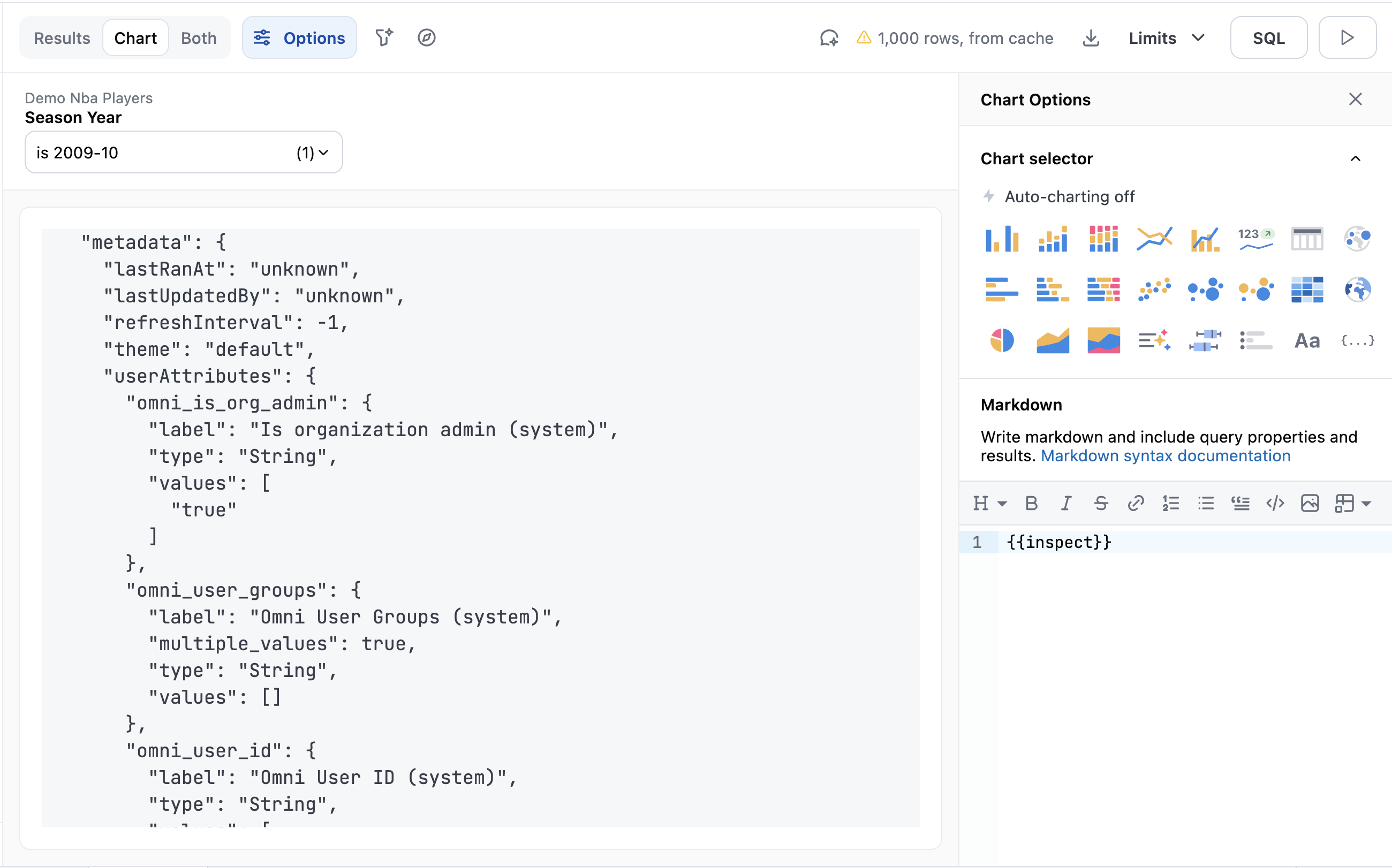
Returns the elements of a query and user attribute metadata in JSON format.

```handlebars title="Syntax" theme={null}
{{inspect}}
```

<img src="https://mintcdn.com/omni-e7402367/LV2c4CXjbFMv1AXp/images/docs/visualization-and-dashboards/dynamic-vis-and-text/assets/images/inspect-result-data-0cb2efd1edfbd8fcc80fe53ae4335c2e.png?fit=max&auto=format&n=LV2c4CXjbFMv1AXp&q=85&s=1f4d63a4fc3f46e0685922c4b46bc3c9" alt="" width="2596" height="1622" data-path="images/docs/visualization-and-dashboards/dynamic-vis-and-text/assets/images/inspect-result-data-0cb2efd1edfbd8fcc80fe53ae4335c2e.png" />

<img src="https://mintcdn.com/omni-e7402367/LV2c4CXjbFMv1AXp/images/docs/visualization-and-dashboards/dynamic-vis-and-text/assets/images/inspect-user-metadata-6d5474f9a88e0bca03dbf7fdbb87a66d.png?fit=max&auto=format&n=LV2c4CXjbFMv1AXp&q=85&s=a7f45571bf7456f13f211fe8fa16d682" alt="" width="2600" height="1622" data-path="images/docs/visualization-and-dashboards/dynamic-vis-and-text/assets/images/inspect-user-metadata-6d5474f9a88e0bca03dbf7fdbb87a66d.png" />

## Filters

Returns metadata about [dashboard](/visualize-present/dashboards/filters) and workbook filters.

The syntax differs depending on where the filter is located:

* **Dashboard filters** use the filter's ID: `{{filters.filter_id.element}}`
* **Workbook filters** use the view and field name: `{{filters.view_name.field_name.element}}`
<Tabs>
  <Tab title="Dashboard">
    ```handlebars theme={null}
    {{filters.filter_id.element}}
    ```
  </Tab>

  <Tab title="Workbook">
    ```handlebars theme={null}
    {{filters.view_name.field_name.element}}
    ```
  </Tab>
</Tabs>

Requires the following keys:

<ParamField path="filters" required>
  Accesses filter data
</ParamField>

<ParamField path="filter_id">
  The ID of a dashboard filter. Refer to the [Locating keys section](#control_id-and-filter_id) for help finding this value.
</ParamField>

<ParamField path="view_name">
  The name of the view that contains the field used in a workbook filter
</ParamField>

<ParamField path="field_name">
  The name of the field used in a workbook filter. Refer to the [Locating keys section](#view_name-and-field_name) for help finding this and the `view_name`.
</ParamField>

<ParamField path="element" required>
  The data you want to retrieve, such as `label`. Refer to the following section for information on what's currently supported.
</ParamField>

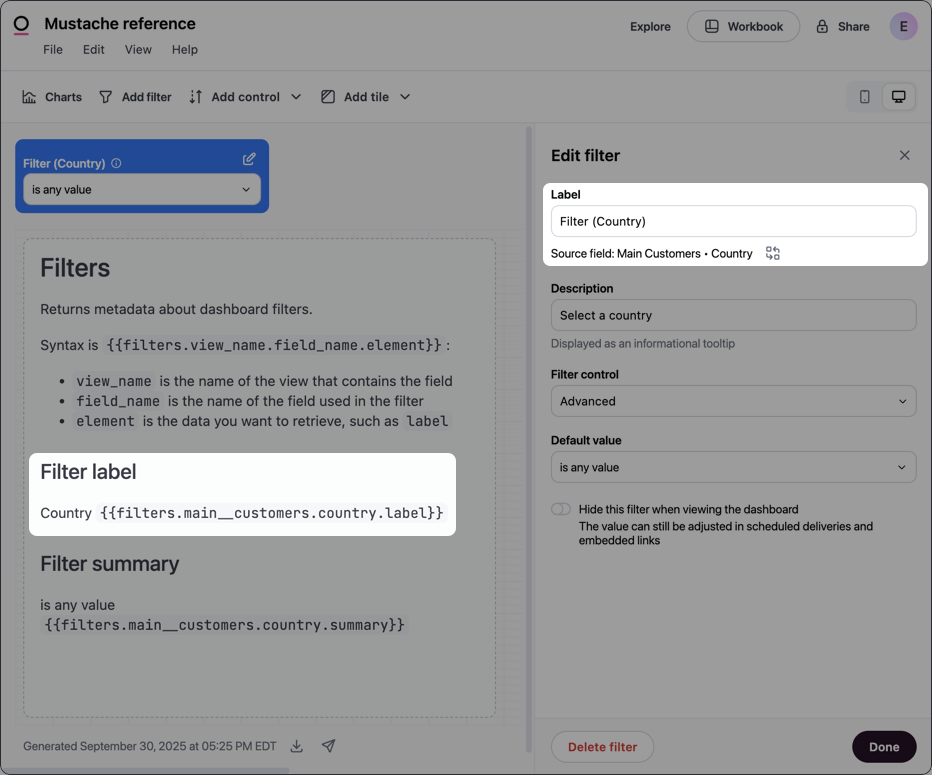
### Label

Returns the label of the filter. In a dashboard, open the **Edit** panel for the filter and locate the **Label** field.

<Tabs>
  <Tab title="Dashboard">
    ```handlebars theme={null}
    {{filters.filter_id.label}}
    ```
  </Tab>

  <Tab title="Workbook">
    ```handlebars theme={null}
    {{filters.view_name.field_name.label}}
    ```
  </Tab>
</Tabs>

<Card cols={2} title="Example (workbook)">
  <Columns>
    <div>
      ```handlebars title="Input" theme={null}
      {{filters.customers.country.label}}
      ```
    </div>

    <Frame>
      <img src="https://mintcdn.com/omni-e7402367/LV2c4CXjbFMv1AXp/images/docs/visualization-and-dashboards/dynamic-vis-and-text/assets/images/mustache-filter-label-e7f42057fd6a919dcf4f07de3e81e159.png?fit=max&auto=format&n=LV2c4CXjbFMv1AXp&q=85&s=95f58a65e5ac5e058262bef5611736d6" alt="Example filter label" width="932" height="775" data-path="images/docs/visualization-and-dashboards/dynamic-vis-and-text/assets/images/mustache-filter-label-e7f42057fd6a919dcf4f07de3e81e159.png" />
    </Frame>
  </Columns>
</Card>

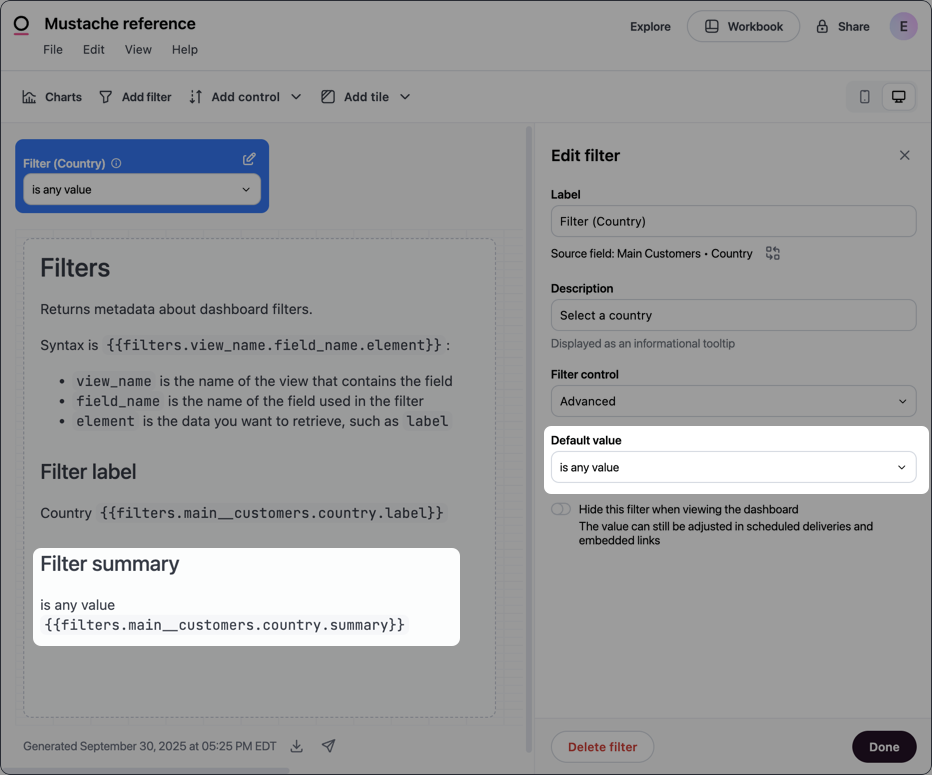
### Summary

Returns the default value (summary) of the filter. In a dashboard, open the **Edit** panel for the filter and locate the **Default value** field.

<Tabs>
  <Tab title="Dashboard">
    ```handlebars theme={null}
    {{filters.filter_id.summary}}
    ```
  </Tab>

  <Tab title="Workbook">
    ```handlebars theme={null}
    {{filters.view_name.field_name.summary}}
    ```
  </Tab>
</Tabs>

<Card cols={2} title="Example (workbook)">
  <Columns>
    <div>
      ```handlebars title="Input" theme={null}
      {{filters.customers.country.summary}}
      ```
    </div>

    <Frame>
      <img src="https://mintcdn.com/omni-e7402367/LV2c4CXjbFMv1AXp/images/docs/visualization-and-dashboards/dynamic-vis-and-text/assets/images/mustache-filter-summary-a4dbfca36b7d9b8e73273e1083052ce6.png?fit=max&auto=format&n=LV2c4CXjbFMv1AXp&q=85&s=0eadcc96fc78066af7b81f1b36c479e0" alt="Example filter summary" width="932" height="775" data-path="images/docs/visualization-and-dashboards/dynamic-vis-and-text/assets/images/mustache-filter-summary-a4dbfca36b7d9b8e73273e1083052ce6.png" />
    </Frame>
  </Columns>
</Card>

### Value

Returns the current value of the filter.

<Tabs>
  <Tab title="Dashboard">
    ```handlebars theme={null}
    {{filters.filter_id.value}}
    ```
  </Tab>

  <Tab title="Workbook">
    ```handlebars theme={null}
    {{filters.view_name.field_name.value}}
    ```
  </Tab>
</Tabs>

```handlebars title="Example (workbook)" theme={null}
{{filters.customers.country.value}}
```

### URL-encoded value

Returns the current value of the filter, URL-encoded. Use this when you need to include filter values in URL query parameters within Markdown links.

<Tabs>
  <Tab title="Dashboard">
    ```handlebars theme={null}
    {{filters.filter_id.value_url_encoded}}
    ```
  </Tab>

  <Tab title="Workbook">
    ```handlebars theme={null}
    {{filters.view_name.field_name.value_url_encoded}}
    ```
  </Tab>
</Tabs>

```handlebars title="Example (dashboard)" theme={null}
[View details](https://example.com/report?country={{filters.8v_G12D7.value_url_encoded}})
```

### JSON

Returns the URL-encoded JSON of the filter.

<Tabs>
  <Tab title="Dashboard">
    ```handlebars theme={null}
    {{filters.filter_id.json}}
    ```
  </Tab>

  <Tab title="Workbook">
    ```handlebars theme={null}
    {{filters.view_name.field_name.json}}
    ```
  </Tab>
</Tabs>

```handlebars title="Example (dashboard)" theme={null}
{{filters.8v_G12D7.json}}
```

## Controls

Returns metadata about [dashboard controls](/visualize-present/dashboards).

```handlebars title="Syntax" theme={null}
{{controls.control_id.element}}
```

Requires the following keys:

<ParamField path="controls" required>
  Accesses control data
</ParamField>

<ParamField path="control_id" required>
  The ID of the control, located in the **Edit control** panel. Refer to the [Locating keys section](#control_id-and-filter_id) if you need help finding this panel.
</ParamField>

<ParamField path="element" required>
  The data you want to retrieve, such as `label`. Refer to the following section for information on what's currently supported.
</ParamField>

### Label

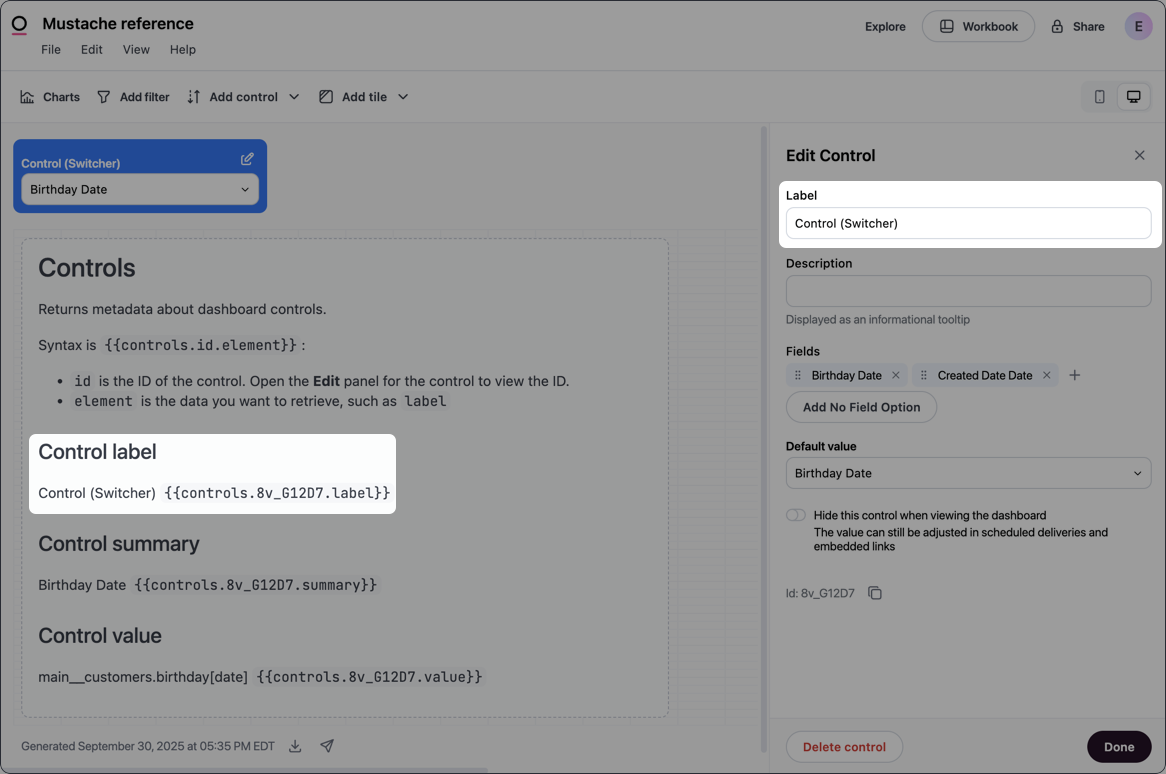
Returns the label of the control. In a dashboard, open the **Edit** panel for the control and locate the **Label** field.

```handlebars title="Syntax" theme={null}
{{controls.id.label}}
```

<Card cols={2} title="Example">
  <Columns>
    <div>
      ```handlebars title="Input" theme={null}
      {{controls.8v_G12D7.label}}
      ```
    </div>

    <Frame>
      <img src="https://mintcdn.com/omni-e7402367/LV2c4CXjbFMv1AXp/images/docs/visualization-and-dashboards/dynamic-vis-and-text/assets/images/mustache-control-label-2c49a139c9205eb1bb65e581bfb34062.png?fit=max&auto=format&n=LV2c4CXjbFMv1AXp&q=85&s=e459502046f9506ccbb4d6b3ee48ea60" alt="Example control label" width="1166" height="774" data-path="images/docs/visualization-and-dashboards/dynamic-vis-and-text/assets/images/mustache-control-label-2c49a139c9205eb1bb65e581bfb34062.png" />
    </Frame>
  </Columns>
</Card>

### Summary

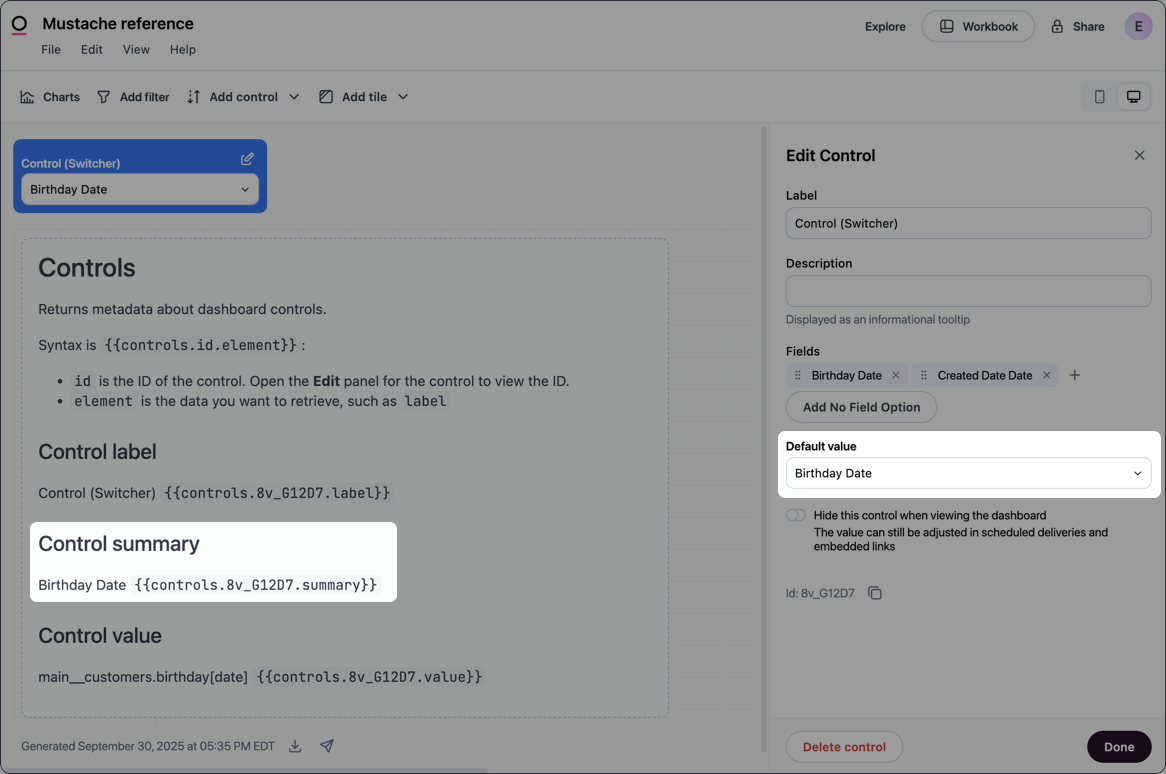
Returns the default value (summary) of the control. In a dashboard, open the **Edit** panel for the control and locate the **Default value** field.

```handlebars title="Syntax" theme={null}
{{controls.id.summary}}
```

<Card cols={2} title="Example">
  <Columns>
    <div>
      ```handlebars title="Input" theme={null}
      {{controls.8v_G12D7.summary}}
      ```
    </div>

    <Frame>
      <img src="https://mintcdn.com/omni-e7402367/LV2c4CXjbFMv1AXp/images/docs/visualization-and-dashboards/dynamic-vis-and-text/assets/images/mustache-control-summary-fb3824ac56fa5f98f99d6f7afb55a743.png?fit=max&auto=format&n=LV2c4CXjbFMv1AXp&q=85&s=a699ed3de400f5c622ef36641239945b" alt="Example control summary (default value)" width="1166" height="774" data-path="images/docs/visualization-and-dashboards/dynamic-vis-and-text/assets/images/mustache-control-summary-fb3824ac56fa5f98f99d6f7afb55a743.png" />
    </Frame>
  </Columns>
</Card>

### Value

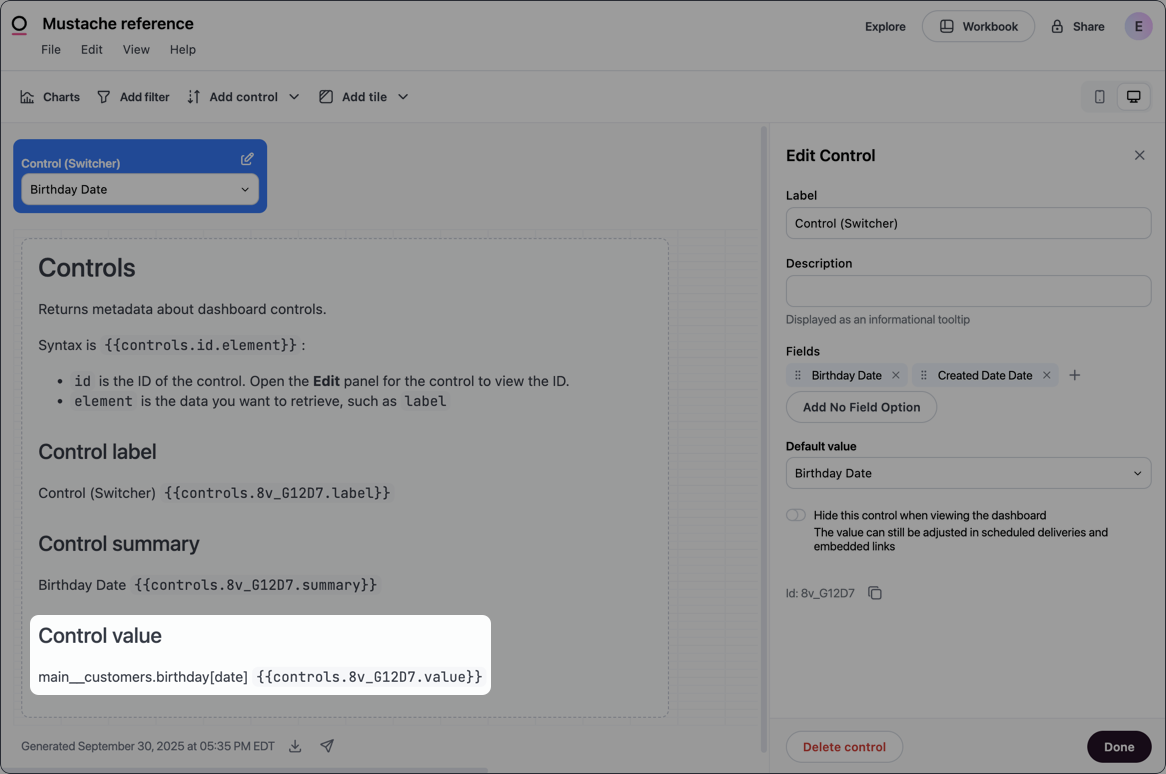
Returns the full database name (`view_name.field_name`) of the field currently selected in the control.

```handlebars title="Syntax" theme={null}
{{controls.id.value}}
```

<Card cols={2} title="Example">
  <Columns>
    <div>
      ```handlebars title="Input" theme={null}
      {{controls.8v_G12D7.value}}
      ```
    </div>

    <Frame>
      <img src="https://mintcdn.com/omni-e7402367/LV2c4CXjbFMv1AXp/images/docs/visualization-and-dashboards/dynamic-vis-and-text/assets/images/mustache-control-value-a06e1fdaa9558f3f39417c4a2327999b.png?fit=max&auto=format&n=LV2c4CXjbFMv1AXp&q=85&s=0b6e723d742f3bcf0747bb31684d58a1" alt="Example control value" width="1166" height="774" data-path="images/docs/visualization-and-dashboards/dynamic-vis-and-text/assets/images/mustache-control-value-a06e1fdaa9558f3f39417c4a2327999b.png" />
    </Frame>
  </Columns>
</Card>

### URL-encoded value

Returns the value of the control, URL-encoded. Use this when you need to include control values in URL query parameters within Markdown links.

```handlebars title="Syntax" theme={null}
{{controls.id.value_url_encoded}}
```

```handlebars title="Example" theme={null}
[View details](https://example.com/report?field={{controls.8v_G12D7.value_url_encoded}})
```

### JSON

Returns the URL-encoded JSON of the control.

```handlebars title="Syntax" theme={null}
{{controls.id.json}}
```

```handlebars title="Example" theme={null}
{{controls.8v_G12D7.json}}
```

```txt wrap title="Example output" theme={null}
%7B%22id%22%3A%228v_G12D7%22%2C%22kind%22%3A%22FIELD%22%2C%22type%22%3A%22FIELD_SELECTION%22%2C%22field%22%3A%22customers.birthday%5Bdate%5D%22%2C%22label%22%3A%22Control%20(Switcher)%22%2C%22options%22%3A%5B%7B%22label%22%3A%22Birthday%20Date%22%2C%22value%22%3A%22maincustomers.birthday%5Bdate%5D%22%2C%22isDimension%22%3Atrue%7D%2C%7B%22label%22%3A%22Created%20Date%20Date%22%2C%22value%22%3A%22main__customers.created_date%5Bdate%5D%22%2C%22isDimension%22%3Atrue%7D%5D%7D
```

## Dashboard metadata

Returns metadata about the dashboard itself. Available in [Markdown dashboard tiles](/visualize-present/dashboards/text-markdown).

```handlebars title="Syntax" theme={null}
{{metadata.element}}
```

Requires the following keys:

<ParamField path="metadata" required>
  Accesses Omni metadata
</ParamField>

<ParamField path="element" required>
  The data you want to retrieve. Refer to the following sections for information on what's currently supported.
</ParamField>

### Created at

Returns the timestamp when the dashboard was created.

```handlebars title="Syntax" theme={null}
{{metadata.createdAt}}
```

### Created by

Returns the name of the user who created the dashboard.

```handlebars title="Syntax" theme={null}
{{metadata.createdBy}}
```

### Last updated at

Returns the timestamp when the dashboard was last modified.

```handlebars title="Syntax" theme={null}
{{metadata.lastUpdatedAt}}
```

## User attribute metadata

Returns information about the [user attributes](/administration/users/attributes) associated with the user currently viewing the dashboard.

```handlebars theme={null}
{{metadata.userAttributes.attribute_reference.element}}
```

Requires the following keys:

<ParamField path="metadata" required>
  Accesses Omni metadata
</ParamField>

<ParamField path="userAttributes" required>
  Accesses Omni user attribute data
</ParamField>

<ParamField path="attribute_reference" required>
  The reference of the attribute you want to retrieve data for, for example `omni_user_email`. The following sections demonstrate some of the Omni system attributes you can use in tags. Refer to the **Reference** column in [**Settings > User attributes**](/administration/users/attributes) to locate an attribute's reference.
</ParamField>

<ParamField path="element" required>
  The data you want to retrieve. Can be either of the following:

  * `label` - The display name of the attribute, for example `Omni user email`
  * `values` - The attribute value set for the user
</ParamField>

### User email

Returns the email address (`omni_user_email` value) of the user currently viewing the dashboard.

```handlebars title="Syntax" theme={null}
{{metadata.userAttributes.omni_user_email.values}}
```

### User name

Returns the user name (`omni_user_name` value) of the user currently viewing the dashboard.

```handlebars title="Syntax" theme={null}
{{metadata.userAttributes.omni_user_name.values}}
```

### User ID

Returns the user ID (`omni_user_id` value) of the user currently viewing the dashboard.

```handlebars title="Syntax" theme={null}
{{metadata.userAttributes.omni_user_id.values}}
```

### Is org admin?

Returns `true` if the user currently viewing the dashboard is an [Organization Admin](/administration/users/permissions) (`omni_is_org_admin` value). Otherwise, returns `false`.

```handlebars title="Syntax" theme={null}
{{metadata.userAttributes.omni_is_org_admin.values}}
```

### Custom user attribute

Returns the value of a [custom user attribute](/administration/users/attributes) of the user currently viewing the dashboard, where `custom_attribute_reference` is the **reference** of the custom attribute.

```handlebars title="Syntax" theme={null}
{{metadata.userAttributes.custom_attribute_reference.values}}
```

```handlebars title="Example" theme={null}
{{metadata.userAttributes.blob_entity.values}}
```

### User groups

Returns a list of [user groups](/administration/users/groups) (`omni_user_groups` value) that the user currently viewing the dashboard is a member of.

If the user is a member of more than one group, the output will be a comma-delimited list like `Group 1, Group 2`.

```handlebars title="Syntax" theme={null}
{{metadata.userAttributes.omni_user_groups.values}}
```